User Information
Overview
The User Information page in AlarmInstall lets installers review their account name and phone number, change the account password, and remove the account from the application.
Use this page when installers need to:
- View the name and phone number associated with the current AlarmInstall account.
- Change the account password.
- Start the account removal process.
This page helps installers manage personal account access and account lifecycle actions from one place.
Before you begin
Preconditions
- The installer is signed in to AlarmInstall Remote mode.
- The installer knows the current password.
- The mobile device has network connectivity.
Dependencies
- Account removal may affect access to panels, app data, and related services.
Limitations
warning
- Removing an account will permanently remove access to AlarmInstall services for that account.
- Account removal will not remove panel configuration.
Page layout
The User Information page displays the current user profile summary and account actions.
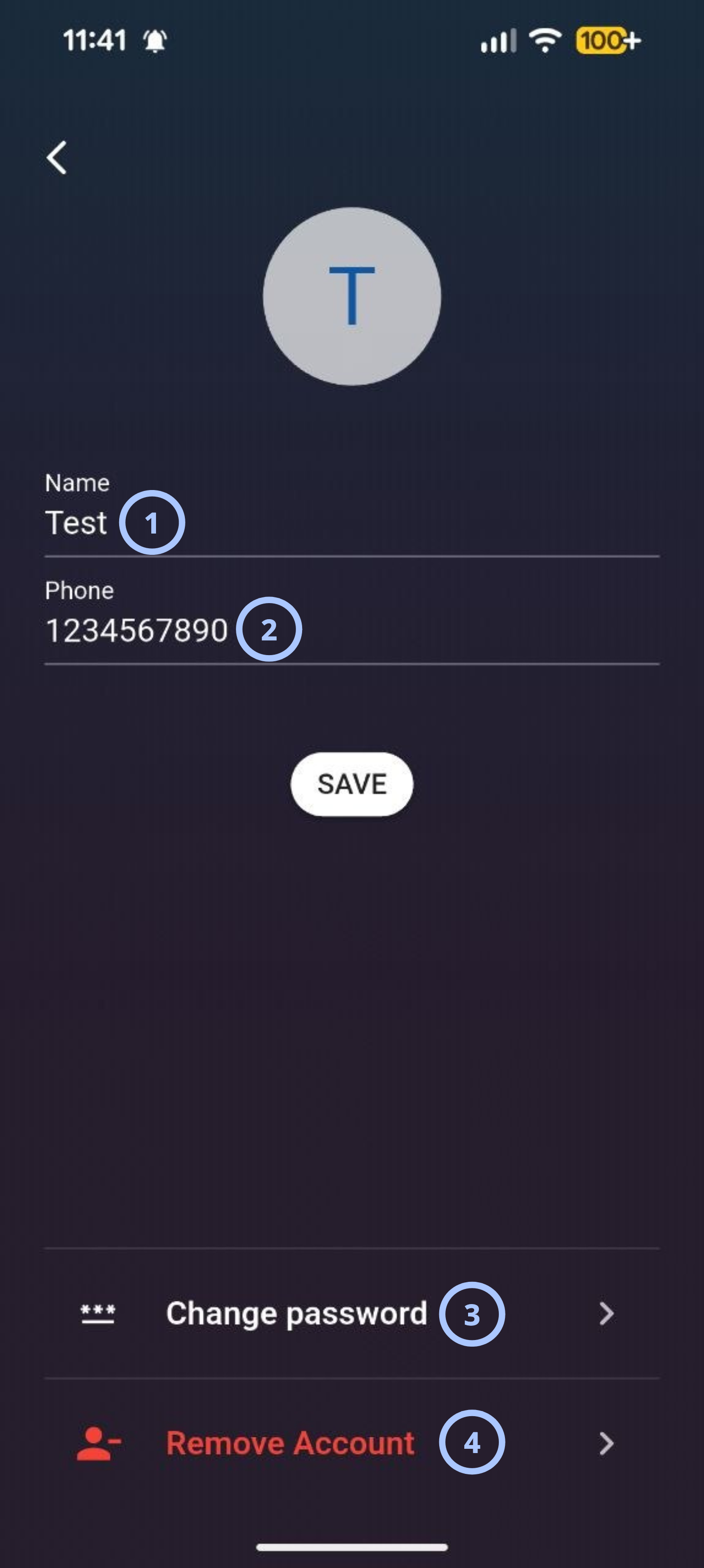
| Callout | UI element | Description | When to use |
|---|---|---|---|
| 1 | Change account name | Changes the account name for the current AlarmInstall account. | Use to change the account name. |
| 2 | Change account phone | Changes the phone number for the current AlarmInstall account. | Use to change the account phone. |
| 3 | Change password | Opens the password change workflow for the current AlarmInstall account. | Use to update the account password. |
| 4 | Remove Account | Starts the account removal workflow. | Use only when the installer wants to remove the current AlarmInstall account. |
danger
Use Remove Account carefully. Account removal will affect access to AlarmInstall and connected services.
How to use this page
Open user settings
- Open the AlarmInstall app.
- Sign in to your account in Remote mode.
- Open the
 menu.
menu. - Select User Information.
Change the account password
- Open User Information.
- Select Change password.
- Complete the password change form shown by the app.
- Enter the current password.
- Enter the new password.
- Confirm the new password.
- Select the confirmation action.
Remove the account
- Open User Information.
- Select Remove Account.
- Enter the current password.
- Confirm the account removal action.
danger
Account removal is permanent. Confirm the account email and understand the consequences before approving removal.
Tips
tip
- Confirm the email address before selecting User Information and then Remove Account.
- Change the password if the account password may have been shared, reused, or exposed.
- Use a strong password that is not used for other services.
- After changing the password, sign in again on trusted devices and sign out from devices that should no longer have access.
- Before removing an account, confirm whether the account is still needed for panels.
Troubleshooting
| Problem | Possible cause | What to try |
|---|---|---|
| Password change fails |
|
|
| Account removal fails |
|
|
| Account was removed by mistake |
|
|
Related pages
Was this page helpful?