Reset a password
Overview
Remote mode
You can reset your password only in Remote mode.
Use Forgot? to recover access to your AlarmInstall account by creating a new password. Use this workflow if you cannot sign in or need to replace your password.
Use this page when:
- You forget your password
- You need to replace an expired or compromised password
- You need to recover access after multiple failed sign-in attempts
This flow includes:
- Email verification
- Verification code validation
- Secure password replacement
After a successful password reset, you can sign in with your new credentials.
Before you begin
Before you reset your password, make sure these requirements are met.
Requirements
- AlarmInstall is installed on the device.
- You can access the registered email address.
- You have an existing AlarmInstall account.
- The Server address is correct.
Required information
You need:
- The server address
- Your registered email address
- The verification code from the reset email
Limitations
warning
- Verification codes may expire after a limited time.
- Multiple failed verification attempts may temporarily block the reset process.
- You must meet the password requirements before you can save the new password.
Screen layout
info
Before you read this page, review Access your account.
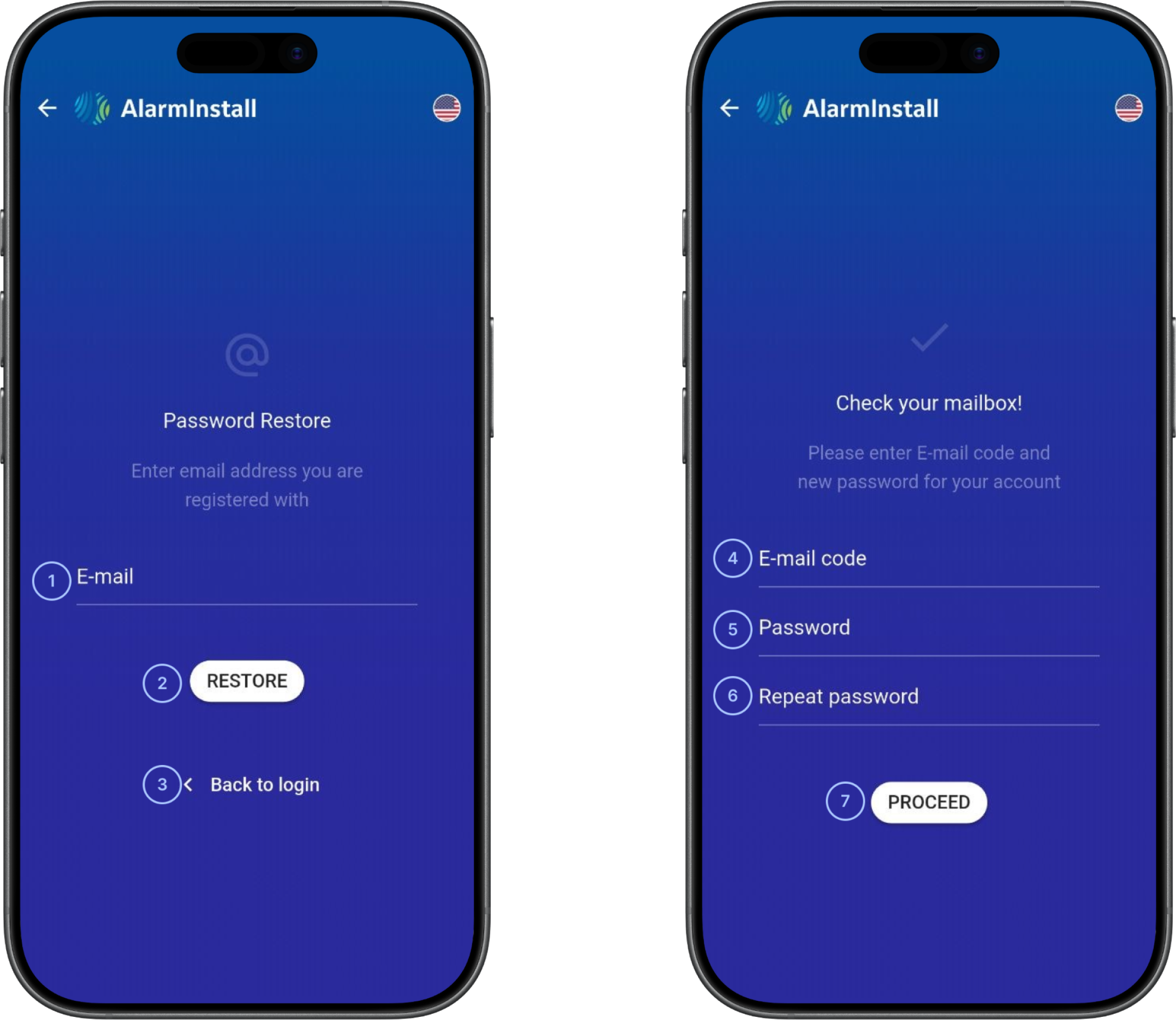
- E-mailEnter the registered email address to start the recovery process. The email address receives the verification code..
- RestoreStarts the password reset request and sends a verification code to your email address.
 Back to loginReturns you to the Login screen.
- E-mail codeEnter the code sent to your email address to verify that you own it. Codes expire after a limited time. PowerManage configures the code length and time to live (TTL). An invalid code prevents you from resetting your password.
- PasswordCreate the new account password. Characters are masked, and password complexity rules may apply.
- Repeat passwordEnter your new password again. It must match the password in the Password field.
- ProceedFinish the password reset process and save the new password.
Common scenarios
Reset a password
- Open the AlarmInstall app.
- On the Log in screen, select Forgot?.
- Enter the registered email address.
- Select Restore.
- Open the email from AlarmInstall.
- Enter the verification code.
- Enter a new password.
- Confirm the new password.
- Select Confirm.
The app updates your password. You can now sign in with the new password.
Tips
tip
- If you requested a verification code, you can enter it from the Login screen by selecting Have an email code? before it expires.
- Use a unique password for AlarmInstall. Avoid reusing passwords from other services.
- Complete the reset promptly to avoid code expiration.
- Check your spam or junk folder if the reset email is delayed.
- Store your updated credentials securely.
- Make sure you have an internet connection during the recovery process.
Troubleshooting
Verification code is invalid or expired
Possible causes:
- The code expired.
- The code was entered incorrectly.
What to try:
- Request a new verification code.
- Enter the code again carefully.
- Check that the device has an internet connection.
Reset email does not arrive
Possible causes:
- The email was delayed.
- The message was filtered to spam or junk.
What to try:
- Check the spam or junk folder.
- Resend the verification code.
- Contact your dealer or PowerManage administrator if the email still does not arrive.
Password does not meet requirements
Possible causes:
- The password is too short.
- The password does not meet the configured policy.
What to try:
- Add the required characters or increase the password length.
- Try again.
Repeated password does not match
Possible causes:
- The two password fields do not match.
What to try:
- Re-enter both password fields.
- Try again.
Related pages
See also
Was this page helpful?