Events
Overview
Use the Events screen to review a chronological timeline of events reported by the security panel and connected devices. The timeline can include system activity, alarms, status changes, troubles, restorations, and device-related events.
Use this page to:
- Monitor recent panel activity.
- Review historical events.
- Investigate alarms or system issues.
- Check when an event occurred.
- Filter and search event records.
Before you begin
Preconditions
- The panel must be registered and connected to the system.
- Events must exist for the selected panel.
Important limitations
warning
- Only events that have been recorded by the system are displayed.
- Event rotation periods may vary depending on the panel configuration and firmware.
Page layout
Events screen
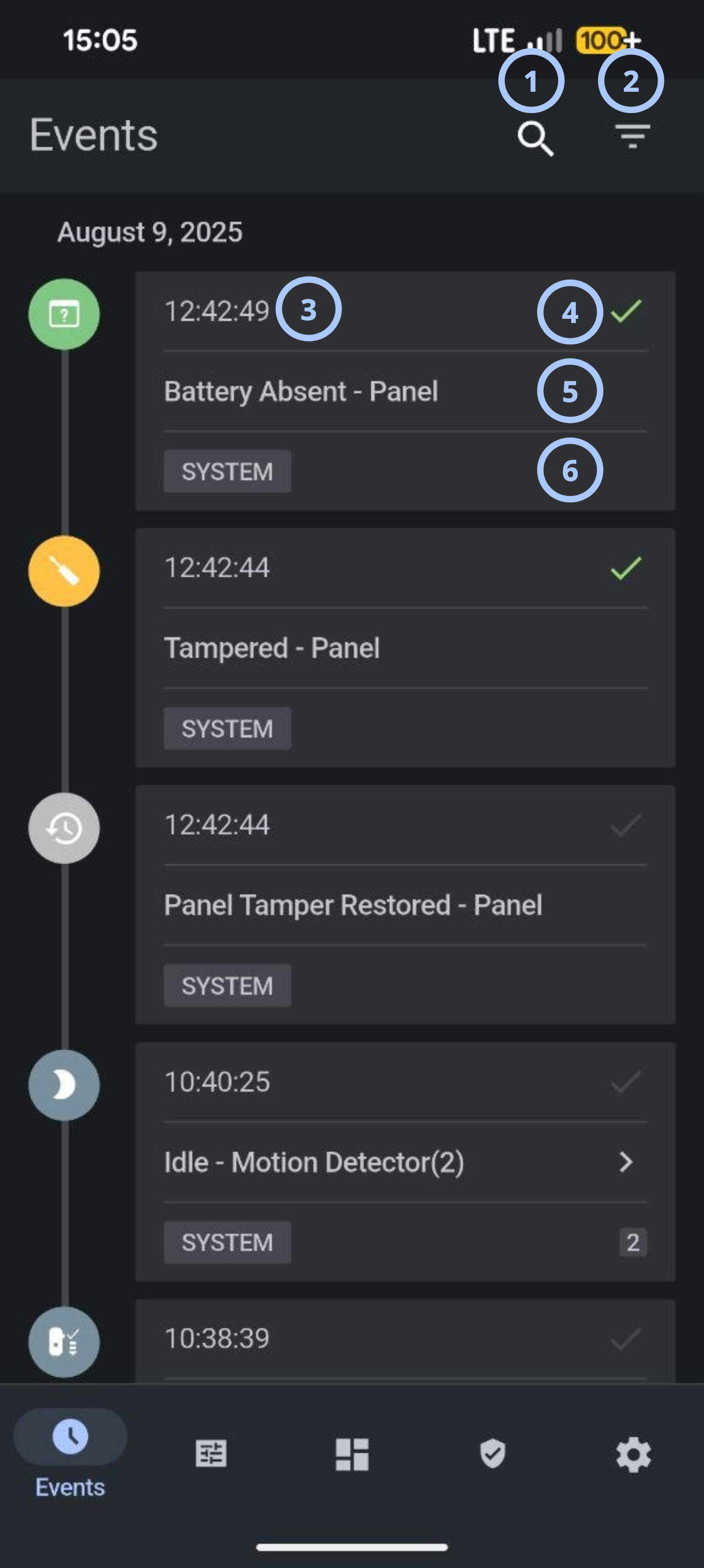
| Callout | UI element | Description | When to use |
|---|---|---|---|
| 1 | Search | Opens the event search interface. | Use to locate events by keywords, event type, device name, or other searchable criteria. |
| 2 | Filter | Displays filtering options for event records. | Use to narrow results by event type, date range, status, device, or other available criteria. |
| 3 | Event timestamp | Displays the time when the event occurred. | Use during audits, investigations, and troubleshooting. |
| 4 | Event delivery status | Displays the event delivery status | Use to understand event delivered or not. |
| 5 | Event description | Displays the event name and source. | Use to understand what happened and which component generated the event. |
| 6 | Event category | Shows the event classification, such as SYSTEM. | Use to identify the type of event and support filtering. |
How to use this page
Review recent events
- Open the Events screen.
- Review the most recent date group at the top of the timeline.
- Examine event timestamps and descriptions.
Search for an event
- Open the Events screen.
- Select the Search icon.
- Enter the search criteria.
- Review the matching events.
Filter event history
- Open the Events screen.
- Select the Filter icon.
- Select the available filter criteria.
- Select Apply.
- Review the filtered event list.
Tips
tip
- Use filters before investigating large event histories.
Troubleshooting
Events are not visible
Possible causes:
- No events have been generated.
- The selected panel has no available event history.
What to try:
- Confirm that you selected the correct panel.
- Confirm that the panel is connected.
- Reopen the Events screen.
- If events still do not appear, contact your service provider or dealer.
Search returns no results
Possible causes:
- The search criteria do not match an event.
- No matching events exist.
- Active filters are restricting the results.
What to try:
- Check the search terms for typing errors.
- Remove the active filters.
- Search using fewer terms.
- Search using a device or event name.
Related pages
See also
Was this page helpful?