Configuration
Overview
Use the Configuration screen to review, edit, synchronize, and manage the configuration for an individual panel. Installers can check zone settings, outputs, communication settings, and other panel behavior.
Use this page when you need to:
- Review the current configuration for a panel
- Update panel settings
- Compare current and previous configurations
- Download the latest configuration from a connected panel
- Upload modified settings to a panel
- Preserve historical configurations for rollback or auditing
The Configuration screen stores up to eight configurations per panel:
- One current configuration
- Up to seven previous configurations
Configurations are ordered by download date.
Before you begin
Preconditions
- The panel must be registered on the server.
- The panel must be connected to download or upload configurations.
- The server connection must be active.
- A current configuration must exist before editing.
Important limitations
warning
- You can only edit the current configuration.
- Previous configurations are read-only.
- You can only download a configuration when the panel is connected to the server.
- The system stores a maximum of seven previous configurations.
- Downloading a new configuration can overwrite the oldest previous configuration unless the configuration is bookmarked.
Page layout
Configuration screen
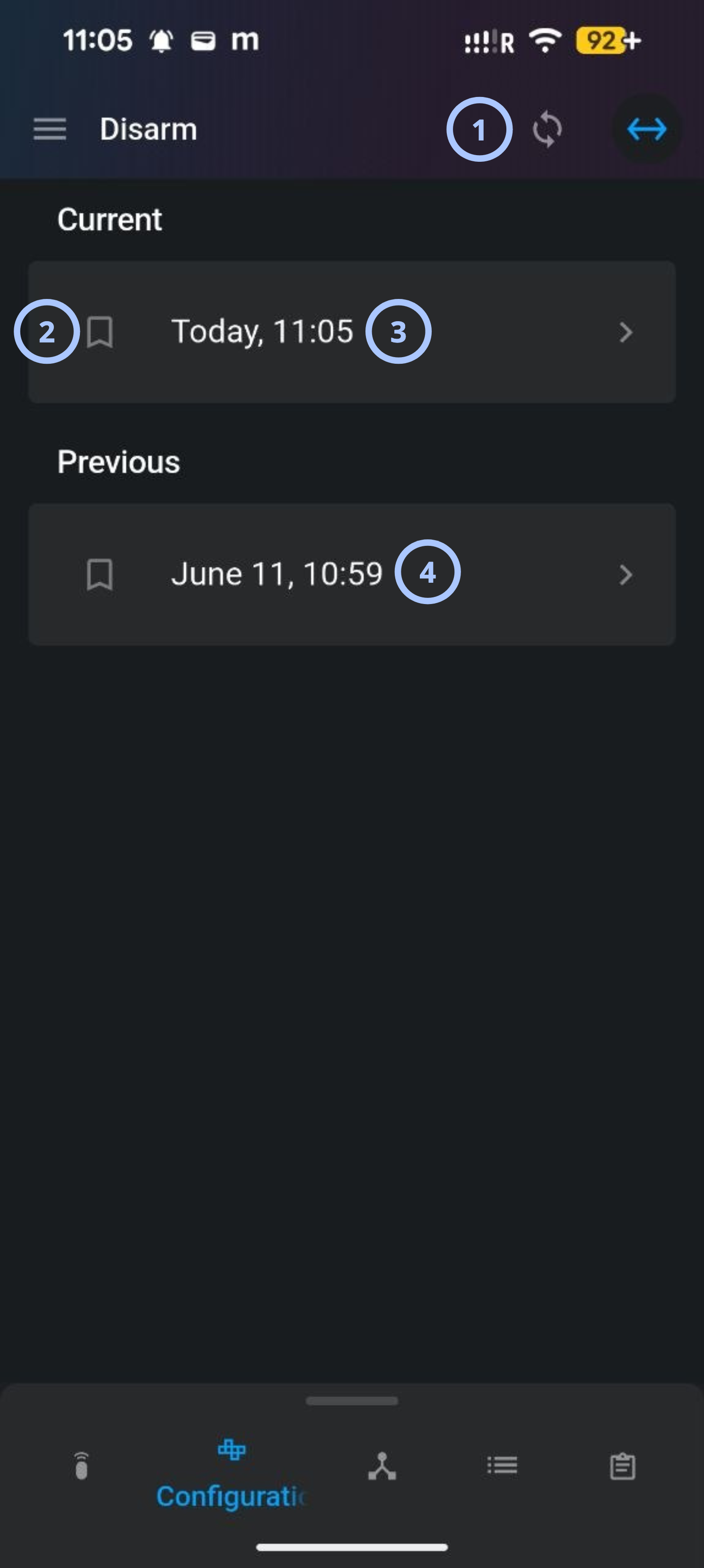
| Callout | UI element | Description | When to use |
|---|---|---|---|
| 1 | Refresh | Refreshes the configuration list from the server and connected panel. | Use to download the latest panel configuration. |
| 2 | Bookmark icon | Prevents a previous configuration from being overwritten when a newer configuration is downloaded. | Use to preserve important or validated configurations. |
| 3 | Current configuration | Displays the active panel configuration. This is the only configuration that can be edited. | Use to review or modify the active panel settings. |
| 4 | Previous configurations | Displays up to seven historical configurations, ordered by download date. | Use to review earlier settings or compare configuration versions. |
Upload configuration screen
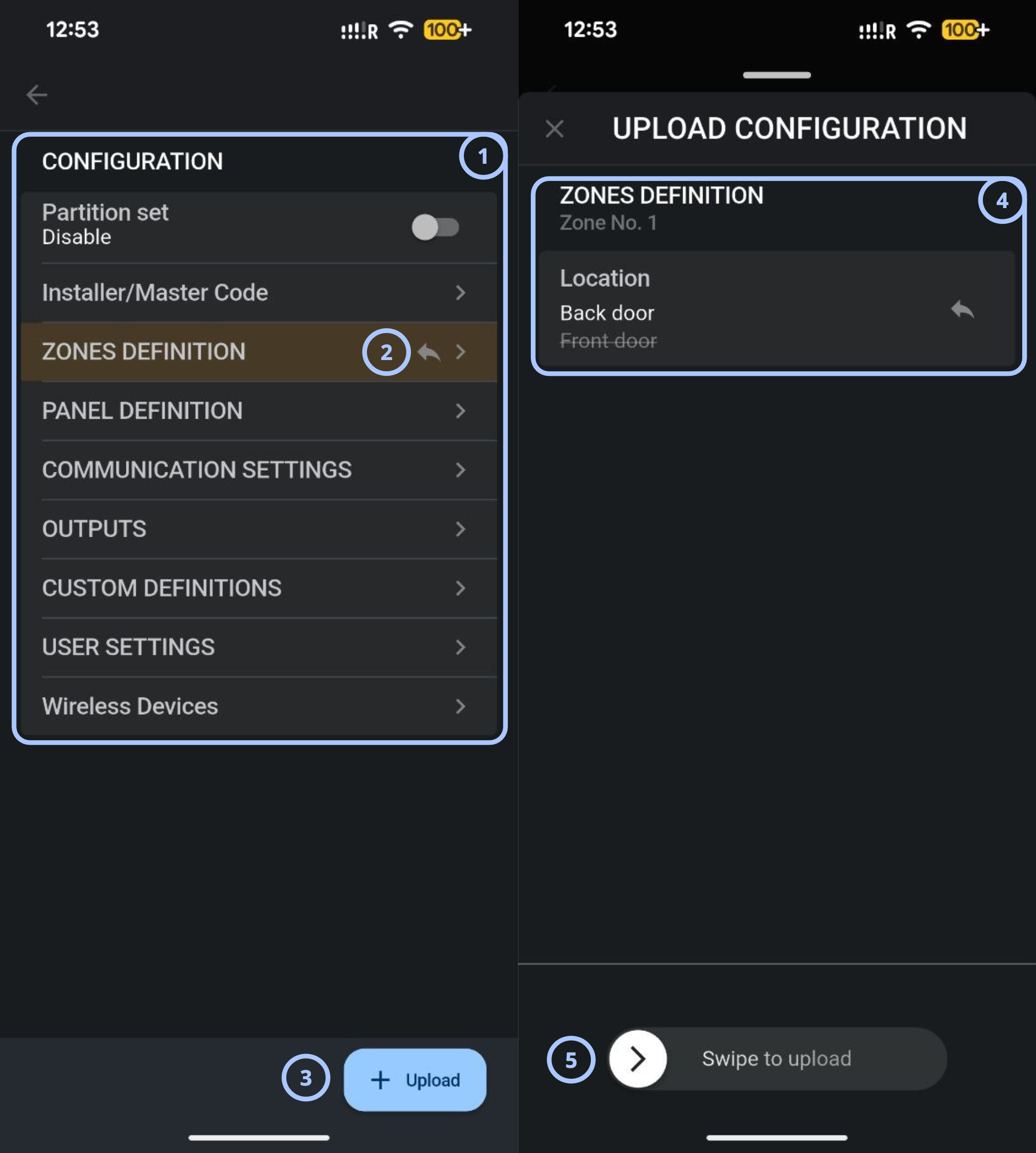
| Callout | UI element | Description | When to use |
|---|---|---|---|
| 1 | Configuration parameters | Displays configuration parameters grouped by type. | Use to review or update the current configuration. |
| 2 | Yellow highlight and revert button | Yellow highlight shows the section or option that changed, the revert button discards the current changes. | Use to check changes or revert changes. |
| 3 | Upload button | Starts the upload process. | Use when you are ready to send settings to the panel. |
| 4 | Changes for uploading | Lists the settings that will be uploaded. | Use to review the final changes before approval. |
| 5 | Swipe to upload | Displays the upload slider. | Use to confirm and approve the configuration update. |
How to use this page
Review a panel configuration
Goal:
- View the current or historical configuration for a panel
Steps:
- Open the Configuration tab.
- Locate the configuration list.
- Select either:
- The current configuration
- A configuration in the PREVIOUS section
- Review the settings in the configuration workspace.
Expected result:
- The selected configuration opens.
- Configuration details are visible.
- Historical configurations open in read-only mode.
Download a panel configuration
Goal:
- Synchronize the latest panel configuration with the server
Steps:
- Open the Configuration tab.
- Confirm that the panel is online and connected.
- Select Refresh.
- Wait for the synchronization to finish.
Expected result:
- The latest panel configuration downloads.
- The configuration appears in the current configuration list.
- Older configurations move to the PREVIOUS section.
warning
Downloading a new configuration overwrites the oldest non-bookmarked configuration. DOWNLOAD NOW is available only for the first download.
Edit the current configuration
Goal:
- Modify the active panel configuration
Steps:
- Open the Configuration tab.
- In the CURRENT section, select the active configuration.
- Change the required settings.
- Select UPLOAD.
Expected result:
- The changes upload to the panel.
- The modified configuration becomes the active configuration.
- The previous version is stored in the history list.
note
Only the current configuration can be edited.
Tips
tip
- Bookmark validated configurations before large configuration updates.
Troubleshooting
Cannot edit a configuration
Possible causes
- A previous configuration is selected
- The configuration has not been downloaded yet
What to do
- Select the configuration from the CURRENT section.
- Refresh the configuration list.
Configuration upload failed
Possible causes
- The panel connection was interrupted during the upload.
- The panel is busy with another operation.
- Discovery has not fully completed, so the configuration is not ready to upload.
- PowerManage does not support this panel model or firmware version.
- The site's ISP or network connection to the panel is down or unstable.
What to do
- Check the panel connection status on the Configuration page. If it shows offline, wait for the panel to reconnect, then retry the upload.
- If another operation is in progress on the panel, wait a few minutes for it to finish, then retry.
- Confirm discovery has fully completed before uploading.
- Verify the panel model and firmware version are supported by PowerManage.
- Check the site's internet connection and the panel's communication module (IP/GPRS); contact the ISP if there is a known outage.
- If the upload still fails after checking the above, wait a few minutes and try again — some panel-side operations need time to clear before a new upload can start.
Previous configurations are missing
Possible causes
- Older configurations were overwritten
- Configurations were not bookmarked
- Synchronization replaced historical records
What to do
- Bookmark important configurations before downloading new versions.
- Review available previous configurations.
- Export or document critical configurations externally if long-term retention is required.
Related pages
Was this page helpful?