Events
Overview
The Events screen in AlarmInstall lists events by type and lets installers review security system events for the selected panel.
Use this screen when you need to:
- Review recent alarms, restores, troubles, and activity events.
- Check when an event occurred.
- Identify the device, zone, or system component related to an event.
This screen helps you investigate recent system activity and confirm whether an alarm, restore, trouble, or configuration event was reported.
Before you begin
Preconditions
- You are signed in to the AlarmInstall app in remote mode.
- The selected security panel is available.
- The app shows CONNECTED to view the latest event information.
- At least one event exists in the event history.
Dependencies
- Event updates require communication between the app, PowerManage server, and security panel.
- Event source names depend on device, zone, panel, or installer configuration.
Limitations
warning
- Event history stops updating if the security panel is disconnected or communication is delayed.
- Some events may be hidden based on your PowerManage configuration.
- You cannot delete events.
- Alarm events may indicate a safety or security issue. Always follow local procedures before dismissing an alarm.
Page layout
The Events screen appears under the Events tab.
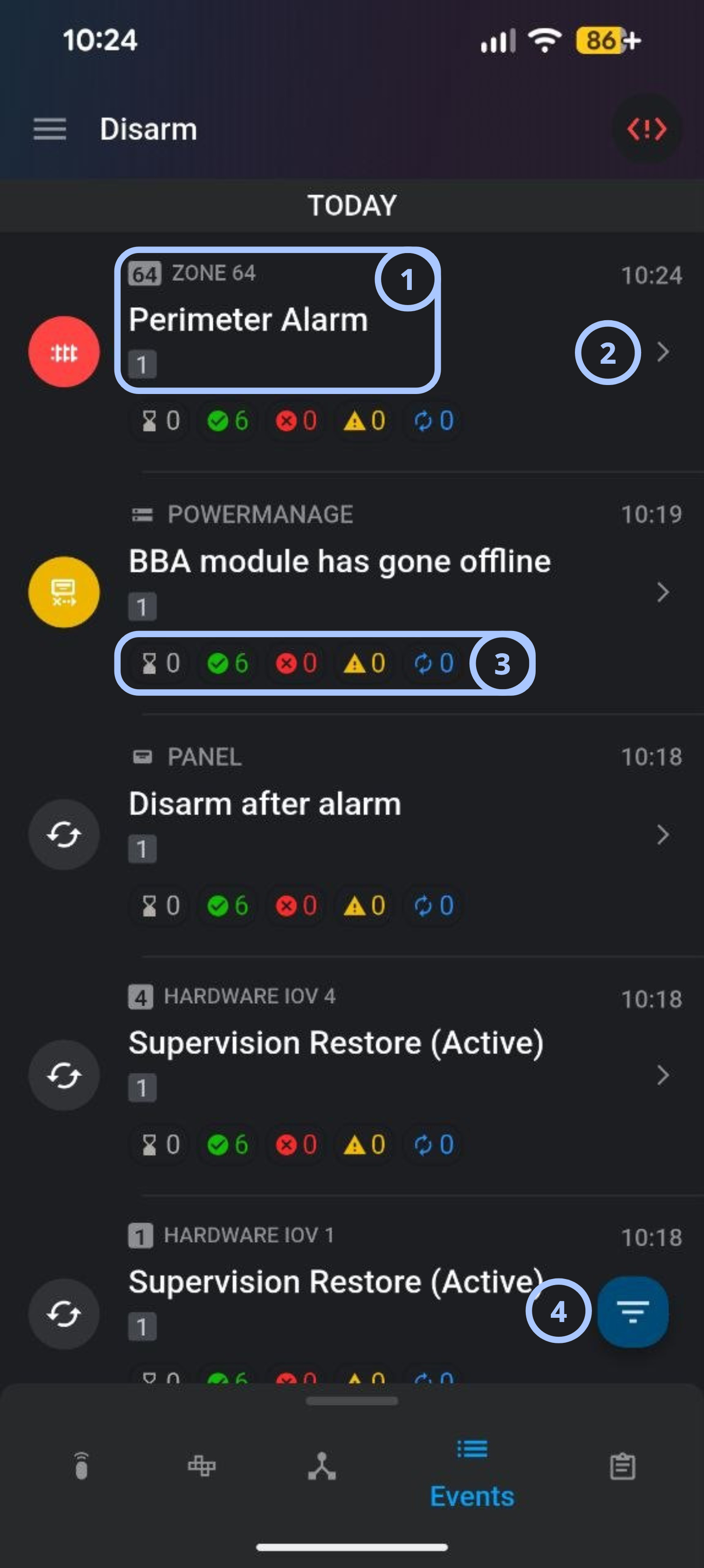
| Callout | UI element | Description | When to use |
|---|---|---|---|
| 1 | Event info | Shows the zone number, event name, and partition associated with the event. | Use this to identify which zone and partition triggered the event and what event type occurred. |
| 2 | Event details | Shows additional information about the event. | Use this to review event details. |
| 3 | Central station delivery status | Displays delivery status icons for the event: Queued, Delivered, Failed, Retry, Processing. | Use this to check the central station delivery status for the event. |
| 4 | Event filters | Filter the event list by type. Available filters: All, Alarms, and Activity. | Use this to show all events or narrow the list to alarms or activity records. |
Event details screen
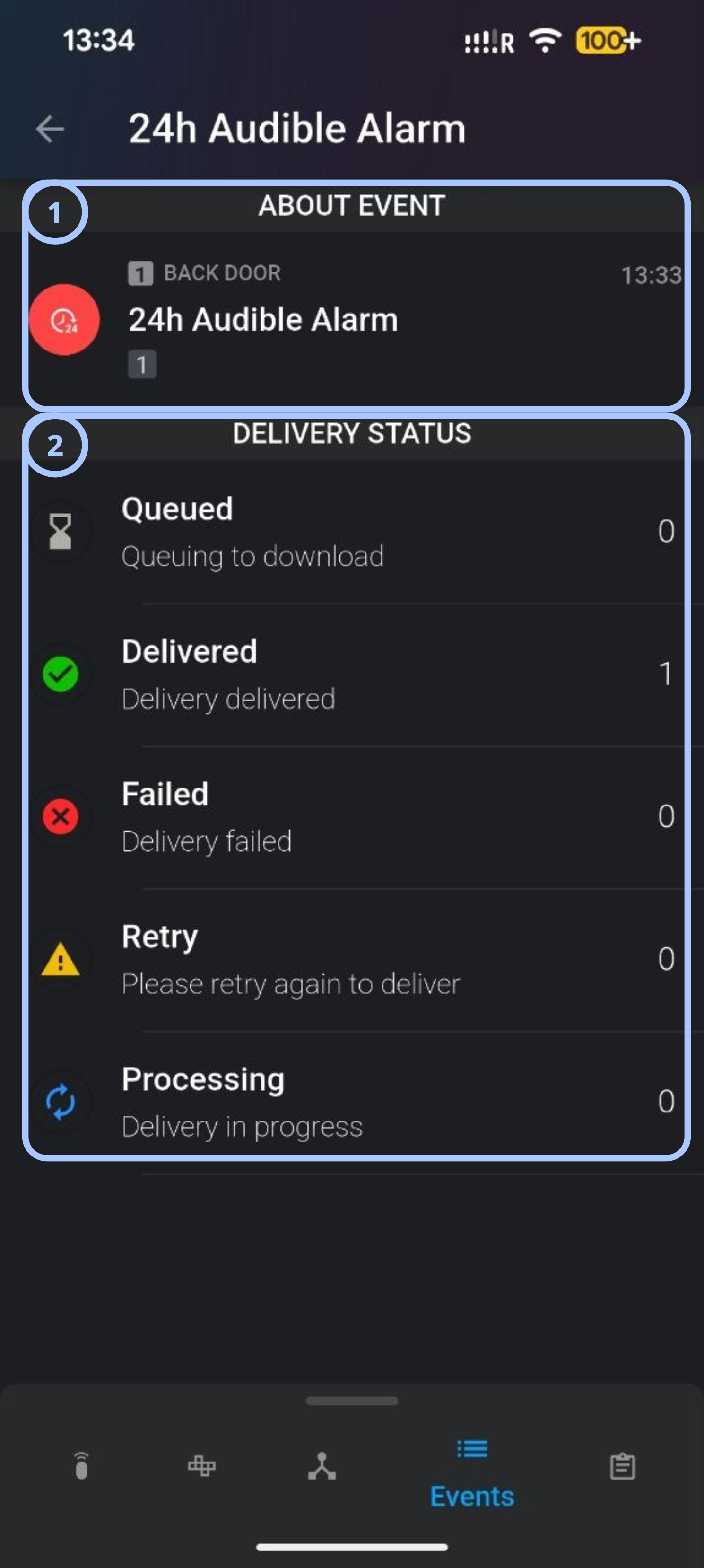
| Callout | UI element | Description | When to use |
|---|---|---|---|
| 1 | About event | Shows the zone number, event name, and partition associated with the event. | Use this to identify which zone and partition triggered the event and what event type occurred. |
| 2 | Central station delivery status | Displays delivery status icons for the event: Queued, Delivered, Failed, Retry, Processing. | Use this to check the central station delivery status for the event. |
How to use this page
Open the Events screen
- Open the AlarmInstall app.
- Sign in to your account in remote mode.
- Select the required security panel.
- Select the Events tab from the bottom navigation bar.
View event details
- Open the AlarmInstall app.
- Sign in to your account in remote mode.
- Select the required security panel.
- Select the Events tab from the bottom navigation bar.
- Select the details arrow (>) next to the event timestamp.
View alarm events
- Open the Events screen.
- Select the Alarms filter.
- Review the filtered event list.
Tips
tip
- Use the Alarms filter to review urgent or security-related events first.
- Check the event source and timestamp before taking action. Similar events can appear close together.
- Use the All filter if an expected event does not appear under Alarms or Activity.
Troubleshooting
| Problem | Possible cause | What to try |
|---|---|---|
| Events do not appear |
|
|
| Failed event delivery to central station |
|
|
Related pages
See also
Was this page helpful?