Remote inspections
Overview
The Remote inspections page allows installers to run and review automated health and status inspections for a single panel.
Use this page to:
- Verify panel connectivity and operation
- Detect active faults and communication issues
- Review recent inspection results
- Confirm whether zones and modules operate as expected
- Rerun inspections when troubleshooting panel issues
Inspection results are grouped into the following categories:
- Failed tests
- Not completed tests
- Passed tests
Each inspection provides detailed information about the panel condition at the time the inspection was performed.
Before you begin
Preconditions
- The panel must be registered in the system.
- The panel must be online or recently connected.
Limitations
warning
- Some tests are unavailable if the related hardware module is not installed.
- Inspection duration depends on communication quality and panel responsiveness.
Page layout
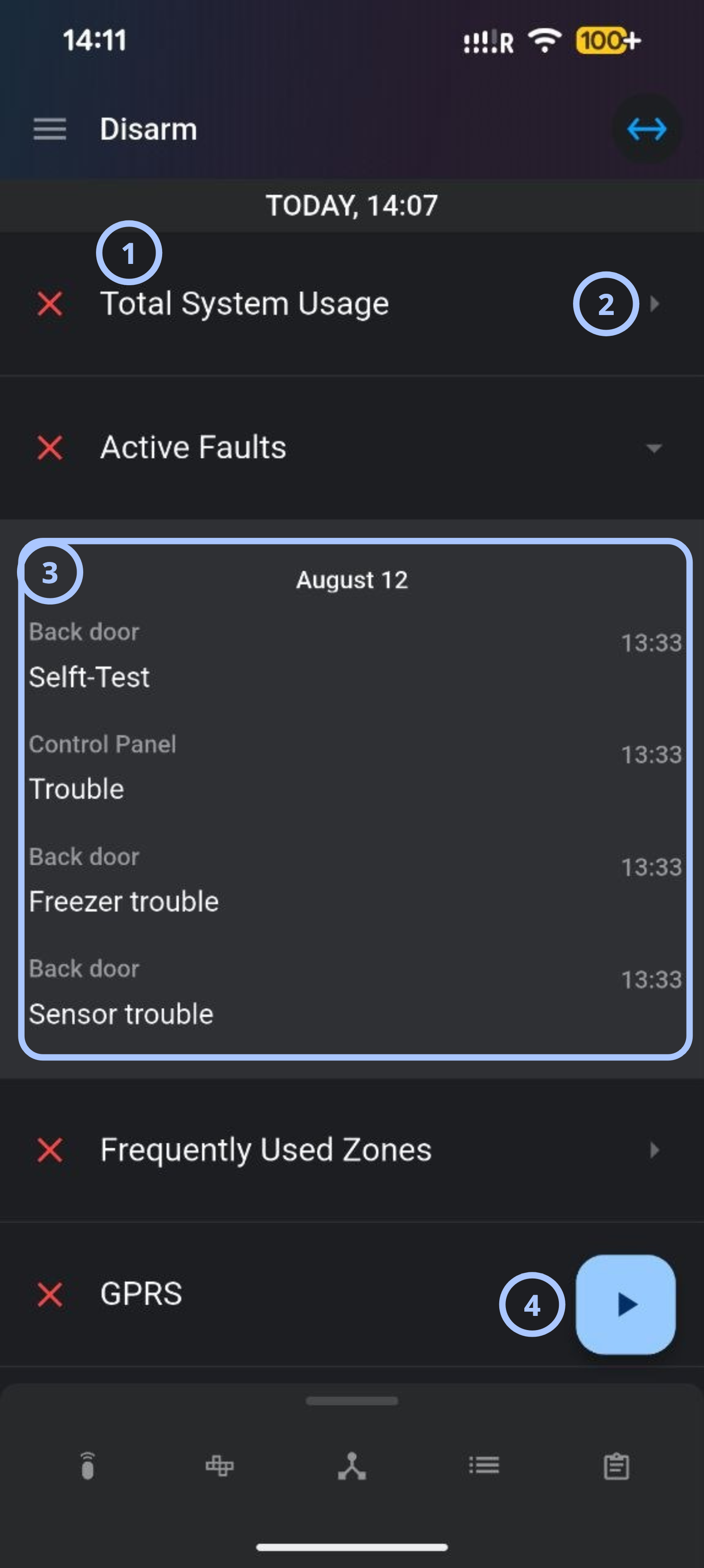
| Callout | UI element | Description | When to use |
|---|---|---|---|
| 1 | Status | Shows status of remote inspection. | Use to check test status. |
| 2 | Expand/collapse arrow | Expands or collapses the section to reveal the underlying event log entries associated with this test category. | Use to drill down into the raw event history behind a summary line before deciding whether it needs attention. |
| 3 | Test details. | Show zones or reasons that caused the test to fail, or provide additional test information. | Use to identify exactly which device reported a fault, what kind of fault it was, and when it occurred. |
| 4 | Run inspection button | Starts a new remote inspection for the selected panel. | Use when you need updated inspection results. |
How to use this page
Run a remote inspection
- Open the AlarmInstall app.
- Sign in to your account in remote mode.
- Select the security panel you need.
- Select the Remote inspections tab.
- Select the Run inspection button.
- In the confirmation dialog, select OK.
- Wait for the inspection to complete.
note
Inspection duration varies depending on network connectivity and panel response time.
Field and option reference
Inspection test reference
| Test | Description | Pass behavior | Fail behavior | Special behavior |
|---|---|---|---|---|
| Active faults | Checks whether active faults currently affect panel operation. | No active faults detected. | One or more active faults detected. | None |
| GPRS | Checks for GPRS heartbeat activity. | Heartbeat messages are received on time. | No heartbeat received. | Test displays gray if no module exists or keepalive is disabled. |
| Reported faults | Reviews recent panel log events for faults. | No recent faults found. | Fault event found in inspected logs. | Number of inspected events is configurable. |
| Total system usage | Checks for arm or disarm logs. | At least one arm or disarm event exists. | No usage activity found. | Inspection scope depends on configured report count. |
| Bypassed/In-test zones | Checks for bypassed or in-test zones. | No bypassed zones detected. | One or more zones are bypassed or in test mode. | None |
| Frequently used zones | Checks for inactive zones that should normally be active. | Zones were triggered within configured time. | Zones inactive longer than configured limit. | Time threshold is configurable. |
| Broadband | Checks broadband heartbeat presence. | Broadband heartbeat received. | No heartbeat detected. | Displays gray if broadband module is unavailable. |
| Failed soak test zones | Reviews soak test zones for alarm activity. | No alarms from soak test zones. | Alarm detected on soak test zone. | Passes if no sensors are in soak test mode. |
Tips
tip
- Use inspection timestamps to compare results over time and identify recurring communication or zone problems.
Troubleshooting
Remote inspection does not start
Possible causes
- The panel is offline.
- Network communication is unavailable.
What to do
- Verify panel connectivity.
- Confirm that the panel is online.
- Retry the inspection.
GPRS test fails
Possible causes
- Incorrect keepalive configuration
- GPRS communication outage
What to do
- Verify that the GPRS module is installed.
- Check whether keepalive messages are enabled.
- Confirm network connectivity.
- Rerun the inspection.
Frequently used zones test fails
Possible causes
- Zones were inactive longer than expected.
- Incorrect inactivity threshold configuration.
- Sensor activity was not reported.
What to do
- Verify sensor activity.
- Check zone configuration.
- Repeat the inspection after confirming activity.
Related pages
Was this page helpful?