Dashboard
Overview
Use the Dashboard to review IQ Panel health, communication, power, software, and connected device information from one screen.
Use this page to:
- Verify panel connectivity and operational status.
- Monitor battery, power, Wi-Fi, and cellular communication.
- Review connected security and automation devices.
- Identify connectivity or device issues.
- Navigate between different device categories.
- Run the configuration wizard.
Before you begin
Preconditions
- Confirm that the IQ Panel is registered and connected to the system.
Important limitations
- Offline devices might not display current status information.
Page layout
Dashboard page
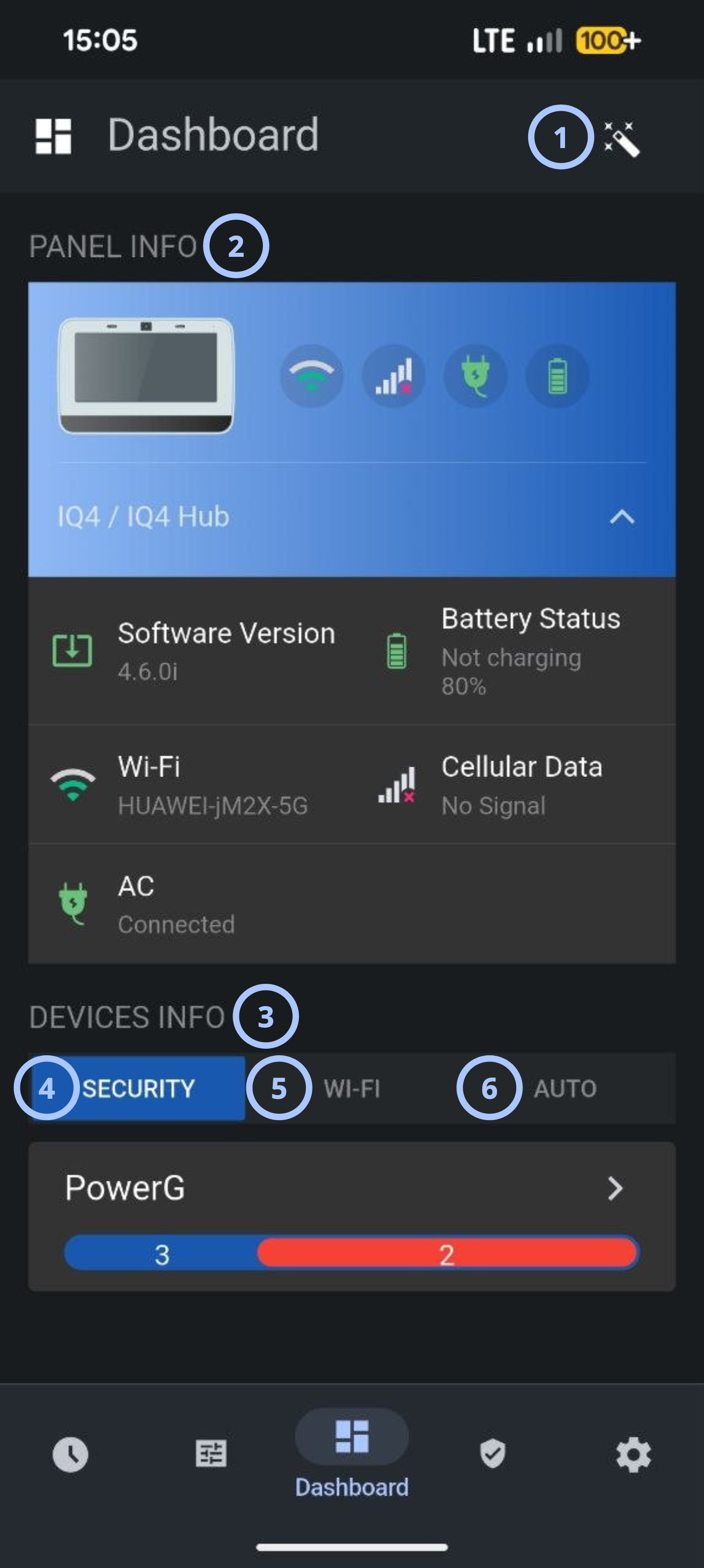
| Callout | UI element | Description | When to use |
|---|---|---|---|
| 1 | Wizard | Starts the panel configuration wizard. | Use when guided setup or guided maintenance is required. |
| 2 | Panel Info section | Displays panel hardware information and communication status indicators. | Use to review panel health and connectivity. |
| 3 | Devices Info section | Displays connected device categories and device counts. | Use to review registered devices. |
| 4 | Security tab | Shows security-related devices such as PowerG sensors and detectors. | Use when reviewing security devices. |
| 5 | Wi-Fi tab | Displays connected Wi-Fi devices such as an IQ Remote. | Use to review Wi-Fi-enabled devices. |
| 6 | Auto tab | Displays automation devices such as Z-Wave devices. | Use to review automation devices and smart home equipment. |
Panel info section
The Panel Info card provides a summary of the IQ Panel status.
Available indicators may include:
| Indicator | Description | Behavior |
|---|---|---|
| Wi-Fi | Shows Wi-Fi connection status. | Displays connected network name or connection state. |
| Cellular signal | Shows cellular communication availability. | Signal strength icon changes based on connection quality. |
| AC power | Shows external power status. | Indicates whether AC power is connected. |
| Battery | Displays battery condition and charging status. | Shows battery percentage and charging state when available. |
| Software version | Displays the currently installed firmware version. | Read-only information. |
Devices info section
The Devices Info section organizes connected devices by category.
Supported categories may include:
| Category | Description |
|---|---|
| Security | PowerG security devices such as motion sensors, door/window contacts, and detectors. |
| Wi-Fi | Devices connected through Wi-Fi communication. |
| Auto | Automation devices such as Z-Wave devices and other supported smart devices. |
How to use this page
Review panel status
Goal:
- Review panel health and communication indicators.
Steps:
- Open the Dashboard page.
- Review the Panel Info section.
- Check Wi-Fi status.
- Check cellular signal status.
- Confirm the AC power connection.
- Review battery percentage and charging state.
- Confirm the software version if required.
The current panel communication and power status appears.
View security devices
Goal:
- Review registered security devices.
Steps:
- Open the Dashboard page.
- In Devices Info, select Security.
- Review the displayed PowerG device information.
The security device information appears.
View Wi-Fi devices
Goal:
- Review registered Wi-Fi devices.
Steps:
- Open the Dashboard page.
- Select the Wi-Fi tab.
- Review the available Wi-Fi devices.
The Wi-Fi device information appears.
View automation devices
Goal:
- Review registered automation devices.
Steps:
- Open the Dashboard page.
- Select the Auto tab.
- Review the displayed automation devices.
The automation device information appears.
Verify communication status
Goal:
- Verify panel communication channels.
Steps:
- Open the Dashboard page.
- Review the communication icons in the Panel Info section.
- Confirm Wi-Fi connectivity.
- Confirm cellular connectivity.
- Check for warning indicators.
You can confirm whether Wi-Fi and cellular communication are available and identify warning indicators that require follow-up.
A missing cellular signal or disconnected Wi-Fi connection may affect panel communication depending on the system configuration.
Tips
- Review the dashboard regularly to identify communication issues before they affect system operation.
- Verify battery and AC status after power outages.
Troubleshooting
Panel shows no Wi-Fi connection
Possible causes:
- The Wi-Fi network is unavailable.
- The network configuration is incorrect.
- The panel is outside the network coverage area.
What to try:
- Confirm that the Wi-Fi network is operational.
- Check panel Wi-Fi settings.
- If applicable, confirm that the panel is within range of the wireless access point.
- Refresh the Dashboard and check the connection status.
- If the connection remains unavailable, contact your administrator or service provider.
Cellular data shows no signal
Possible causes:
- Cellular coverage is poor.
- The cellular module is unavailable or not configured correctly.
- The carrier service is temporarily unavailable.
What to try:
- Confirm that cellular service is available.
- Check panel communication settings.
- Confirm that the cellular module is available.
- If the signal remains unavailable, contact your administrator or service provider.