Visonic
Overview
Use the Visonic virtual keypad to connect to and operate a Visonic alarm panel in Direct mode. The virtual keypad provides panel controls that are normally available through a physical keypad.
Use this page to:
- Connect directly to a Visonic panel through the panel access point or USB connection.
- Authenticate with a valid installer code.
- View panel status indicators.
- Navigate panel menus.
- Perform arming and disarming operations.
- Access panel functions during installation, configuration, maintenance, or troubleshooting.
Before you begin
Preconditions
- Confirm that the Visonic panel is powered on.
- Confirm that the selected panel model supports Direct mode.
- Have a valid panel installer code available.
- Connect the mobile device to the panel through the panel access point or a supported USB connection.
Dependencies
- Visonic control panel.
- Wi-Fi or USB connection to the panel.
Important limitations
warning
- Keep the mobile device connected to the panel through Wi-Fi or a supported USB connection while you use the virtual keypad.
Page layout
The Visonic virtual keypad workflow has two stages:
- Establishing a Direct mode connection.
- Operating the panel through the virtual keypad.
Direct mode connection screen
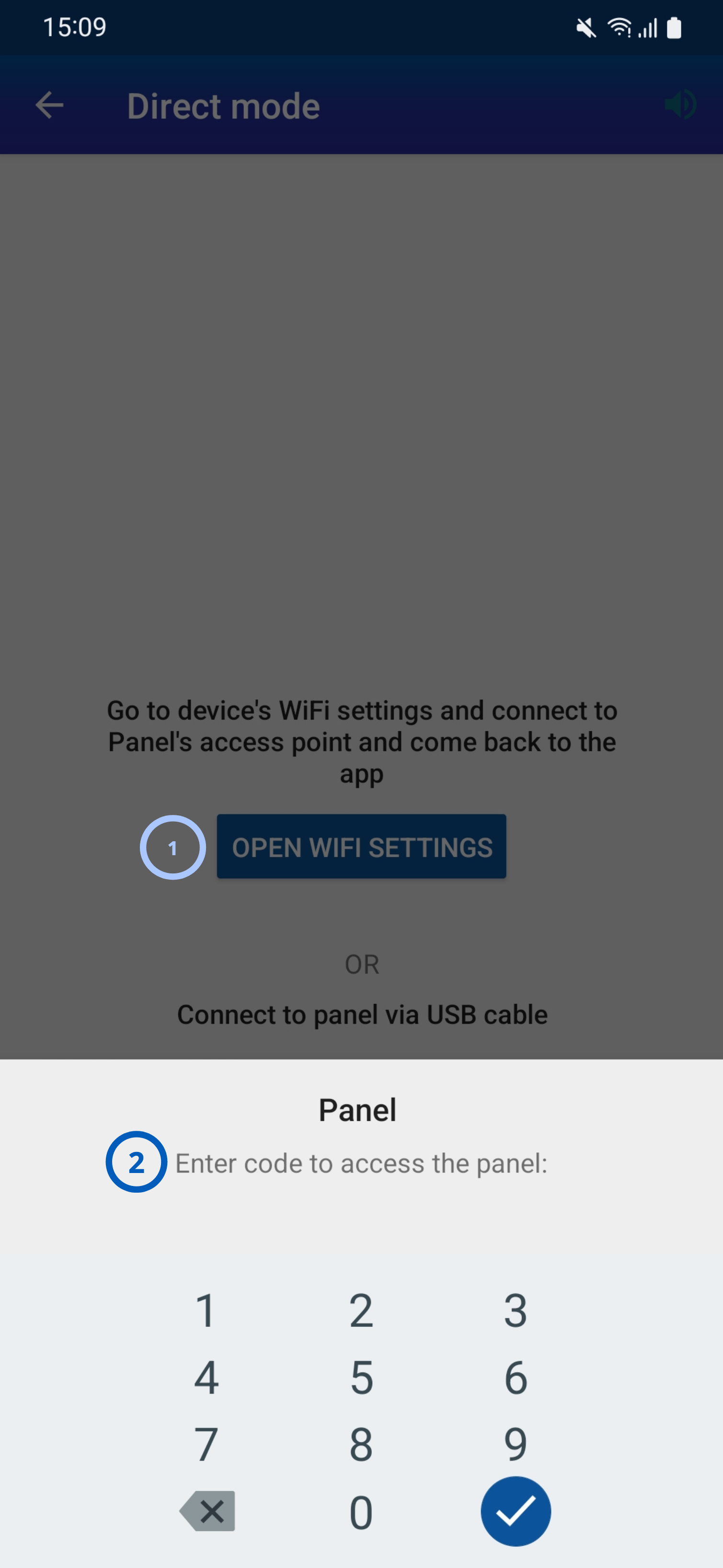
| Callout | UI element | Description | When to use |
|---|---|---|---|
| 1 | Open Wi-Fi Settings | Opens the device Wi-Fi settings so the device can connect to the panel access point. | Use when connecting to the panel through the panel's wireless access point. |
| 2 | Access code and numeric keypad | Provides a field and numeric keys for entering the access code. | Use after a connection to the panel has been established. |
Virtual keypad screen
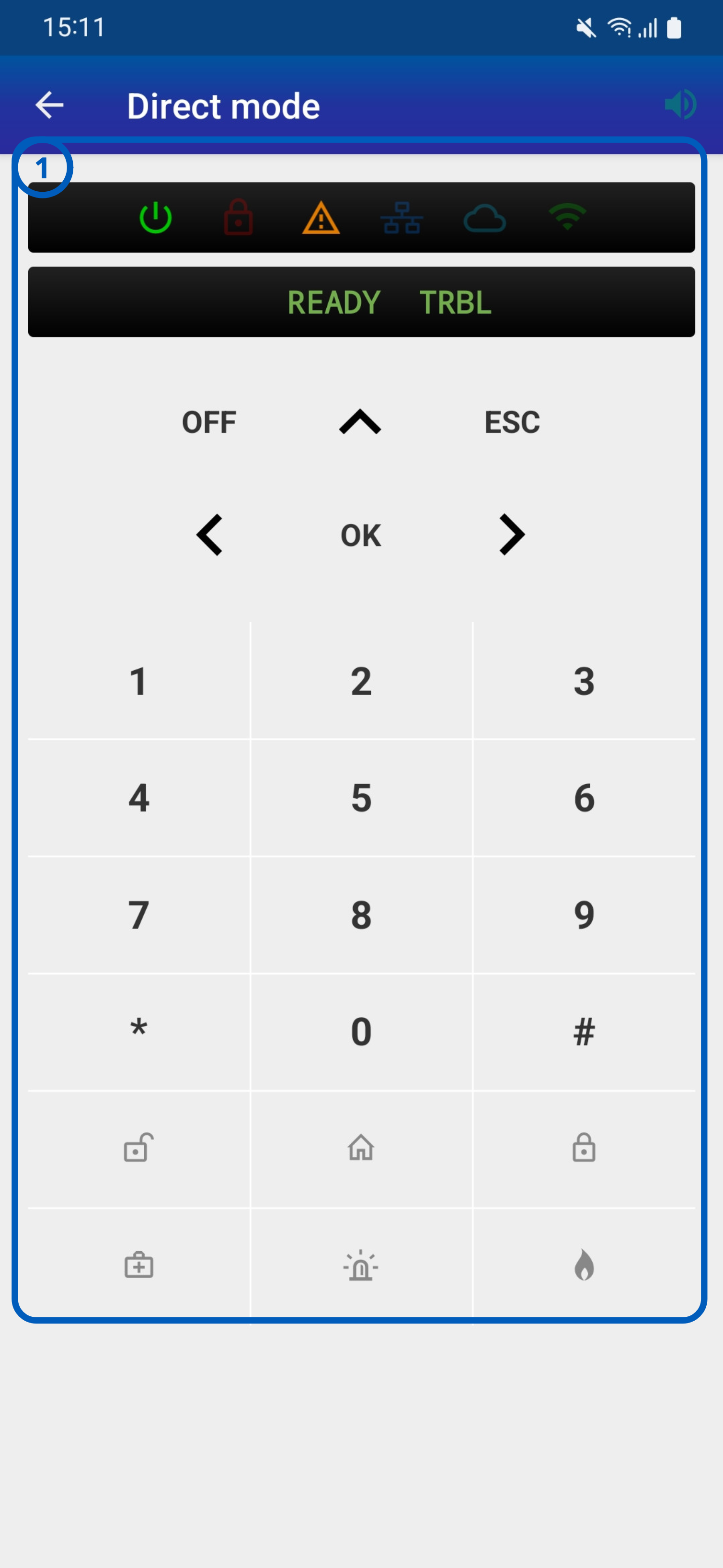
| Callout | UI element | Description | When to use |
|---|---|---|---|
| 1 | Panel status and numeric keypad | Displays panel condition indicators and system messages, and provides keys for panel input. | Use to review panel status, enter codes, and navigate panel menus. |
How to use this page
Connect to a panel in Direct mode
Goal:
- Establish a local connection with a Visonic panel.
Steps:
- Open the Visonic virtual keypad page.
- Select Open Wi-Fi Settings.
- Connect the mobile device to the panel access point.
- Enter the panel access code.
- Select Confirm.
The app authenticates with the panel. The virtual keypad opens and shows the current panel status.
USB connection
To use a supported USB connection instead, connect the mobile device to the panel before you enter the panel access code.
Configure the PowerManage connection to the connect.tycomonitor.com
Goal:
- Configure the applicable communication path with the following values.
Broadband connection
- Set Central Station Reporting to
All *all. - Set 1st Method to
broadband first. - Set Receiver 1 IP to
52.59.171.55. - Set RCVR 1 DNS to
connect.tycomonitor.com.
Cellular connection
- Set GPRS Report to
On. - Set GPRS APN to the access point name (APN) supplied by the cellular provider.
- Set Network Roaming to
modem roam enable. - Set Cell Keep Alive to
On. - Set Central Station Reporting to
All *all. - Set Receiver 1 IP to
52.59.171.55. - Set RCVR 1 DNS to
connect.tycomonitor.com. - Set My SIM tel# to the phone number of the subscriber identity module (SIM).
The panel appears in PowerManage with a connected status.
Tips
tip
- Verify panel connectivity before entering codes or issuing commands.
- Ensure the mobile device remains connected to the panel access point while using Direct mode.
- If commands do not respond immediately, verify that the panel is not reporting a fault or communication issue.
Troubleshooting
Cannot connect to the panel
Possible causes:
- The mobile device is not connected to the panel access point.
- The USB connection is disconnected.
- The panel is powered off.
What to try:
- Confirm that the panel is powered on.
- Check the Wi-Fi or USB connection.
- Reconnect to the panel access point.
- Connect to the panel again.
Panel does not appear on PowerManage after configuration
Possible causes:
- A communication setting is incorrect.
- The panel is not connected to the internet.
- Incorrect configuration.
- Panel not connected to the internet.
What to try:
- Confirm that the panel has an internet connection.
- Check the communication settings against the values in Configure the PowerManage connection.
- If the panel still does not appear, contact your administrator or service provider.
Installer code is rejected
Possible causes:
- The installer code was entered incorrectly.
- The code does not have sufficient privileges.
- Installer access is not enabled in ConnectAlarm.
What to try:
- Confirm that you selected the correct panel.
- Re-enter the code carefully.
- Confirm that the code has sufficient privileges.
- Confirm that installer access is enabled in ConnectAlarm.
- If the code is still rejected, contact your administrator or service provider.
Related pages
See also
Was this page helpful?