Connect to an IQ panel
Overview
Local mode
This workflow is for Local mode.
Use the Welcome screen to connect AlarmInstall to an IQ panel. Scan the panel's QR code or enter its serial number and International Mobile Equipment Identity (IMEI) manually.
Before you begin
Required permissions
- AlarmInstall is installed on your device.
- Your device has a network connection.
- You have the panel codes required for Local mode.
Preconditions
- The IQ panel is powered on and ready to pair.
- You can access the panel's QR code label or printed serial number.
Limitation
warning
- QR scanning requires a clear, undamaged code. If you cannot scan the code, enter the panel details manually.
Screen layout
Welcome screen
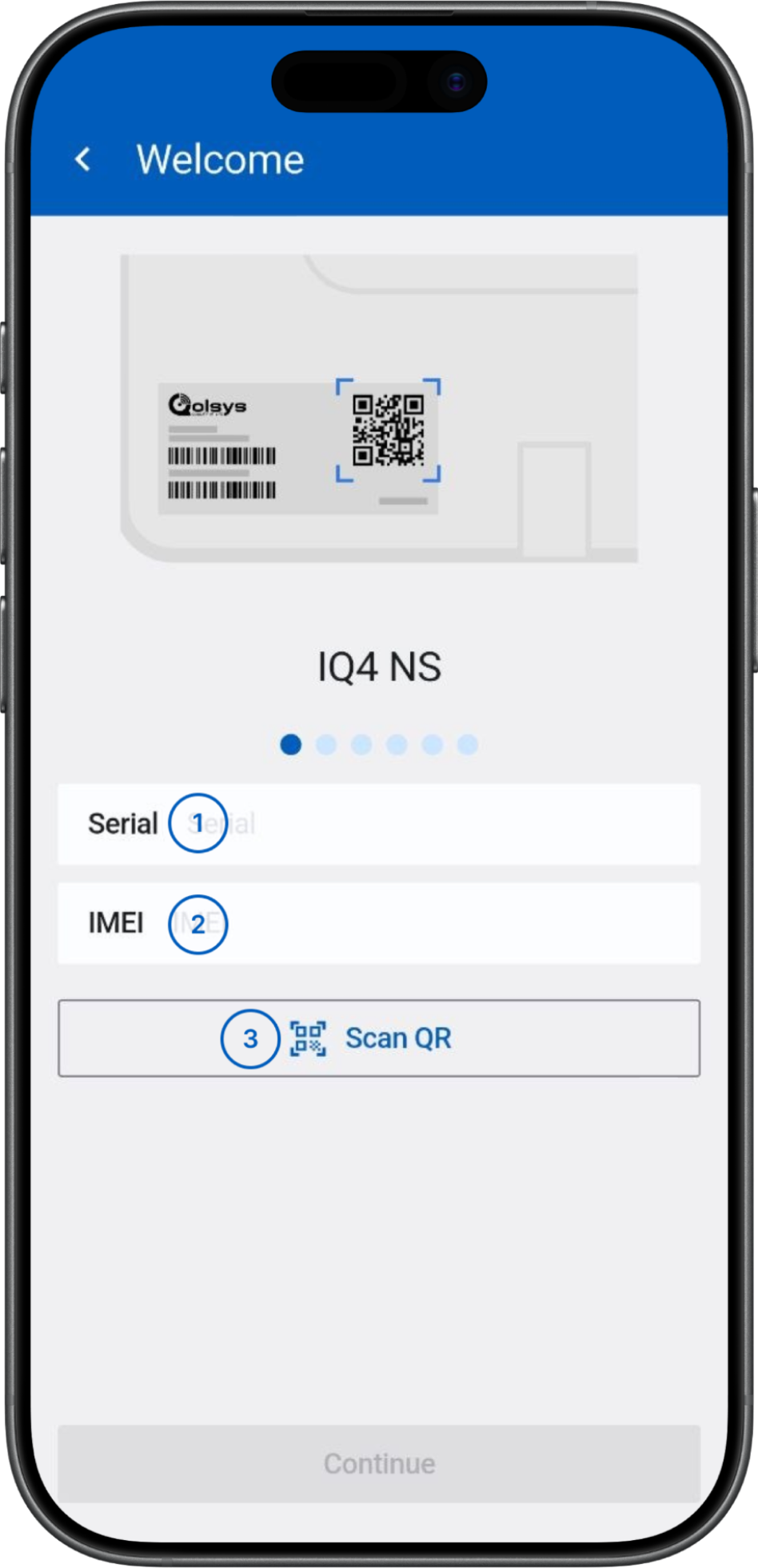
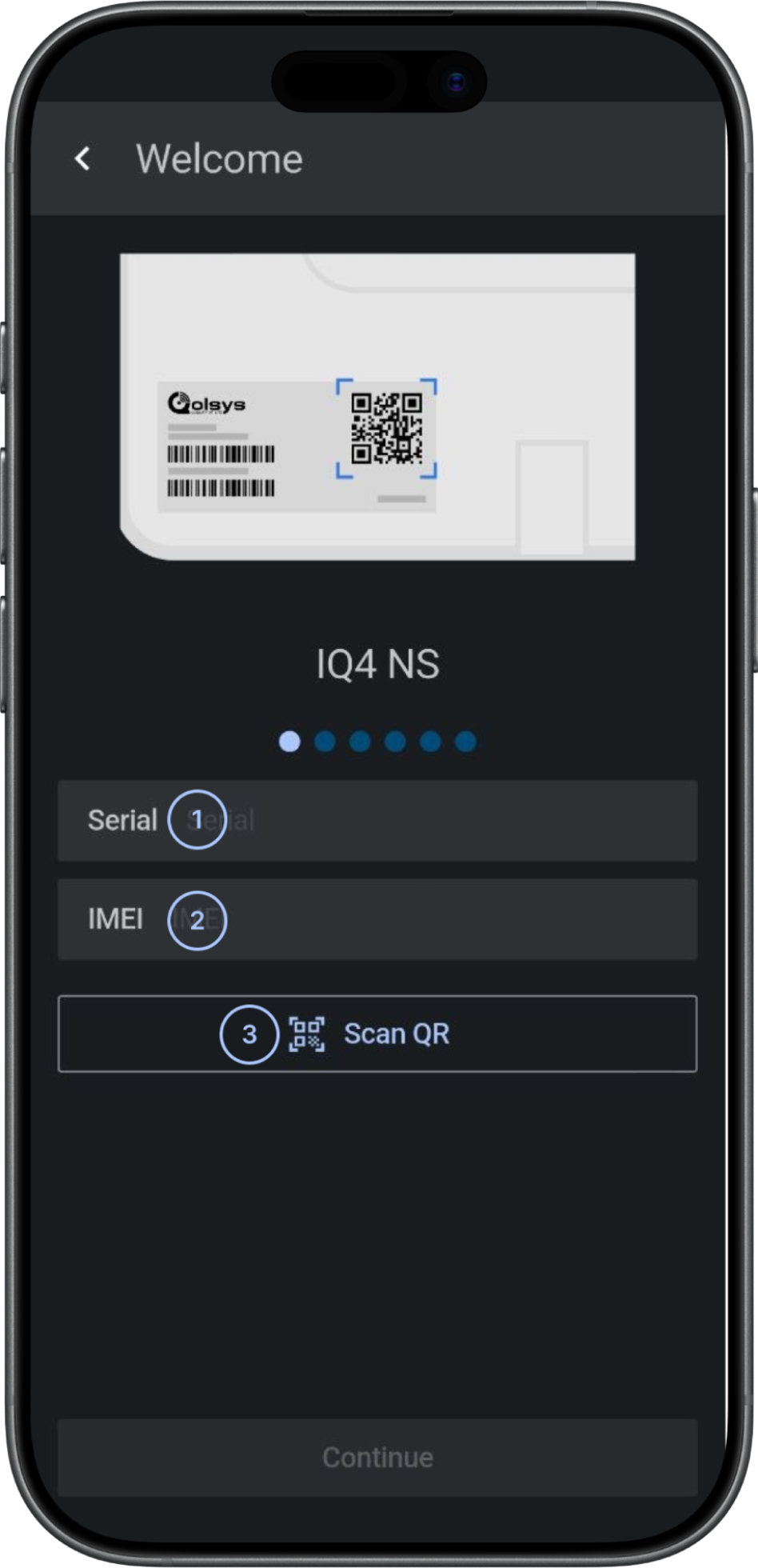
- Serial fieldEnter the panel's serial number here if you cannot scan its QR code.
- IMEI fieldEnter the panel's IMEI here if you cannot scan its QR code.
 Scan QROpens your device's camera and fills in the panel's serial number after it scans the QR code.
Common scenarios
Add a panel by scanning its QR code
Goal:
- Register a new panel using its printed QR code.
Steps:
- On the Welcome screen, confirm the displayed panel model matches your physical device.
- Select Scan QR.
- Grant camera access if prompted.
- Position the QR code in the camera view until AlarmInstall recognizes it.
- Check the serial number in the Serial field.
- Select Continue.
Expected result:
- The Serial field contains the scanned value.
- The Continue button becomes enabled.
- The app advances to the next onboarding step.
Add a panel by entering the serial number and IMEI manually
Goal:
- Register a new panel when the QR code cannot be scanned.
Steps:
- On the Welcome screen, confirm the displayed panel model matches your physical device.
- Select the Serial field.
- Enter the serial number exactly as printed on the panel label.
- Select the IMEI field.
- Enter the IMEI number exactly as printed on the panel label.
- Select Continue.
Expected result:
- The Continue button becomes enabled once a value is entered.
- The app advances to the next onboarding step.
Tips
tip
- Use Scan QR when possible. It reduces data-entry errors compared with manual typing.
- Keep the panel's QR code label clean and well-lit for a faster, more reliable scan.
- If the panel model shown on screen is incorrect, go back and reselect the correct model before continuing.
Troubleshooting
Continue button stays disabled
Possible causes:
- The Serial field is empty.
- The IMEI field is empty.
- The QR scan did not complete successfully.
What to try:
- Confirm a serial number appears in the Serial field.
- Check that an IMEI appears in the IMEI field.
- If empty, retry Scan QR or enter the serial and IMEI numbers manually.
QR scan does not recognize the code
Possible causes:
- The QR code label is damaged, dirty, or poorly lit.
- Camera permission was not granted.
What to try:
- Check that the app has camera access in the device system settings.
- Clean the QR label or improve lighting, then retry the scan.
- If scanning continues to fail, enter the serial number manually.
Related pages
See also
Was this page helpful?