Events
Overview
Use the Events screen to review a chronological timeline of events reported by the security panel and connected devices. Events can include system activity, alarms, status changes, troubles, restorations, and device activity.
Use this screen to:
- Review recent panel activity.
- Review historical events.
- Investigate alarms and system issues.
- Check when an event occurred.
- Filter and search event records.
Before you begin
Preconditions
- The panel is registered and connected to the system.
- The selected panel has events in its history.
Limitations
warning
- The screen displays only events recorded by the system.
- Event retention periods may vary by panel configuration and firmware.
Screen layout
Events screen
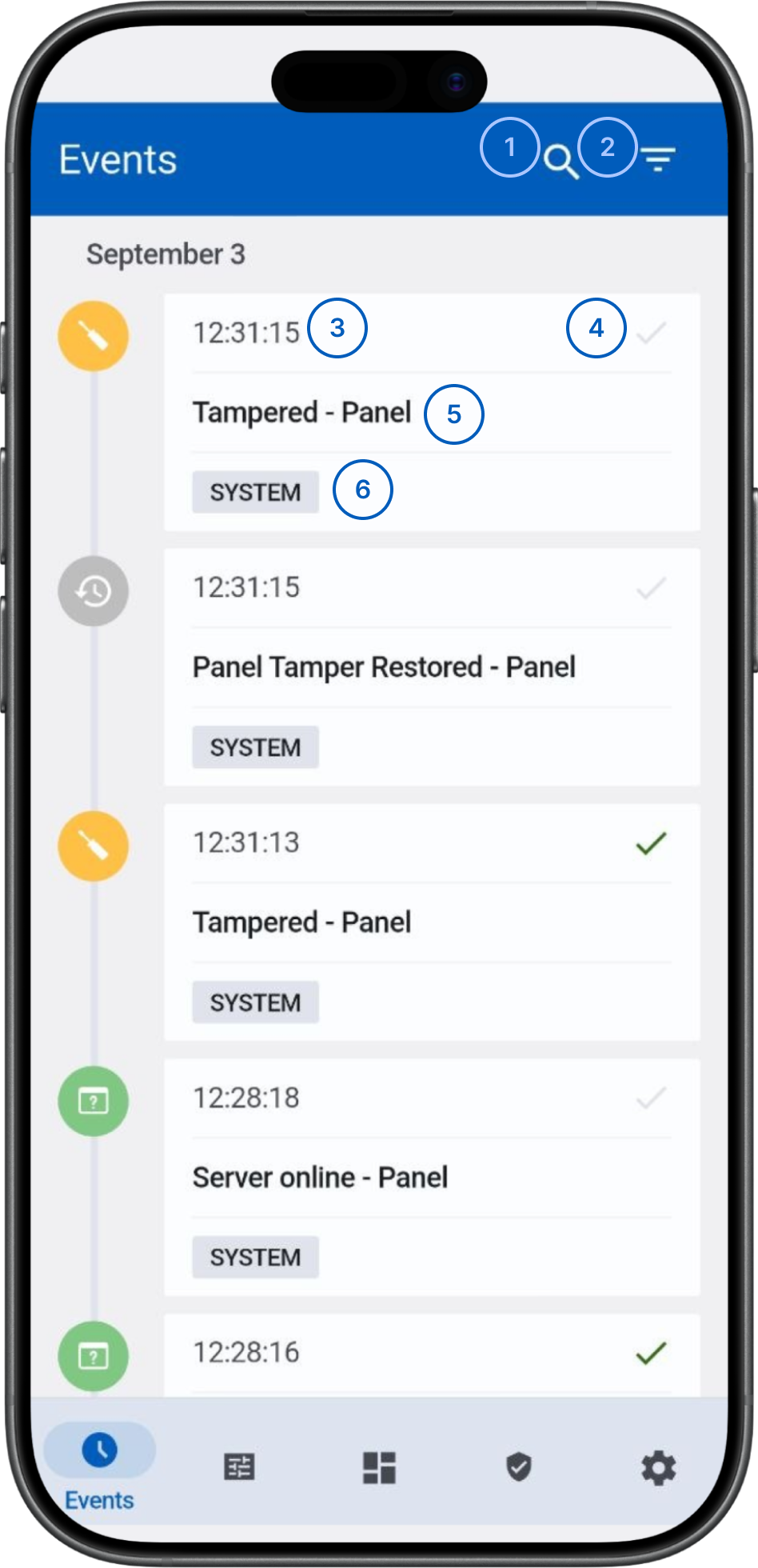
 SearchOpens event search. Search by keyword, event type, or device name.
 FilterOpens event filters. Filter by event type, date range, status, device, or other available criteria.
- Event timestampShows when the event occurred.
 Event delivery statusShows whether the event was delivered.
- Event descriptionShows what happened and which component generated the event.
- Event categoryShows the event category, such as SYSTEM.
Common scenarios
Review recent events
- Open the Events screen.
- Review the most recent date group at the top of the timeline.
- Examine event timestamps and descriptions.
Search for an event
- Open the Events screen.
- Select the Search icon.
- Enter the search criteria.
- Review the matching events.
Filter event history
- Open the Events screen.
- Select the Filter icon.
- Select the filters you want to apply.
- Select Apply.
- Review the filtered event list.
Tips
tip
- Use filters before investigating large event histories.
Troubleshooting
Events are not visible
Possible causes:
- No events have been generated.
- The selected panel has no available event history.
What to try:
- Check that you selected the correct panel.
- Check that the panel is connected.
- Reopen the Events screen.
- If events still do not appear, contact your service provider or dealer.
Search returns no results
Possible causes:
- The search criteria do not match an event.
- No matching events exist.
- Active filters are restricting the results.
What to try:
- Check the search terms for typing errors.
- Remove the active filters.
- Search using fewer terms.
- Search using a device or event name.
Related pages
See also
Was this page helpful?