Tests
Overview
Use IQ System Tests to check panel connectivity, hardware operation, communication paths, signal strength, and power input.
Use this screen to:
- Test a new panel installation.
- Troubleshoot communication or hardware issues.
- Test wireless device connectivity.
- Check power and network status.
Before you begin
Preconditions
- Make sure the IQ Panel is powered on and has completed startup.
- Make sure the network interfaces required for testing are enabled and configured.
- Pair wireless devices with the panel before you run wireless communication tests.
Limitations
warning
- Available tests may vary depending on panel model and installed hardware.
- Some tests require an active internet, cellular, or wireless connection.
- Running tests does not automatically correct detected issues.
Screen layout
System Tests screen
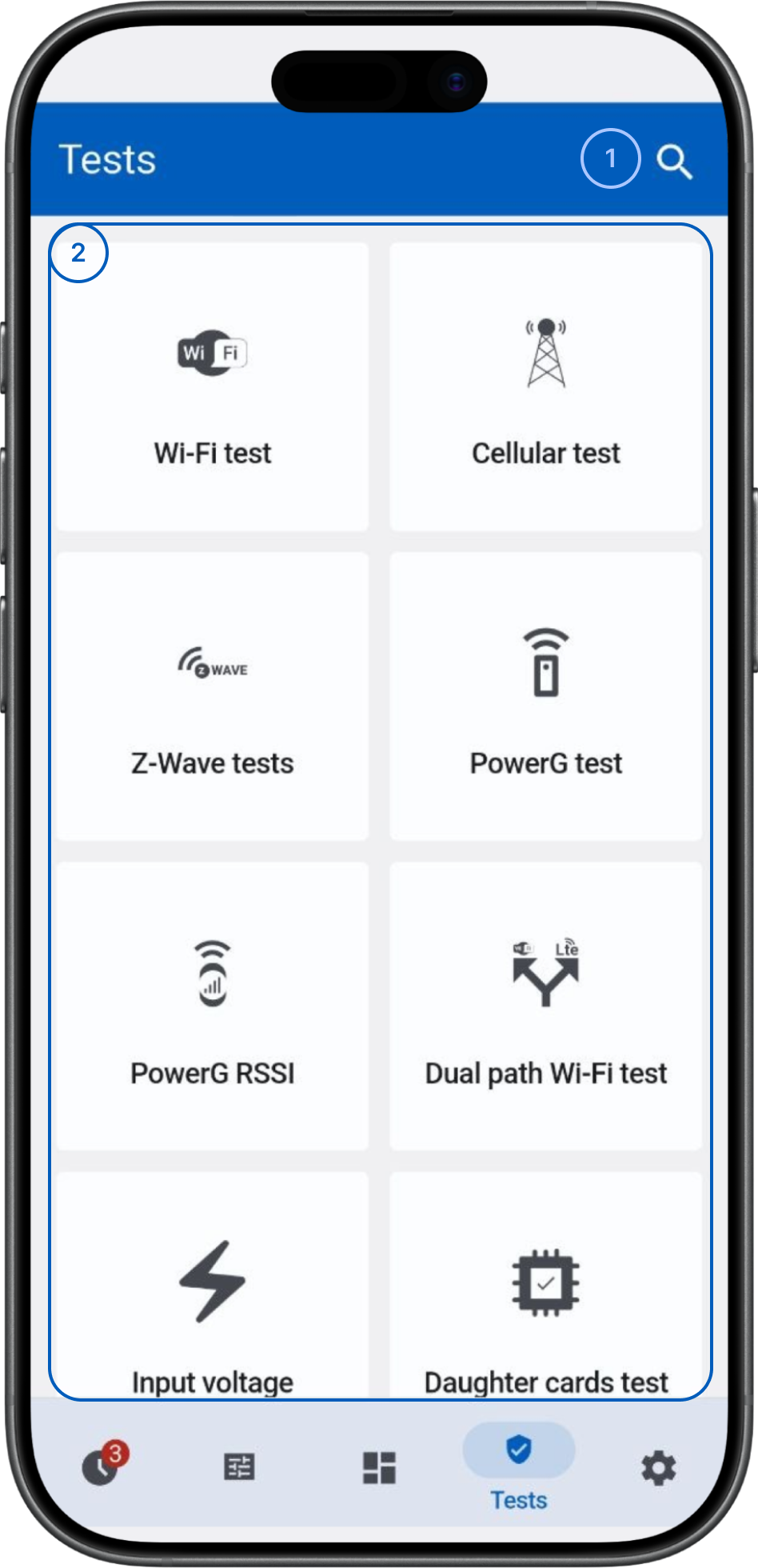
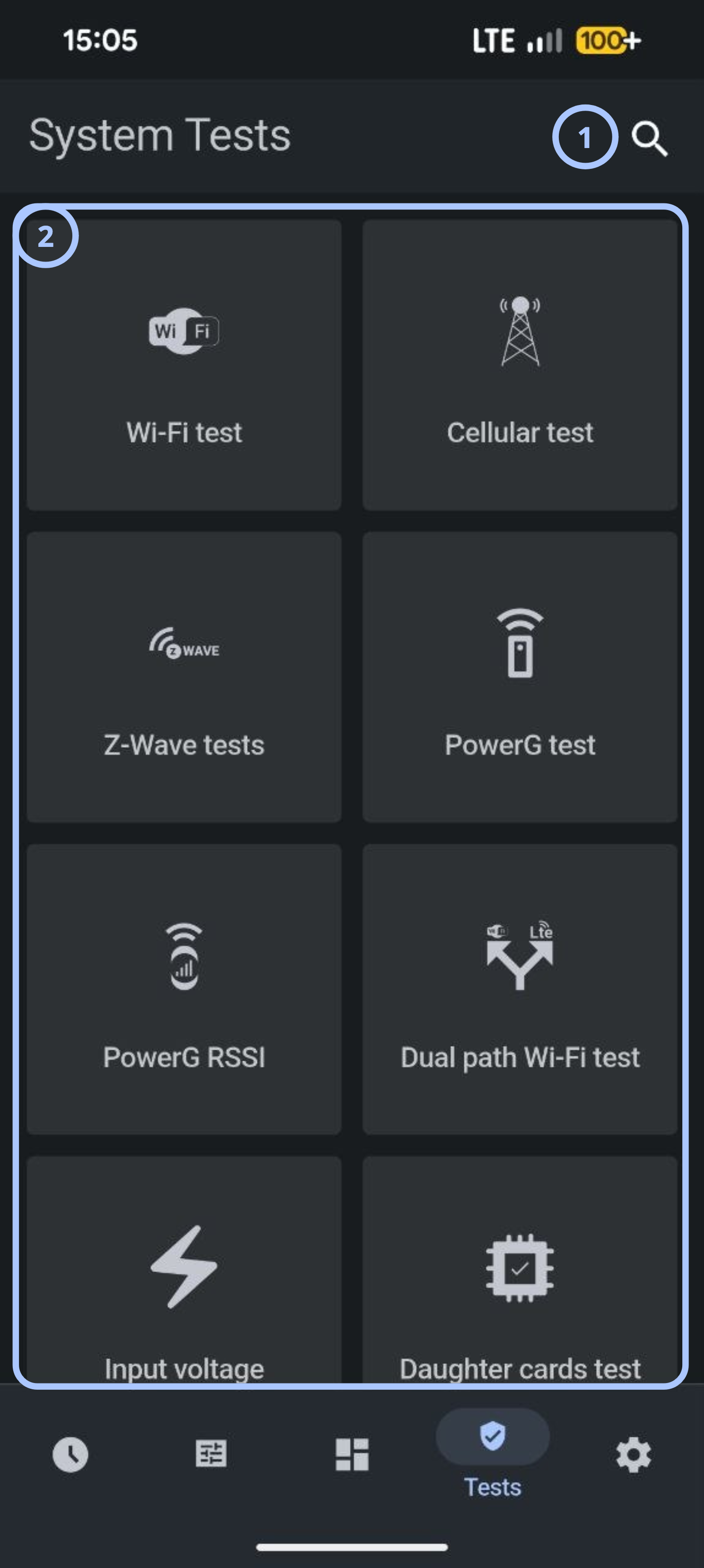
 SearchSearches the available tests by keyword.
- Test tilesLists available diagnostic tests. Select a tile to open the corresponding test.
Test reference
- Wi-Fi testChecks the panel's Wi-Fi connection and communication status.
- Cellular testChecks the panel's cellular communication path.
- Z-Wave testsChecks Z-Wave communication and connected devices.
- PowerG devices testChecks communication with PowerG wireless sensors.
- PowerG RSSIShows received signal strength indicator (RSSI) measurements for PowerG devices.
- Dual path Wi-Fi testChecks Wi-Fi and the alternate communication paths supported by the panel.
- Input voltageShows or tests the panel's power input.
- Daughter cards testChecks installed daughter cards and expansion hardware.
- Panel testRuns a general panel diagnostic.
Common scenarios
Run a diagnostic test
- Open the Tests screen.
- Find and select the required test tile.
- Wait for the panel to complete the test.
- Review the results.
Verify Wi-Fi communication
- Open Tests.
- Select Wi-Fi test.
- Start the test if prompted.
- Review the connectivity results.
Verify cellular communication
- Open Tests.
- Select Cellular test.
- Run the test.
- Review its status.
Check PowerG signal strength
- Open Tests.
- Select PowerG RSSI.
- Review the signal measurements.
- If signal quality is insufficient, reposition the devices and test again.
note
Signal quality requirements depend on device type and installation environment.
Verify panel power
- Open Tests.
- Select Input voltage.
- Review the measurements.
Tips
tip
- Check PowerG RSSI before permanently mounting wireless devices.
Troubleshooting
Wi-Fi test fails
Possible causes:
- The network is configured incorrectly.
- Internet access is unavailable.
- The signal is too weak.
What to try:
- Check the Wi-Fi settings.
- Check the signal strength.
- Run the test again.
Cellular test fails
Possible causes:
- Cellular coverage is poor or unavailable.
- The communication module is unavailable or configured incorrectly.
What to try:
- Check the cellular signal.
- Check that cellular service is active.
- Check that the cellular communication module is available.
- Run the test again.
- If the test still fails, contact your administrator or service provider.
PowerG RSSI reports a weak signal
Possible causes:
- The device is too far from the panel.
- Nearby equipment is causing interference.
What to try:
- Move the device closer to the panel.
- Test the signal again.
Daughter cards test reports a failure
Possible causes:
- The daughter card is not installed correctly.
- The hardware is unsupported or defective.
- Communication with the module failed.
What to try:
- Check the module installation.
- Check hardware compatibility.
- Run the diagnostic test again.
- If the hardware is faulty, replace it.
Input voltage is outside the expected range
Possible causes:
- The power supply is unavailable or unstable.
- A wiring connection is loose or incorrect.
- External power was interrupted.
What to try:
- Check the power source.
- Inspect the wiring connections.
- Check the power supply specifications.
- Run the voltage check again.
Related pages
See also
Was this page helpful?