Configuration
Overview
Use the Configuration screen to manage Neo 5 panel settings, view system information, and access installation options.
Use this screen to:
- Configure panel behavior and system settings.
- Manage users and installer options.
- Review hardware, software, and communication information.
- Configure date, time, and network settings.
- Perform maintenance actions such as updating software.
Before you begin
Preconditions
- Make sure the Neo 5 panel is powered on and working.
Important limitations
warning
- Rebooting or powering down the panel temporarily interrupts panel access.
- Available options may differ depending on panel model, firmware version, and installed hardware modules.
Screen layout
Configuration
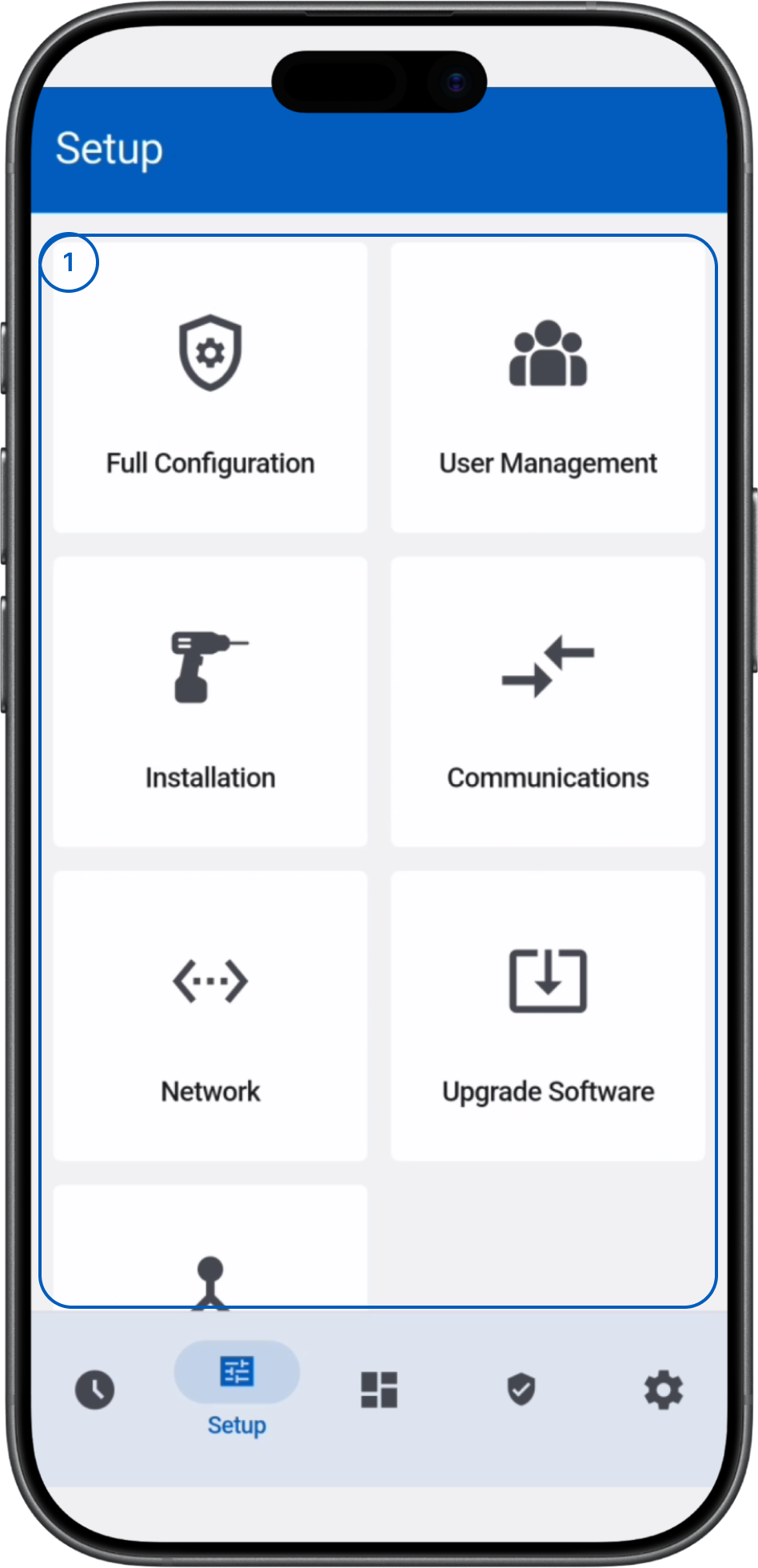
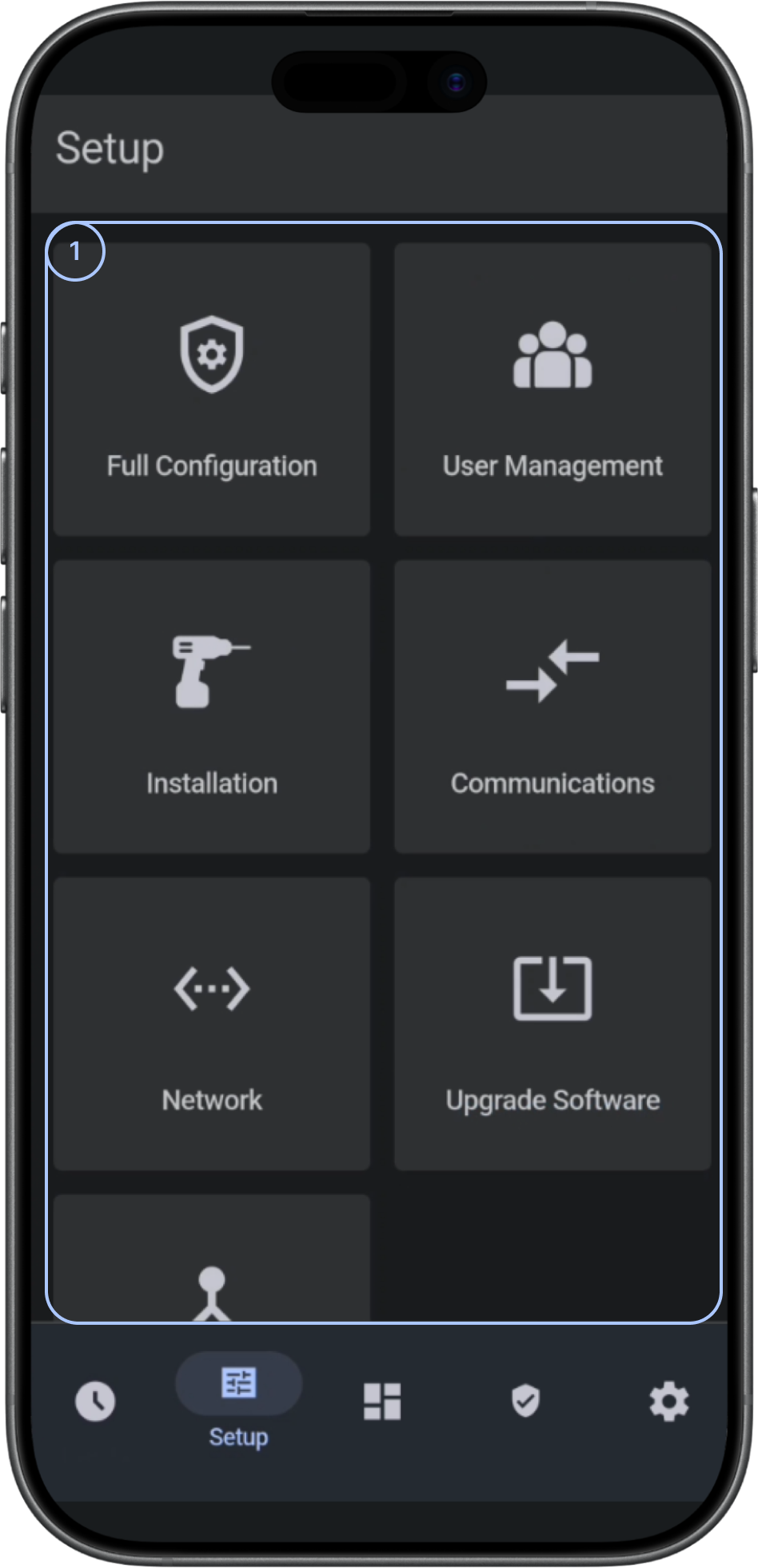
- Configuration tilesOpens configuration categories and panel maintenance functions.
Configuration tiles
The Configuration screen includes the following tiles:
- Full ConfigurationOpens the full panel configuration.
- User ManagementManages panel users and their access settings.
- InstallationOpens installer and advanced system settings.
- CommunicationShows panel communication details.
- NetworkShows panel network details.
- Upgrade SoftwareStarts a panel software update.
- PartitionsConfigures panel partitions.
Common scenarios
Configure users
- Open Configuration.
- Select Users.
Configure communication
- Open Configuration.
- Select Communication.
Configure network
- Open Configuration.
- Select Network.
Configure partitions
- Open Configuration.
- Select Partitions.
Tips
tip
- Check the network configuration after changing network settings.
Troubleshooting
Software update cannot start
Possible causes:
- Network connectivity is unavailable.
What to try:
- Check network connectivity.
- Start the software update again.
- If the update still cannot start, contact your administrator or service provider.
Related pages
See also
Was this page helpful?