Dashboard
Overview
Use the Dashboard to review Neo 5 panel health, connectivity, power, software, and connected devices.
Use this screen to:
- Check panel connectivity and operating status.
- Review battery, power, Wi-Fi, and cellular status.
- Review connected security and automation devices.
- Identify connectivity or device issues.
- View device categories.
- Start the configuration wizard.
Before you begin
Preconditions
- Make sure the Neo 5 panel is powered on and operational.
Important limitations
warning
- Offline devices might not display current status information.
Screen layout
Dashboard screen
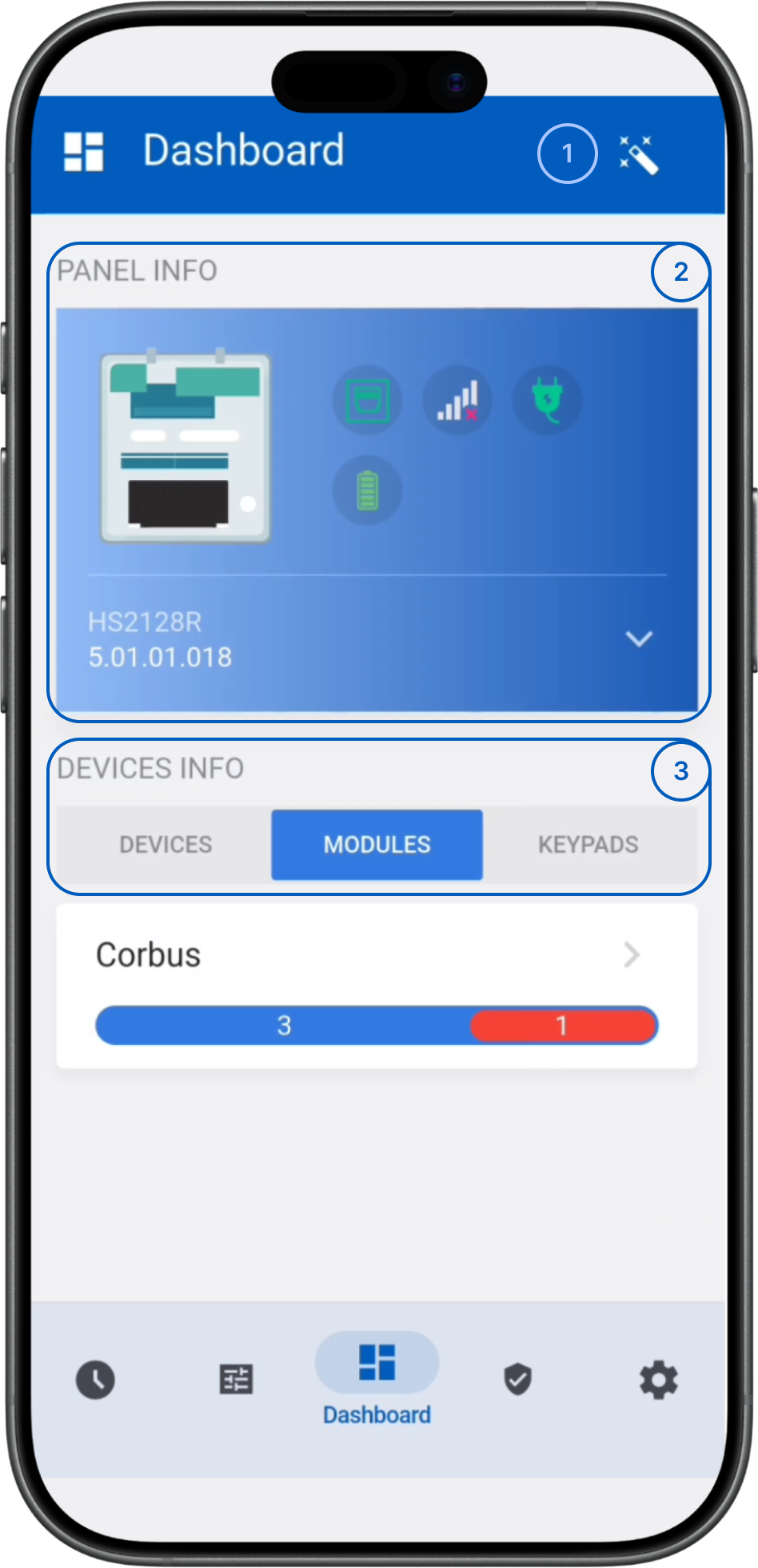
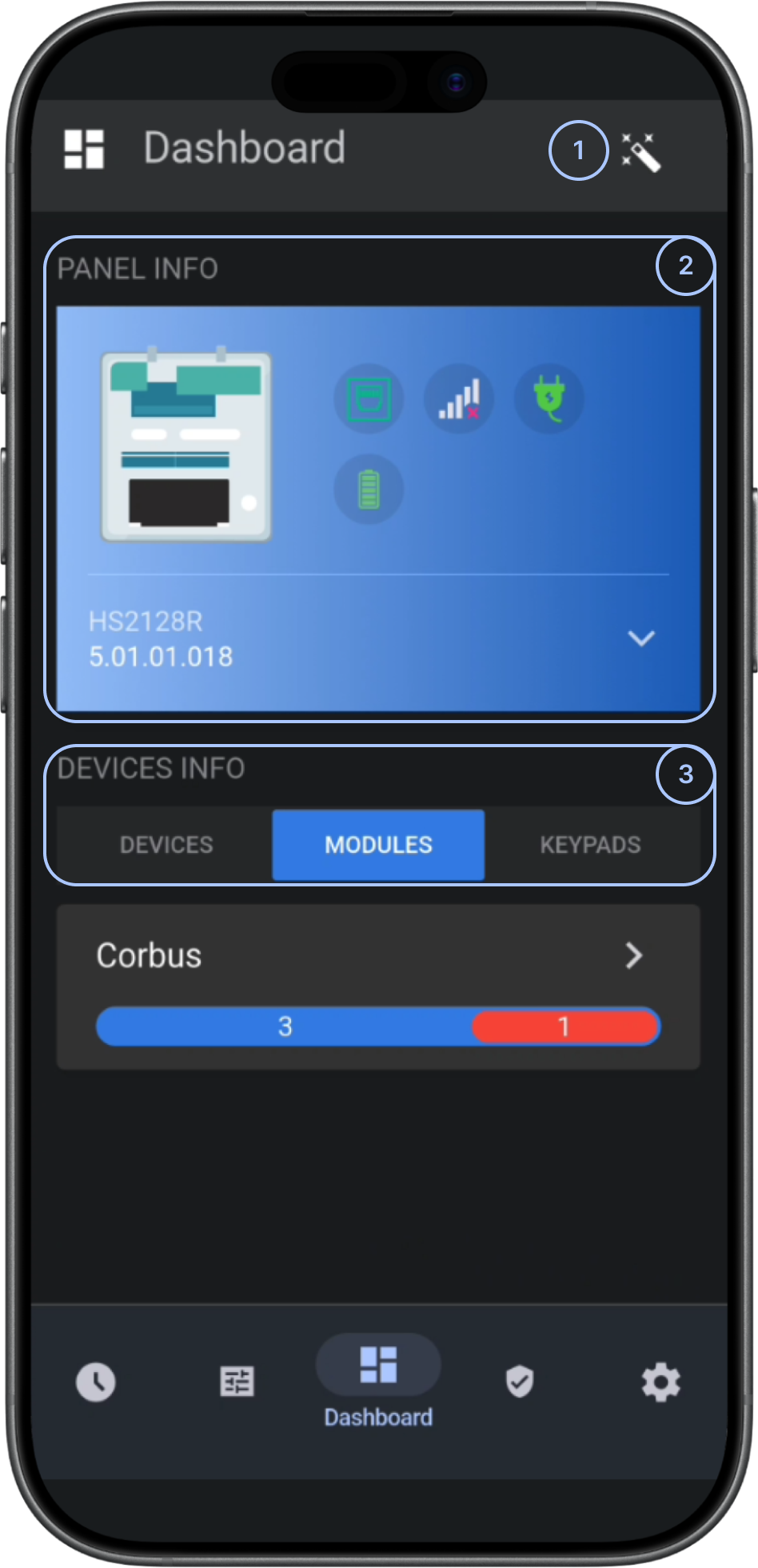
- WizardStarts the panel configuration wizard for guided setup or maintenance.
- Panel Info sectionShows panel hardware information and communication status.
- Devices Info sectionShows connected device categories and device counts. Select a category to view its devices.
Panel info section
The Panel Info card summarizes the Neo 5 panel's status.
Available indicators may include:
- Broadband signalShows the panel's broadband connection status.
- Cellular signalShows cellular availability. The signal indicator reflects connection quality.
- AC powerShows whether the panel is connected to AC power.
- BatteryShows the battery condition and, when available, its charge level and charging status.
- Software versionShows the installed firmware version. This information is read-only.
Devices info section
The Devices Info section organizes connected devices by category.
Supported categories may include:
- DevicesLists PowerG devices, such as motion sensors, door and window contacts, and detectors.
- ModulesLists modules connected to the panel.
- KeypadsLists keypads connected to the panel.
Common scenarios
Review panel status
- Open the Dashboard.
- Review the Panel Info section.
- Check broadband status.
- Check cellular signal status.
- Check the AC power connection.
- Review battery percentage and charging state.
- Check the software version if needed.
View devices
- Open the Dashboard.
- In Devices Info, select Devices.
- Review the displayed PowerG device information.
View modules
- Open the Dashboard.
- Select the Module tab.
- Review the available modules.
View keypads
- Open the Dashboard.
- Select the Keypads tab.
- Review the listed keypads.
Tips
tip
- Review the dashboard regularly to identify communication issues before they affect system operation.
- Verify battery and AC status after power outages.
Troubleshooting
Cellular data shows no signal
Possible causes:
- Cellular coverage is poor.
- The cellular module is unavailable or not configured correctly.
- The carrier service is temporarily unavailable.
What to try:
- Check that cellular service is available.
- Check panel communication settings.
- Check that the cellular module is available.
- If the signal remains unavailable, contact your administrator or service provider.
Related pages
Was this page helpful?