Tests
Overview
Use the Neo 5 Tests screen to run built-in tests and check signal strength and sensor operation.
Use this screen to:
- Test a panel during installation.
- Troubleshoot communication or hardware issues.
- Test wireless device connectivity.
Before you begin
Preconditions
- Make sure the Neo 5 panel is powered on and has completed startup.
- Pair wireless devices with the panel before you run wireless communication tests.
Limitations
warning
- Available tests may vary depending on panel model and installed hardware.
- Running tests does not automatically correct detected issues.
Screen layout
Tests screen
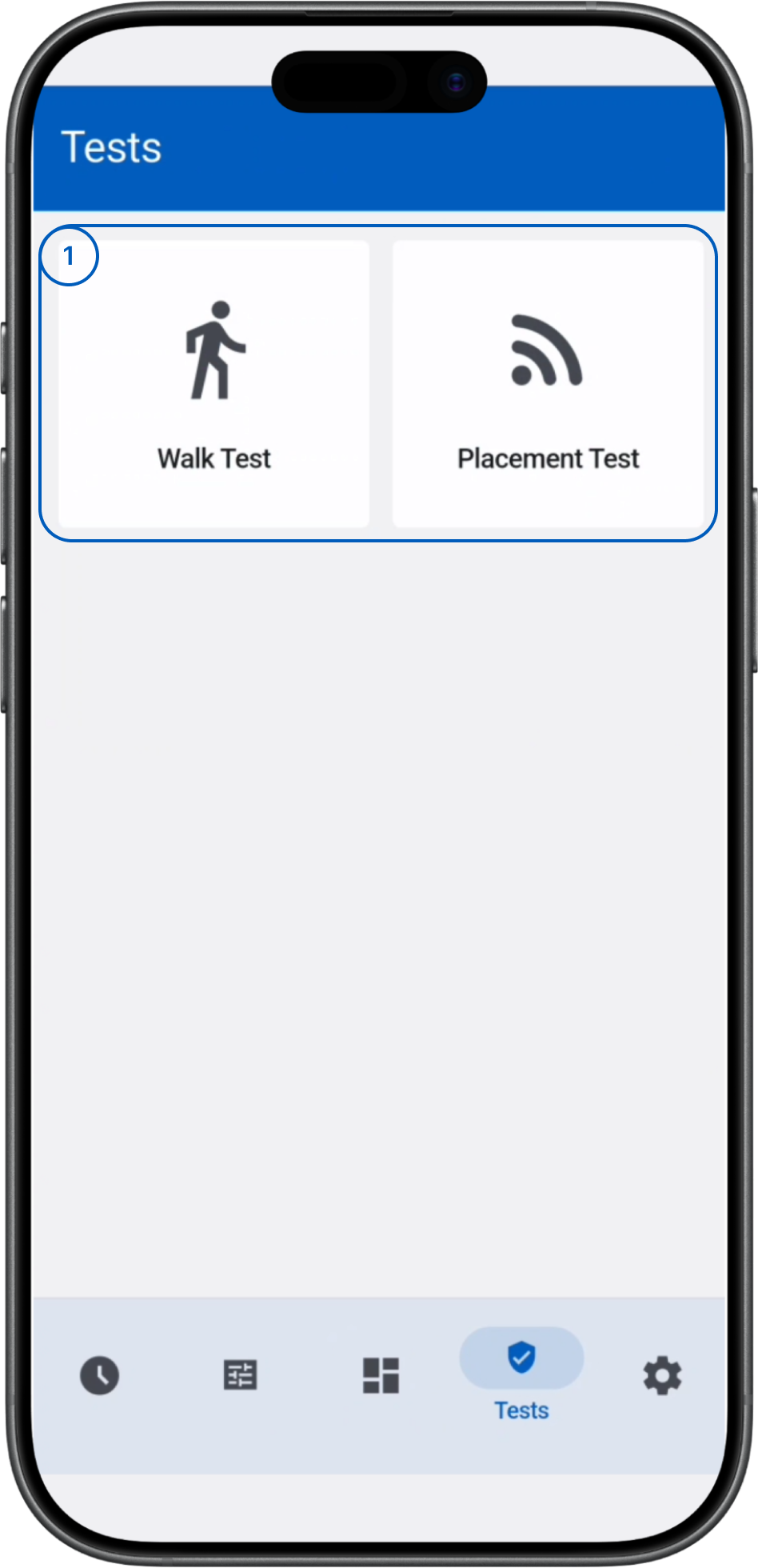
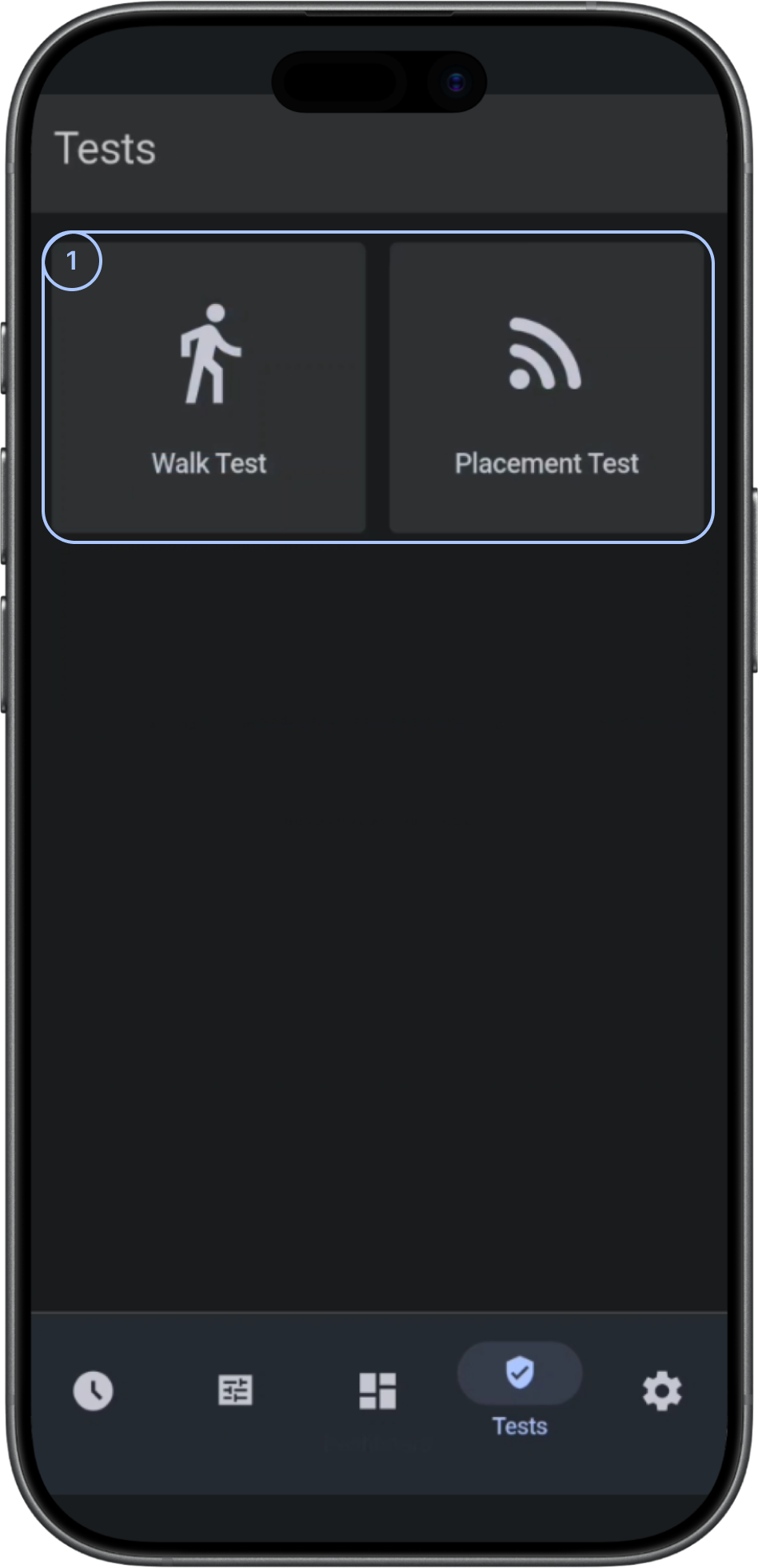
- Test tilesLists available diagnostic tests. Select a tile to open a test.
Test reference
- Walk testChecks whether wireless devices are operating and reporting events to the panel.
- Placement testAssesses the placement of wireless devices.
Common scenarios
Run a test
- Open the Tests screen.
- Locate the required test tile.
- Select the required test.
- Wait for the panel to complete the test.
- Review the displayed test results.
The test results appear when the diagnostic finishes.
Tips
tip
- Use PowerG RSSI measurements before permanently mounting wireless devices.
Troubleshooting
Walk test fails
Possible causes:
- The sensors are misconfigured.
What to try:
- Check the panel status.
- Check the sensor configuration.
Related pages
Was this page helpful?