Log
Overview
The Log screen displays event logs generated by the control panel. Use this page to review panel activity, verify system events, and troubleshoot issues.
Use this page to:
- Review recent panel activity.
- Monitor alarm and restore events.
- Verify event timestamps.
- Access standard and legacy logs.
- Refresh log data from the server.
The page groups events by date and displays the event time and description for each entry.
- Visonic panels — two independent logs: Standard log (1000 records) and Legacy log (100 records). Both logs can be downloaded at the same time.
- DSC Neo/PSP panels — one panel log with up to 1000 records.
- IQ panels — no panel event log is available for download to AlarmInstall. Instead, IQ panels support Download Log to IQMS. PowerManage sends a command to the panel, and the panel uploads its system and diagnostic logs directly to the IQMS server.
Before you begin
Preconditions
- The panel must be online and connected to the server.
Dependencies
- Active communication between the panel and the server.
- Supported panel firmware.
- Legacy logs require a compatible PowerMaster panel.
Important limitations
- Event times follow the panel time.
- Some logs may not appear immediately if panel communication is delayed.
Page layout
Log screen interface
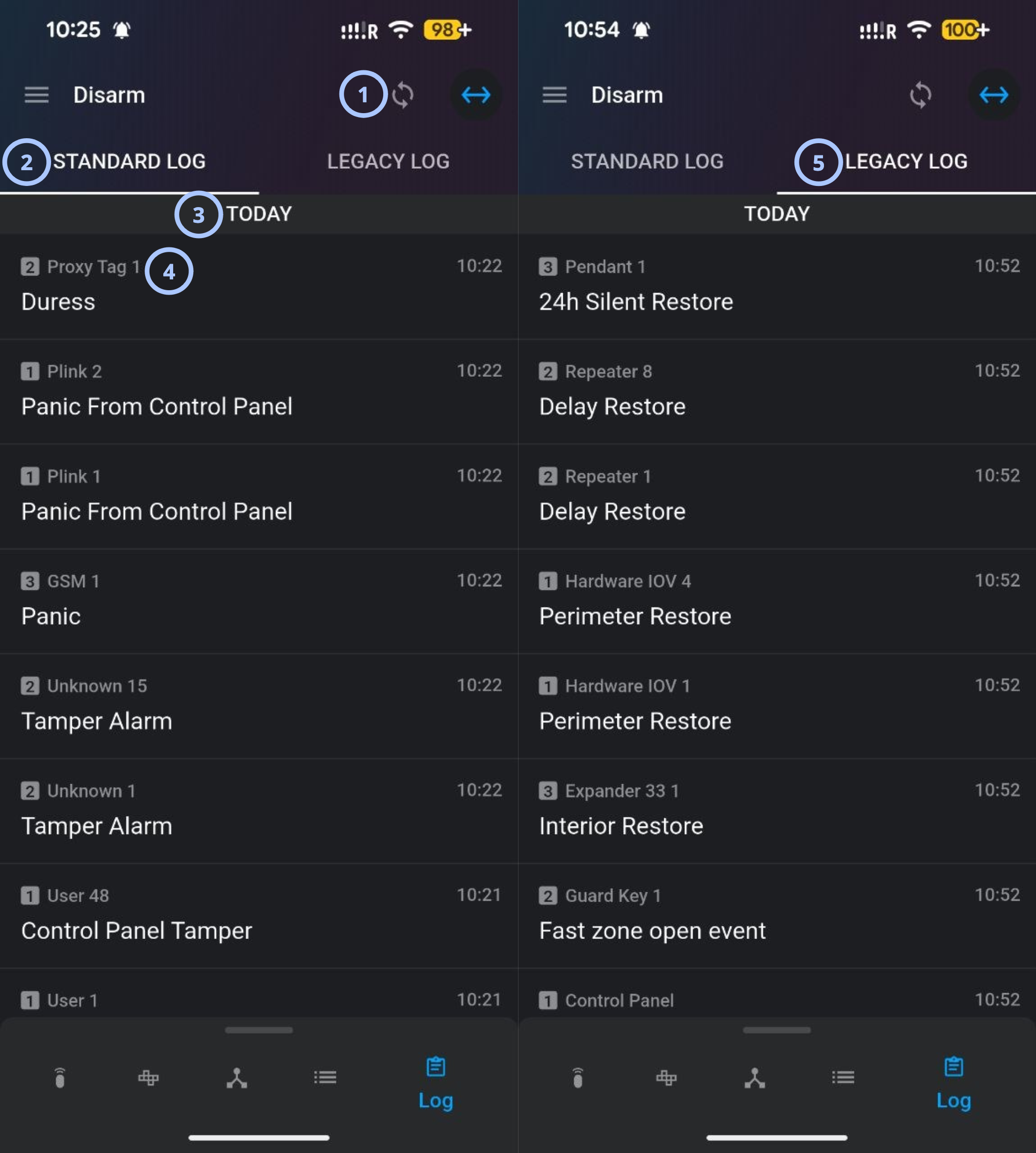
| Callout | UI element | Description | When to use |
|---|---|---|---|
| 1 | Refresh icon | Downloads and displays the most up-to-date log information from the server. | Use after recent panel activity or when troubleshooting delayed events. |
| 2 | STANDARD LOG tab | Displays the standard event log with up to 1000 records. This log uses human-readable descriptions for alarms, alerts, troubles, arm and disarm events, and device activity. | Use for routine event review, troubleshooting, and history checks. |
| 3 | LEGACY LOG tab | Displays the legacy event log with up to 100 records. This log uses the CID (Contact ID) format, so events appear as numeric codes instead of descriptive text. note The LEGACY LOG tab appears only for supported PowerMaster panels. | Use when you need to cross-reference events with central station reports, verify CID event codes, or troubleshoot central station reporting issues. |
| 4 | Event source, time, and description | Shows the origin of the event, including source device or component (zone, keypad, keyfob, siren, user), the time it occurred, and a text description of the event. | Use to identify which device or component generated the event and when it occurred. |
How to use this page
View standard logs
Goal:
- Review recent panel activity using the standard log.
Steps:
- Open the Log screen.
- Select the STANDARD LOG tab.
- Scroll through the event list.
- Review event dates, descriptions, and times.
Expected result:
- The application displays standard panel events grouped by date.
- Each entry shows the event source, description, and panel time.
View legacy logs
Goal:
- Review legacy events for supported PowerMaster panels.
Steps:
- Open the Log screen.
- Select the LEGACY LOG tab.
- Review the displayed event entries.
Expected result:
- The application displays legacy events for the selected PowerMaster panel.
The LEGACY LOG tab appears only for supported PowerMaster panels.
Refresh logs
Goal:
- Retrieve the latest events from the server.
Steps:
- Open the Log screen.
- Select the Refresh icon.
- Wait for the log list to update.
Expected result:
- The latest available events appear in the log list.
- Newly received panel events become visible.
Refresh the logs after testing sensors, arming states, or alarm events.
Review event history by date
Goal:
- Analyze events that occurred on a specific day.
Steps:
- Open the Log screen.
- Locate the required date header.
- Review all events listed under that date.
Expected result:
- Events are grouped and displayed chronologically for easier review.
Tips
- Use the Refresh icon before reviewing critical events.
- Review logs in chronological order when troubleshooting alarms or connectivity issues.
Troubleshooting
Logs do not appear
Possible causes
- The panel is offline.
- Server communication is unavailable.
What to do
- Verify that the panel is connected.
- Select the Refresh icon to reload the logs.
- Check network or server connectivity.
Legacy logs do not appear
Possible causes
- The panel is offline.
- Server communication is unavailable.
- The selected panel does not support legacy logs.
What to do
- Verify that the panel is connected.
- Select the Refresh icon to reload the logs.
- Check network or server connectivity.
- Confirm that the panel is a supported PowerMaster model.
Recent events are missing
Possible causes
- The logs have not refreshed.
- Communication delays are occurring.
What to do
- Select the Refresh icon.
- Wait for synchronization to complete.
- Verify panel communication status.