Managing locations
Overview
The Managing locations page lets installers rename existing locations in the mobile app.
Use this page when you need to:
- Update location names to match real-world room or area names
- Replace default location labels with custom names
- Improve device organization and readability
This page helps installers keep location names clear and consistent across the application.
Before you begin
Preconditions
- The panel must be online and connected to the server.
Dependencies
- Active communication between the panel and the server.
- Supported panel firmware.
Important limitations
warning
- This page is relevant only for Visonic panels.
- You can only rename existing locations from this page.
- This page does not support creating or deleting locations.
- Location name changes affect how locations appear throughout the app and on the panel.
Page layout
Locations list page
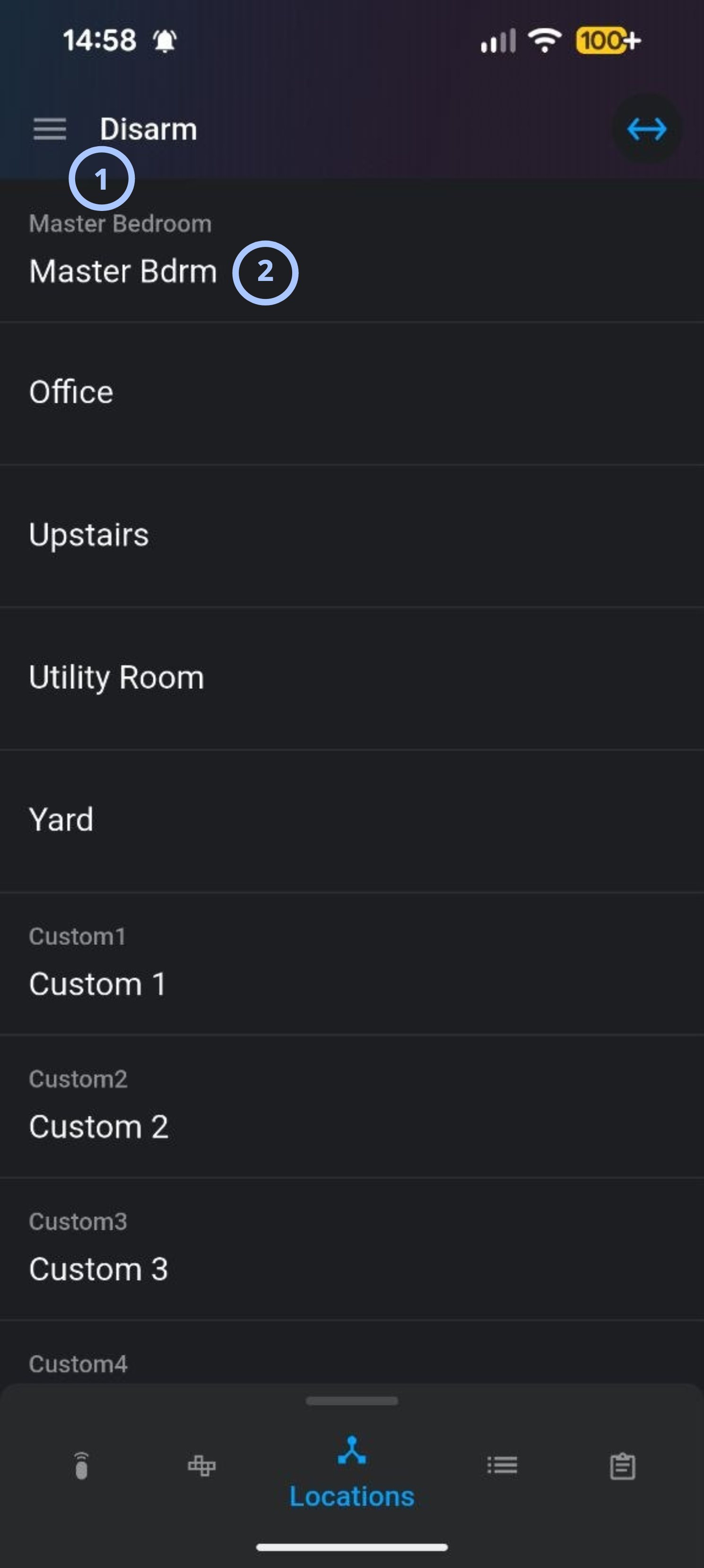
| Callout | UI element | Description | When to use |
|---|---|---|---|
| 1 | Default location name | Displays the default location name from the panel. | Use this to identify the original location label. |
| 2 | Custom location name | Displays the current custom label for the location. | Use this to review the current renamed label. |
Edit location name dialog
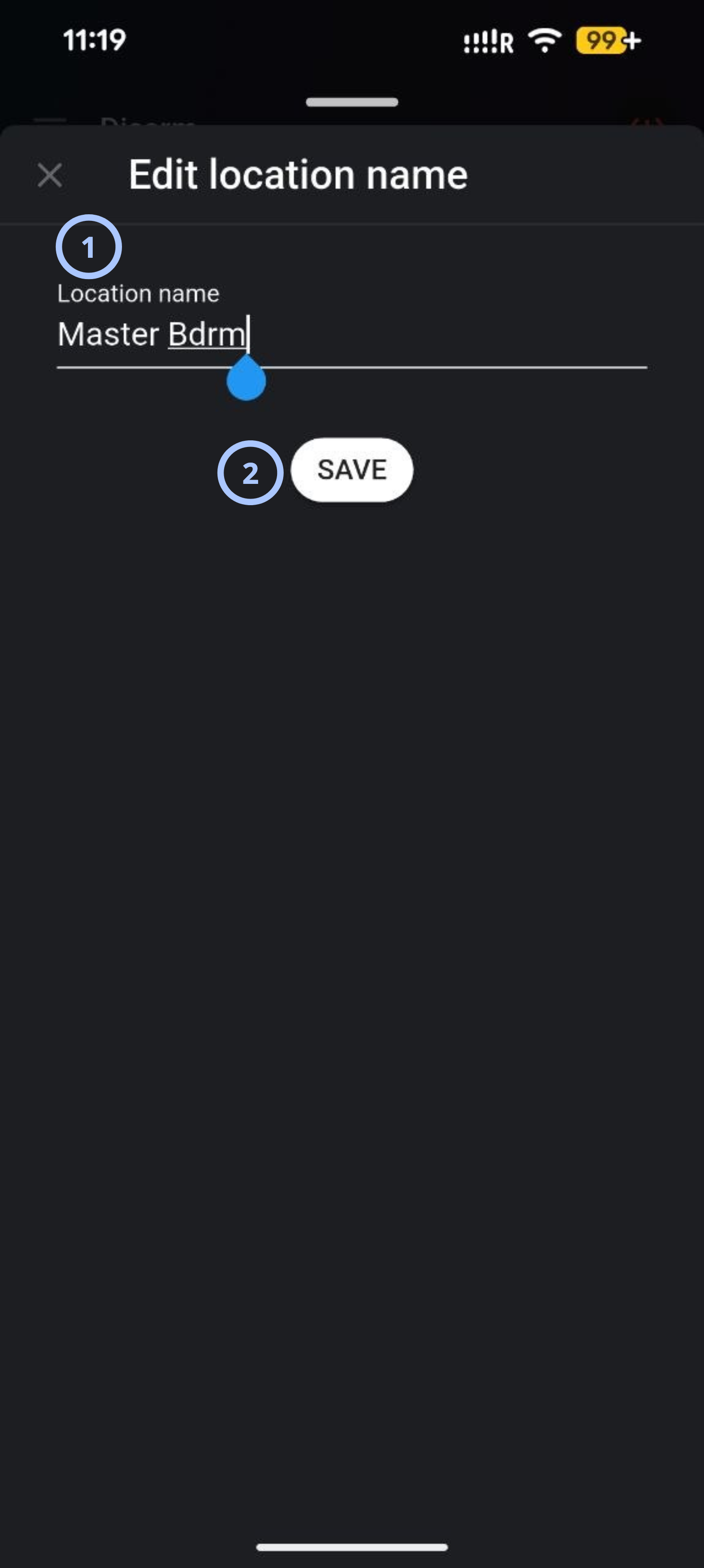
| Callout | UI element | Description | When to use |
|---|---|---|---|
| 1 | Custom location name field | Lets you enter a new custom name for the location. | Use this to rename the selected location. |
| 2 | SAVE button | Saves the updated custom location name. | Use this after entering the new name. |
How to use this page
Rename a location
Goal:
- Change the displayed name of an existing location.
Steps:
- Open the Locations page.
- Review the list of available locations.
- Select the location you want to rename.
- In the Location name field, enter the new name.
- Select SAVE.
Expected result:
- The updated location name appears in the locations list.
- The new name is used throughout the application.
note
Location names should be descriptive and easy to identify.
Cancel a location rename
Goal:
- Exit the rename dialog without saving changes.
Steps:
- Open a location from the list.
- Modify or review the location name.
- Select the Close icon.
Expected result:
- The edit dialog closes.
- Unsaved changes are discarded.
Tips
tip
- Use consistent naming conventions for rooms or areas.
- Keep names short and recognizable.
- Review location names periodically to maintain organization.
Troubleshooting
Unable to save the new location name
Possible causes
- The location name field is empty or contains unsupported characters.
- The app cannot connect to the panel or server.
What to do
- Enter a non-empty name using supported characters.
- Check that the device is connected to the network.
- Retry the operation.
Related pages
See also
Was this page helpful?