Panel list interface layout
Overview
The Panel list screen shows the panels that are added to AlarmInstall. Use this screen to select the panel you want to configure or delete.
Use the Panel list screen when you need to:
- Configure a connected panel.
- Add a panel to the app.
- Switch between panels.
- Confirm which panel is associated with the current account.
- Remove a panel from the current account.
- Edit a panel name.
The Panel list screen helps prevent installers from opening or controlling the wrong security system, especially when one mobile device is used with more than one panel.
Before you begin
Required permissions
You need a valid AlarmInstall account and a valid installer code for each panel you want to access. AlarmInstall access is password-protected and permissions-based.
Preconditions
Before you use the Panel list screen, confirm that:
- The AlarmInstall app is installed on your mobile device.
- You know the host address for your AlarmInstall application.
- You have the panel ID or panel serial number.
- The mobile device has internet access.
Limitations
warning
- The Panel list shows only panels that have been added to the app and are available to the signed-in installer.
- If the wrong code is entered three times while logging in to the panel control interface, access may be locked for 5 minutes.
Page layout
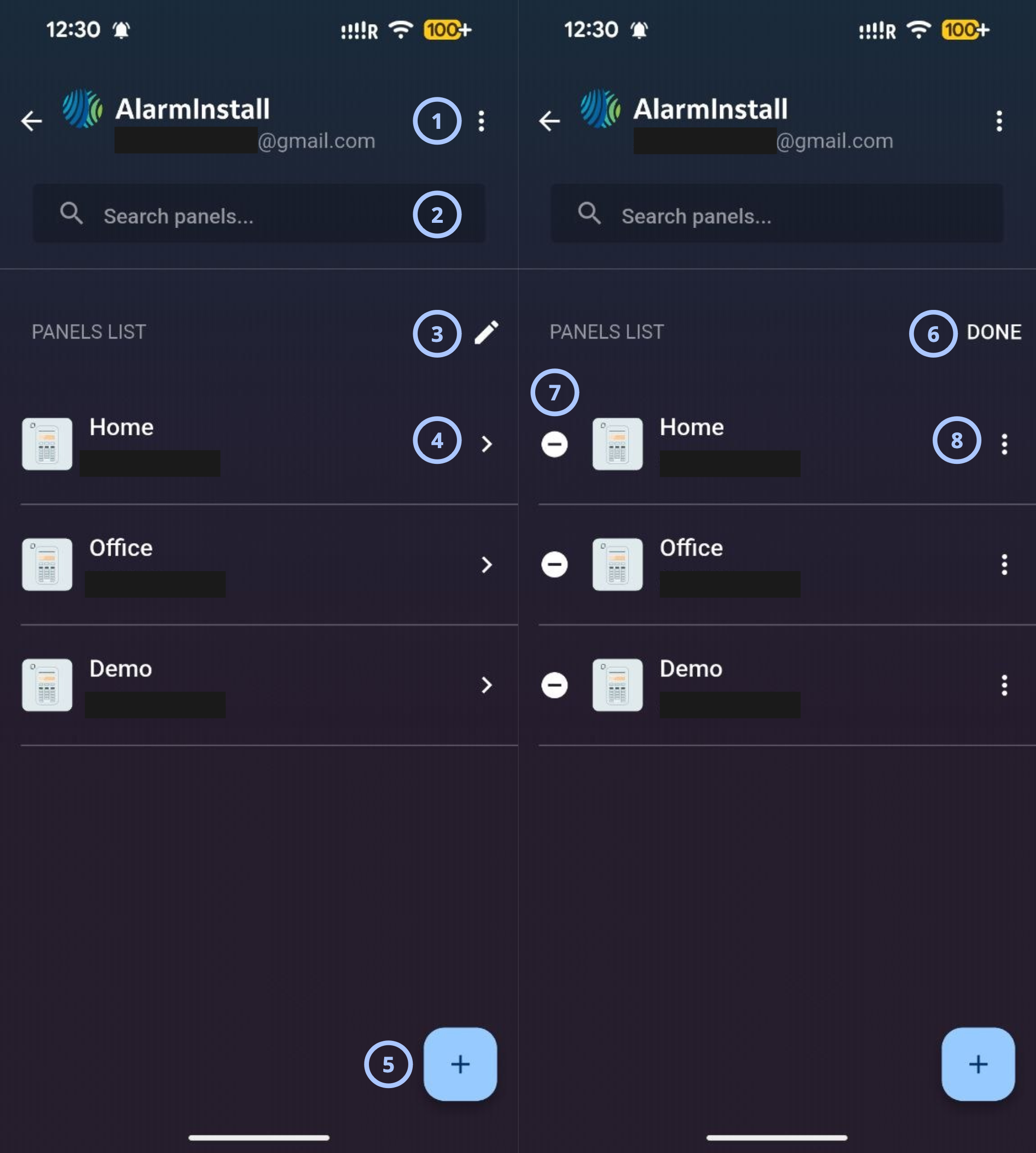
| Callout | Name | Behavior | Restrictions |
|---|---|---|---|
| 1 |  |
| Not relevant |
| 2 | Search |
| Not relevant |
| 3 |  |
| Not relevant |
| 4 |  |
|
|
| 5 | Add panel |
| Not relevant |
| 6 | Done |
| Not relevant |
| 7 |  |
|
|
| 8 | |
|
|
How to use this page
Open a panel from the list
- Open the AlarmInstall application.
- Sign in to your account in remote mode.
- Tap for the panel you want to open.
- Enter a valid installer code.
Rename a panel alias
- Open the AlarmInstall application.
- Sign in to your account in remote mode.
- Tap .
- Tap for the panel you want to rename.
- Enter the new panel name.
- Tap OK to save changes.
- Tap Done to close panel list editing mode.
Remove a panel from the app
- Open the AlarmInstall application.
- Sign in to your account in remote mode.
- Tap .
- Tap for the panel you want to remove.
- Enter the AlarmInstall installer password.
- Tap Remove to complete the action.
- Tap Done to close panel list editing mode.
Tips
tip
- Use clear panel aliases, such as Home, Office, or Warehouse, so the installer can select the correct system.
- Do not share installer codes in screenshots, support chats, or documentation.
- Keep the host address, panel ID, and installer code in a secure location approved by your organization.
- If several panels are configured, pin the most commonly used panel so it is easy to find and access.
Troubleshooting
| Problem | Possible cause | What to try |
|---|---|---|
| The panel list is empty |
|
|
| The installer code is rejected |
|
|
| A panel is shown but does not open |
|
|
| A panel was removed by mistake | A remove action was confirmed | Add the panel again using the correct server address, panel serial, and installer code |
| User approval is required for installer login | The user must approve remote installer access | Ask the user to log in to the ConnectAlarm app and grant installer access to the panel |
Related pages
Was this page helpful?