AlarmInstall 3.0

AlarmInstall 3.0 is a major release focused on expanding installer capabilities for PowerSeries Neo 5 panels. This update introduces full local (direct Wi-Fi) support for Neo 5, including device enrollment, configuration, firmware upgrades, and a guided first-time setup wizard. New features also include APN configuration in local mode, parent/child device relationship display, predefined configuration templates, panel unblock functionality, and expanded trouble notifications.
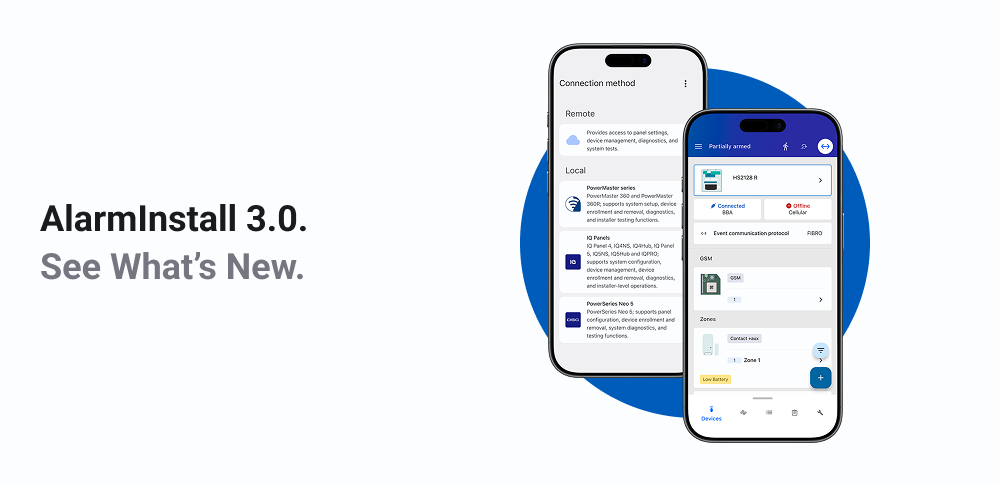
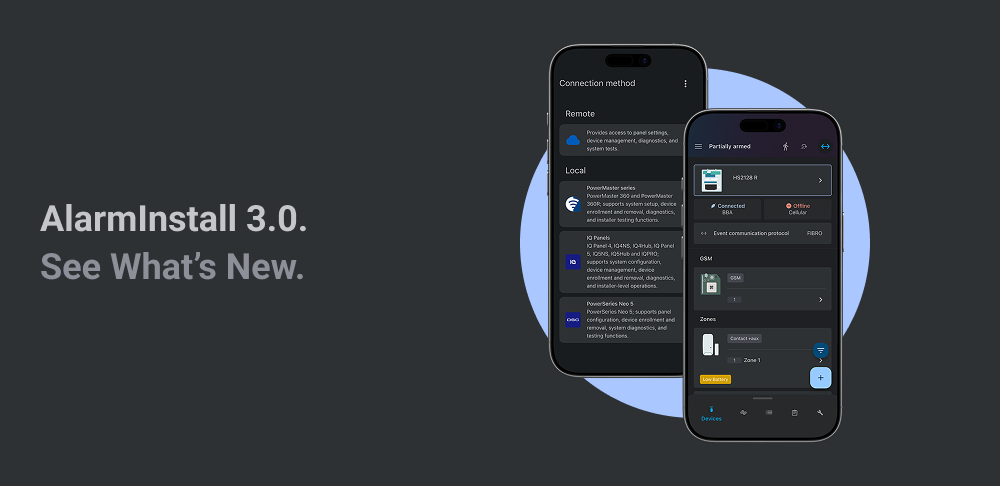
Added support for PowerSeries Neo 5 panels
AlarmInstall 3.0 introduces comprehensive support for PowerSeries Neo 5 panels in both local and remote modes.
Local support for PowerSeries Neo 5 panels
AlarmInstall 3.0 introduces full local (direct Wi-Fi) support for PowerSeries Neo 5 panels. You can now connect to a Neo 5 panel directly via its Wi-Fi access point or the customer's existing Wi-Fi network and perform the complete installation workflow.
Key changes:
- View panel model, firmware version, and system status on the Dashboard.
- Browse and manage all device types, including security zones, keypads, sirens, keyfobs, repeaters, modules, and smart home devices.
- Enroll new devices and modules, including pre-enrollment with a slot, partition, and label assignment.
- Remove devices and edit device settings.
- Manage partitions, users, communicators, receivers, and output settings.
- View and edit all panel and communicator configuration options.
- Control smart home devices (door locks, lights, dimmers) directly in local mode.
- Run a Walk Test to verify all sensors are communicating properly.
- Perform a Firmware Upgrade in local mode.
- Connect through the customer's existing Wi-Fi network, not only through the panel's own access point.
- Auto-reconnect — if the app goes to the background and the connection drops, it automatically reconnects when you return within 20 minutes.
- Session timeout handling — the app notifies you when the connection expires and guides you to reconnect.
- Startup Wizard — when connecting to a Neo 5 panel for the first time (default installer PIN detected), a guided setup walks you through changing the PIN, setting the Dealer ID, and configuring network settings step by step.
- Mandatory PIN change — the app requires you to change the default installer PIN during first setup for security.
Refresh panel Wi-Fi signal strength on Neo 5
You can now request a live Wi-Fi signal strength reading from the panel.
Key changes:
- Added a refresh option to retrieve the current Wi-Fi signal strength from the panel.
- Helps you verify the panel has a strong and stable connection at the installation location.
- Allows you to re-check signal strength after repositioning equipment.
Support for new devices on Neo 5
AlarmInstall 3.0 now recognizes and supports additional device types for Neo 5 panels.
Key changes:
- Added support for IQ Keypad.
- Added support for Water Leak Sensor.
- Added support for Smoke & Heat Detector (EI).
- Added support for Heat Detector (EI).
- Added support for Carbon Monoxide (CO) Detector.
- Added support for Optex Beam Detectors — short-range and long-range infrared models.
- Added support for Glassbreak Detector.
- Added support for Wireless Repeater.
- Added support for Vanishing Door/Window Contact.
- Added support for Wired-to-Wireless Module.
- Added support for Hardwire Zone — including wired zones connected through the Wired-to-Wireless module.
- Added support for Touch Keypad and NFC Proximity Tag.
- Added support for PowerG+ Host Module and Daughter Card.
- Added support for new communicator models: TL285LE, TL285, WF285.
- Added support for PowerG and PowerG+ smart home devices (lights, locks, dimmers).
Support for 1-way device enrollment on Neo 5
AlarmInstall 3.0 now supports enrolling 1-way (one-way) wireless devices on panels equipped with the DSC one-way wireless radio module.
Key changes:
- When the panel supports this capability, a new enrollment option appears on the Add Device screen.
PGM device status for PowerSeries Neo 5
For Neo 5 panels, PGM (Programmable Output) devices now show their real-time status.
Key changes:
- The current state (On, Off, and so on) is displayed directly on the PGM device card.
- Previously, PGM devices had no visible status indication.
- When the status changes on the panel side, the app updates it automatically.
Support for PowerG+ device enrollment with a PIN code on Neo 5
When enrolling PowerG+ devices on Neo 5 panels, the app now supports an additional PIN code field during the enrollment process.
Key changes:
- If a device requires a PIN code for secure pairing, the enrollment form automatically shows an 8-digit PIN code input field.
- Devices that do not require a PIN code can still be enrolled normally without it.
Remote firmware upgrades for Neo 5
Installers can now initiate a firmware upgrade for Neo 5 panels remotely, without being physically at the panel.
Key changes:
- The app retrieves a list of available firmware packages and lets you choose the desired version.
- The upgrade command is sent remotely.
- This works the same way as firmware upgrades already available for IQ and PowerMaster panels.
APN configuration for local mode
You can now view and configure APN (Access Point Name) settings directly from the app when connected locally to a panel.
Key changes:
- Set up the panel's cellular connection, including the APN name, network identifiers, connection type, username, and password, without needing physical access to the panel.
- Read the current APN settings from the panel.
- Push updated APN settings to the panel.
Parent/child relationships in device details
The device details screen now shows parent and child relationships between devices.
Key changes:
- If a sensor has external inputs connected to it, you can see which parent device those inputs belong to and which port they are connected to.
- Tapping a parent or child entry opens a list of all related devices with their icons, labels, zone numbers, and port numbers.
- This makes it easier to trace wiring and identify connected zones.
Support for basic configurations
You can now apply predefined panel configurations directly from the app.
Key changes:
- When connecting to a panel, a Basic Configurations tab appears on the configuration screen.
- If setup templates are available for the panel's hardware type, they are listed with their names and creation dates.
- Select a template, then select Upload to apply it to the panel.
- A confirmation message tells you whether the upload succeeded.
- This saves significant time when setting up multiple panels with similar hardware.
Unblock a panel after event overflow
If a panel becomes blocked due to an overload of events, you can now unlock it directly from the app.
Key changes:
- An Unblock Panel option appears in the Panel Details screen under Actions when the panel is in a blocked state.
- After confirming, the unblock command is sent to the panel.
Panel communication protocol display
The app now shows which communication protocol the panel uses for reporting events.
Key changes:
- The communication protocol is displayed on the panel info screen.
- This helps you verify that the panel is using the expected event communication path.
New device trouble notifications
The app now recognizes and displays additional trouble types.
Key changes:
- Added new ITv2 online and offline troubles, such as Went offline (ITv2), GPRS Went offline (ITv2), and BBA Went offline (ITv2).
- Added new system troubles, such as Emails Blocked, Push Notifications Blocked, Events Blocked, and Connection Blocked.
- Added a new Wi-Fi Trouble (Neo 5 specific).
- Added a new Fibro Account Duplication trouble that shows a list of panel serial numbers sharing the same account, helping installers identify and resolve the conflict.
Bug fixes
Key changes:
- Fixed missing values in the owner field that prevented pre-enrolling a keyfob.
- Fixed an issue that caused local mode for IQ panels to lose its connection after a few minutes of inactivity.
- Fixed an issue where the reconnection process for local mode never finishes.
- Fixed an issue that displayed incorrect slots when adding a Home Automation device with two outputs.
- Fixed an issue where some PowerG devices were not displayed on the PowerG test screen.
- Fixed an application crash when scanning a QR code.
- Fixed an application crash on meteocharts.
- Fixed a missing notification on the upgrade screen indicating that the upgrade needs to be authorized.
- Fixed an issue where the keyboard sometimes did not open during the autolearn process.
- Fixed a missing search field at the top of the Configuration screen.
- Improved general connection stability in local mode.