User Information
Overview
The User Information page in ConnectAlarm lets users review their account email address and access account-level actions.
Use this page when users need to:
- View the email address associated with the current ConnectAlarm account.
- Change the account password.
- Start the account removal process.
This page helps users manage personal account access and account lifecycle actions from one place.
Before you begin
Preconditions
- The user is signed in to ConnectAlarm.
- The user can access the User Information page.
- The user knows the current password.
- The mobile device has network connectivity.
Dependencies
- Email display depends on the current account profile.
- Account removal may affect access to panels, notifications, app data, and related services.
Limitations
warning
- Removing an account will permanently remove access to ConnectAlarm services for that account.
- Account removal will not remove panel users, panel configuration, event history and connection to PowerManage server.
Page layout
The User Information page displays the current user profile summary and account actions.
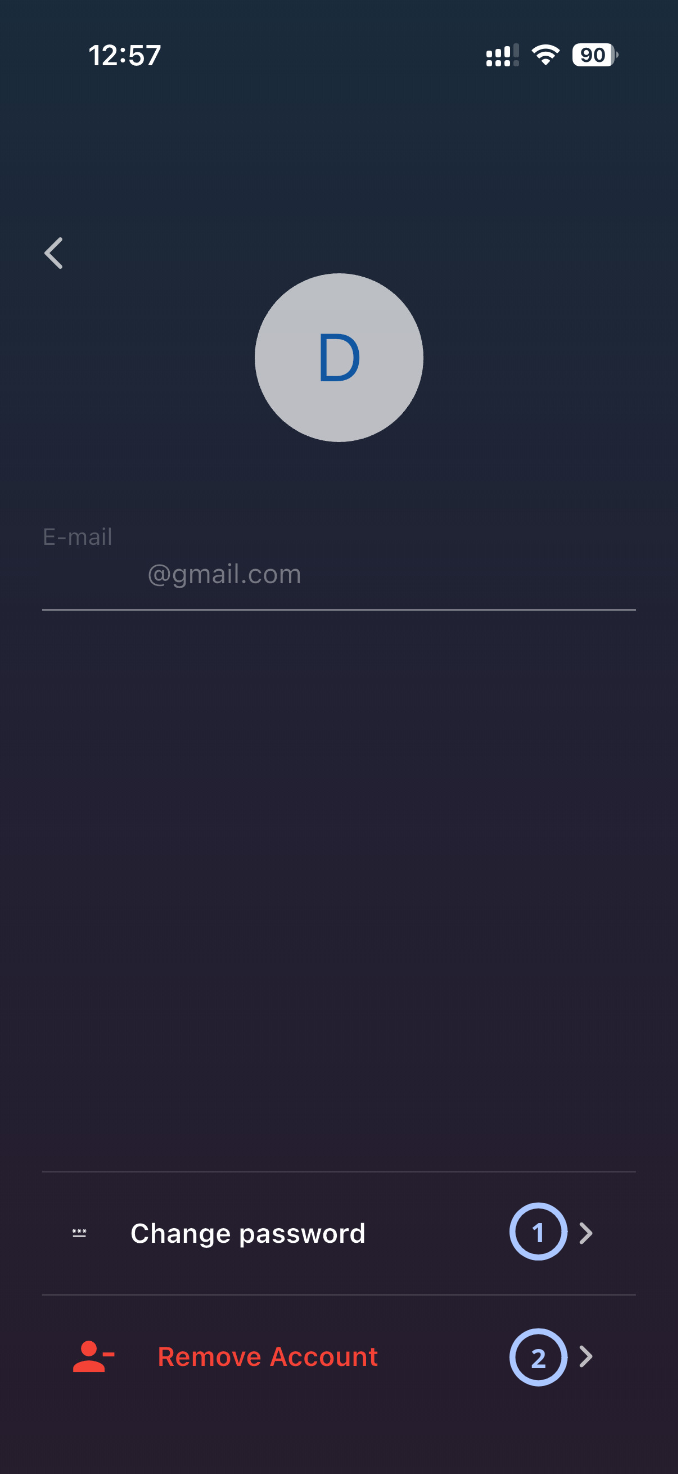
| Callout | UI element | Description | When to use |
|---|---|---|---|
| 1 | Change password | Opens the password change workflow for the current ConnectAlarm account. | Use to update the account password. |
| 2 | Remove Account | Starts the account removal workflow. | Use only when the user wants to remove the current ConnectAlarm account. |
danger
Use Remove Account carefully. Account removal can affect access to ConnectAlarm and connected services.
How to use this page
Open User Settings
- Open the ConnectAlarm app.
- Sign in to your account.
- Open the
 menu.
menu. - Select User Information.
Change the account password
- Open User Information.
- Select Change password.
- Complete the password change form shown by the app.
- Enter the current password.
- Enter the new password.
- Confirm the new password.
- Confirm the change.
Remove the account
- Open User Information.
- Confirm that the displayed email belongs to the account that should be removed.
- Select Remove Account.
- Read any confirmation message shown by the app.
- Enter the current password.
- Confirm the current password.
danger
Account removal is permanent. Confirm the account email and understand the consequences before approving removal.
Tips
tip
- Confirm the email address before selecting Remove Account.
- Change the password if the account password may have been shared, reused, or exposed.
- Use a strong password that is not used for other services.
- After changing the password, sign in again on trusted devices and sign out from devices that should no longer have access.
- Before removing an account, confirm whether the account is still needed for panels, notifications, installer access, or shared sites.
Troubleshooting
| Problem | Possible cause | What to try |
|---|---|---|
| Password change fails |
|
|
| Account removal fails |
|
|
| Account was removed by mistake |
|
|
Related pages
Was this page helpful?