Manage account information
Overview
Use  User Information to view the email address associated with your account, change your password, or remove your account.
Before you begin
- Sign in to ConnectAlarm.
- Verify that your mobile device has a network connection.
- Verify that you know your current password before you change your password or remove your account.
Screen layout
The User Information screen shows your language setting, account email address, and account actions.
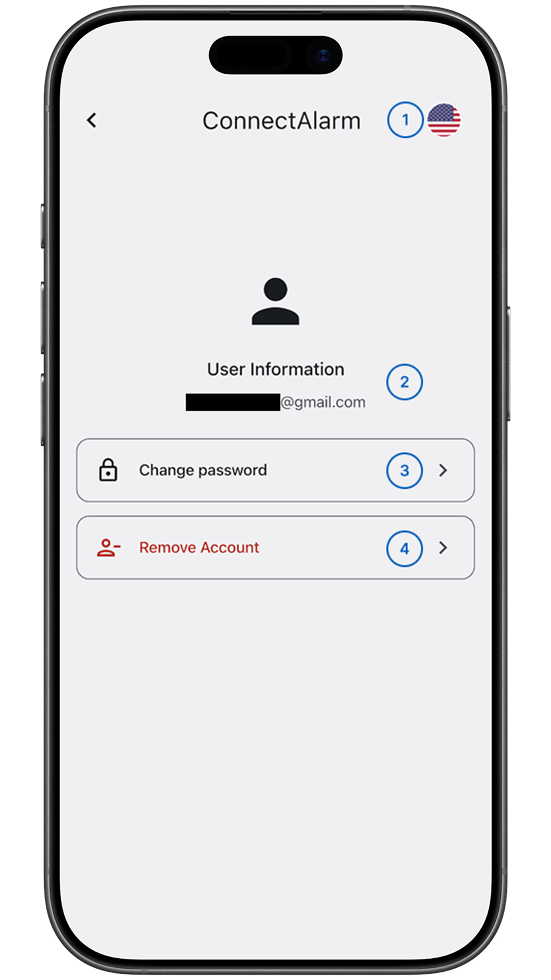
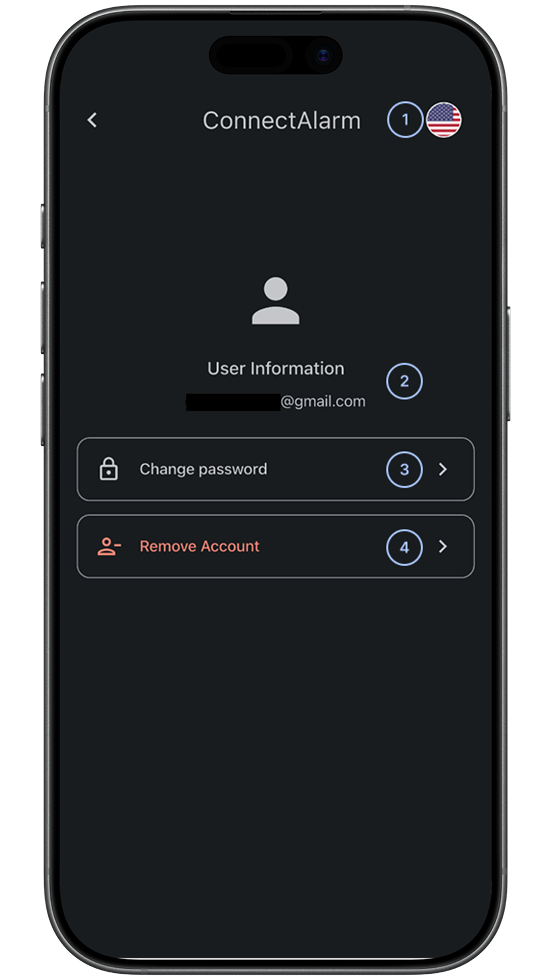
- LanguageShows the selected app language.
Lets you select a language.  User informationShows the email address associated with your ConnectAlarm account.
 Change passwordOpens the password-change workflow.
Use this action to change the password for your ConnectAlarm account. Remove AccountOpens the account-removal workflow.
Use this action to permanently remove your ConnectAlarm account.
Common scenarios
Open User Information
- Open the ConnectAlarm app.
- Sign in to your account.
- Open the
 menu.
menu. - Select User Information.
The User Information screen shows your account email address and available account actions.
Change the app language
- Open User Information.
- Select Language.
- Select the language that you want to use.
- Wait for ConnectAlarm to update the interface.
ConnectAlarm uses the selected language.
Change your password
- Open User Information.
- Select
 Change password.
 - Enter your current password.
- Enter your new password.
- Enter your new password again to confirm it.
- Confirm the change.
Your account uses the new password after the change succeeds.
Remove your account
- Open User Information.
- Confirm that the displayed email address belongs to the account that you want to remove.
- Select
 Remove Account.
 - Read the confirmation message.
- Enter your current password.
- Enter your current password again to confirm it.
- Confirm account removal.
Your access to ConnectAlarm services ends after the account is removed.
Before you confirm removal, verify the displayed email address and make sure you understand how removal affects your access. This action does not remove panel accounts, panel configuration, event history, or the panel connection to the PowerManage server.
Tips
- Confirm the displayed email address before you select Remove Account.
- Use a password that you don't use for another service.
- Change your password if it might have been shared or exposed.
Troubleshooting
Your password does not change
Possible causes:
- Your current password might be incorrect.
- Your new password might not meet the displayed requirements.
- Your new password and confirmation password might not match.
- Your mobile device might not have a network connection.
What to try:
- Re-enter your current password.
- Enter a new password that meets the requirements shown in the app.
- Make sure your new password and confirmation password match.
- Check your network connection.
- Try to change your password again.
- If you do not know your current password, use the password reset process.
Your account isn't removed
Possible causes:
- Your current password might be incorrect.
- Your password and confirmation password might not match.
- Your mobile device might not have a network connection.
What to try:
- Confirm that the displayed email address belongs to the account that you want to remove.
- Re-enter your current password.
- Enter your current password again in the confirmation field.
- Make sure both password values match.
- Check your network connection.
- Try to remove your account again.
- If removal still fails, contact your support team.
You removed the wrong account
Account removal is permanent.
What to try:
- Contact your support team.
- Restore access through your organization's approved account-creation or access-assignment process.