Application settings
Overview
Use the  Application settings screen in ConnectAlarm to change application preferences and review version information.
You can:
- Change the application language and theme.
- Turn Face ID/Touch ID and Enable fast login on or off.
- Open Geofence subscriptions.
- Configure Panic mode.
- Change the Temperature scale.
- Review the Application version and Build number.
Before you begin
- Sign in to ConnectAlarm.
- Open Application settings.
- To use Face ID/Touch ID, configure Face ID/Touch ID on the mobile device.
- Geofence subscriptions depend on location services, map services, app location permissions, background activity settings, and battery optimization.
- The application version and build number depend on the installed app package.
Screen layout
The Application settings screen contains application preferences and version information.
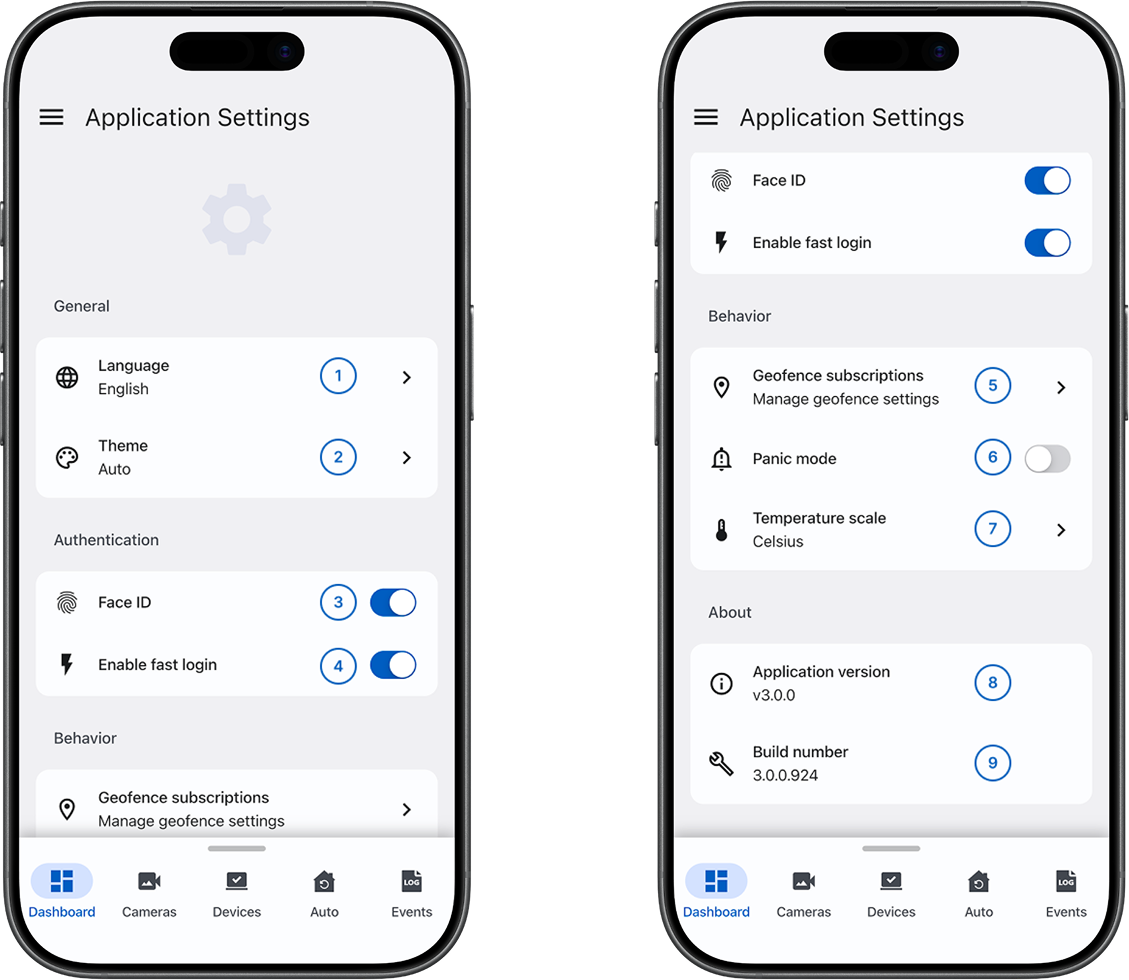
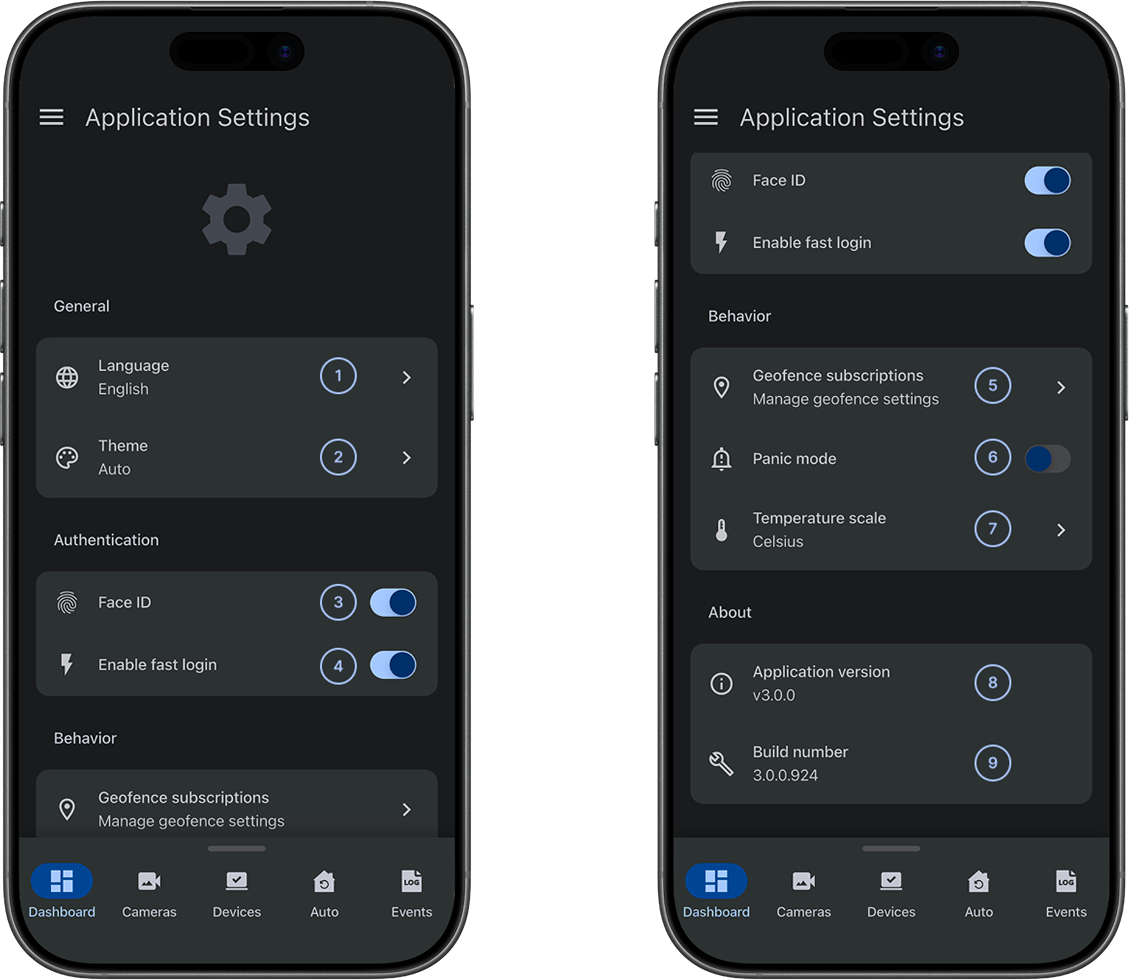
 LanguageShows the selected application language. Opens the language list when you select it.
 ThemeShows the selected application theme. Opens the available theme options when you select it. The documented default options are Use system default, Estoril, and Azurite.
 Face ID/Touch IDTurns Face ID/Touch ID login on or off.
 Enable fast loginTurns fast login on or off. When enabled, the application prompts you to enter the user code for the panel you last signed in to after you open the application.
 Geofence subscriptionsOpens the available geofence subscriptions for location-based security panel behavior.
 Panic modeIf enabled, the mobile siren plays on the device when a panic alarm is generated. If disabled, no mobile siren plays on the device.
 Temperature scaleShows the selected temperature scale. Opens the Celsius and Fahrenheit options when you select it.
 Application versionShows the installed application version.
 Build numberShows the installed application build number.
Common scenarios
Change the application language
- Open Application settings.
- Select Language.
- Select the required language.
The application uses the selected language.
Change the application theme
- Open Application settings.
- Select Theme.
- Select Use system default, Estoril, or Azurite.
The application uses the selected theme.
Turn on Face ID/Touch ID
- Confirm that Face ID/Touch ID is configured on the mobile device.
- Open Application settings.
- Turn on Face ID/Touch ID.
Turn fast login on or off
- Open Application settings.
- Turn Enable fast login on or off.
When enabled, the application prompts you to enter the user code for the panel you last signed in to after you open the application.
Open geofence subscriptions
- Open Application settings.
- Select Geofence subscriptions.
The available geofence subscriptions appear. Geofence behavior can depend on location permissions, background activity settings, and battery optimization.
Configure panic mode
- Open Application settings.
- Turn Panic mode on or off.
- On: The mobile siren plays on the device when a panic alarm is generated. This is noisy behavior.
- Off: The mobile siren does not play on the device when a panic alarm is generated. This is silent behavior.
Change the temperature scale
- Open Application settings.
- Select Temperature scale.
- Select Celsius or Fahrenheit.
The application displays temperature values in the selected scale.
Check the application version and build number
- Open Application settings.
- Review Application version.
- Review Build number.
Provide both values when support requests information about the installed application.
Tips
- Record Application version and Build number before you contact support.
- Configure Face ID/Touch ID on the mobile device before you turn on Face ID/Touch ID in ConnectAlarm. Use Face ID/Touch ID only on a trusted personal device.
- Use Use system default when you want ConnectAlarm to follow the mobile device theme setting.
- Review location permissions before you use Geofence subscriptions.
- Check the selected Temperature scale when the displayed temperature values do not use the expected unit.
Troubleshooting
The application language does not change
Possible causes:
- The selected language might not have been applied.
- The application might need the language to be selected again.
What to try:
- Open Application settings.
- Select Language.
- Select the required language again.
The application theme does not change
Possible causes:
- Use system default might be selected, so the mobile device theme controls the application appearance.
- The selected theme might not have been applied.
What to try:
- Open Application settings.
- Select Theme.
- Select the required theme again.
- If Use system default is selected, check the mobile device theme setting.
Support requests version information
Possible causes:
- Support needs the installed application release details.
- An issue might depend on the application version or build number.
What to try:
- Open Application settings.
- Record Application version.
- Record Build number.
- Provide both values to support.