Add your panel
Overview
info
Before you read this page, review Access your account.
Use this page to add a compatible panel to your ConnectAlarm account. After the panel is added, you can monitor system status, arm or disarm partitions, receive notifications, and manage supported devices in ConnectAlarm.
Use this guide when:
- You are setting up a system for the first time
- You are adding a panel after creating a ConnectAlarm account
- You are connecting an additional alarm system
The guide helps you:
- Open the panel-adding flow
- Enter the required panel details
- Complete the process successfully
After the panel is added successfully, it becomes available in the ConnectAlarm dashboard.
Before you begin
Before you add a panel, make sure these requirements are met.
Requirements
- Registered ConnectAlarm account
- Compatible alarm system installed and online
- Signed-in ConnectAlarm session
Required information
You may need:
- Panel ID or serial number
- Master User code or an authorized User code
Limitations
warning
- Some systems may limit the number of linked users or devices.
- User permissions may restrict panel access.
- Incorrect panel credentials prevent the panel from being added.
- Some advanced features depend on installer configuration, panel family, and version.
Screen layout
The panel-adding flow includes panel details and authorization fields.
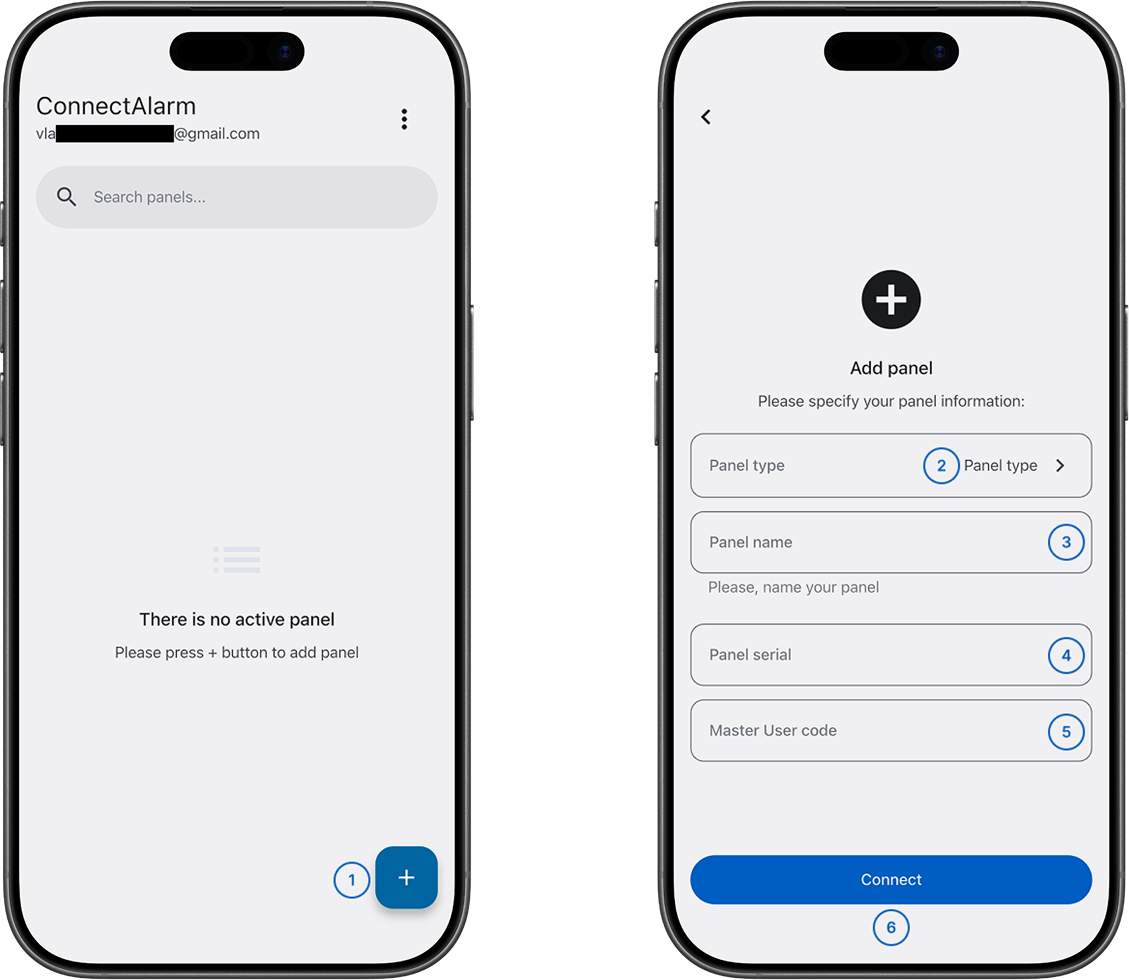
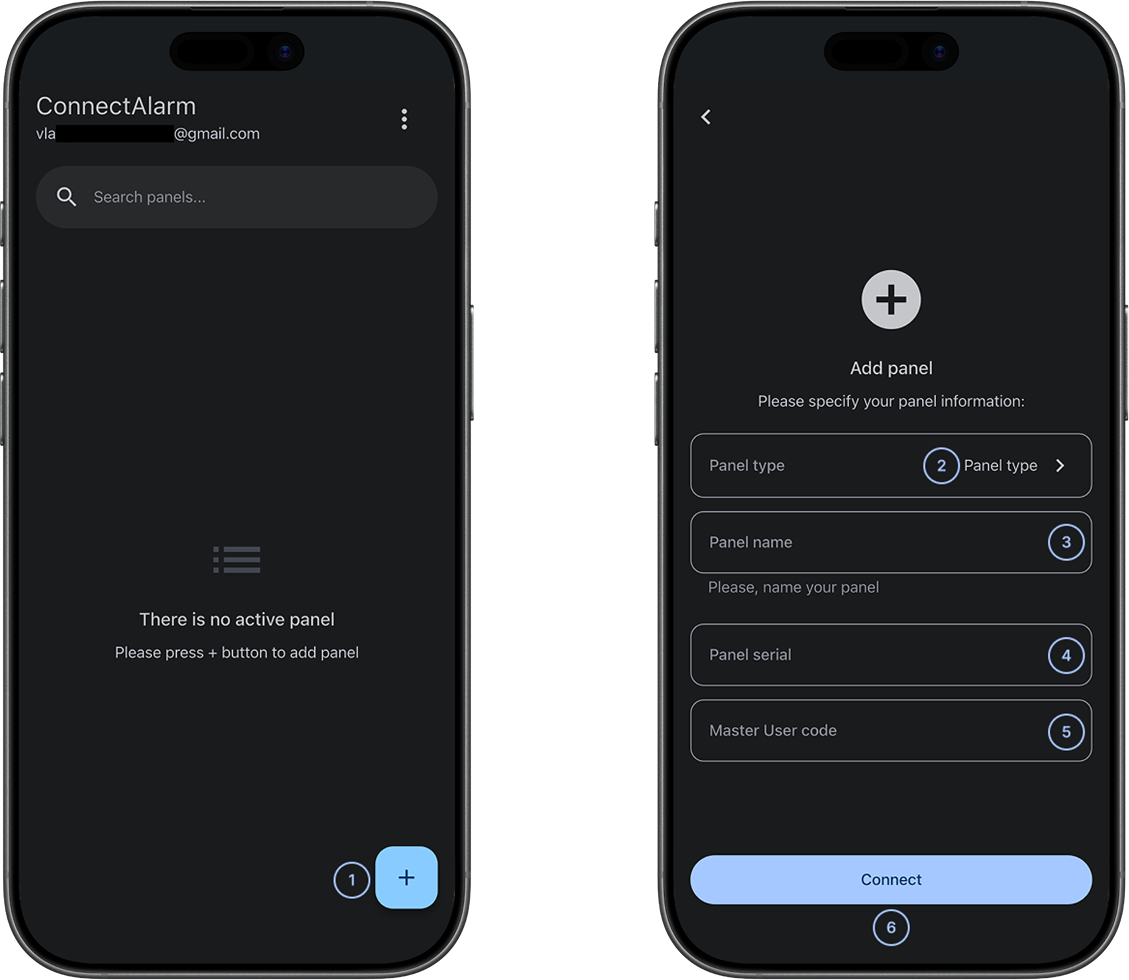
 Add panelOpens the panel-adding flow after you sign in.
- Panel typeSelects the panel type from the supported list.
- Panel nameEnters a display name for the panel. The name helps you identify the panel in the app and notifications.
- Panel serialEnters the panel identifier provided by your installer or monitoring provider. The value must match the panel connected to PowerManage.
- Master User codeEnters an authorized panel code to verify access to the system.
- ConnectAdds the panel to your account and completes the process.
Common scenarios
Add a panel
- Open the ConnectAlarm app.
- Sign in to your account.
- Select Add panel.
- Select the Panel type.
- Enter a Panel name.
- Enter the Panel serial provided by your installer or monitoring provider.
- Enter the Master User code.
- Select Connect.
The panel appears in ConnectAlarm after it is added successfully.
Tips
tip
- Use clear panel names when you manage multiple alarm systems.
- Store the Panel serial and Master User code securely.
- Confirm that the panel is powered on and connected to PowerManage.
- Test arming or disarming after the panel is added successfully.
Troubleshooting
Panel information is incorrect
Possible causes:
- The Panel serial is incorrect.
- The Master User code is incorrect.
- The panel is not connected to PowerManage.
What to try:
- Re-enter the Panel serial and Master User code.
- Verify the information with your installer or monitoring provider.
- Confirm that the panel is connected to PowerManage.
- Contact your dealer if the panel might already be linked to another master user.
You are locked out
Possible causes:
- Too many unsuccessful panel-adding attempts.
What to try:
- Wait for the lockout period to end.
- Review the information before you try again.
- Enter the panel details again.
Related pages
See also
Was this page helpful?