Access your account
Overview
Use the ConnectAlarm sign-in flow to connect to your configured alarm system. From this flow, you can sign in with your account credentials, recover access to your account, or create a new account.
You usually open this flow when:
- You open the app for the first time
- You sign out
- Your session expires
- You use a new mobile device
This flow is also the entry point for:
- Account registration
- Password recovery
- Server address configuration
After successful authentication, ConnectAlarm opens the dashboard.
Screen layout
The sign-in flow has two screens.
First screen: Welcome. Enter the PowerManage server address.
Second screen: Log in. Enter your account credentials to open the panel list.
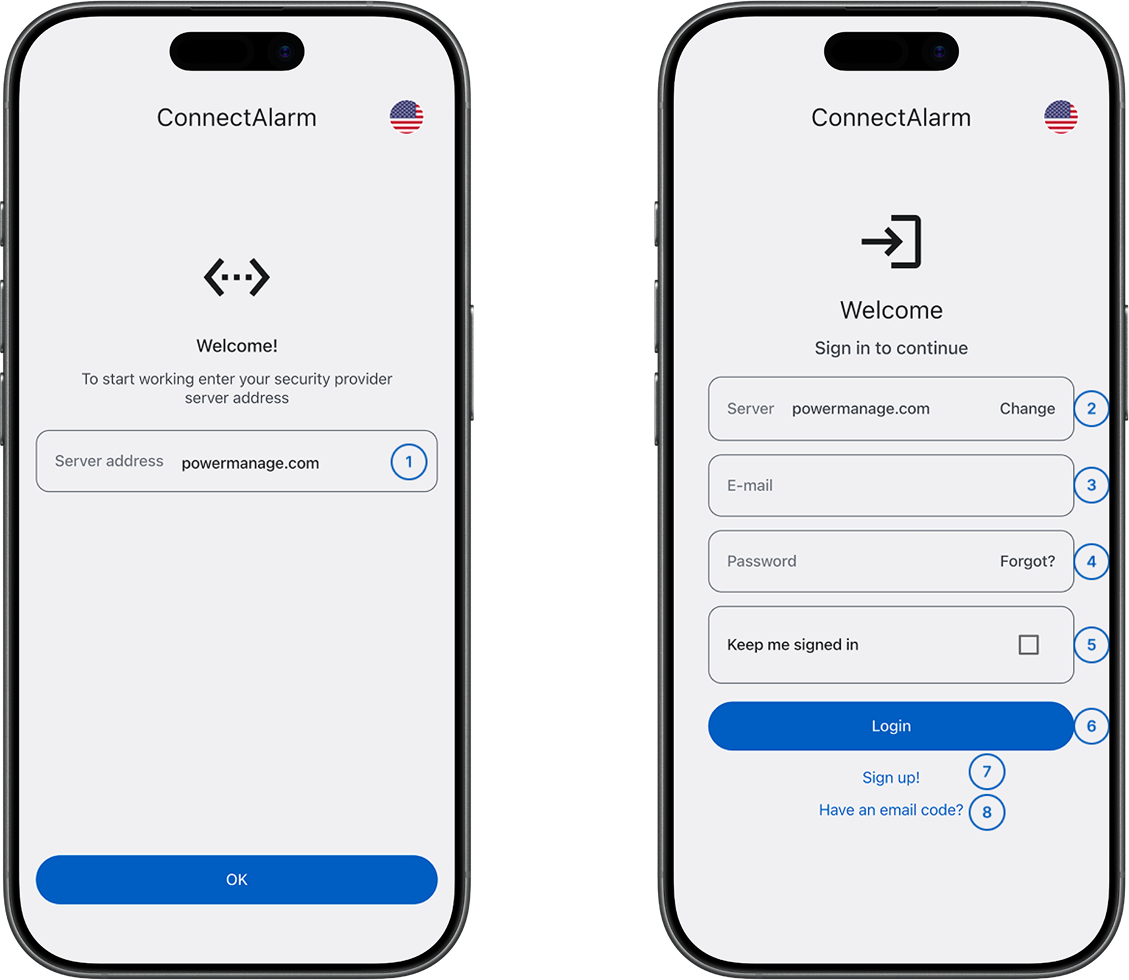
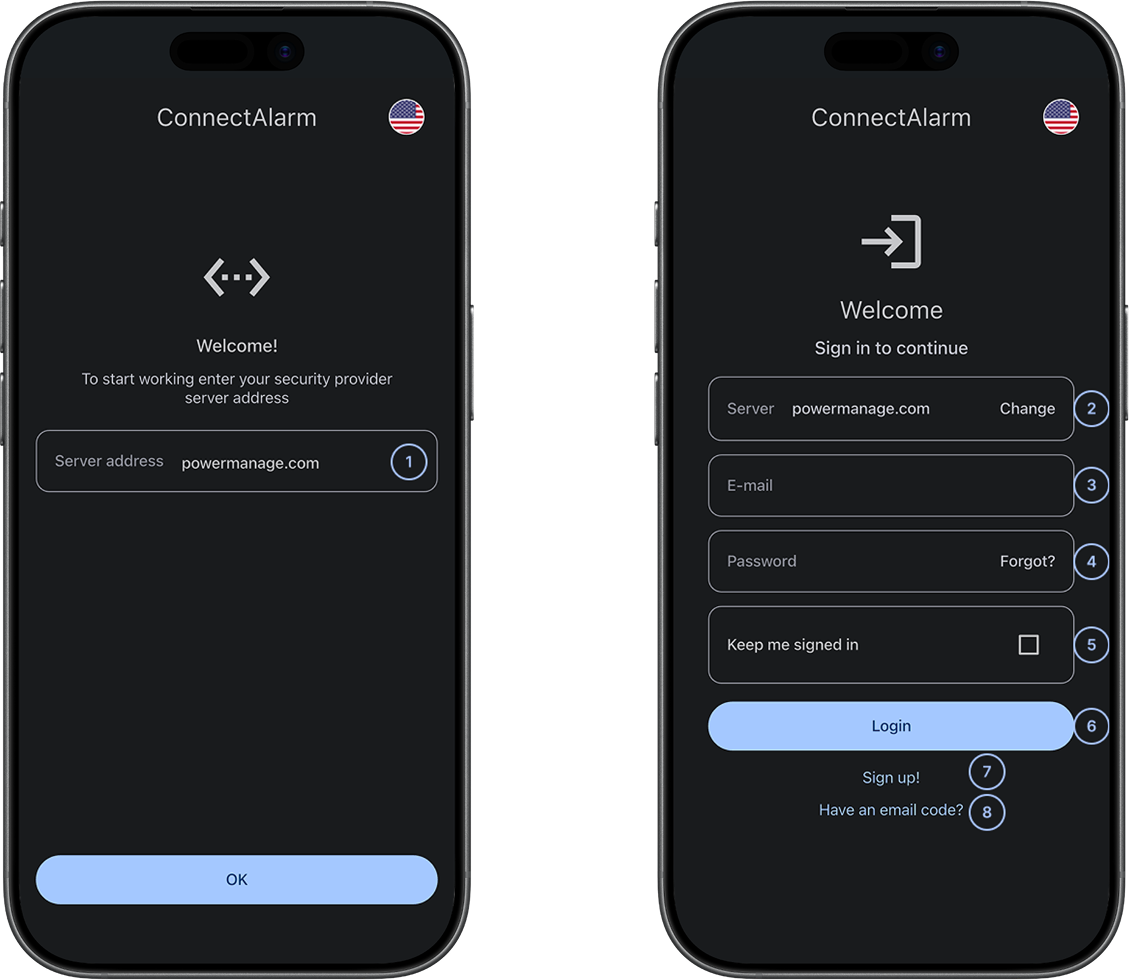
- Server addressRequired during initial setup. Save the value after you enter it. It must match your dealer's configured PowerManage server. If the address is unreachable, authentication is blocked.
- Server and ChangeShows the selected PowerManage server. Select it to change the server address.
- E-mailUsed for sign-in verification and password recovery. Your email address is your unique user identifier in PowerManage.
- Password and Forgot?Enter your password. Characters are masked. Select Forgot? to start password recovery and receive reset instructions or a verification code at your registered email.
- Keep me signed inReduces repeated sign-in prompts by enabling available local authentication. This option isn't recommended on shared devices.
- LoginAuthenticates your account and opens the dashboard. If your credentials are invalid, the app shows an error.
- Sign up!Opens account registration for new users and sends an email verification code.
- Have an email code?Opens the registration or recovery workflow so you can enter an email verification code.
Related pages
Was this page helpful?