Create an account
Overview
Before you read this page, review Access your account.
Use the Sign up! or Have an email code? flow to create a ConnectAlarm account and link it to a compatible alarm system.
After you create the account, you can sign in and use monitoring, notifications, and control features in ConnectAlarm.
Use this guide when:
- You are setting up ConnectAlarm for the first time
- You are registering a new mobile device
- You are creating a personal account for remote access
- You are linking an alarm system after installation
The sign-up flow also covers:
- Email verification
- Password creation
- Alarm panel linking
- Completing registration with Have an email code?
After successful account creation, you can sign in and open the ConnectAlarm dashboard.
Before you begin
Requirements
Before you create an account, make sure you have:
- The ConnectAlarm app installed
- A valid email address
- Alarm system details provided by your installer or monitoring provider
Limitations
- Verification codes expire after a limited time.
- You must meet the password requirements before account creation succeeds.
Screen layout
The account registration flow includes email entry, verification, and password setup.
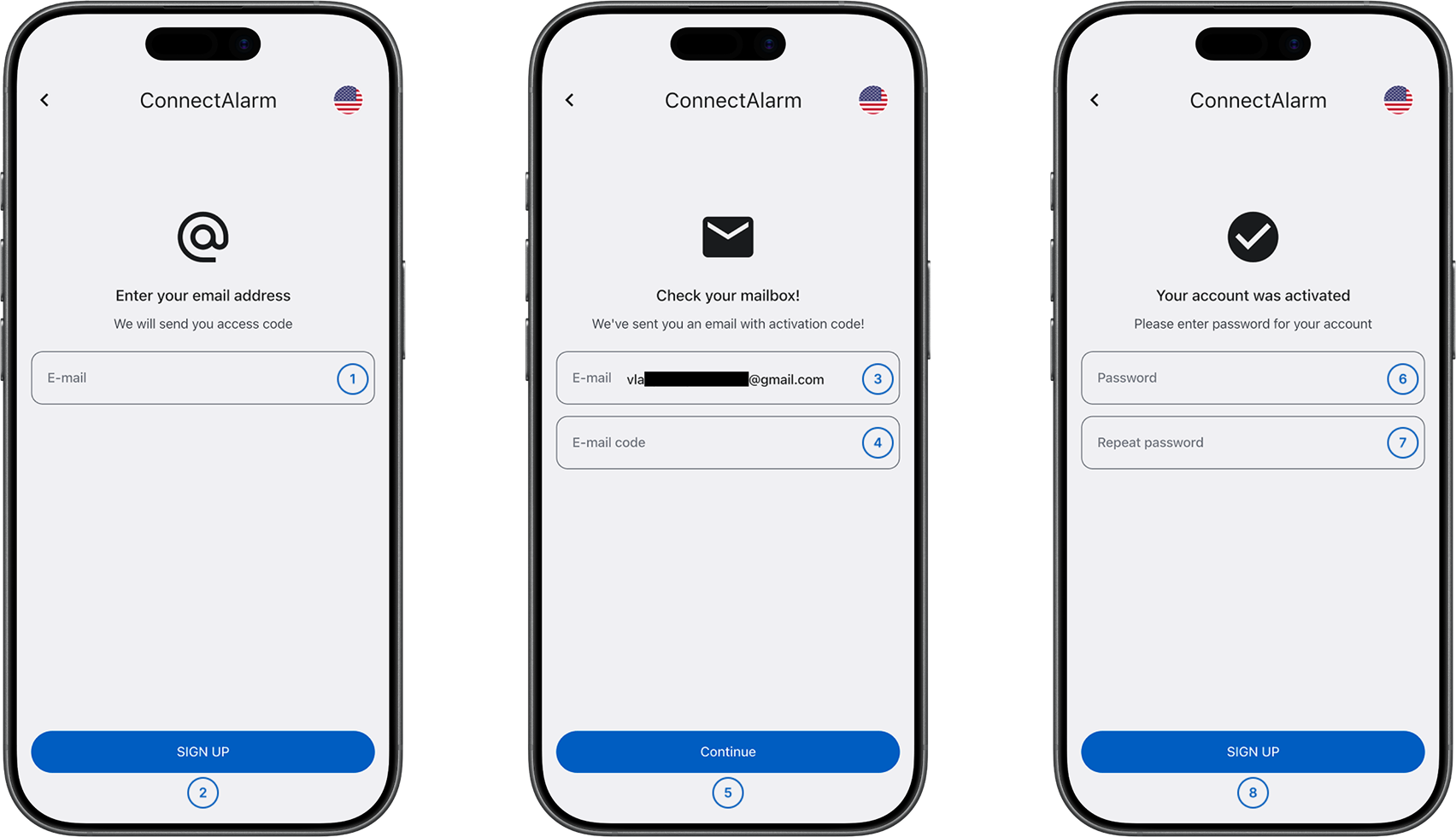
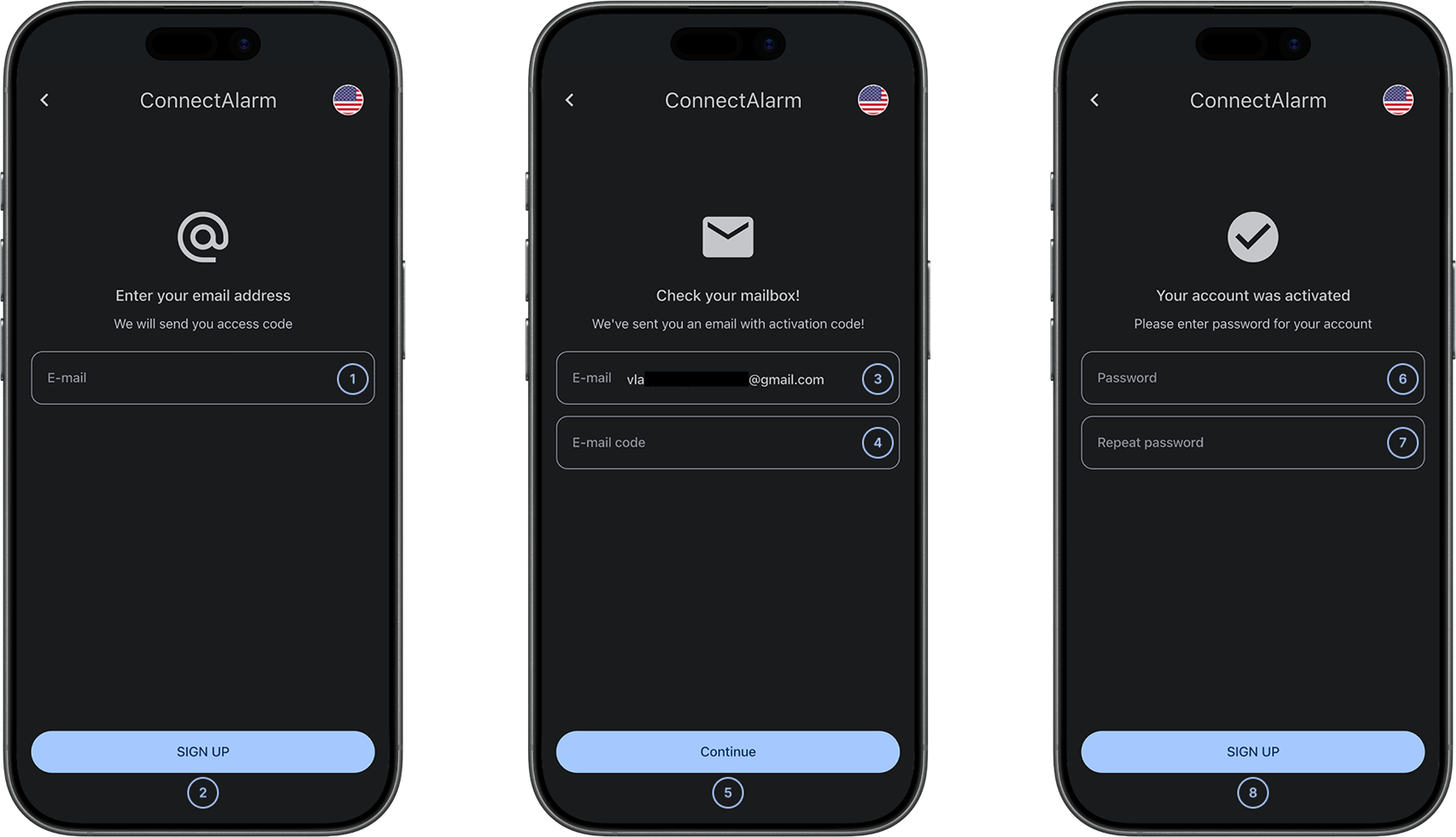
- E-mailAccepts the email address for the new account. The email address is used for sign-in, password recovery, and verification messages. It must be valid and unique.
- Sign upOpens the next registration step after you enter a valid email address.
- E-mailAccepts the email address that receives the registration code.
- E-mail codeAccepts the verification code that is sent to your email address. The code is available only after you request verification and expires after a limited time.
- ContinueContinues to the next registration step after the code or password is valid.
- PasswordCreates the account password. Characters are masked, and password complexity rules may apply.
- Repeat passwordConfirms the password you entered. The values must match exactly.
- Sign upFinishes registration and opens the panel list.
Common scenarios
Create a ConnectAlarm account with Sign up!
- Open the ConnectAlarm app.
- Enter the Server Address provided by your installer or provider.
- Select Sign up!.
- Enter a valid email address.
- Select Sign up.
- Open the verification email.
- Enter your email address and verification code in the app.
- Select Continue.
- Enter a password.
- Confirm the password.
- Select Sign up.
Complete account creation with Have an email code?
- Open the ConnectAlarm app.
- Enter the Server Address provided by your installer or provider.
- Select Have an email code?.
- Enter your email address and verification code in the app.
- Select Continue.
- Enter a password.
- Confirm the password.
- Select Sign up.
If your dealer assigned a panel to the account, the app opens the panel list. Otherwise, you can add the panel manually. See Add your panel.
Tips
- If you request a verification code and want to enter it later, return to the Log in screen and select Have an email code? before the code expires.
- Use a personal email address that you can access easily.
- Use a strong password that is unique to ConnectAlarm.
- Check your spam or junk folders if the verification email is delayed.
- Complete verification promptly to avoid code expiration.
- Keep the mobile device connected to the internet during registration.
Troubleshooting
Verification code is invalid or expired
Possible causes:
- The code expired.
- The code was entered incorrectly.
What to try:
- Request a new verification code.
- Enter the code again carefully.
- Check that the device has an internet connection.
Verification email does not arrive
Possible causes:
- The email was delayed.
- The message was filtered to spam or junk.
What to try:
- Check the spam or junk folder.
- Resend the verification code.
- Contact your dealer or installer if the email still does not arrive.
Password does not meet requirements
Possible causes:
- The password is too short.
- The password does not meet the configured policy.
What to try:
- Add the required characters or increase the password length.
- Try again.
Repeated password does not match
Possible causes:
- The two password fields do not match.
What to try:
- Re-enter both password fields.
- Try again.