Reset a password
Overview
info
Before you read this page, review Access your account.
Use this page to reset your ConnectAlarm account password when you cannot sign in or need to replace your current password. After the reset is complete, you can sign in with the new password.
Use this page when:
- You forget your password
- You need to replace an expired or compromised password
- You are following recovery instructions from your dealer, installer, or monitoring provider
- You need to recover access after multiple failed sign-in attempts
This flow includes:
- Email verification
- Verification code validation
- Secure password replacement
After a successful password reset, you can sign in with your new credentials.
Before you begin
Before you reset your password, make sure these requirements are met.
Requirements
- ConnectAlarm is installed on the device.
- You can access the registered email address.
- You have an existing ConnectAlarm account.
- The Server address is correct.
Required information
You need:
- The server address
- Your registered email address
- The verification code from the reset email
Limitations
warning
- Verification codes may expire after a limited time.
- Multiple failed verification attempts may temporarily block the reset process.
- You must meet the password requirements before you can save the new password.
Screen layout
The password reset flow includes email entry, verification, and new password fields.
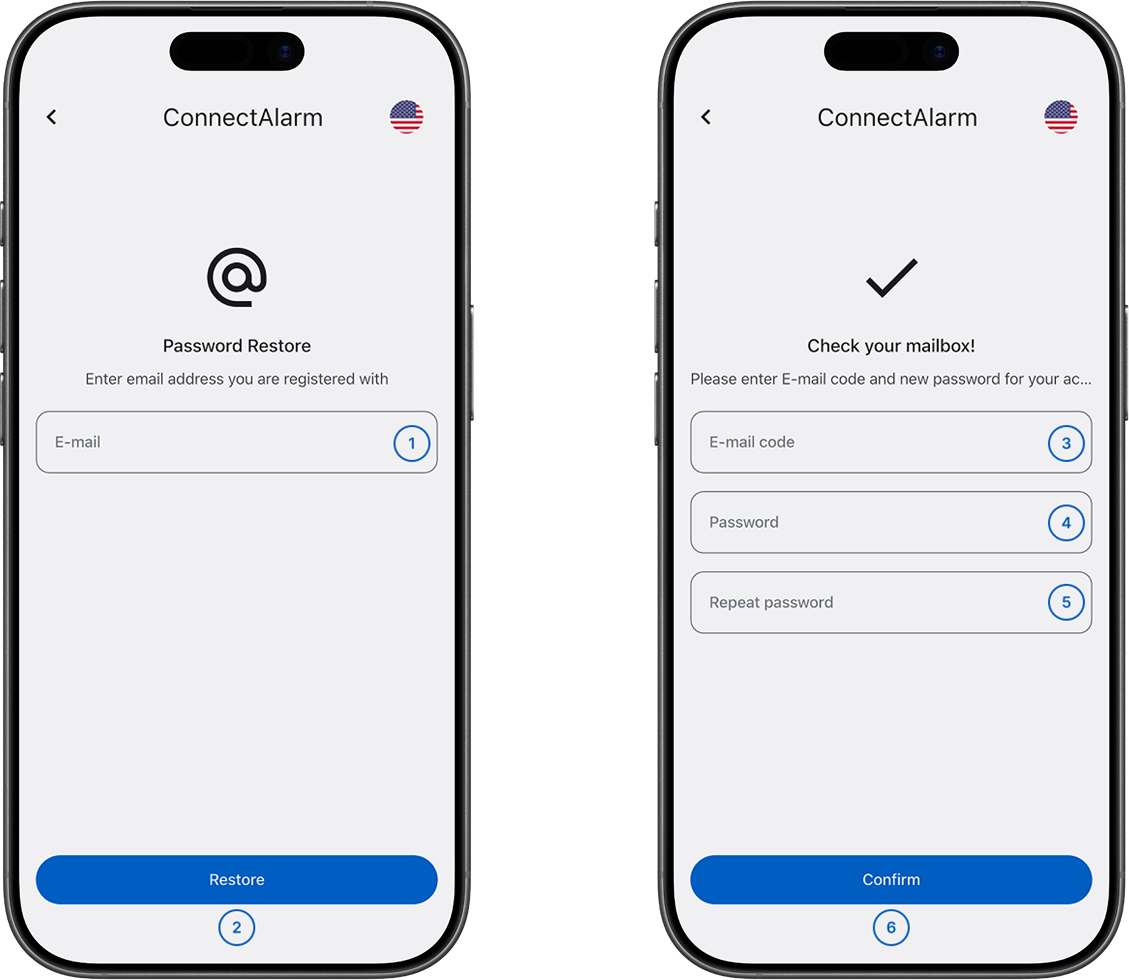
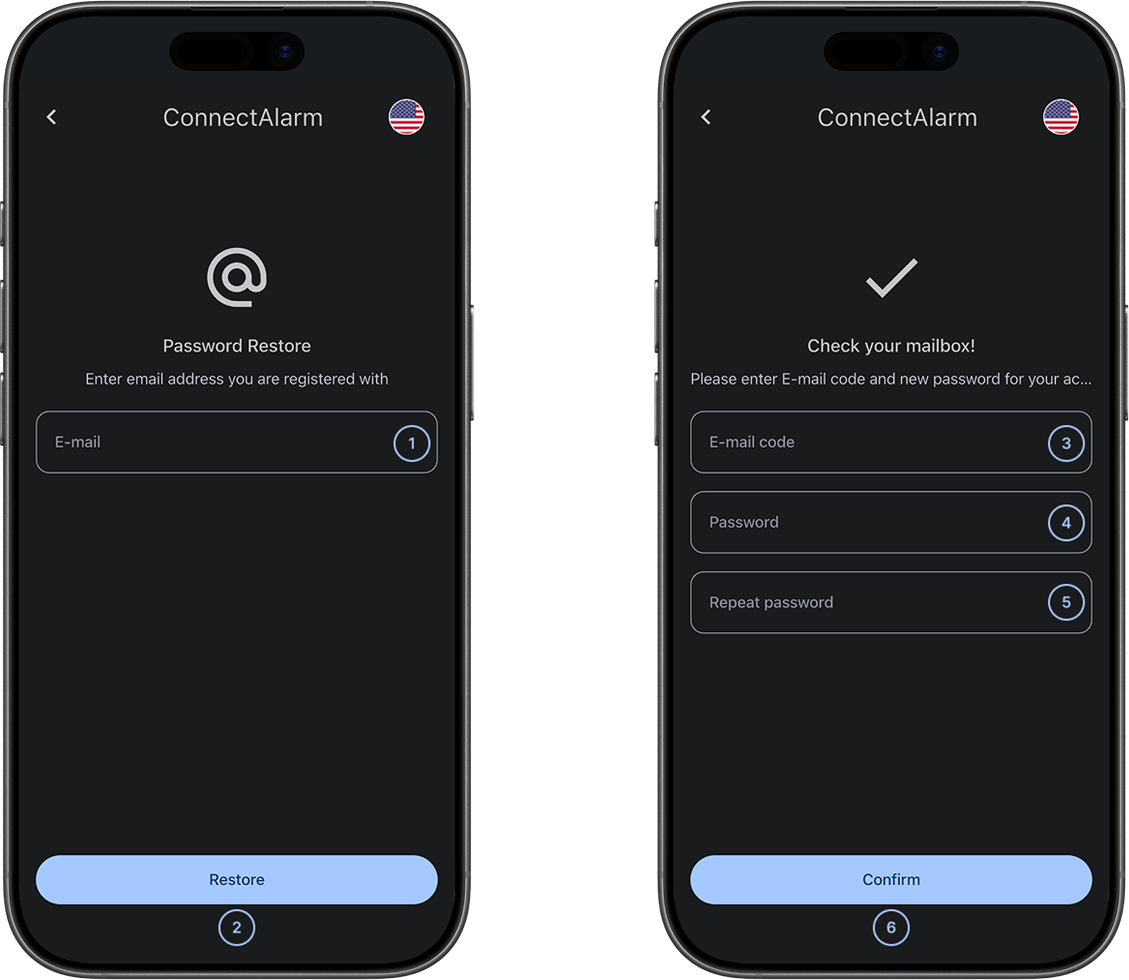
- E-mailEnter the registered email address to start the recovery process. The email address receives the verification code.
- RestoreStarts the password reset request and sends a verification code to your email address.
- E-mail codeEnter the verification code sent to your email address. The code is available only after you request recovery and expires after a limited time.
- PasswordCreate the new account password. Characters are masked, and password complexity rules may apply.
- Repeat passwordConfirm the new password. The values must match exactly.
- ConfirmFinish the password reset process and save the new password.
Common scenarios
Reset a password
- Open the ConnectAlarm app.
- On the Log in screen, select Forgot?.
- Enter the registered email address.
- Select Restore.
- Open the email from ConnectAlarm.
- Enter the verification code.
- Enter a new password.
- Confirm the new password.
- Select Confirm.
The app updates your password. You can now sign in with the new password.
Tips
tip
- Use a strong password that is unique to ConnectAlarm.
- Avoid reusing passwords from other services.
- Complete the reset process promptly to avoid code expiration.
- Check spam or junk folders if the reset email is delayed.
- Store the updated credentials securely.
Troubleshooting
Verification code is invalid or expired
Possible causes:
- The code expired.
- The code was entered incorrectly.
What to try:
- Request a new verification code.
- Enter the code again carefully.
- Check that the device has an internet connection.
Reset email does not arrive
Possible causes:
- The email was delayed.
- The message was filtered to spam or junk.
What to try:
- Check the spam or junk folder.
- Resend the verification code.
- Contact your dealer or installer if the email still does not arrive.
Password does not meet requirements
Possible causes:
- The password is too short.
- The password does not meet the configured policy.
What to try:
- Add the required characters or increase the password length.
- Try again.
Repeated password does not match
Possible causes:
- The two password fields do not match.
What to try:
- Re-enter both password fields.
- Try again.
Related pages
See also
Was this page helpful?