Control automation devices
Overview
Use the  Auto screen in ConnectAlarm to view and control supported automation devices, such as locks, lights, switches, sensors, and thermostats. You can filter the device list, review device information, open detailed device information, and use available controls.
Available devices, filters, information, and controls depend on the panel configuration, device type, and current device state.
Before you begin
- Sign in to ConnectAlarm.
- Open the required panel.
- Confirm that the app shows CONNECTED before you send a device command.
- Confirm that at least one automation device is configured.
A command can affect access, lighting, temperature, or another automation function. Confirm the device name and current state before you select a control.
Commands can fail when the panel is disconnected or the automation device is offline.
Screen layout
The Auto workflow includes the automation-device list, device filters, and the About device screen.
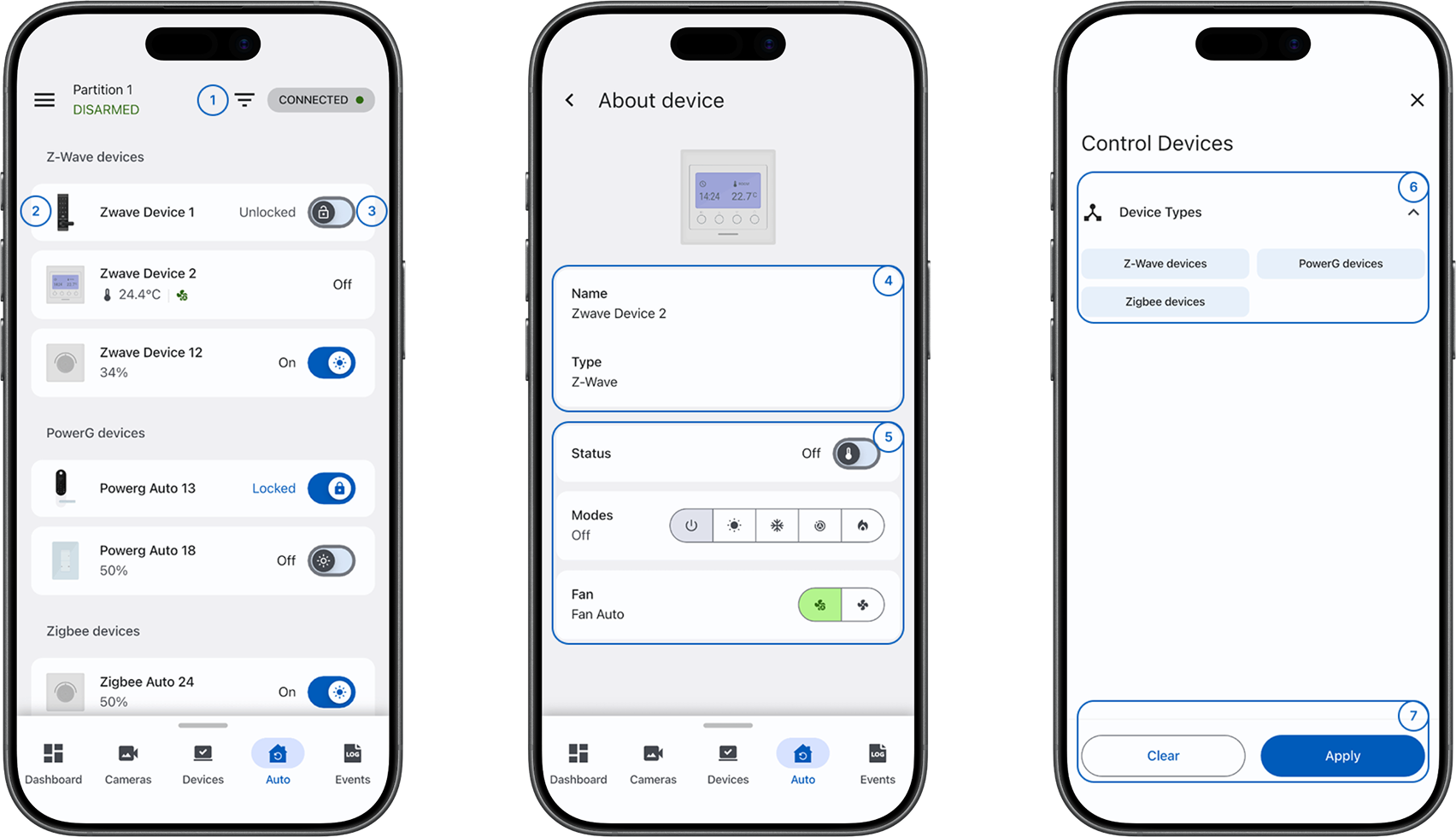
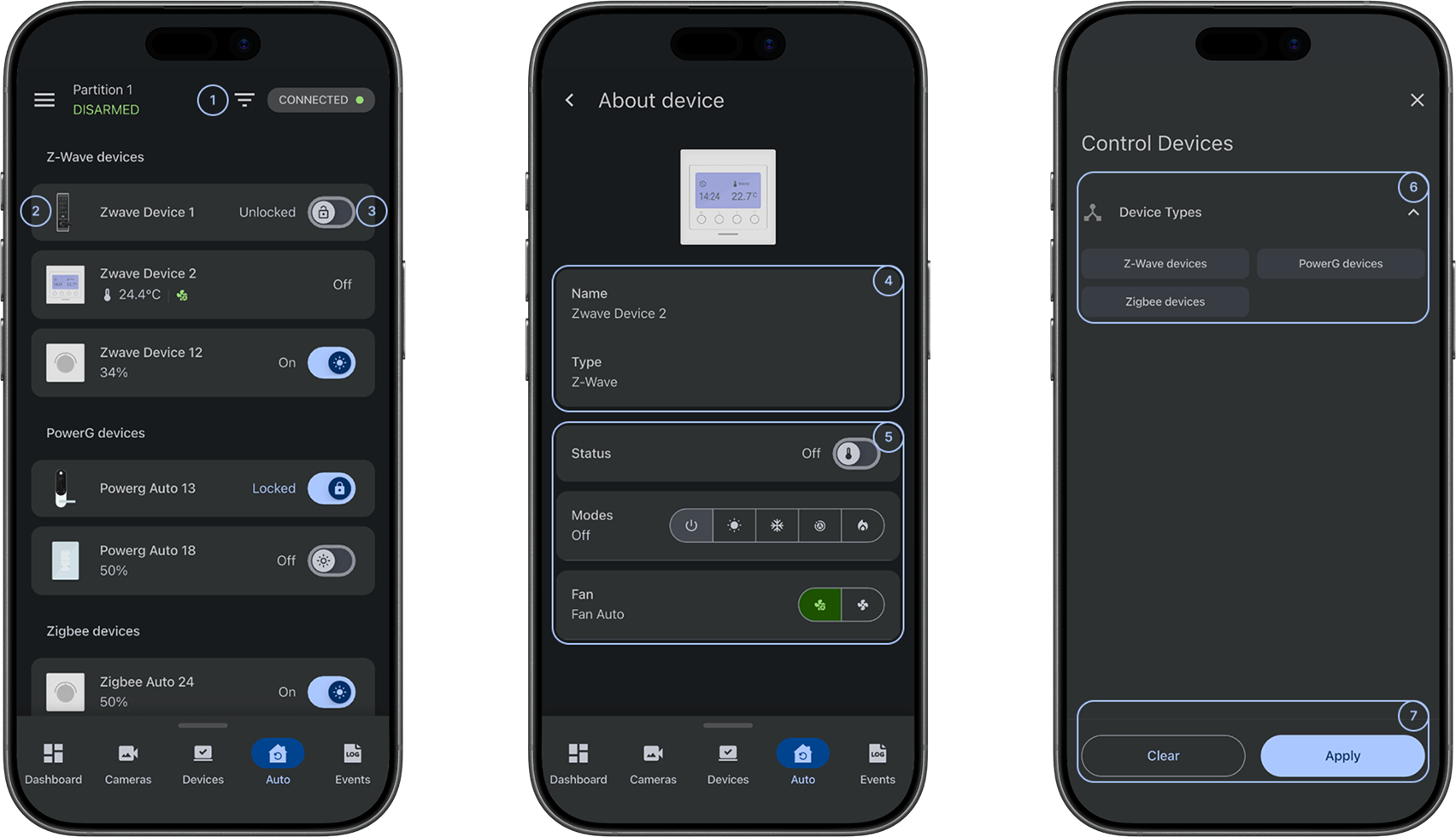
 Device filtersOpens the device-filter screen and filters the automation-device list.
- Device name and iconIdentifies the automation device and opens About device with device information and available control options.
- Device controlControls the device when direct control is supported. Available actions depend on the device type and current state.
- Device infoShows device information, such as the device name and type. Available information depends on the device.
- Device detailed controlShows detailed controls supported by the device, such as a dimmer level, thermostat mode, or another device-specific setting.
- FiltersShows the available filters. Filter availability depends on the configured automation technology.
- Clear and ApplyClear removes the selected filters, and Apply applies the selected filters to the device list.
Device state and values
The device list can show the current state or value for a device. Examples include Unlocked, Off, Closed, or a temperature value. Review this information before selecting a device control.
Common scenarios
Open automation devices
- Open the ConnectAlarm app.
- Sign in to your account.
- Open your panel.
- Select Auto in the bottom navigation bar.
- Wait for the automation-device list to appear.
Filter automation devices
- Go to Auto.
- Select Device filters.
- Select the filters that you want to use.
- Select Apply.
- Review the filtered device list.
The Auto screen shows devices that match the selected filters.
Clear automation device filters
- Go to Auto.
- Select Device filters.
- Select Clear.
- Select Apply.
The Auto screen shows the device list without the cleared filters.
View information about a device
- Go to Auto.
- Find the required device.
- Select the device name or icon.
- Review the device information on About device.
- Review the available control options.
Control a device from the device list
- Go to Auto.
- Confirm that the app shows CONNECTED.
- Find the device to control.
- Confirm the device name and current state.
- Select the available device control.
- Wait for the displayed device state to update.
Confirm that you selected the intended device. A command can affect access, lighting, temperature, or another automation function.
Use detailed device controls
- Go to Auto.
- Select the device name or icon.
- On About device, find Device detailed control.
- Select or adjust the required control.
- Wait for the displayed device state or value to update.
Available controls can include a dimmer level, thermostat mode, or another setting supported by the device.
Check a device state or value
- Go to Auto.
- Find the required device.
- Review the displayed state or value.
- To view more information, select the device name or icon.
Troubleshooting
Automation devices do not appear
Possible causes:
- One or more filters might hide the devices.
- No automation devices might be configured.
- The panel might not be connected.
What to try:
- Select Device filters.
- Select Clear, and then select Apply.
- Confirm that the app shows CONNECTED.
- Confirm that automation devices are configured for the panel.
- If the devices still do not appear, contact your administrator or installer.
A device command does not work
Possible causes:
- The panel might be disconnected.
- The device might be offline or not responding.
- The device might not support the selected control.
- The system might have rejected the command.
What to try:
- Confirm that the app shows CONNECTED.
- Confirm that you selected the intended device and control.
- Wait a few seconds and review the displayed state again.
- Open About device and check the available control options.
- If the command still does not work, contact your administrator or installer.
The device state or value does not update
Possible causes:
- The status update might be delayed.
- Communication with the panel or device might be unstable.
- The device might be offline.
What to try:
- Confirm that the app shows CONNECTED.
- Wait for the displayed state or value to update.
- Open About device and review the current device information.
- Check the device directly only when it is safe and authorized.
- If the displayed information remains incorrect, contact your administrator or installer.
About device does not open
Possible causes:
- The panel or device connection might be unavailable.
- The selected device might not provide additional information or detailed controls.
What to try:
- Confirm that the app shows CONNECTED.
- Select the device name or icon again.
- Try another configured automation device.
- If About device still does not open, contact your administrator or installer.
A detailed control is not available
Possible causes:
- The device might not support the control.
- The control might not be available in the current device state or configuration.
What to try:
- Open About device.
- Review the device type and available controls.
- Confirm that the device supports the required function.
- If you expect the control to be available, contact your administrator or installer.