Dashboard settings
Overview
Use Dashboard settings to control which widgets appear on the dashboard and how they are arranged. You can show or hide widgets, change widget order, and open widget settings when a widget supports configuration.
Before you begin
- Sign in to ConnectAlarm.
- Open the required panel.
- Go to
 Dashboard.
Dashboard widget availability depends on panel configuration, enrolled devices, and server-side services.
- Some widgets may not appear if the related device, sensor, or service is not configured.
- Some widgets may not have a settings option.
- Changes apply automatically when you return to the dashboard.
Screen layout
The dashboard workflow includes Dashboard and Dashboard settings.
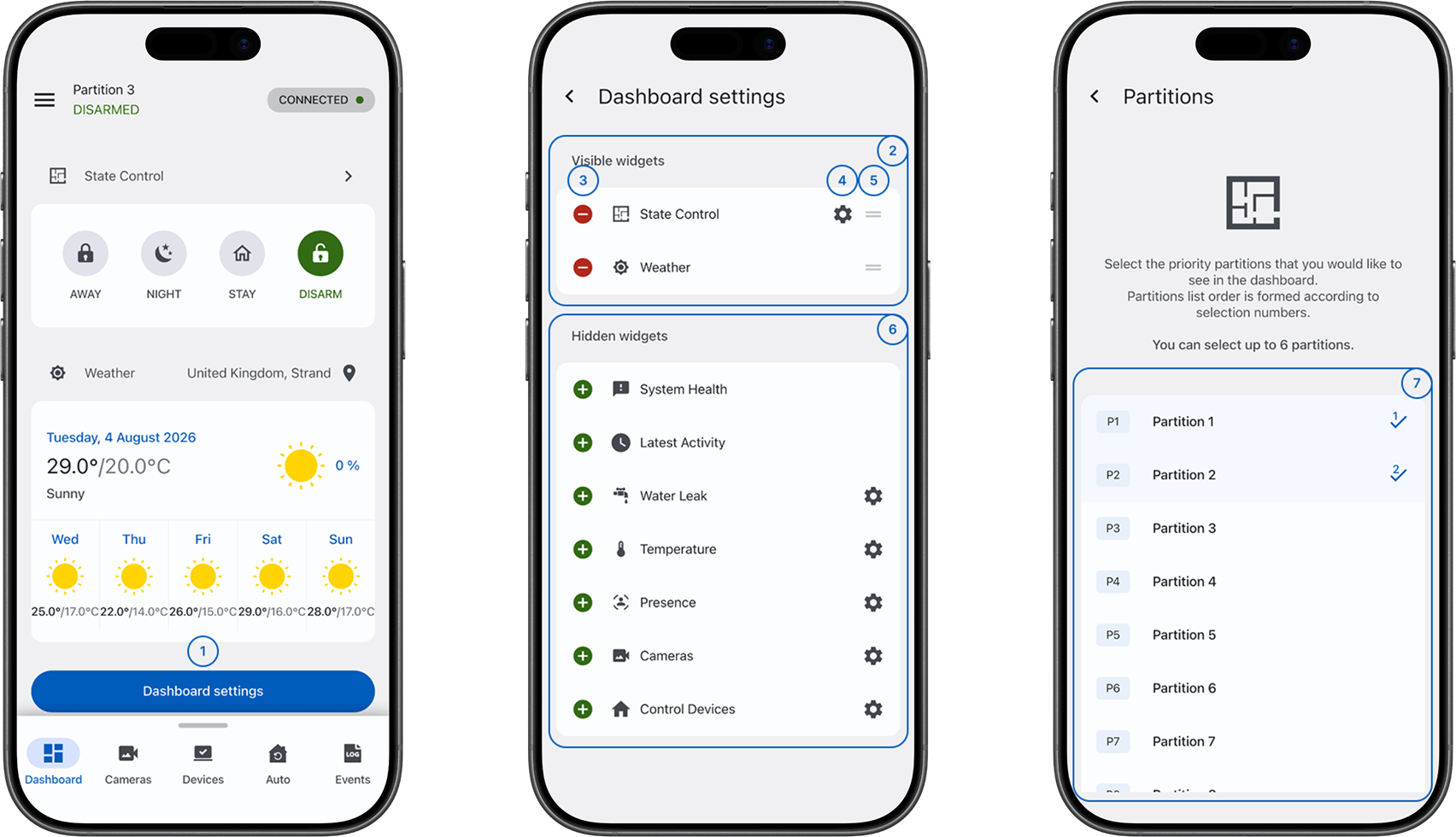
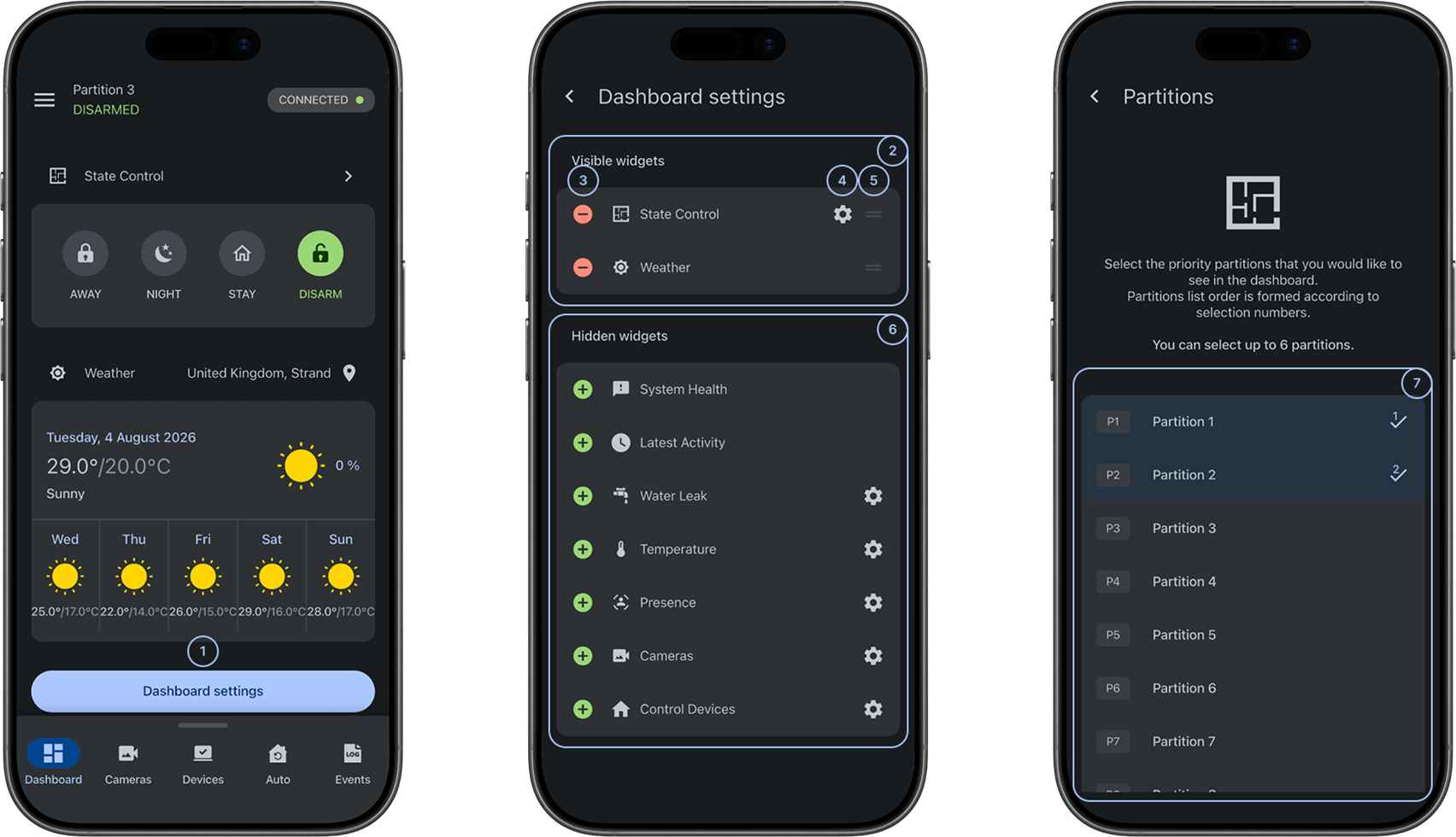
- Dashboard settings buttonOpens Dashboard settings from the dashboard. Use this button to show, hide, configure, or reorder widgets.
- Visible widgetsLists widgets currently displayed on the dashboard. Only widgets in this section can be reordered.
 Hide widgetMoves a widget from Visible widgets to Hidden widgets. Use this action to remove a widget from the dashboard without deleting it.
 Widget settingsOpens settings for a widget when configuration is supported. Some widgets do not provide this option.
 Widget positionSelect and hold the drag handle to move a widget up or down. Changes the order of widgets in the dashboard.
- Hidden widgetsLists available widgets that are not currently displayed. Widgets remain available and can be shown again later.
 Show widgetMoves a widget from Hidden widgets to Visible widgets. Use this action to show a hidden widget on the dashboard.
- Widget settings configurationShows available configuration options for the selected widget. Appears only when the widget supports settings.
Common scenarios
Open dashboard settings
- Open the ConnectAlarm app.
- Sign in to your account.
- Select the required panel.
- Go to Dashboard.
- Select Dashboard settings.
The Dashboard settings screen opens.
Show a hidden widget on the dashboard
- Open Dashboard settings.
- Under Hidden widgets, find the widget to show.
- Select Show widget next to the widget.
- Confirm that the widget appears in Visible widgets.
Hide a widget from the dashboard
- Open Dashboard settings.
- Under Visible widgets, find the widget to hide.
- Select Hide widget next to the widget.
- Confirm that the widget moves to Hidden widgets.
Reorder dashboard widgets
- Open Dashboard settings.
- Under Visible widgets, find the widget to move.
- Select and hold Widget position.
- Drag the widget to the required position.
- Release the widget.
Only visible widgets can be reordered.
Configure a widget
- Open Dashboard settings.
- Find the widget to configure.
- Select Widget settings next to the widget.
- Review and update the available settings.
- Return to Dashboard settings or the dashboard.
Not every widget has a settings icon. Widgets without a settings icon do not expose configurable options.
Widget reference
-
State Control — Shows partition arming controls: Away, Stay, Night, and Disarm. Displays current partition state. Use this to view or change the partition arming state from the dashboard. Supports arming all partitions at once or individual partition control. Configurable: select and reorder partitions to display (max 6).
-
System Health — Displays panel status icons for Alarms, Alerts (PowerMaster panels only), and Troubles with event counts. Shows an "All is well" placeholder when there are no active issues. Select an icon to open the corresponding alarms, alerts, or troubles screen. No additional configuration.
-
Latest Activity — Shows the most recent arm/disarm event with a timestamp. Select the widget to open the Events screen with an activity filter applied. No additional configuration.
-
Weather — Shows current weather information including location, temperature, weather description, icon, and last updated time. Weather data is provided by the PowerManage server when available. Requires weather API and geolocation configuration on the server. No additional configuration.
-
Water Leak — Shows water leak detector status (Leak or Dry) when water leak sensors are enrolled. Leak detectors are shown at the top of the list. Select the widget to open the Devices screen filtered to water leak devices. Configurable: select and reorder detectors to display (max 6).
-
Temperature — Shows temperature readings from enrolled temperature sensors with Celsius/Fahrenheit support. Select the widget to open the Devices screen filtered to temperature devices. Configurable: select and reorder detectors to display (max 6).
-
Presence — Shows presence detector status (Detected / Not detected) when presence sensors are enrolled. Detected devices are shown at the top of the list. Select the widget to open the Devices screen. Configurable: select and reorder detectors to display (max 6).
-
Cameras — Shows camera previews when cameras are enrolled. Supports PIR, RTSP, ONVIF, and panel onboard cameras. Select the widget to open the Cameras screen. Configurable: select and reorder cameras to display (max 4).
-
Control Devices — Shows controllable home automation devices (thermostats, dimmers, door locks, lights, PGM devices, outputs, garage doors) with their current state. Select the widget to open the Auto screen. Configurable: select and reorder devices to display (max 6).
Tips
- Keep frequently used widgets in Visible widgets so you can access them from the dashboard without opening additional pages.
- Place the most important widgets near the top of the visible list to reduce scrolling on smaller screens.
- Hide widgets that are not relevant to the current installation. Hidden widgets remain available in Dashboard settings and can be added later.
- If a widget has a settings icon, review its settings before adding it to the dashboard.
Troubleshooting
Dashboard settings button is not visible
Possible causes:
- The app version may not support dashboard customization.
- You are not on the Dashboard tab.
What to try:
- Confirm that you are on the Dashboard tab.
- Update the app if the Dashboard settings button is still not visible.
A widget cannot be configured
Possible causes:
- The widget does not support configuration.
What to try:
- Check whether a settings icon appears next to the widget in Dashboard settings.
- If no settings icon appears, the widget does not have configurable options. Use it with its current settings.
A visible widget does not show useful data
Possible causes:
- The related device or sensor may be offline or malfunctioning.
- The widget may need configuration.
- The system may have no recent data for the widget.
What to try:
- Check whether the widget has a settings icon and review its settings.
- Confirm that the related device, sensor, or service is active.
- Check the system connection status.
- Contact the installer or administrator if the issue continues.
You cannot reorder widgets
Possible causes:
- There may be only one visible widget.
- You are not using the drag handle.
What to try:
- Add at least two widgets to Visible widgets.
- Select and hold the drag handle on the right side of the widget row.
- Drag the widget to the required position.
- Restart the app if the drag action does not work.