Review events
Overview
Use the  Events screen in ConnectAlarm to review security system events and automation log entries for the selected panel. You can search and filter the event list, review event dates and times, open event details, and view event media when available.
Before you begin
- Sign in to ConnectAlarm.
- Open the required panel.
- Confirm that the app shows CONNECTED when you need the latest event information.
- Confirm that at least one event exists in the event history.
Event updates require communication between ConnectAlarm, the PowerManage server, and the panel. Event media appears only when a compatible camera or detector captured media for the event.
An alarm event can indicate a security or safety issue. Follow your site's response procedures when you review an alarm event.
Screen layout
The event workflow includes the Events list, event filters, and Event Details.
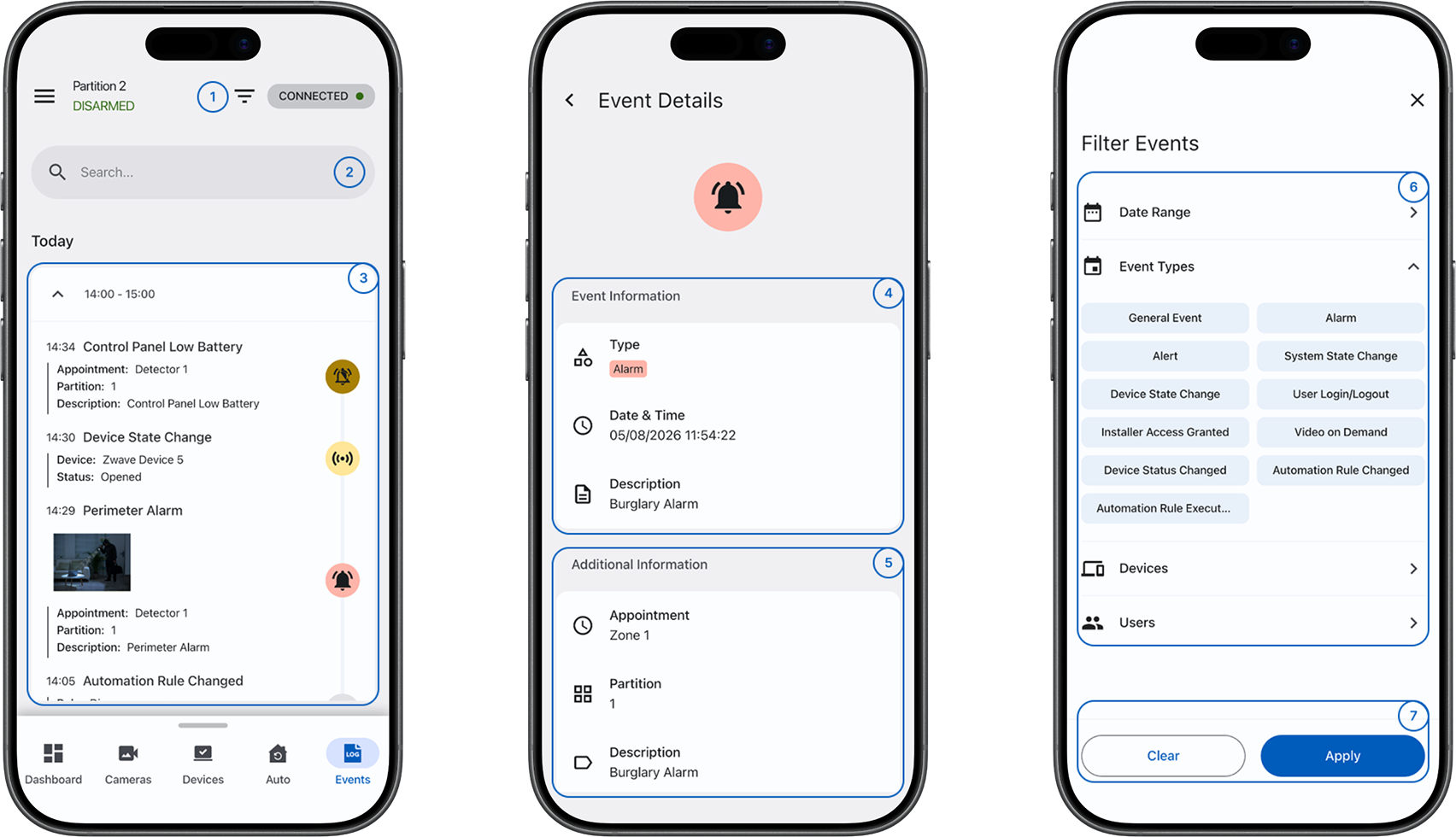
 Event filtersOpens the event filter screen and filters the event list.
 SearchSearches the event list and helps you find matching events.
- Events listShows events with information such as the date, time, name, and media when available. Opens Event Details when you select an event.
- Event informationShows event information in Event Details and can include the event type, date and time, and description.
- Additional informationShows extra details in Event Details and can include partitions, zone information, and a description.
- FiltersShows the available event filters.
- Clear and ApplyClear removes the selected filters, and Apply applies the selected filters to the event list.
Event list information
An event can show an event icon, source, event name, date, time, and media preview when available. The list includes security events and automation log entries.
Common scenarios
Open the Events screen
- Open the ConnectAlarm app.
- Sign in to your account.
- Open your panel.
- Select Events in the bottom navigation bar.
- Wait for the event list to appear.
Search for an event
- Go to Events.
- Select
 Search.
 - Enter the text that you want to find.
- Review the matching events.
Filter events
- Go to Events.
- Select
 Event filters.
 - Select the filters that you want to use.
- Select Apply.
- Review the filtered event list.
The Events screen shows events that match the selected filters.
Clear event filters
- Go to Events.
- Select Event filters.
- Select Clear.
- Select Apply.
The Events screen shows the event list without the cleared filters.
View event details
- Go to Events.
- Find the required event.
- Select the event.
- Review Event information in Event Details.
- Review Additional information, when available.
View an automation log entry
- Go to Events.
- Select Search.
- Enter text related to the automation action, device, or source.
- Select the matching automation log entry.
- Review Event information and Additional information in Event Details.
View event media
- Go to Events.
- Find an event that includes a media preview.
- Select the event.
- In Event Details, select the available image or video.
- Review the event media.
Event media is available only when a compatible camera or detector captured media for the event.
Tips
- Use Search when you know part of the event name or other displayed information.
- Use Event filters to narrow a long event list.
- Check the event date, time, and source before you take action.
- Open Event Details when you need the event type, description, partition, or zone information.
- Confirm that the app shows CONNECTED when you review recent events.
Troubleshooting
Events do not appear
Possible causes:
- Search text or selected filters might hide the events.
- No matching events might exist in the event history.
- The panel might be disconnected.
- Communication with the PowerManage server might be delayed.
What to try:
- Clear the Search field.
- Select Event filters.
- Select Clear, and then select Apply.
- Confirm that the app shows CONNECTED.
- Wait for the event list to update.
- If expected events still do not appear, contact your administrator or installer.
Search does not show the expected event
Possible causes:
- The search text might not match the information shown in the event list.
- Selected filters might hide the event.
What to try:
- Shorten or correct the text in Search.
- Clear the Search field and review the complete list.
- Clear the selected event filters.
- Search again.
Event Details does not open
Possible causes:
- Event information might still be loading.
- Communication with the panel or server might be delayed.
What to try:
- Confirm that the app shows CONNECTED.
- Select the event again.
- Try another event in the list.
- Wait and try again.
- If Event Details still does not open, contact your administrator or installer.
Event information is missing
Possible causes:
- The event might not include the missing field.
- Event data might still be loading.
- Panel configuration might affect the available source information.
What to try:
- Wait for Event Details to finish loading.
- Review Event information and Additional information.
- Confirm that the app shows CONNECTED.
- If required information remains unavailable, contact your administrator or installer.
Event media does not appear
Possible causes:
- No media might have been captured for the event.
- A compatible camera or detector might not be associated with the event.
- The media might still be loading or unavailable.
What to try:
- Open Event Details and check for an image or video.
- Confirm that the related camera or detector is configured.
- Confirm that the app shows CONNECTED.
- Wait and open the event again.
- If expected media remains unavailable, check the related camera or contact your administrator or installer.