Geofence
Overview
Use  Geofence to create a location-based area around a site. When your mobile device enters or leaves that area, ConnectAlarm sends a push notification that reminds you to arm or disarm the selected panel.
Use this page when you need to:
- Turn geofence on or off.
- Search for an address and place the geofence on the map.
- Use your current device location to center the map.
- Review or adjust the geofence area.
- Check the geofence radius shown on the map.
Before you begin
- Sign in to ConnectAlarm.
- Open the required panel.
- Turn on location services on your mobile device so ConnectAlarm can determine your location.
- Allow ConnectAlarm to access your location so it can update the geofence.
- Confirm that your mobile device has network connectivity.
Address search depends on network connectivity and address lookup services. Current location detection depends on the mobile device location provider, such as GPS, Wi-Fi, or cellular location services. Geofence accuracy depends on the device's location accuracy and the operating system's background location behavior.
- Geofence behavior is unavailable if location permission is denied.
- Geofence behavior might not work correctly if background location access is disabled.
- Battery optimization, low power mode, or operating system restrictions can affect geofence updates.
- The minimum supported radius is
3 m. - The map can show an approximate location. Confirm the address and geofence area before you rely on the geofence.
Screen layout
The Geofence screen shows a full-screen map and the controls used to place, review, and resize the geofence area.
Geofence screen
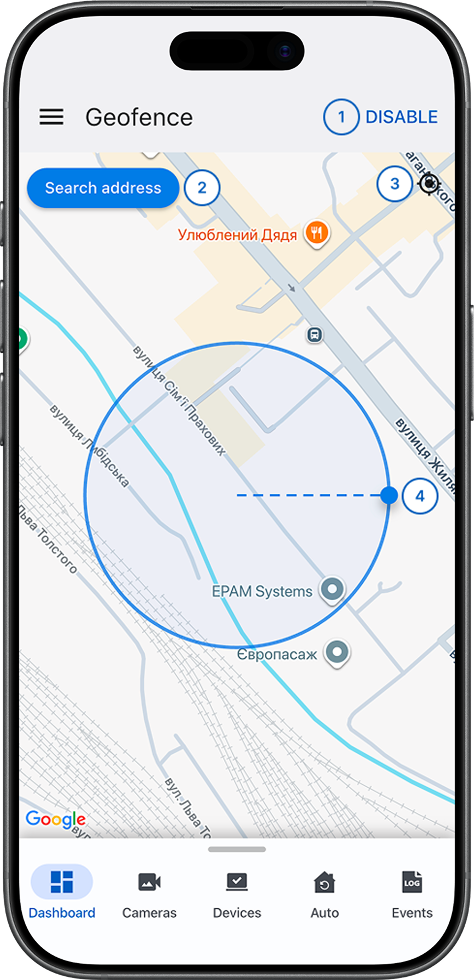
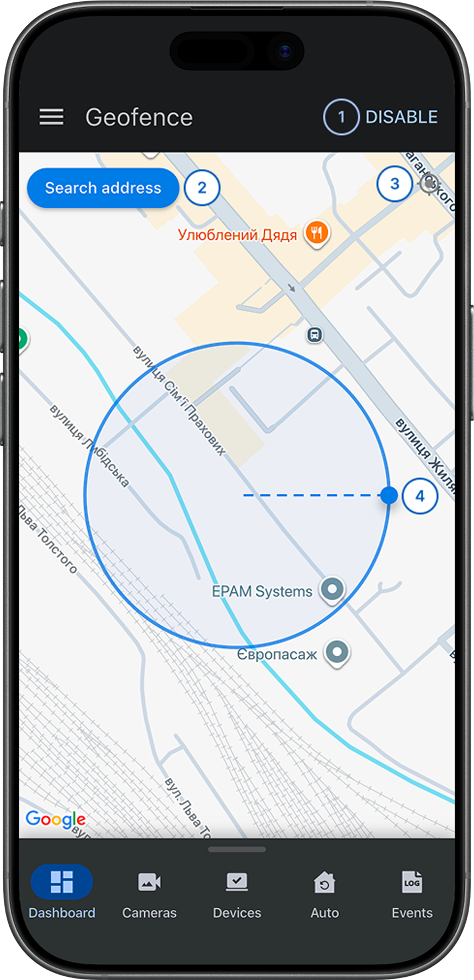
- DISABLETurns off geofence for the selected panel.
- Search addressOpens address search so you can move the geofence to an address.
 CenterCenters the map on your current device location when location access is available.
- Geofence areaShows the current geofence circle, the radius label, and the handle that you drag to resize the area.
Search mode controls
When you select Search address, the screen shows controls for finding and confirming a location.
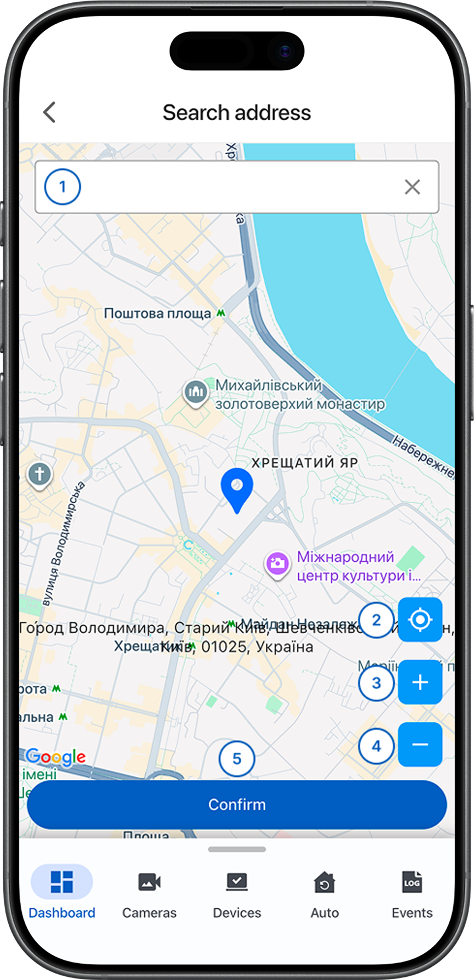
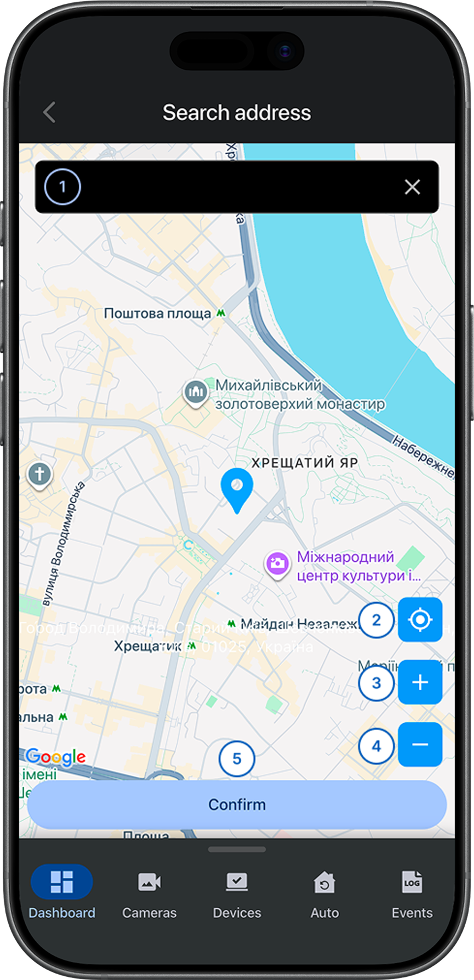
- Search fieldEnter an address to find it on the map.
- CenterCenters the map on your current device location.
 Zoom inZooms in on the map.
 Zoom outZooms the map out.
- ConfirmConfirms the selected location.
Common scenarios
Open the Geofence screen
- Open the ConnectAlarm app.
- Sign in to your account.
- Open your panel.
- Select
 Menu.
Menu. - Select Geofence.
Enable geofence
- Open Geofence.
- Turn on Geofence.
ConnectAlarm starts using the selected location area to send arm or disarm reminder push notifications when your mobile device enters or leaves the geofence area.
Search for an address
- Open Geofence.
- Select Search address.
- Enter an address in the search field.
- If results are shown, select the correct result.
- Select Center, Zoom in, or Zoom out as needed.
- Select Confirm.
- Review the geofence position on the map.
The map updates to the selected location.
Use your current device location
- Open Geofence.
- Select Center.
- If the mobile operating system asks for permission, allow ConnectAlarm to access your location.
- Wait for the map to move to the detected location.
The map centers on your current location.
Review the geofence radius
- Open Geofence.
- Locate the geofence circle on the map.
- Read the radius label.
The label shows the current geofence radius.
Adjust the geofence radius
- Open Geofence.
- Locate the handle on the edge of the geofence circle.
- Drag the handle inward to reduce the radius.
- Drag the handle outward to increase the radius.
- Review the updated radius label.
The geofence circle updates to the selected size.
Disable geofence
- Open Geofence.
- Select DISABLE.
Geofence turns off for the selected panel.
Disable geofence only when arm or disarm reminder push notifications are no longer required.
Tips
- Use Search address when the geofence must be placed around a specific site or property.
- Select Center when you configure geofence while you are at the site.
- Check the radius label after you change the geofence area. A small radius can be sensitive to location accuracy, and a large radius can include nearby streets or buildings.
- Keep location permissions enabled for ConnectAlarm if geofence behavior must work in the background.
- Review mobile device battery and background activity settings if geofence behavior is inconsistent.
Troubleshooting
The map does not load
Possible causes:
- Your mobile device has no network connection.
- The map provider is unavailable.
- The app cannot access map services.
What to try:
- Check mobile data or Wi-Fi connectivity.
- Try again from another network.
- Contact your administrator or installer if the map still does not load.
Current location does not work
Possible causes:
- Location services are disabled on your mobile device.
- ConnectAlarm does not have location permission.
- Your device cannot determine its location.
- GPS signal is limited.
- The operating system is restricting location access.
What to try:
- Enable location services on your mobile device.
- Check the location permission for ConnectAlarm.
- Allow location access when prompted.
- Move to an area with better location signal, if possible.
Geofence reminders do not appear
Possible causes:
- Geofence is disabled.
- Location permission is denied.
- Background location access is disabled.
- Battery optimization or low power mode restricts background activity.
- Device location is inaccurate.
What to try:
- Open Geofence and confirm that geofence is enabled.
- Check location permissions for ConnectAlarm.
- Enable background location access if required.
- Check battery optimization and low power mode settings.
- Confirm the geofence radius and location on the map.
- Contact your administrator or installer if reminders still do not work.
The geofence radius cannot be changed
Possible causes:
- The radius handle is not being used.
- Radius adjustment is not supported in the current app version.
- The radius has reached the minimum limit.
- The app is not responding to the drag gesture.
What to try:
- Try dragging the handle on the edge of the geofence circle.
- Check whether the radius label changes.
- Contact your administrator or installer if the radius cannot be adjusted.