Grant installer access
Overview
Use the  Installer access screen in ConnectAlarm to review and approve a remote installer access request when a trusted installer needs temporary access.
Before you begin
- Sign in to ConnectAlarm.
- Open the required panel.
- Confirm that a remote installer access request is active.
- Confirm that you expect the request and know why access is required.
- Confirm that the mobile device has network connectivity.
Remote installer access depends on the panel, PowerManage server, and installer configuration.
Approving installer access can allow a remote installer to view or change security system settings. Approve access only when the request is expected and authorized. Access expires automatically.
Screen layout
The Installer access screen displays a confirmation prompt and a slide-to-approve control.
Installer access screen
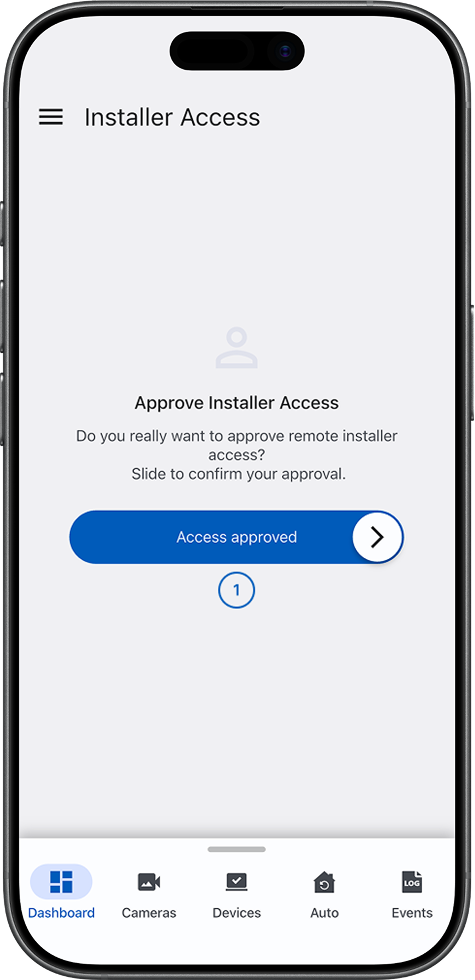
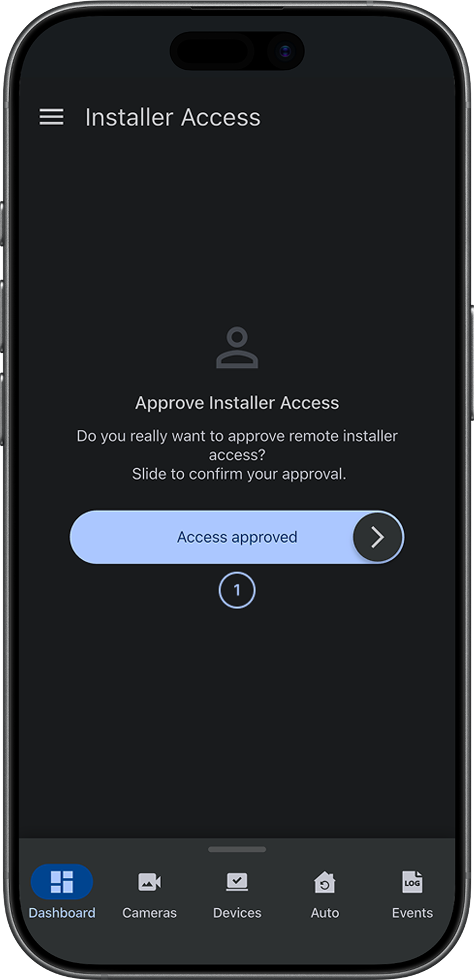
- Slide-to-approve controlApproves remote installer access when you slide the handle across the track. Use it only when the request is expected and authorized.
Session duration and expiration
Remote installer access is temporary. The session ends after a timeout that limits how long the installer can work with the panel after you approve the request.
Timeout behavior
- The timeout timer starts when you approve the request by completing the slide-to-approve action in ConnectAlarm.
- The timeout value is set by your service provider or administrator in the PowerManage server settings. You cannot change this value in ConnectAlarm.
- When the timeout is reached:
- The installer loses access to the panel in the PowerManage interface.
- The installer is automatically signed out of the AlarmInstall app for that panel.
- No additional configuration changes can be made until a new request is submitted and approved.
Scope of approved access
- Approval applies only to the panel you approved. Other panels remain blocked and require separate approval.
- The installer can perform supported operations on the approved panel, such as uploading or downloading configuration, triggering discovery, refreshing state, and managing devices.
- Available operations depend on panel type, installer role, and PowerManage permissions.
ConnectAlarm does not provide an option to revoke installer access before the timeout expires. If access was approved by mistake or must be stopped, contact your administrator or installer immediately to end the remote session from the PowerManage server side.
Common scenarios
Open the Installer access screen
- Open ConnectAlarm.
- Sign in to your account.
- Open the required panel.
- Open the
 menu.
menu. - Select Installer access, if available.
The Installer access screen opens.
Approve remote installer access
- Open the Installer access screen.
- Confirm that the request is expected and authorized.
- Select and hold the slider handle.
- Slide the handle across the approval track.
- Wait for the app to process the approval.
Remote installer access is approved for the active session.
Approve access only for a trusted and expected installer session. Remote access may allow system configuration changes.
Leave without approving access
- Open the Installer access screen.
- Review the request.
- If the request is unexpected or unauthorized, do not use the slider.
- Leave the page.
- Contact your administrator or installer.
No remote installer access is granted.
Tips
- Approve installer access only during a scheduled support or service session.
- Confirm the request with the installer or administrator before using the approval slider.
- If the request is unexpected, leave the page without approving and contact your administrator or service provider.
- After approval, review related events if your organization requires an audit trail.
Troubleshooting
The slide-to-approve control does not work
Possible causes:
- You might be selecting the control instead of sliding it.
- The app might not respond to touch input.
- The mobile device might not have network connectivity.
What to try:
- Select and hold the slider handle.
- Slide the handle across the full approval track.
- Confirm that the mobile device has network connectivity.
- Try again.
- If approval still fails, contact your administrator or installer.
Installer access does not appear in the menu
Possible causes:
- Your account might not have permission to approve installer access.
- The feature might be disabled by configuration.
- No active installer request might be available.
What to try:
- Open the menu and look for Installer access.
- Confirm that you are signed in to the correct panel.
- Confirm that an installer request is currently active.
- Contact your administrator or installer to check permissions and PowerManage configuration.
Access was approved by mistake
Possible causes:
- The slider was completed unintentionally.
- The request was approved before it was verified.
What to try:
- Contact your administrator or installer immediately.
- Ask the installer to stop the remote session if it is not authorized.
- Follow your site policy for incident response and credential updates.
- Contact the service provider if unauthorized access is suspected.
The installer did not receive access
Possible causes:
- The installer might be connected to a different panel.
- You might have approved a different panel.
- Network communication might be delayed.
What to try:
- Confirm the selected panel in ConnectAlarm.
- Ask the installer to confirm the active request.
- Approve again only if the request is expected and authorized.
- If access is still unavailable, contact your administrator or service provider.