Use the Panel control interface
Overview
Use the Panel control interface to review and control a selected alarm panel. You can check the panel connection and partition status, open panel features, and use quick actions that apply to all available partitions.
Confirm that you opened the correct panel before you arm, disarm, or trigger an emergency alarm.
Before you begin
- Sign in to ConnectAlarm.
- Open the required panel from the Panel list.
- Confirm that your user code is valid for the selected panel.
- Confirm that the mobile device has internet access.
- Confirm that the panel is connected to the PowerManage server.
- Confirm that the selected panel supports the feature that you want to use.
Available controls depend on the panel model, panel configuration, app version, and your permissions.
The Quick action widget can change the state of all partitions available to you. Use  Fire,
Fire,  Emergency, and
  Panic only during an actual emergency.
Screen layout
Panel control interface layout
The Panel control interface shows the status of the selected panel and provides access to its available features. The exact controls depend on the panel configuration and your permissions.
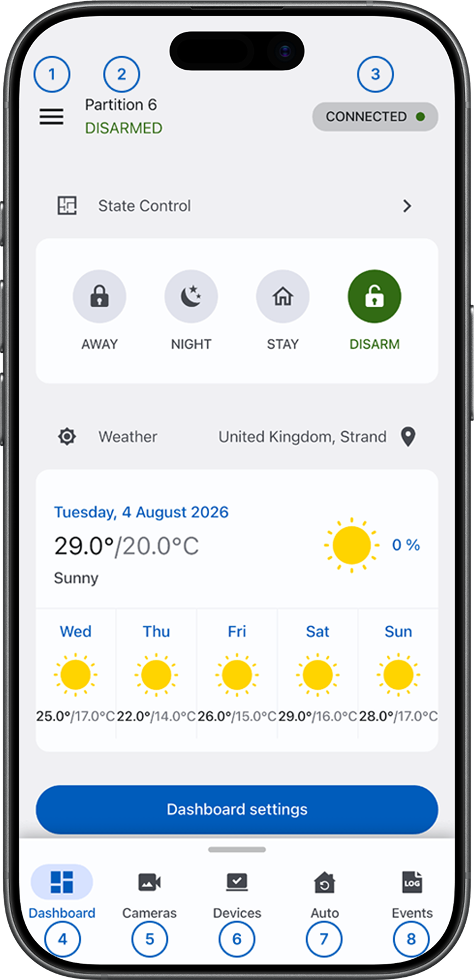
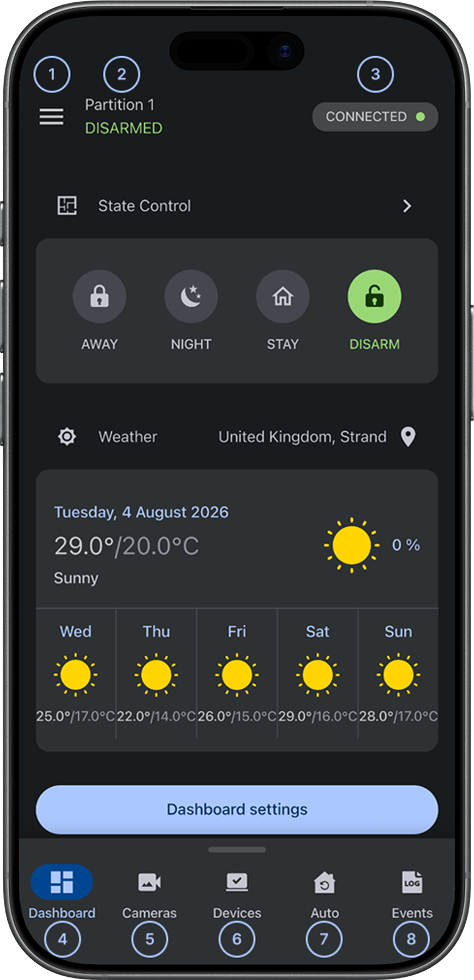
 MenuOpens app and panel settings, including notifications, partitions, home automation, and outputs.
- Status barShows the state of each available partition. Appears only when partitions are configured and available to you.
- Connection statusShows the current panel connection. Can provide an option to send a WakeUp message by Short Message Service (SMS) when supported by the panel, communicator, and service configuration.
 DashboardOpens the custom widgets available for the selected panel.
 CamerasOpens cameras configured for the selected panel. Video features require a supported camera configuration and permission.
 DevicesOpens devices added to the panel and shows their status. Available actions depend on device and panel support.
 AutoOpens configured outputs and supported automation devices.
 EventsOpens recent panel activity, alarms, and other events.
Quick action widget
Use the Quick action widget to change the state of all available partitions or trigger emergency actions.
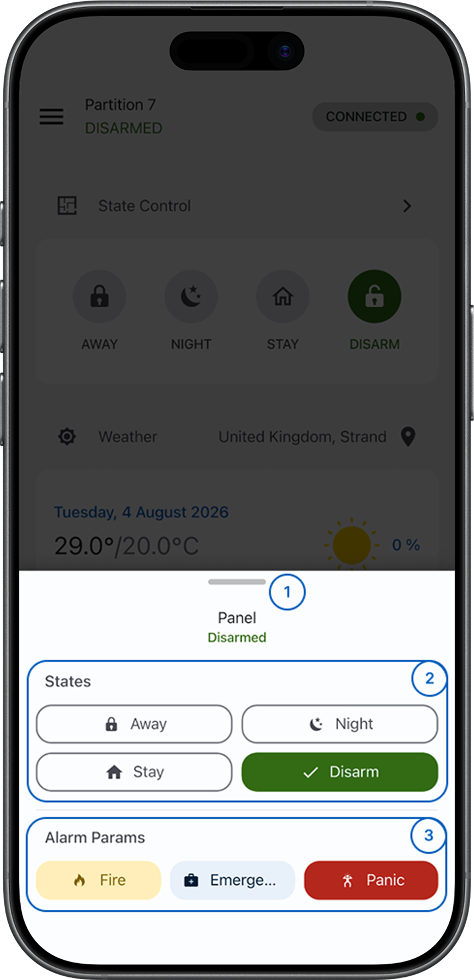
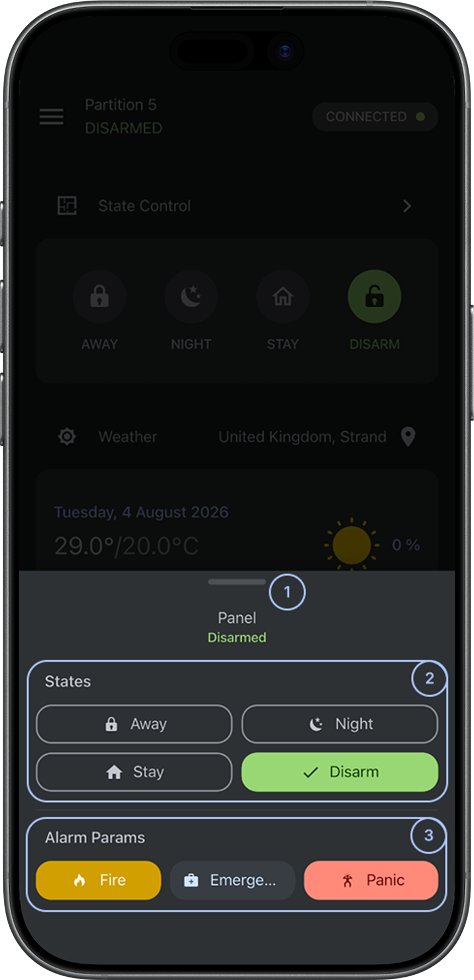
- Quick action sliderOpens the Quick action widget when you swipe up from the bottom of the screen.
- State controlsChanges the state of all partitions available to you. Available modes can include
 Away,
Away,  Stay,
Stay,  Night, and
  Disarm, depending on the panel configuration.
 - Alarm actionsTriggers the selected alarm action, such as Fire, Emergency, or Panic. Use these actions only during an actual emergency.
Common scenarios
Open the menu
- Open the Panel control interface.
- Select Menu.
- Select the required menu item.
Open Dashboard, Cameras, Devices, Auto, or Events
- Open the Panel control interface.
- Select one of these tabs:
- Dashboard
- Cameras
- Devices
- Auto
- Events
- Review or control the selected feature.
Arm all partitions in Away mode
- Open the Panel control interface.
- Swipe up from the bottom of the screen to open the Quick action widget.
- Select Away.
- Confirm the action if prompted.
The status bar shows the updated state for the available partitions.
Arm all partitions in Stay or Night mode
- Open the Panel control interface.
- Swipe up from the bottom of the screen to open the Quick action widget.
- Select an available mode:
- Stay
- Night
- Confirm the action if prompted.
The status bar shows the updated state for the available partitions. Night appears only when it is configured for the panel.
Disarm all partitions
- Open the Panel control interface.
- Swipe up from the bottom of the screen to open the Quick action widget.
- Select Disarm.
- Confirm the action if prompted.
The status bar shows the available partitions as disarmed.
Trigger an emergency alarm
- Open the Panel control interface.
- Swipe up from the bottom of the screen to open the Quick action widget.
- Select the required alarm action:
- Fire
- Emergency
- Panic
- Confirm the action if prompted.
Tips
- Review the panel name and connection status before you perform a control action.
- If partitions are configured, review the Status bar before you change the system state.
- Use the Quick action widget only when the action applies to all partitions available to you.
- Open Events to review recent panel activity after a control action.
Troubleshooting
Panel status does not update
Possible causes:
- The panel or communicator is offline.
- The mobile device has limited internet access.
- The status update is delayed.
What to try:
- Check the mobile device's Wi-Fi or cellular connection.
- Review the panel connection status in ConnectAlarm.
- Wait for the screen to update.
- If the status remains outdated, contact your installer or administrator.
Arm or disarm action fails
Possible causes:
- The panel is not ready for the requested state change.
- The panel connection is unavailable.
- Your permissions do not allow the action.
What to try:
- Review the panel and partition status.
- Resolve any condition that prevents the requested state change.
- Confirm that the panel is connected.
- Try the action again.
- If the action still fails, contact your installer or administrator.
Partition controls do not appear
Possible causes:
- The panel does not support partitions.
- Partitions are not configured.
- Your user account does not have access to any partitions.
What to try:
- Confirm that the selected panel supports partitions.
- Ask your installer or administrator to confirm the panel configuration and your permissions.
Quick action widget does not open
Possible cause:
- The swipe gesture was not recognized.
What to try:
- Return to the Panel control interface.
- Swipe up again from the bottom of the screen.
- If the widget still does not open, close and reopen ConnectAlarm, and then try again.
Emergency action cannot be completed
Possible causes:
- The panel is disconnected.
- The system rejected the request.
What to try:
- Confirm that the panel shows an active connection.
- Retry the action only if an actual emergency exists.
- Follow your site's emergency procedures if the action remains unavailable.