Use the Panel list
Overview
Use the Panel list to find and open alarm panels linked to your ConnectAlarm account. You can also add a panel or switch to edit mode to rename, pin, unpin, or remove a panel.
Always verify the panel name or alias before you open it, especially when you manage multiple panels.
Before you begin
- ConnectAlarm is installed on your mobile device.
- You can sign in to your ConnectAlarm account.
- Your mobile device has internet access.
- You have your own user code for each panel that you need to open.
Panel availability and actions depend on your account and panel permissions. To add a panel, you need the server or host address and the panel ID or serial number supplied by your installer or dealer.
If you enter an incorrect user code three times when you open panel control, access can be locked for 5 minutes.
Screen layout
The Panel list has a standard view and an edit mode. The standard view lets you find, open, and add panels. Edit mode lets you manage panels that are already linked to your account.
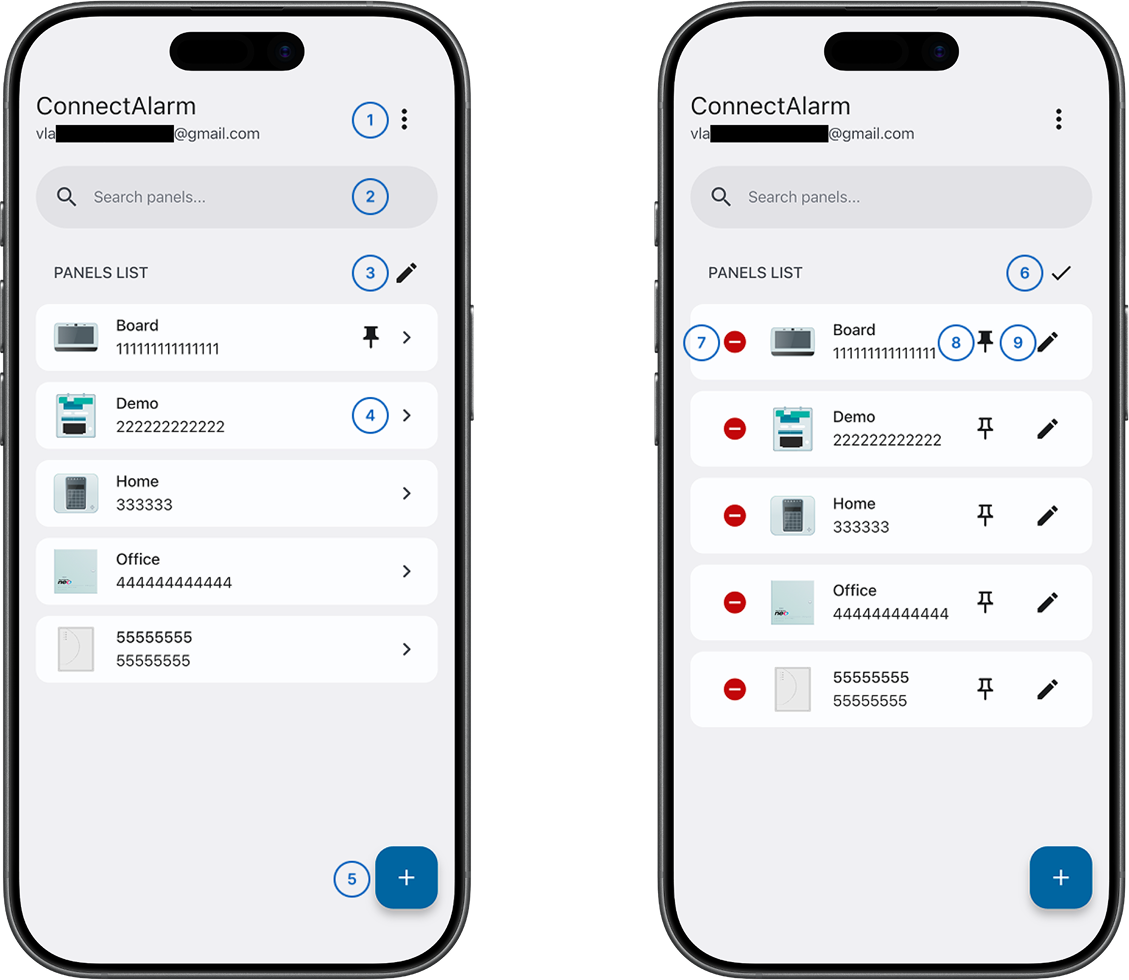
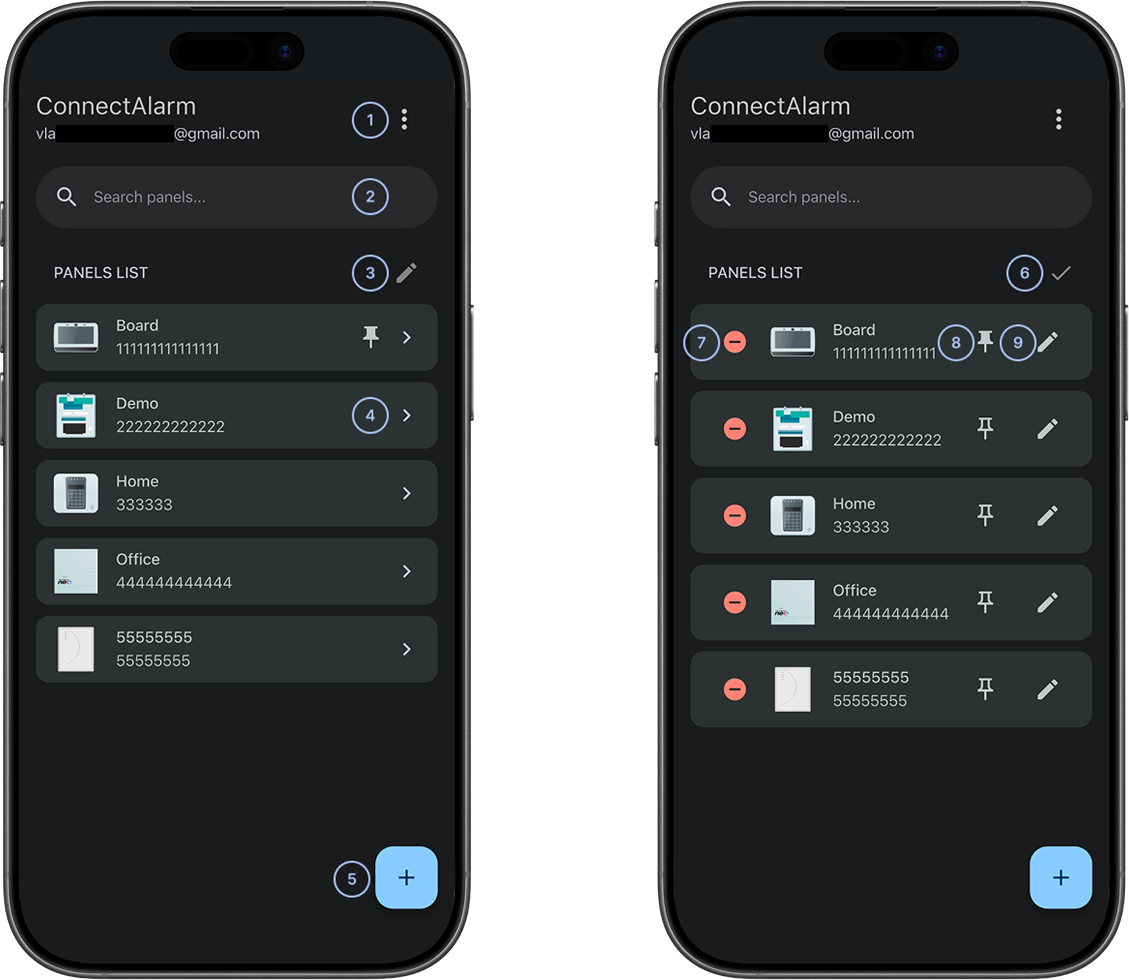
 More menuOpens the More menu. Shows app settings, user information, the End User License Agreement (EULA), privacy policy, and sign-out options.
 Search panelsSearches available panels. This is useful when you manage many panels.
 Edit modeOpens the panel list edit mode so you can manage panels.
 Open panel controlOpens panel control for the selected panel. This requires a valid user code.
 Add panelOpens the add-panel flow. This option appears after successful sign-in.
 DoneExits panel list edit mode.
 Remove panelRemoves a panel from the list. This requires your ConnectAlarm account password to confirm removal.
 Pin or unpin panelPins or unpins a panel at the top of the Panel list. This is useful when you manage many panels.
- Edit panel aliasEdits the panel alias. You can use up to 24 characters.
Common scenarios
Open a panel
- Open the ConnectAlarm app.
- Sign in to your account.
- Find the required panel in the Panel list.
- Select Open panel control.
- Enter your panel user code.
Panel control opens for the selected panel.
Search for a panel
- In the Panel list, select Search panels.
- Enter part of the panel name, ID, or alias.
- Review the matching panels.
- Select the required panel.
Add a panel
- In the Panel list, select Add panel.
- Enter the required panel details.
- Complete the on-screen instructions.
The new panel appears in the Panel list.
Rename a panel
- In the Panel list, select Edit mode.
- For the required panel, select Edit panel alias.
- Enter an alias of up to 24 characters.
- Select OK.
- Select Done.
The new alias appears in the Panel list.
Pin a panel
- In the Panel list, select Edit mode.
- For the required panel, select Pin or unpin panel.
- Select Done.
The panel appears at the top of the Panel list.
Unpin a panel
- In the Panel list, select Edit mode.
- For the pinned panel, select Pin or unpin panel.
- Select Done.
The panel returns to its normal position in the list.
Remove a panel
- In the Panel list, select Edit mode.
- For the required panel, select Remove panel.
- Enter your ConnectAlarm account password.
- Select Remove.
- Select Done.
The panel is removed from your account and no longer appears in the Panel list.
Removing a panel does not delete the security system, but it removes the panel from your ConnectAlarm account. To restore it, add the panel again with the correct server address, panel ID or serial number, and user code.
Tips
- Use distinct aliases such as Home, Office, or Warehouse to identify panels quickly.
- Pin panels that you open frequently.
- Confirm the panel name or alias before you arm or disarm the system.
Troubleshooting
Panel list is empty
Possible causes:
- You signed in with a different account.
- No panels are linked to the account.
- A panel was removed from the account.
What to try:
- Confirm that you signed in with the correct account.
- Select Add panel and add the required panel.
- If the panel should already be available, contact your dealer, installer, or service provider.
User code is rejected
Possible causes:
- The code was entered incorrectly.
- The code was changed at the panel.
- Access is temporarily locked after three incorrect attempts.
What to try:
- Confirm that you selected the correct panel.
- Enter the user code again carefully.
- If three incorrect attempts were made, wait 5 minutes and try again.
- If the code is still rejected, contact your installer or administrator.
Panel appears but does not open
Possible causes:
- The mobile device has limited network connectivity.
- Interactive mode is disabled for the panel in PowerManage.
What to try:
- Check the mobile device's Wi-Fi or cellular connection.
- Select the panel again.
- If the panel still does not open, contact your dealer, installer, or service provider.
Panel was removed by mistake
- Select Add panel.
- Enter the correct server address, panel ID or serial number, and user code.
- Complete the on-screen instructions.
The panel appears in the Panel list again.