Manage push and email notifications
Overview
Use the  Notifications screen in ConnectAlarm to choose which event categories send push or email notifications. You can also configure supported push notification behavior, such as sound, vibration, and duration.
Before you begin
- Sign in to ConnectAlarm.
- Open the required panel.
- Confirm that the mobile device has network connectivity.
- Allow notifications for ConnectAlarm in the mobile operating system settings if you want to receive push notifications.
- Confirm that the email address in your user settings is correct if you want to receive email notifications.
Push notifications depend on both the category settings in ConnectAlarm and the notification settings in the mobile operating system. Email notifications depend on the configured email address and backend email delivery.
Background app behavior can affect push delivery. Notification delivery when the app is in the background, force-closed, or not recently opened depends on the mobile operating system version, device policy, and manufacturer restrictions.
Push delivery can change when ConnectAlarm runs in the background. Keep app notifications enabled, allow background activity for ConnectAlarm, and disable battery or power-saving rules that can pause app processing.
Categories can differ by panel family and panel group settings. In general, categories can include:
- Alerts: Trouble or warning events that do not trigger a full alarm, such as AC loss, low battery, sensor trouble, RF jamming, communication failure, or system inactivity.
- Alarms: Critical security and life-safety events, such as intrusion (interior, perimeter, delay), fire, panic, gas, flood, CO, tamper, and medical alarm conditions.
- Restore events: Events that indicate a previous alarm, trouble, or tamper condition returned to normal. Examples include burglary restore, fire restore, tamper restore, low battery restore, and AC power restore.
- Arm/disarm events: State changes when the system, area, or partition is armed or disarmed. Includes arm stay, arm away, arm night, disarm, quick arm, auto-arm, force arm, and remote arm or disarm.
- Camera being viewed events: Camera-related events, such as video-on-demand captures.
- Home devices on/off events: Automation device activity, such as lock, light, thermostat, or switch state changes.
- Online events: Events that indicate the panel or communicator established or re-established a connection.
- Offline events: Events that indicate the panel or communicator lost connection or went offline.
- Notice events: Informational system messages that do not indicate an active alarm or trouble condition. Examples include test modes, bypass or unbypass events, installer programming entry or exit, and system resets.
- System events: System-level notifications, such as rule execution failures, subscription expiration warnings, and unauthorized installer login attempts.
- Duress events: Events generated when a user operates the system under threat, such as entering a duress code to disarm.
Turning off alarms, duress events, or another time-sensitive category can prevent you from receiving alerts for that event type. Follow your site's notification procedures when you change these settings.
Screen layout
Notification options
- Android
- iOS
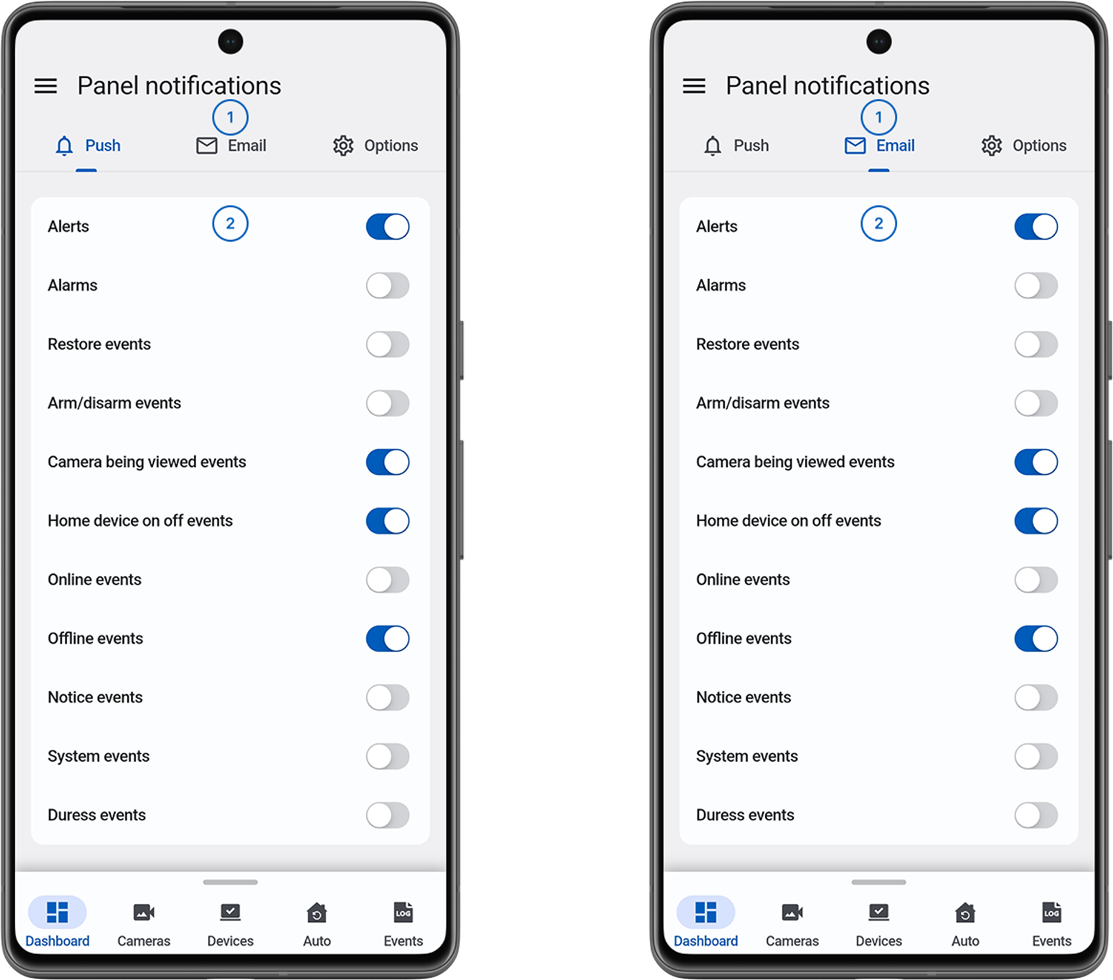
 Push
Push Email
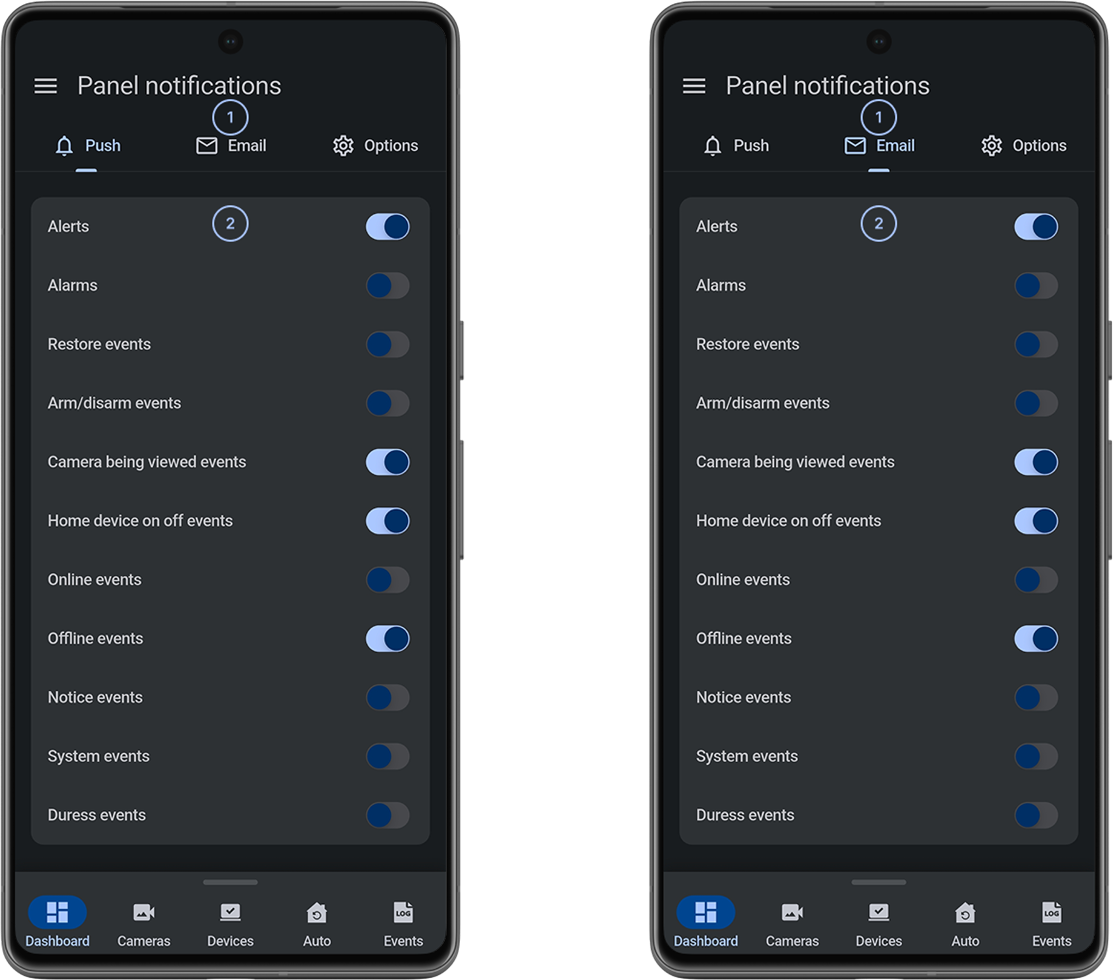
Email Options tabsUse Push and Email to manage notification types and open Options to configure supported push notification behavior.
- Notification categoryEach category includes a toggle you can turn on or off.
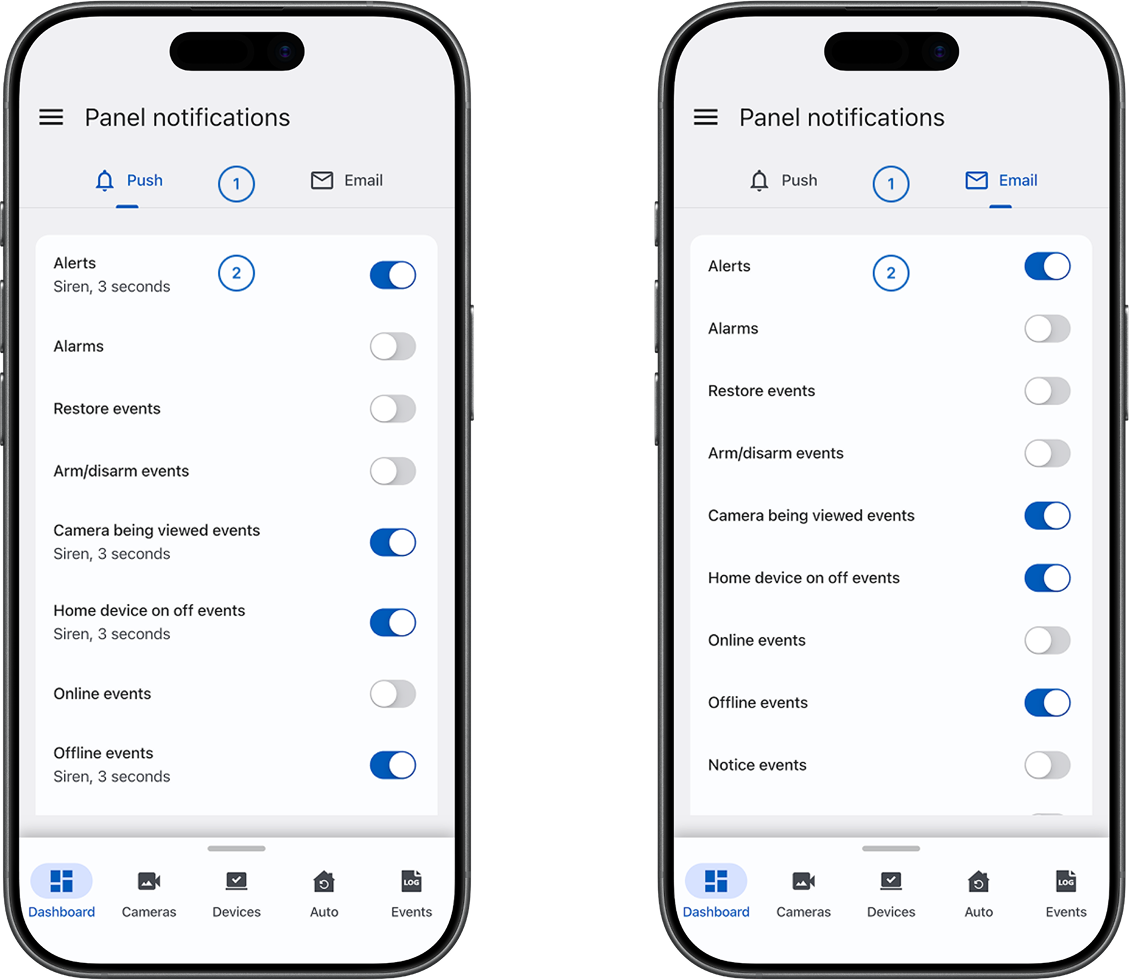
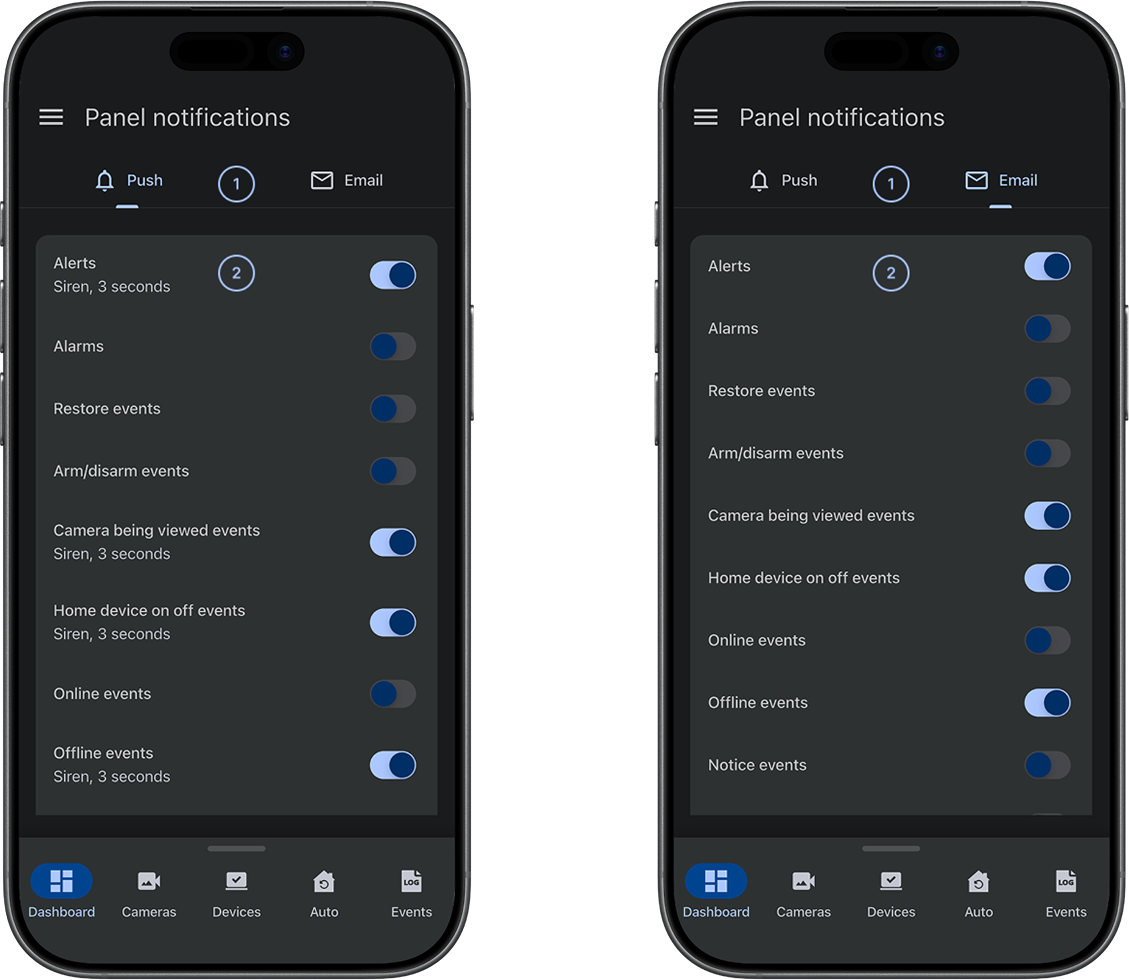
- Push and Email tabsUse Push and Email to manage notification types.
- Notification categoryEach category includes a toggle you can turn on or off. When you select a category, iOS opens options for that category.
Push notification options
Detailed push notification options apply to the selected category. Other categories can use different options.
- Android
- iOS
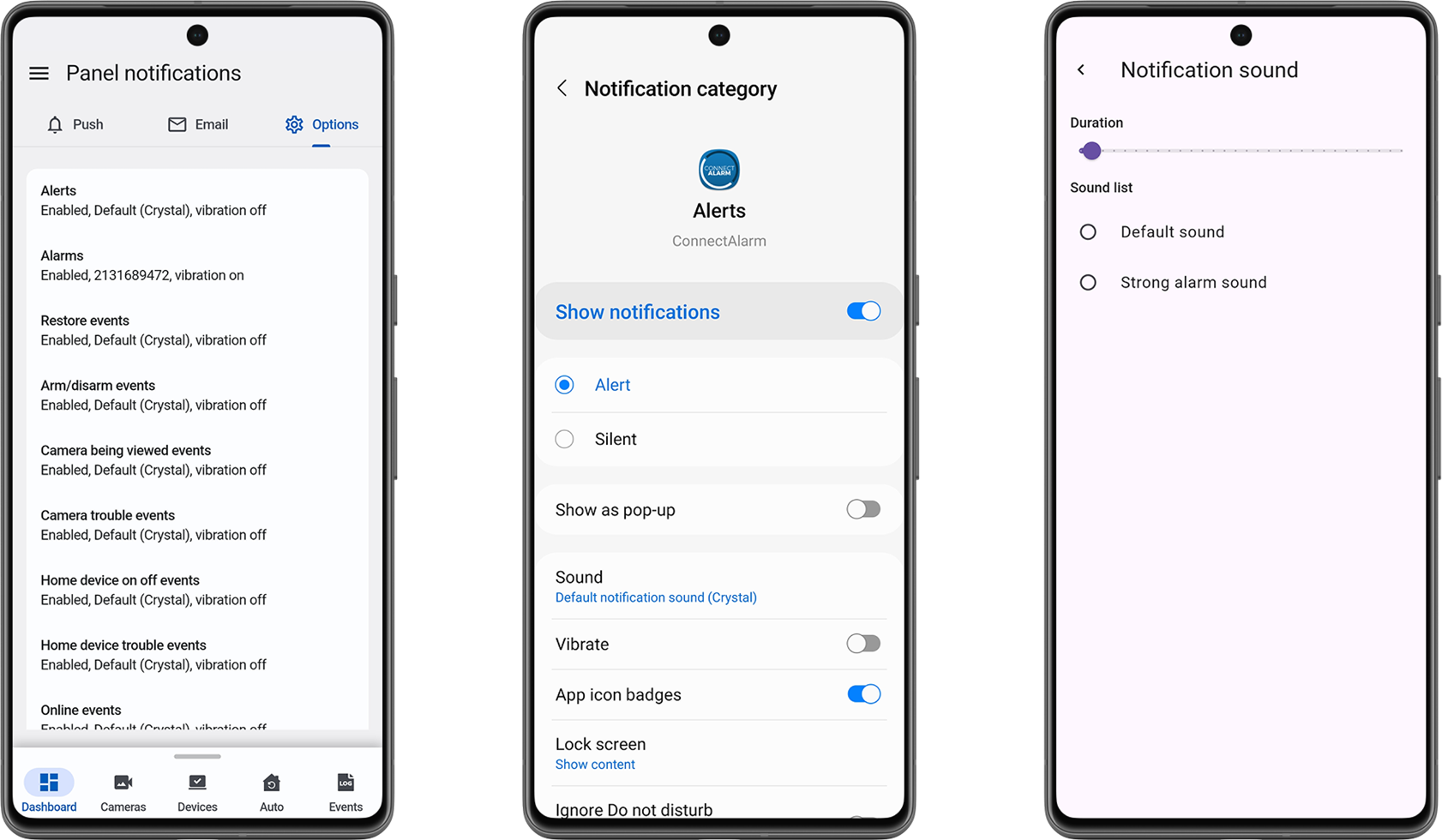
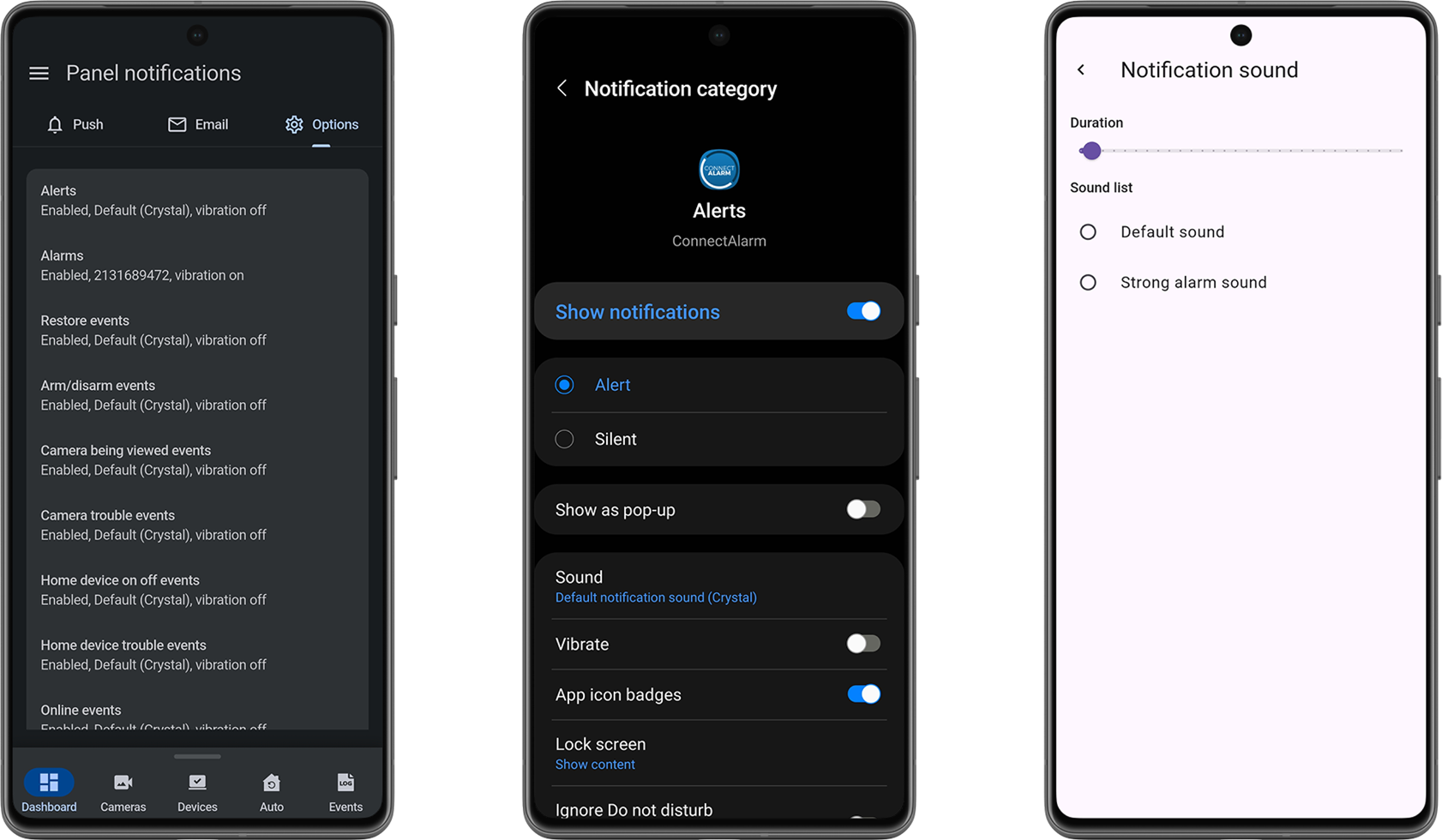
On Android, available options depend on the operating-system version and device notification settings. Options can include:
- Show notifications: Allows the operating system to display notifications for the category.
- Alert: Allows supported sound or visual alert behavior.
- Silent: Displays notifications without alert behavior.
- Show as pop-up: Displays supported notifications as pop-up alerts.
- Sound: Selects the notification sound.
- Vibrate: Turns vibration on or off.
- App icon badges: Allows the app icon to show a notification badge.
- Lock screen: Controls whether notification content appears on the device lock screen.
- Ignore Do not disturb: Allows the category to alert in Do Not Disturb mode when the operating system and device policy support this behavior.
- Duration: Changes the sound duration when duration control is supported.
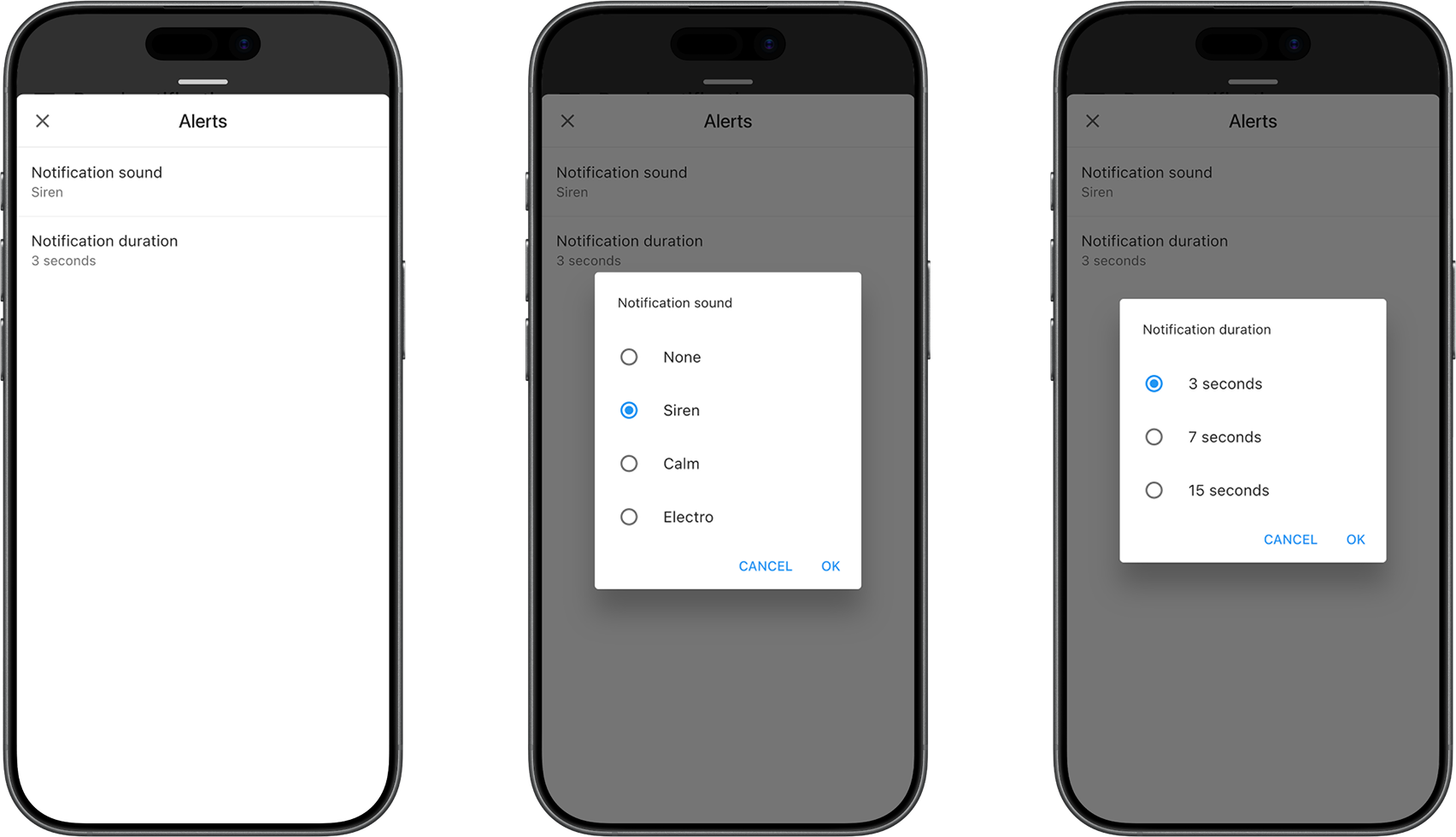
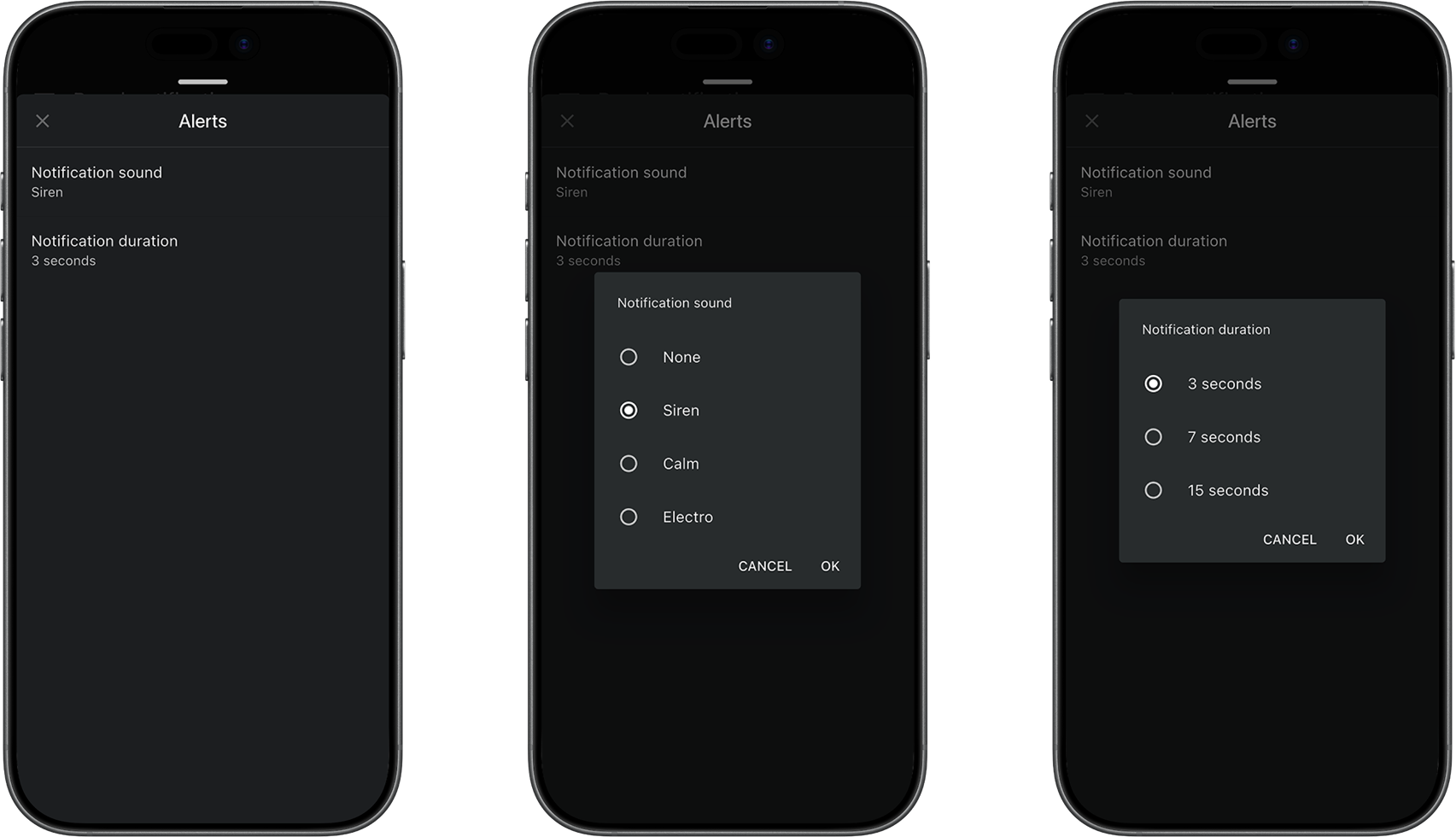
- Notification sound: Selects the sound for the selected notification category. Available sounds: None, Siren, Calm, and Electro.
- Notification duration: Selects how long the selected notification sound plays. Available durations: 3 seconds, 7 seconds, and 15 seconds.
- Confirm or discard changes: Select Ok to apply the change, or select Cancel to keep the current selection.
Showing notification content on the lock screen can expose security event information to anyone who can see the device.
Common scenarios
Open notification settings
- Open ConnectAlarm.
- Sign in to your account.
- Open the required panel.
- Open the main menu.
- Select Notifications.
The Notifications screen opens.
Turn on push notifications for a category
- Open Notifications.
- Select Push.
- Find the required category.
- Turn on the category toggle.
ConnectAlarm enables push notifications for the category. The operating system must also allow notifications for ConnectAlarm and the selected category.
Turn off push notifications for a category
- Open Notifications.
- Select Push.
- Find the required category.
- Turn off the category toggle.
ConnectAlarm stops sending push notifications for the category.
Turning off alarms, duress events, or a similar category can prevent you from receiving time-sensitive alerts.
Turn on email notifications for a category
- Open Notifications.
- Select Email.
- Find the required category.
- Turn on the category toggle.
ConnectAlarm enables email notifications for the category.
Turn off email notifications for a category
- Open Notifications.
- Select Email.
- Find the required category.
- Turn off the category toggle.
ConnectAlarm stops sending email notifications for the category.
Open push notification options
- Open Notifications.
- Select Push.
- Android
- iOS
- Select Options.
- Select the category to configure.
- Select the category to configure.
The available notification options open. On some devices, ConnectAlarm opens the operating system settings for the selected notification category.
Change the notification sound
- Open the push notification options for the required category.
- Select Notification sound or Sound, depending on the displayed screen.
- Select an available sound, such as None, Siren, Calm, or Electro.
- Select Ok if the screen includes this action.
The selected sound applies to the category.
Change the notification duration
- Open the push notification options for the required category.
- Select Notification duration or Duration, depending on the displayed screen.
- Select an available duration, such as 3 seconds, 7 seconds, or 15 seconds.
- Select Ok if the screen includes this action.
The selected duration applies to the category. Duration control is available only when the device, operating system, and selected sound support it.
Tips
- Keep Alarms enabled unless your site's procedures require another configuration.
- Use Email for categories that should also send a message to the configured email address.
- If a push category is enabled in ConnectAlarm but notifications do not appear, check the operating system settings for ConnectAlarm and the selected category.
- Use distinct sounds for important categories when the device supports category-specific sounds.
- Review both the ConnectAlarm category toggle and the operating system Show notifications setting.
Troubleshooting
Push notifications do not appear
Possible causes:
- The category is turned off on Push.
- The operating system does not allow notifications for ConnectAlarm.
- Show notifications is turned off for the category.
- The mobile device has no network connectivity.
- Android battery optimization or original equipment manufacturer (OEM) background restrictions limit ConnectAlarm background activity.
What to try:
- Open Notifications.
- Select Push.
- Confirm that the required category is turned on.
- Confirm that the operating system allows notifications for ConnectAlarm.
- If category options are available, confirm that Show notifications is turned on for the affected category.
- Confirm that the device has network connectivity.
- On Android, review battery optimization, adaptive battery, and background activity restrictions for ConnectAlarm.
- On devices with manufacturer controls (for example Samsung, Xiaomi, Huawei, Oppo, or Vivo), confirm that ConnectAlarm is allowed to run in the background and is not set to auto-restrict or auto-close.
- If notifications still do not appear, contact your administrator or installer.
When background restrictions are active, ConnectAlarm can miss or delay push processing. If the app was force-closed, open it once, then test again after confirming background activity is allowed and battery restrictions are disabled.
Email notifications do not arrive
Possible causes:
- The category is turned off on Email.
- The configured email address is incorrect.
- Messages are filtered as spam or blocked.
- Backend email delivery is unavailable or delayed.
What to try:
- Open Notifications.
- Select Email.
- Confirm that the required category is turned on.
- Verify the email address in your user settings.
- Check the spam, junk, and blocked sender settings for the email account.
- If email notifications still do not arrive, contact your administrator or installer.
The notification sound does not play
Possible causes:
- The category is set to Silent.
- The category sound is set to None.
- The device sound mode or volume prevents the sound from playing.
- The selected sound is unavailable.
What to try:
- Open the push notification options for the affected category.
- Confirm that the category uses Alert, if this option is available.
- Confirm that the sound is not set to None.
- Select an available sound.
- Check the device sound mode and notification volume.
- If the sound still does not play, contact your administrator or installer.
Notifications appear without vibration or pop-up alerts
Possible causes:
- Vibrate or Show as pop-up is turned off for the category.
- The category is set to Silent.
- The operating system or device policy does not allow the selected alert behavior.
What to try:
- Open the operating system notification settings for the affected category.
- Confirm that the category uses Alert, if available.
- Turn on Vibrate or Show as pop-up, as required.
- Review Do Not Disturb and device policy settings that can limit alerts.
- If the expected behavior remains unavailable, contact your administrator or installer.