State control
Overview
Use State Control to check the current security state of a panel or partition and change the state when needed. You can arm or disarm the full system, or control an individual partition when partition support is available.
Before you begin
- Sign in to ConnectAlarm.
- Open the required panel.
- Confirm that your user code is valid for the panel or partition that you want to control.
- Confirm that the panel is connected to PowerManage through the configured communication path.
State control limitations
- The available arming modes depend on the panel configuration.
- Partition controls appear only when the alarm system supports and uses partitions.
- ConnectAlarm can show and control multiple panels, but actions apply only to the selected panel or partition.
- State changes depend on communication between the app, PowerManage, the communicator, and the panel.
- Status can be delayed or unavailable if the panel, communicator, network, or PowerManage is unreachable.
Screen layout
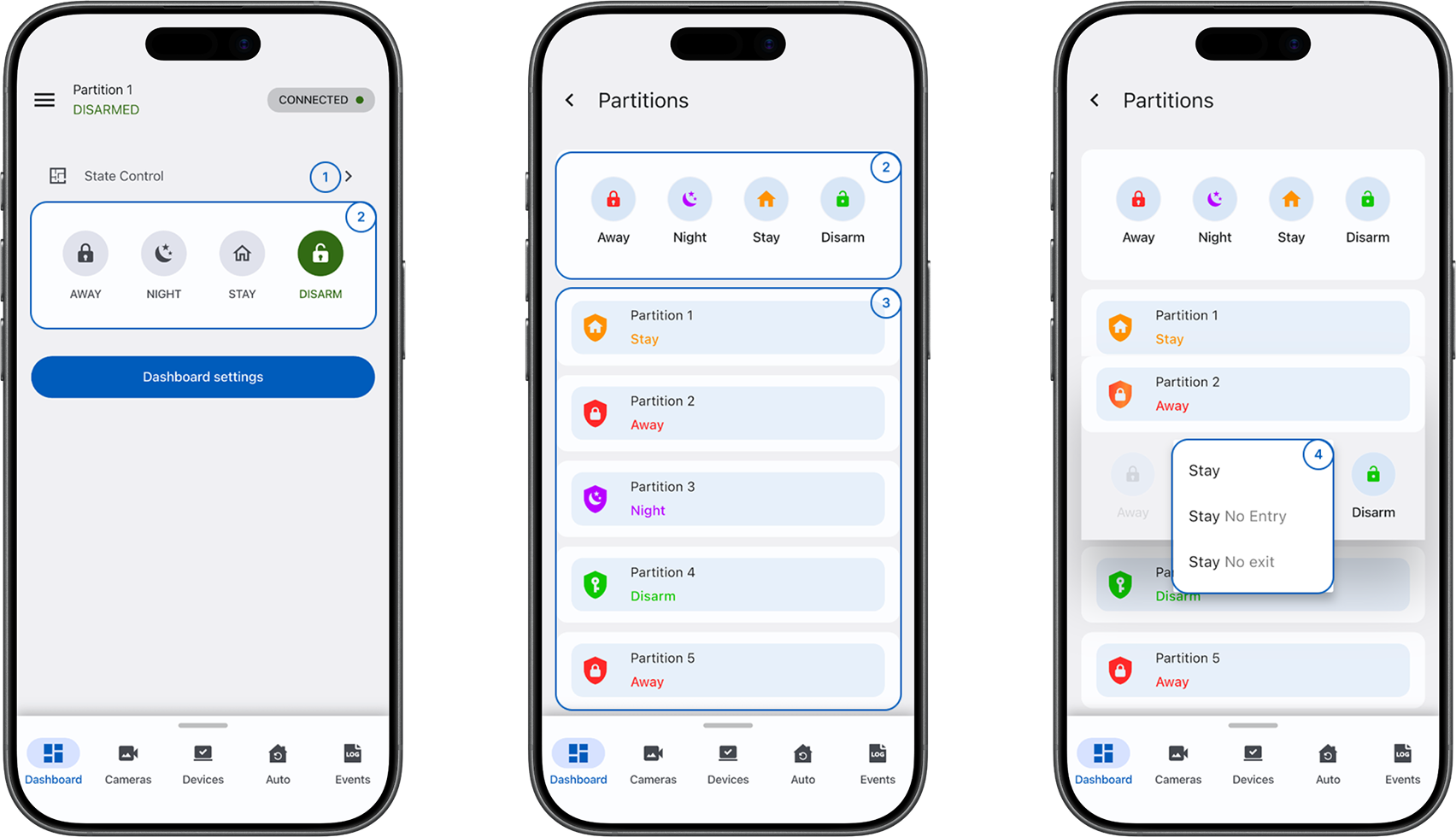
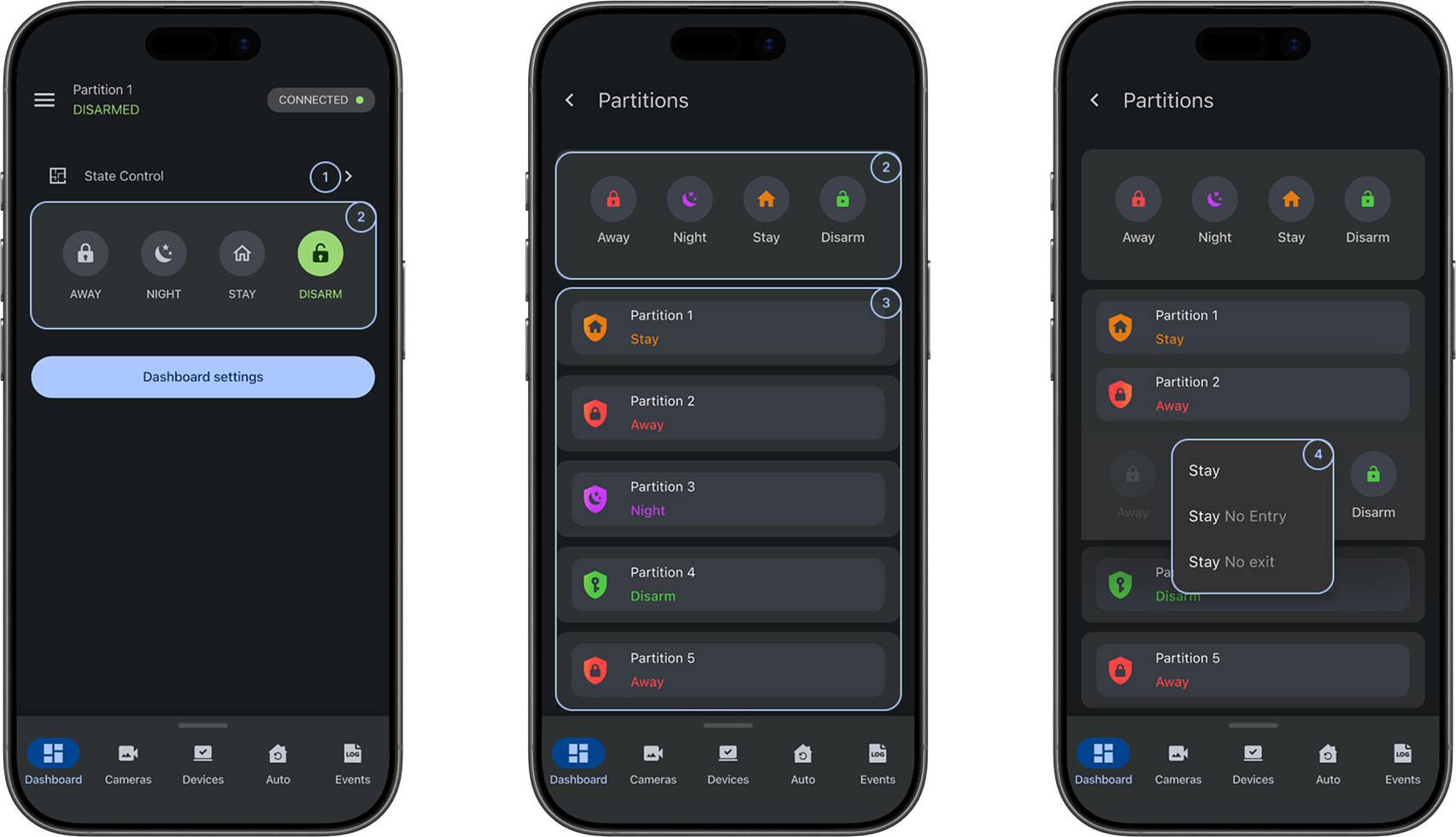
 Open partitionsOpens the Partitions section of the State Control widget so you can review or control a specific partition.
- System status areaShows the current state of the selected panel or partition and the available arming modes.
 Away,
Away,  Stay, and
  Night indicate the system is armed in the corresponding mode.
  Disarm indicates the system is disarmed.
 - Partition selectorLets you choose the partition to review or control. Actions apply only to the selected partition.
- Arming optionsSelect and hold the required arm mode to open arming options when supported by the panel configuration.
Common scenarios
Check the current system state
- Open the ConnectAlarm app.
- Sign in to your account.
- Open your panel.
- Find the State Control system status area.
- Check the current status icon:
 Away
Away Stay
Stay Night
Night Disarm
The app shows the current system state.
Arm the system
- Open the ConnectAlarm app.
- Sign in to your account.
- Open your panel.
- Find the State Control system status area.
- Select the required arm mode:
- Away
- Stay
- Night
- Optional: for Stay, select and hold Stay to open arming options, and then select No Entry.
- Wait for the app to show the updated armed state.
The selected arming mode becomes active.
Disarm the system
- Open the ConnectAlarm app.
- Sign in to your account.
- Open your panel.
- Find the State Control system status area.
- Select Disarm.
- Wait for the app to show the updated disarmed state.
The system shows the disarmed state.
Check the current partition state
- Open the ConnectAlarm app.
- Sign in to your account.
- Open your panel.
- Find the State Control widget.
- Select
 Open partitions to open the Partitions section.
 - Scroll to find the partition.
- Check its status.
The selected partition shows its current state.
Control an individual partition
- Open the ConnectAlarm app.
- Sign in to your account.
- Open your panel.
- Find the State Control widget.
- Select Open partitions to open the Partitions section.
- Scroll to find the partition.
- Select one of the required actions:
- Away
- Stay
- Night
- Disarm
- Wait for the app to show the updated state.
The selected partition changes to the requested state.
Tips
tip
- Configure State Control to display at the top of the dashboard.
- Night arming mode is available only for DSC and IQ panels. To access this option, configure at least one device with a Night zone.
- Exit delay appears as a timer on the arming mode icon.
Troubleshooting
State controls are unavailable
Possible causes:
- The panel may not be communicating with PowerManage.
- The panel connection may be delayed.
What to try:
- Confirm the panel connection status in the app.
- Wait a moment and check the status again.
- For cellular panels, send a WakeUp SMS to force a connection to PowerManage.
- Contact the dealer or installer if the panel remains offline.
Failed to change partition state
Possible causes:
- Another state-change process may still be running.
- The panel may not be ready for a new state change.
What to try:
- Wait for the previous state-change process to finish.
- Try the action again.
- If the issue continues, verify that the panel is not in programming mode.
Night arming mode is not available
Possible causes:
- The selected panel or partition may not support this mode.
- The Night mode configuration may be missing.
What to try:
- Confirm that the system supports Night arming mode.
- Confirm that the Night zone is configured for at least one device.
- Contact the installer if the mode is still unavailable.
Partitions are missing
Possible causes:
- The panel may not be configured to use partitions.
- Your account may not have access to panel partitions.
What to try:
- Confirm that partitions are enabled in the panel configuration.
- Confirm that your account has access to panel partitions.
- Ask the installer to verify the panel partition configuration.
Related pages
Was this page helpful?