Dashboard settings
Overview
The Dashboard settings option in ConnectAlarm lets users customize which widgets appear on the dashboard.
Use this page when users need to:
- Show widgets that are currently hidden.
- Hide widgets that are currently visible.
- Change the order of visible dashboard widgets.
- Open widget-specific settings when a widget supports configuration.
This page helps users keep the dashboard focused on the information and controls they use most often.
Before you begin
Required permissions
- Access to the ConnectAlarm mobile app
- Access to the selected security system
Limitations
- Some widgets may not appear if the related device, sensor, or service is not configured.
- Some widgets may not have a settings option.
- The page apply changes automatically after returning to the dashboard.
Page layout
The Dashboard settings page is opened from the main Dashboard screen.
The screenshot shows two related screens:
- The main Dashboard screen.
- The Dashboard settings screen.
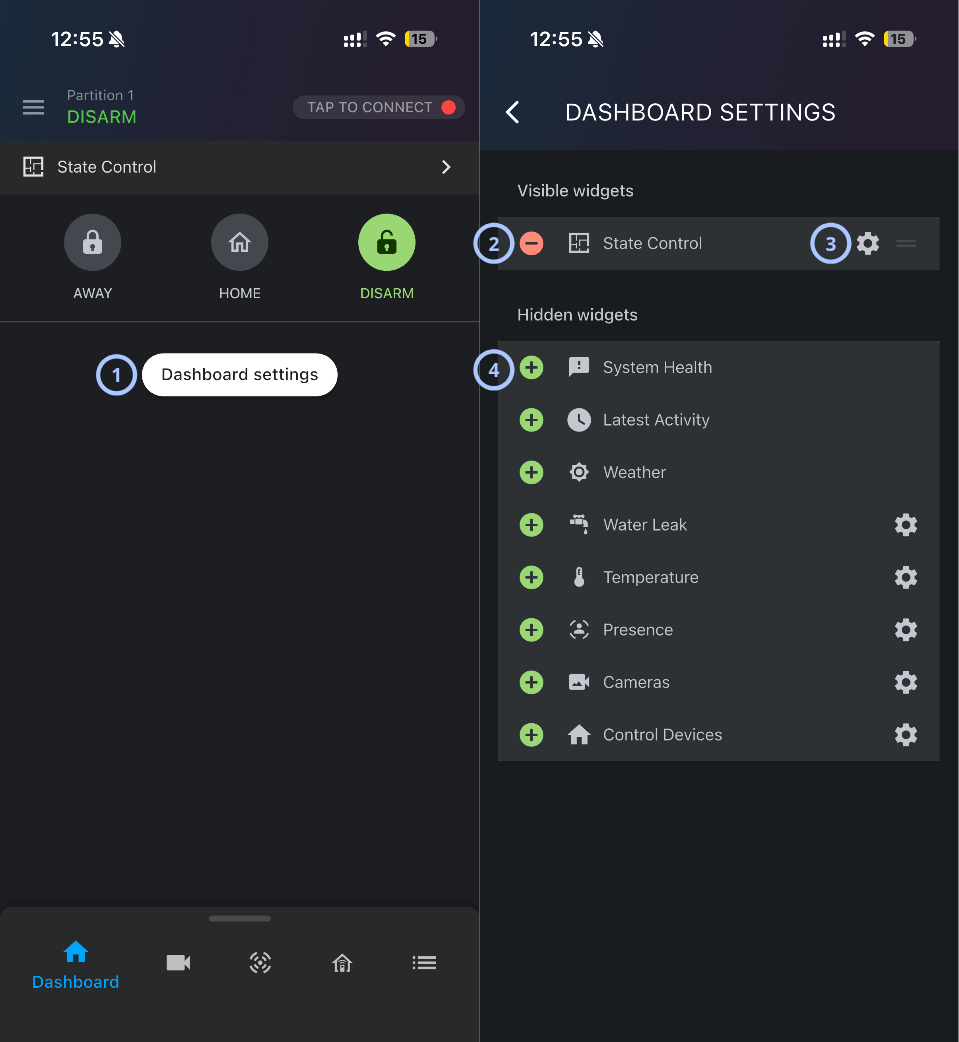
| Callout | UI element | Description | When to use |
|---|---|---|---|
| 1 | Dashboard settings button | Opens the Dashboard settings page. | Use to customize which widgets are shown on the dashboard. |
| 2 |  | Moves a widget from Visible widgets to Hidden widgets. | Use to hide a widget from the dashboard. |
| 3 |  | The settings icon opens configuration for the widget when available. The drag handle is used to change the widget order. | Use the settings icon to configure a widget. Use the drag handle to reorder visible widgets. |
| 4 |  | Moves a widget from Hidden widgets to Visible widgets. | Use to show a hidden widget on the dashboard. |
Back button
The back arrow appears in the top-left corner of the Dashboard settings page.
Use the back button to return to the dashboard.
Visible widgets section
The Visible widgets section lists widgets that currently appear on the dashboard.
Hidden widgets section
The Hidden widgets section lists widgets that are available but not currently shown on the dashboard.
How to use this page
Open dashboard settings
- Open the ConnectAlarm app.
- Sign in to your account and specific panel.
- Go to the Dashboard tab.
- Select Dashboard settings.
Show a hidden widget on the dashboard
- Open Dashboard settings.
- Under Hidden widgets, find the widget to show.
- Select the green next to the widget.
Hide a widget from the dashboard
- Open Dashboard settings.
- Under Visible widgets, find the widget to hide.
- Select the red next to the widget.
Reorder dashboard widgets
- Open Dashboard settings.
- Under Visible widgets, find the widget to move.
- Press and hold the drag handle.
- Drag the widget to the required position.
- Release the widget.
Only visible widgets can be reordered.
Configure a widget
- Open Dashboard settings.
- Find the widget to configure.
- Select the next to the widget.
- Review and update the available settings.
- Return to Dashboard settings or the dashboard.
Not every widget has a gear icon. Widgets without a gear icon do not expose configurable options from this page.
Widget reference
| Widget | Description | Typical use | Additional configuration |
|---|---|---|---|
| State Control | Shows security state controls such as Away, Stay, Night and Disarm. | Use to view or change the partition arming state from the dashboard. | Yes. |
| System Health | Provides system health information. | Use to review system status indicators. | No. |
| Latest Activity | Shows recent activity. | Use to review recent events or system activity. | No. |
| Weather | Shows weather information. | Use to view weather information on the dashboard. note This feature is available only for IQ panels | No. |
| Water Leak | Shows water leak information when water leak sensors are available. | Use to monitor water leak-related status. | Yes. |
| Temperature | Shows temperature information when temperature sensors are available. | Use to monitor temperature values or related sensor status. | Yes. |
| Presence | Shows presence-related information when supported. | Use to monitor presence status from the dashboard. | Yes. |
| Cameras | Shows camera-related access or status when cameras are configured. | Use to access camera information from the dashboard. | Yes. |
| Control Devices | Shows controllable (automation and outputs) devices when configured. | Use to access device controls from the dashboard. | Yes. |
Tips
- Keep frequently used widgets in the Visible widgets section so users can access them from the dashboard without opening additional pages.
- Place the most important widgets near the top of the visible list. This can reduce scrolling on smaller screens.
- Hide widgets that are not relevant to the current installation. Hidden widgets remain available in Dashboard settings and can be added later.
- If a widget has a gear icon, review its settings before adding it to the dashboard. Some widgets may need configuration before they provide useful information.
Troubleshooting
| Problem | Possible cause | What to try |
|---|---|---|
| Dashboard settings button is not visible |
|
|
| A widget cannot be configured |
|
|
| A visible widget does not show useful data |
|
|
| The user cannot reorder widgets |
|
|