Events screen
Overview
The Events screen list by event type. The Events screen in ConnectAlarm lets users review security system events for the selected security panel.
Use this screen when users need to:
- Review recent alarms, restores, troubles, and activity events.
- Check when an event occurred.
- Identify the device, zone, or system component related to an event.
- Open event media when a camera image or video thumbnail is available.
This screen helps users investigate recent system activity and confirm whether an alarm, restore, trouble, or configuration event was reported.
Before you begin
Preconditions
- The user is signed in to the ConnectAlarm app.
- The selected security panel is available.
- The app shows CONNECTED when the user needs the latest event information.
- At least one event exists in the event history.
- The user can access the Events tab from the bottom navigation bar.
Dependencies
- Event updates require communication between the app, PowerManage server, and security panel.
- Event media depends on whether a compatible camera or detector captured media for the event.
- Event source names depend on device, zone, panel, or installer configuration.
Limitations
warning
- Event history may not update if the security panel is disconnected or communication is delayed.
- Some events may be hidden based on the PowerManage configuration.
- Media thumbnails appear only when media is available for the event.
- Delete action is not available.
- Alarm events may indicate a safety or security issue. Follow local procedures before dismissing or ignoring an event.
Page layout
The Events screen appears under the Events tab.
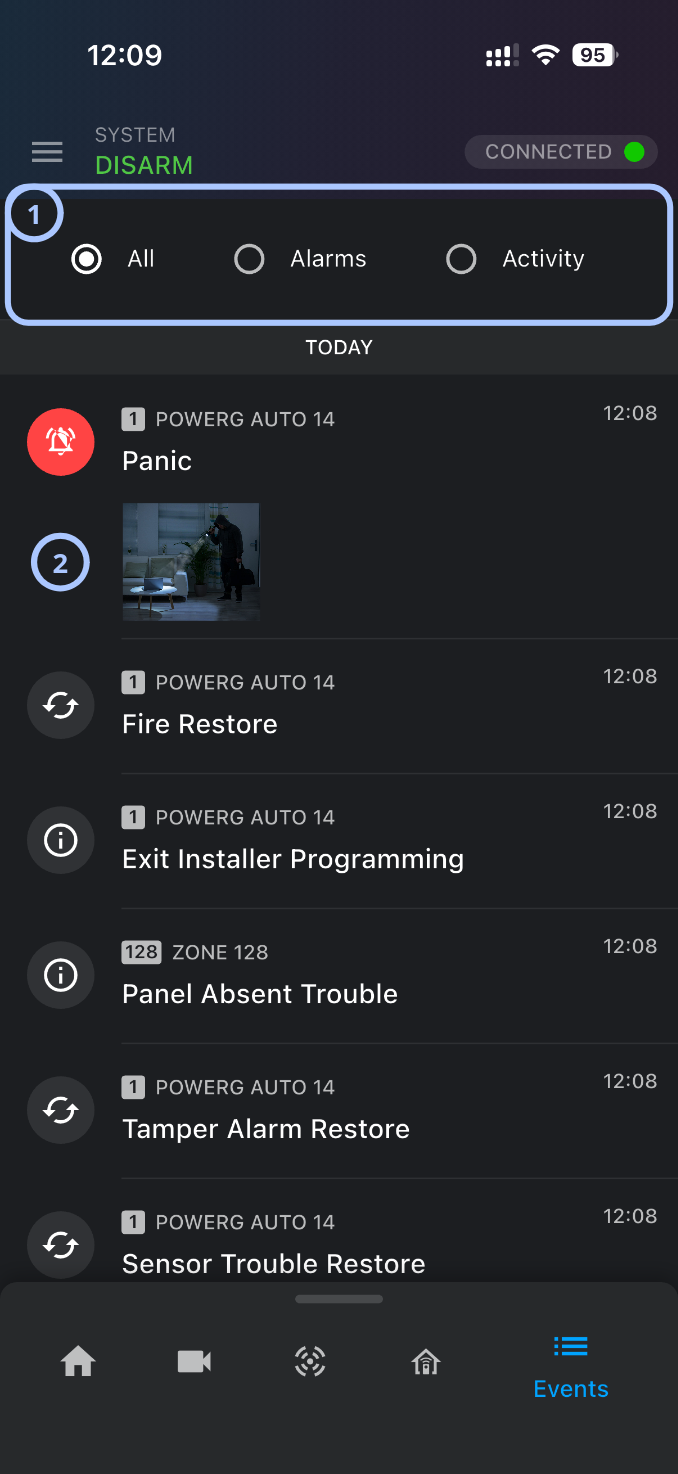
| Callout | UI element | Description | When to use |
|---|---|---|---|
| 1 | Event filters | Filters the event list. The available filters are All, Alarms, and Activity. | Use to review all events or narrow the list to alarms or activity records. |
| 2 | Event list | Shows events grouped by date. Each event row can include an event icon, source, title, time, and media thumbnail. | Use to review recent system events and identify the source and time of each event. |
Date group heading
The date group heading separates events by date.
Use the heading to identify when the listed events occurred.
Event rows
Each event row represents one event record.
An event row can include:
- An event type icon.
- A source identifier badge, such as a zone or device number.
- A source name.
- An event title, such as Panic or Fire Restore.
- A timestamp.
- A media thumbnail, when available.
How to use this page
Open the Events screen
- Open the ConnectAlarm app.
- Sign in to your account.
- Select the required security panel.
- Select the Events tab from the bottom navigation bar.
View alarm events
- Open the Events screen.
- Select the Alarms filter.
- Review the filtered event list.
warning
Alarm events may require action. Follow site procedures when reviewing alarm records.
Open event media
- Open the Events screen.
- Find an event that includes a media thumbnail.
- Select the thumbnail.
- Review the associated image or video.
Tips
tip
- Use the Alarms filter when you need to review urgent or security-related events first.
- Check the event source and timestamp before taking action. Similar events can appear close together.
- Use the All filter if an expected event does not appear under Alarms or Activity.
- Look for media thumbnails on alarm events. A thumbnail indicate that related camera media is available.
- Confirm that the app shows CONNECTED when reviewing recent events. A disconnected panel will not show the latest records.
Troubleshooting
| Problem | Possible cause | What to try |
|---|---|---|
| Events do not appear |
|
|
| Event media thumbnail is missing |
|
|
| Event media does not open |
|
|
Related pages
Was this page helpful?