Authentication page
Overview
The Authentication page lets users access PowerManage.
Use this page to:
- Sign in with an employee email address and password.
- Complete multi-factor authentication (MFA) when MFA is enabled.
- Confirm or update a phone number during the first MFA sign-in.
- Recover a password.
- Register a new PowerManage account, if self-registration is enabled on the server.
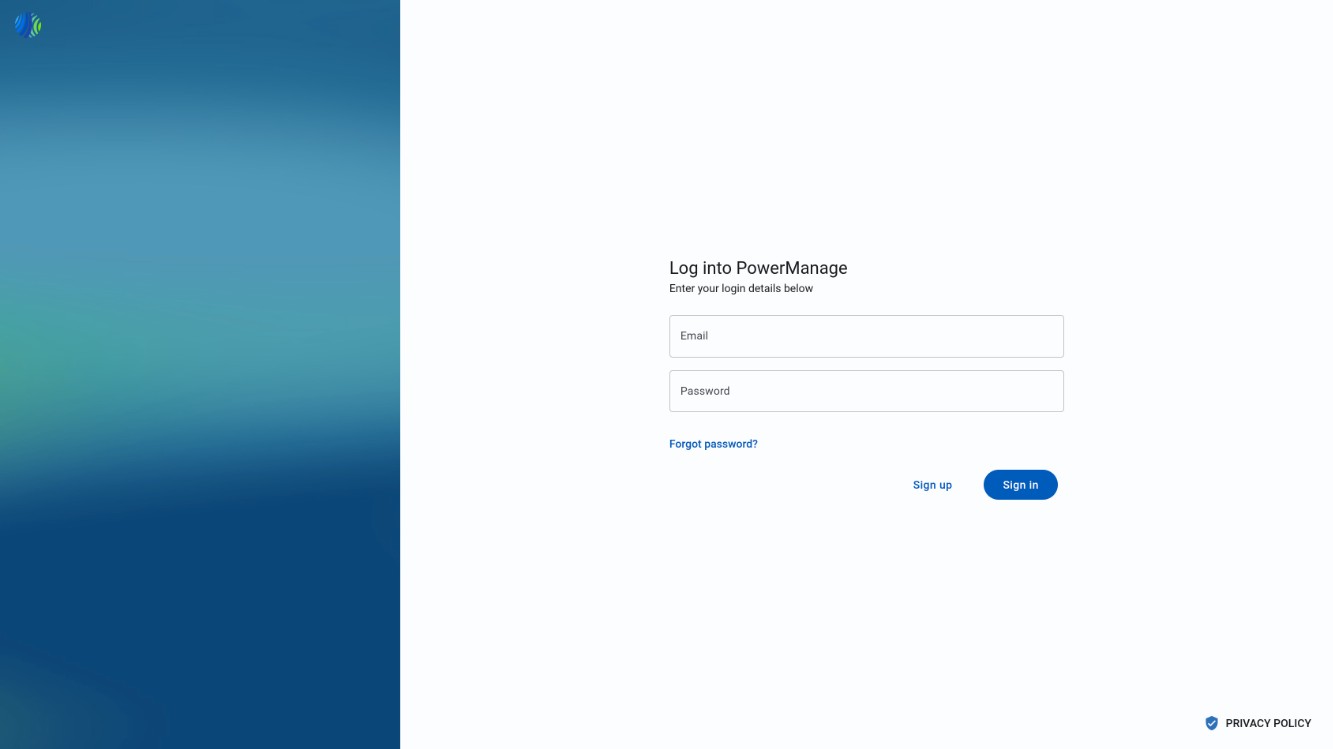
By default, when you open the Authentication page, PowerManage shows the Log into PowerManage form.
The authentication flow depends on server settings. MFA and self-registration behavior can vary by deployment configuration.
Page layout
The Authentication page includes these forms:
- Log into PowerManage
- Register in PowerManage
- Password recovery
- Phone number confirmation
- Enter verification code
- Set your new password
The form shown depends on the selected action and the configured authentication flow.
Register in PowerManage form
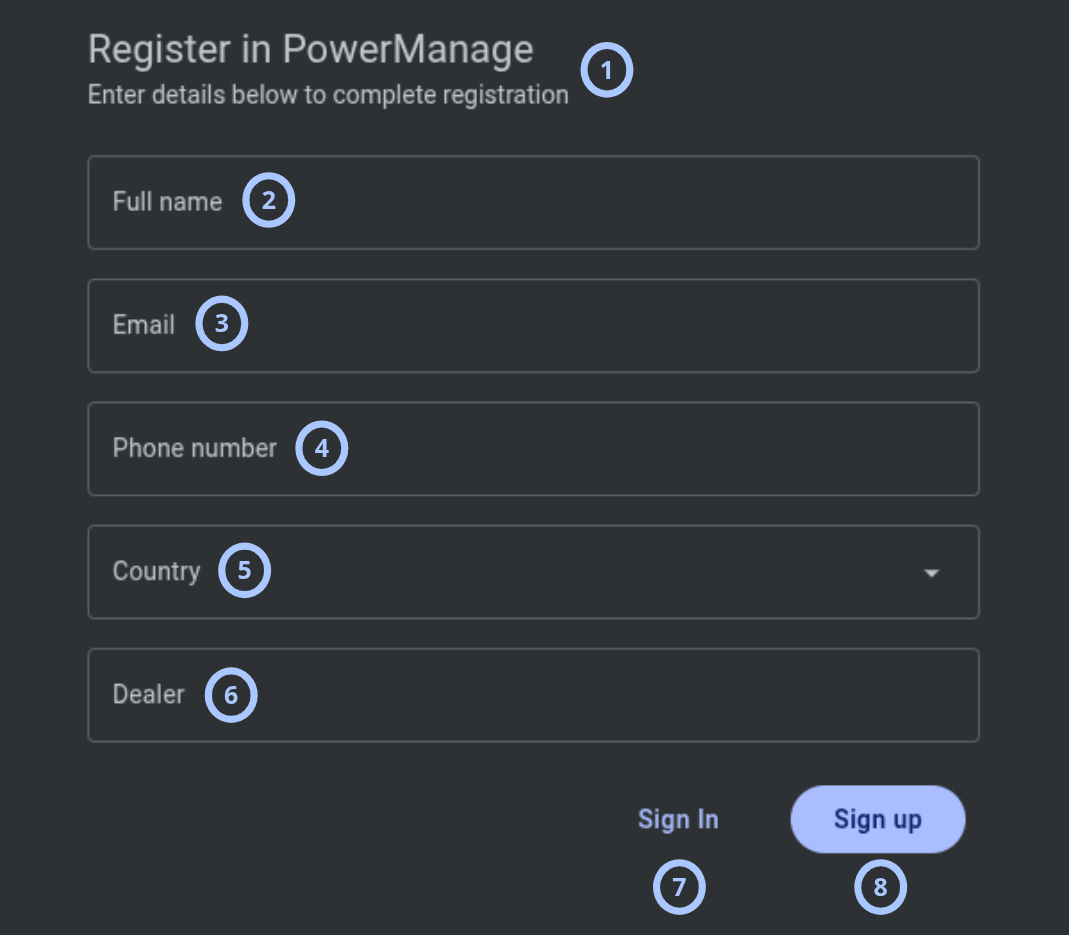
The Register in PowerManage form lets a user request or create a PowerManage account, depending on the server self-registration settings.
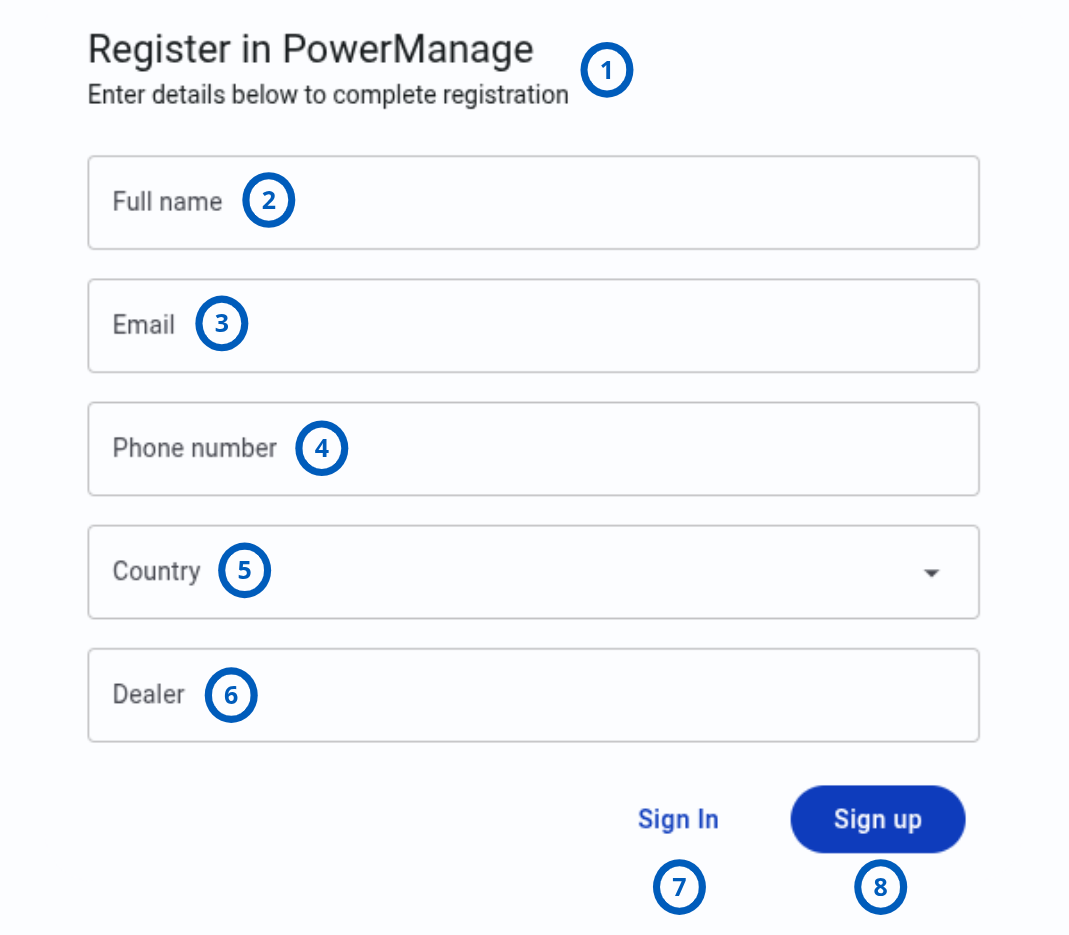
- Full name fieldLets you enter the user name for registration. Use when creating or requesting a new PowerManage account.
- Email fieldLets you enter the email address for registration. Use to provide the email address that will identify the account.
- Phone number fieldLets you enter the phone number for registration. Use to provide a reachable phone number for account contact or MFA flows.
- Country drop-downLets you select the country for the new account. Use to assign the correct country to the account profile.
- Dealer fieldLets you enter the dealer ID. Use to associate the registration request with the correct dealer.
Log into PowerManage form
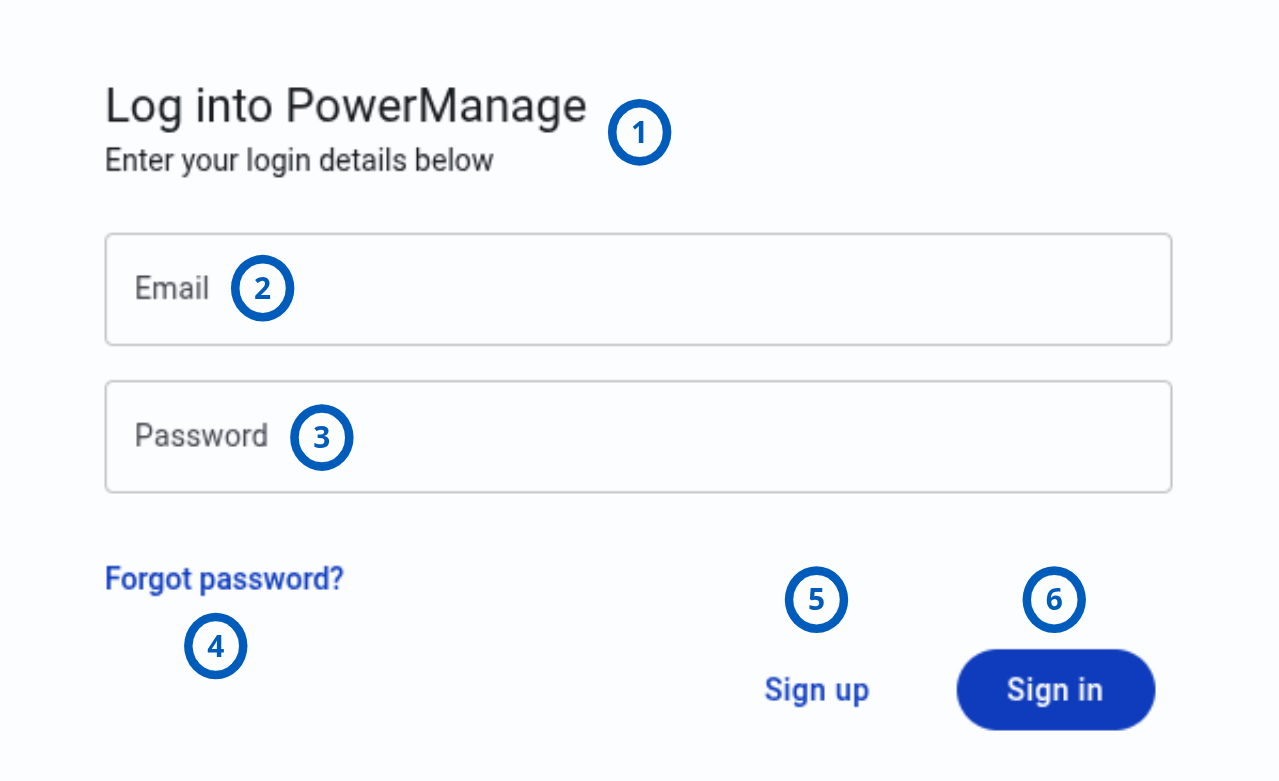
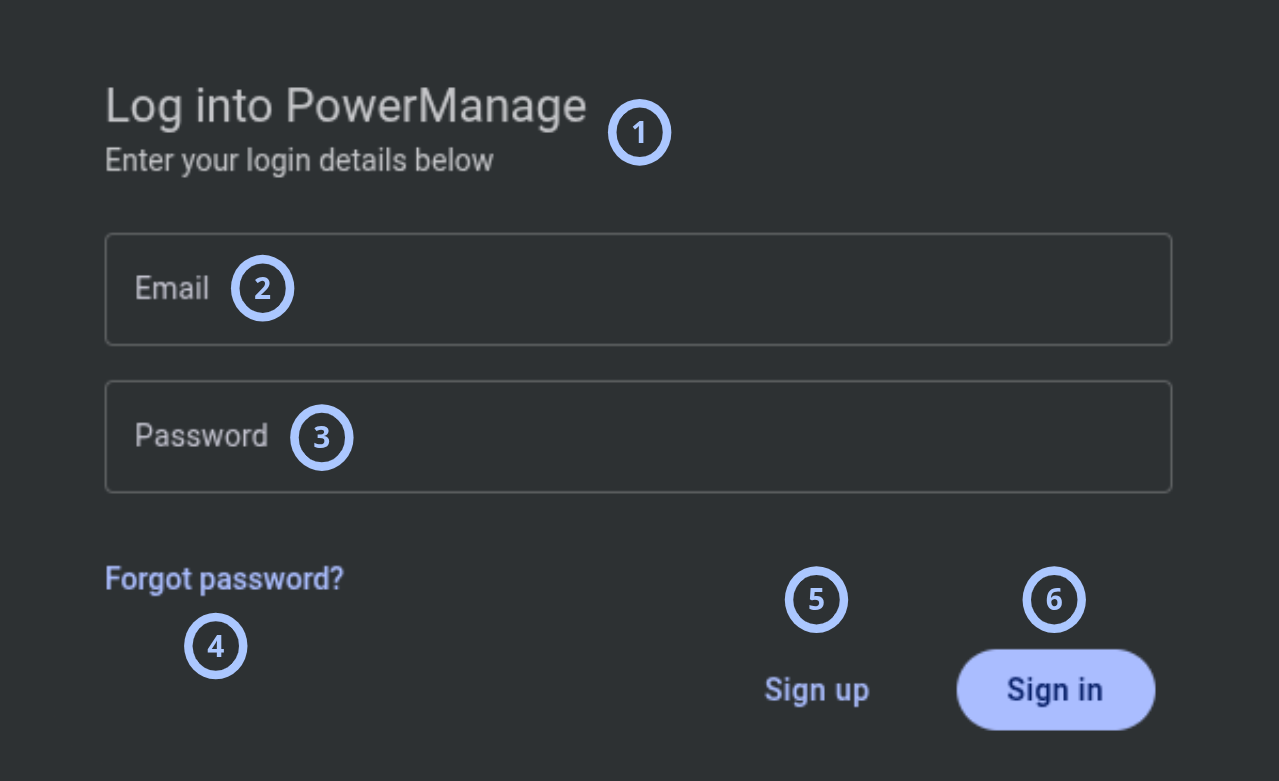
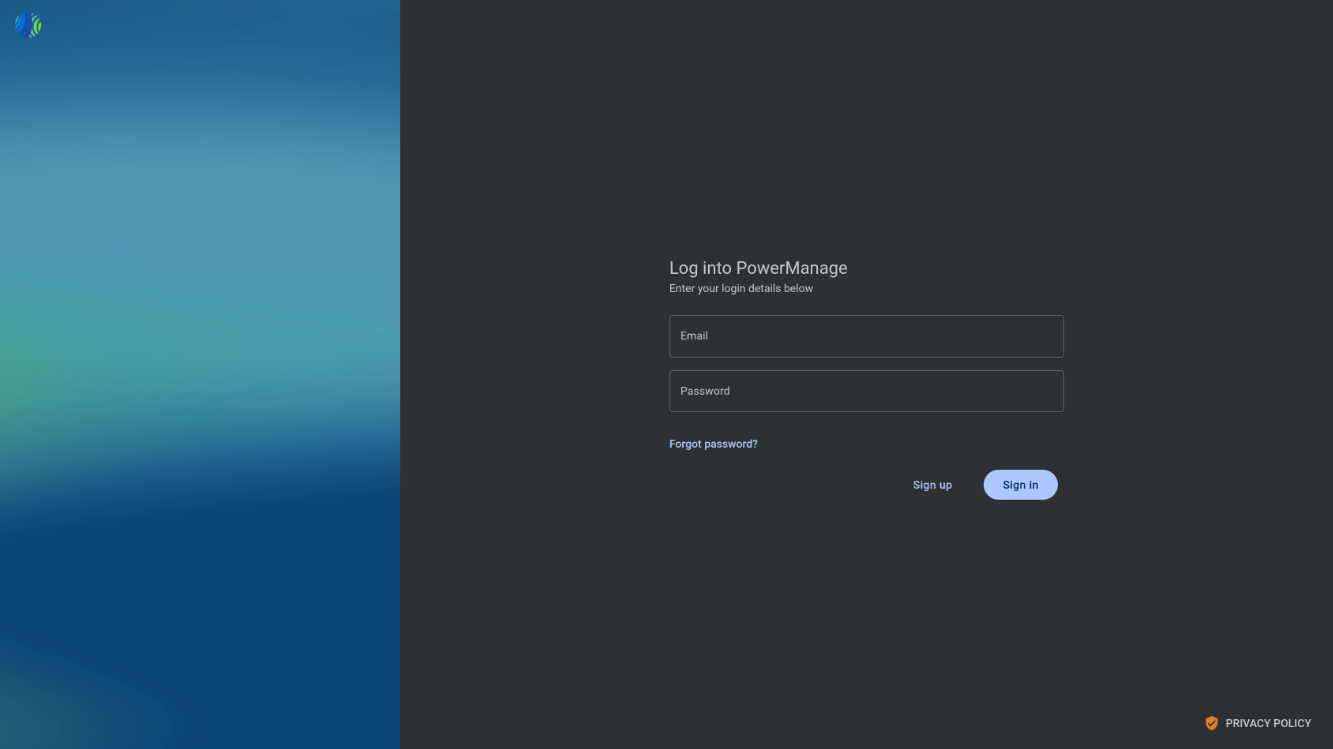
The Log into PowerManage form is the default form on the Authentication page. Use it to sign in with an employee email address and password.
- Email fieldLets you enter your employee email address. Use when signing in to PowerManage.
- Password fieldLets you enter your employee password. Use with your employee email address to authenticate.
- Forgot password? buttonOpens the Password recovery form. Use if you cannot remember your password.
When you enter the correct email address and password:
- If MFA is not enabled, PowerManage signs you in.
- If MFA is enabled and this is your first MFA sign-in, PowerManage opens the Phone number confirmation form.
- If MFA is enabled and this is not your first MFA sign-in, PowerManage opens the Enter verification code form.
Password recovery form
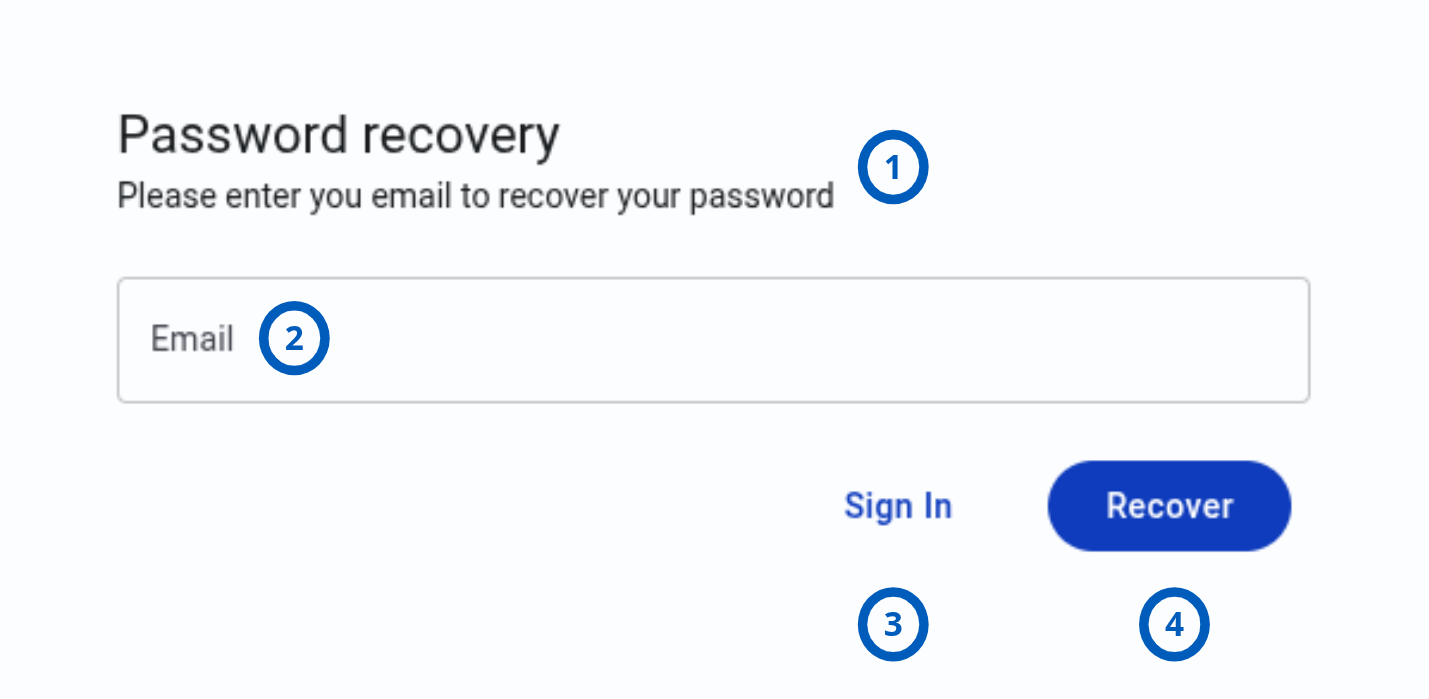
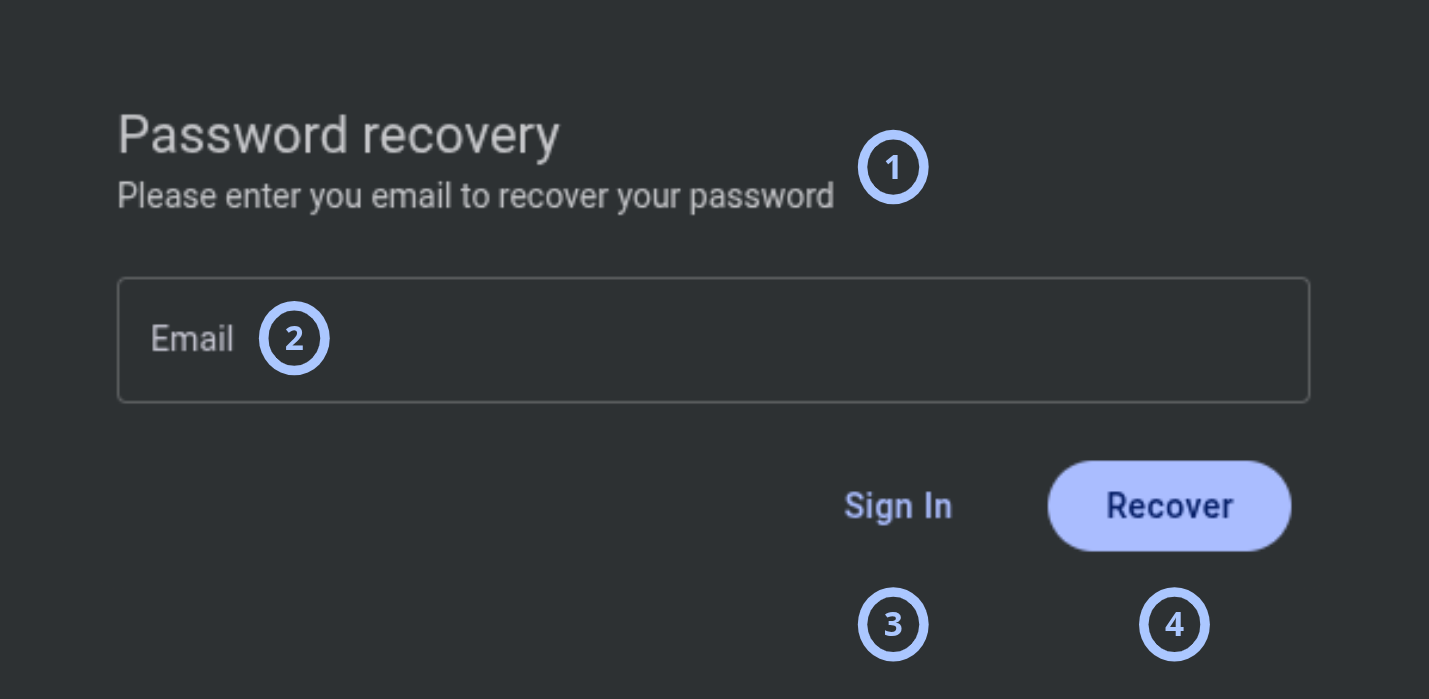
The Password recovery form lets you start password recovery for an existing employee account.
- Email fieldLets you enter your email address. Use to identify the employee account that needs password recovery.
For security reasons, password recovery behavior can avoid confirming whether an account exists. Check the email inbox associated with the account after selecting Recover.
Password reset email
After starts the password recovery process, PowerManage sends a password reset email. The email contains the following information about the password reset request:
- A temporary one-time password (OTP).
- A link to continue the password reset process.
To continue the password reset process, the please enter the temporary one-time password from the email on the password recovery page. You can also use reset password link from email.
By default the temporary code is valid for 900 seconds (15 minutes). If the code expires, please restart the password recovery process to receive a new code.
Phone number confirmation form
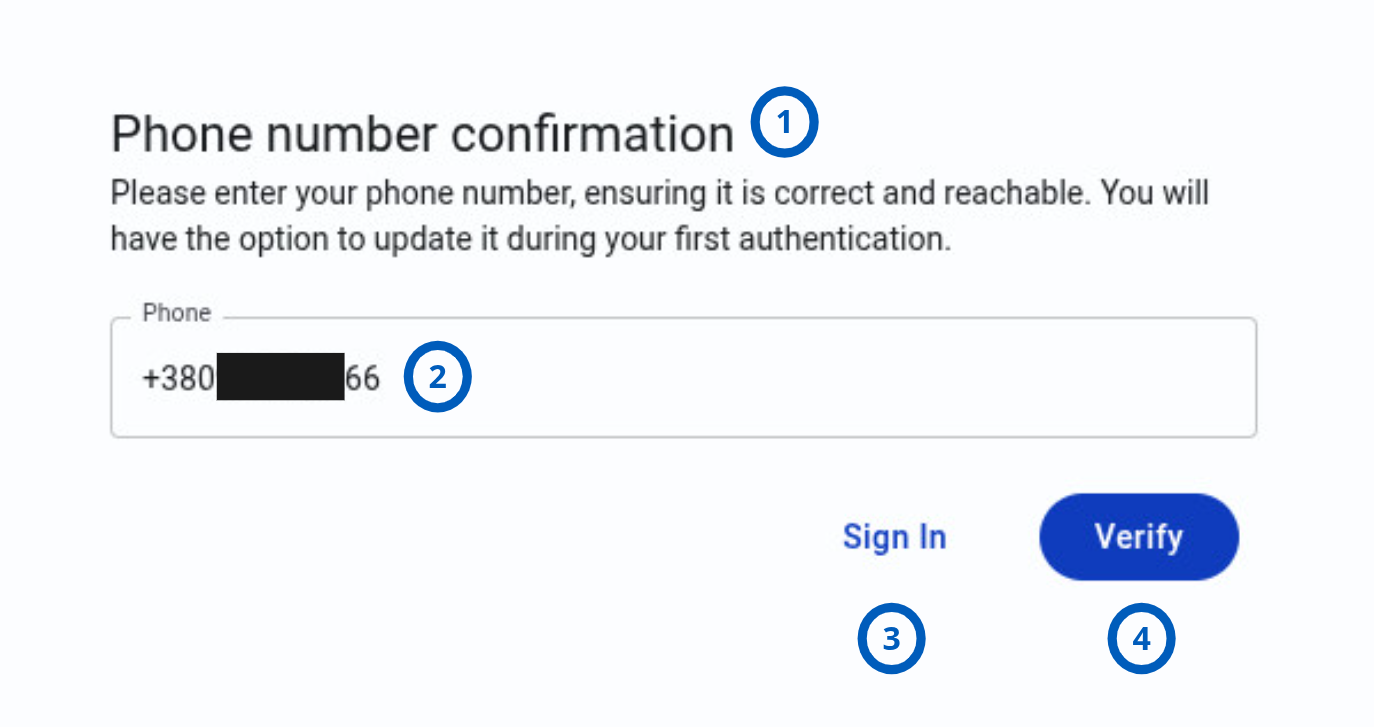
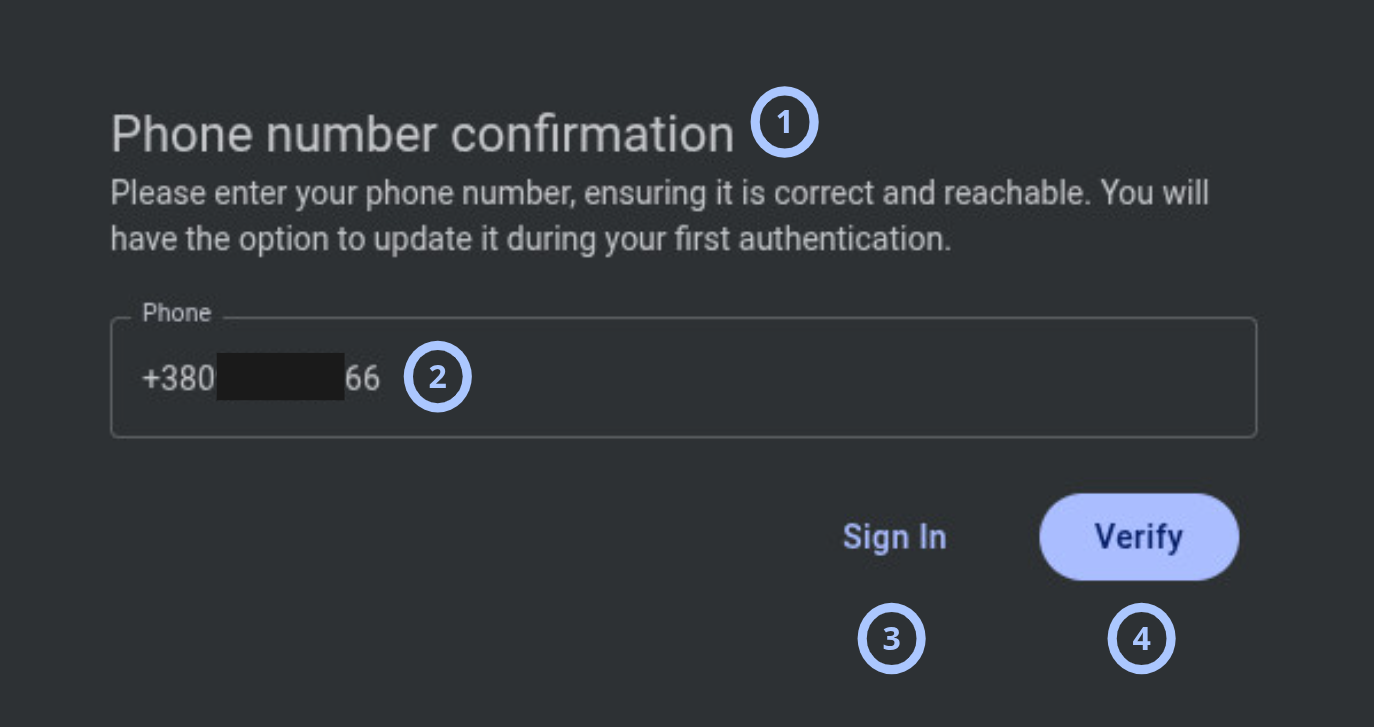
The Phone number confirmation form appears during the first MFA sign-in. Use it to confirm or update the phone number used for SMS MFA verification.
- Phone fieldShows the current phone number if one is set. You can change the phone number before verification. Use to confirm that the phone number is correct and reachable.
Enter a phone number that is correct and reachable. PowerManage sends the MFA verification code to this number.
Enter verification code form
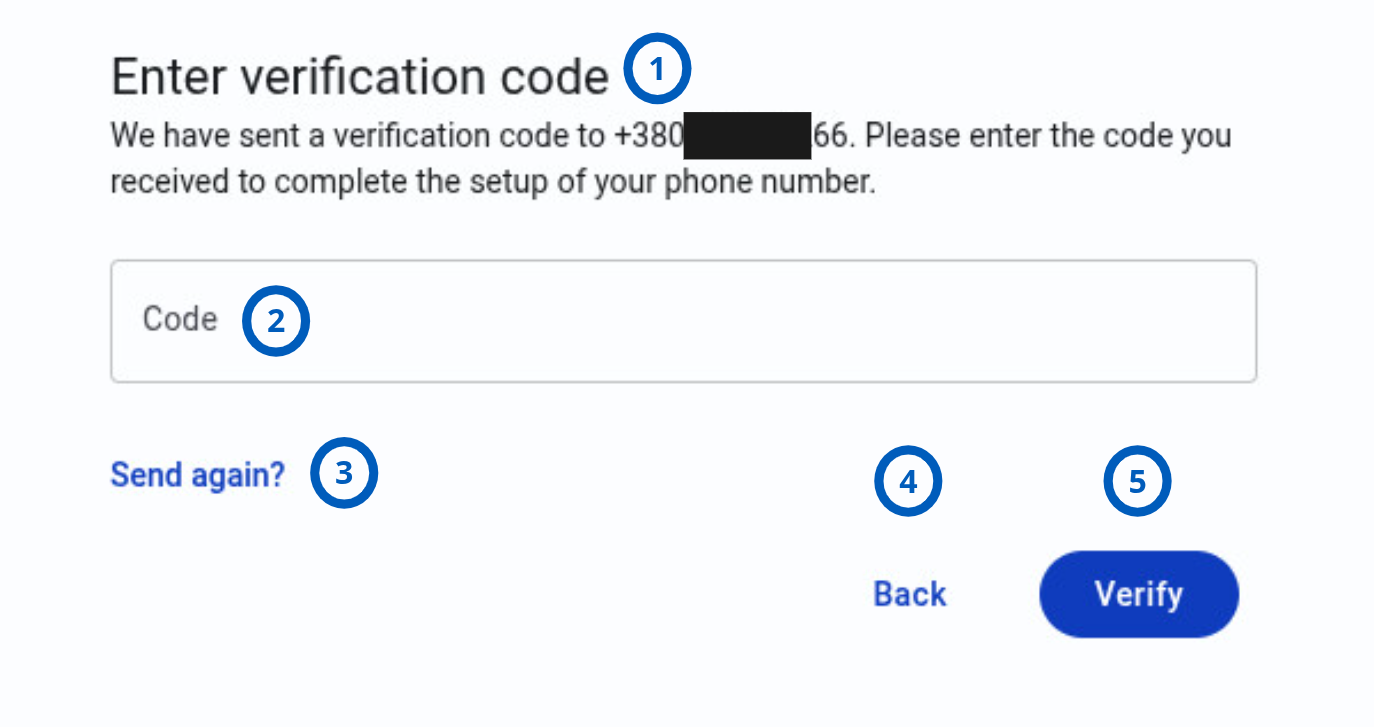
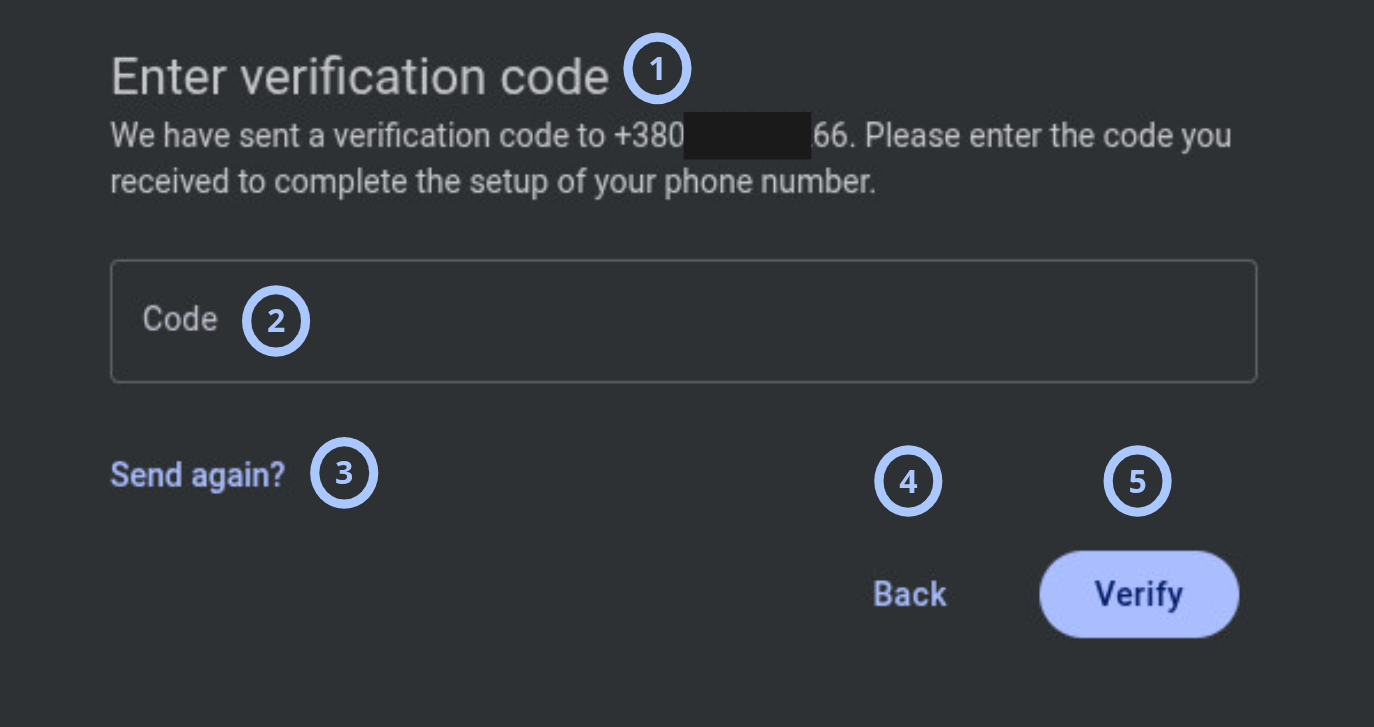
The Enter verification code form lets you complete MFA verification.
PowerManage opens this form after one of these actions:
- You confirm the phone number during first MFA sign-in.
- You sign in with valid credentials and MFA is already configured.
- Code fieldLets you enter the MFA code. Use to enter the verification code sent to your phone.
- Send again? buttonSends another MFA code. Use if the code did not arrive or expired.
When you enter the correct code and select Verify, PowerManage signs you in.
Set your new password form
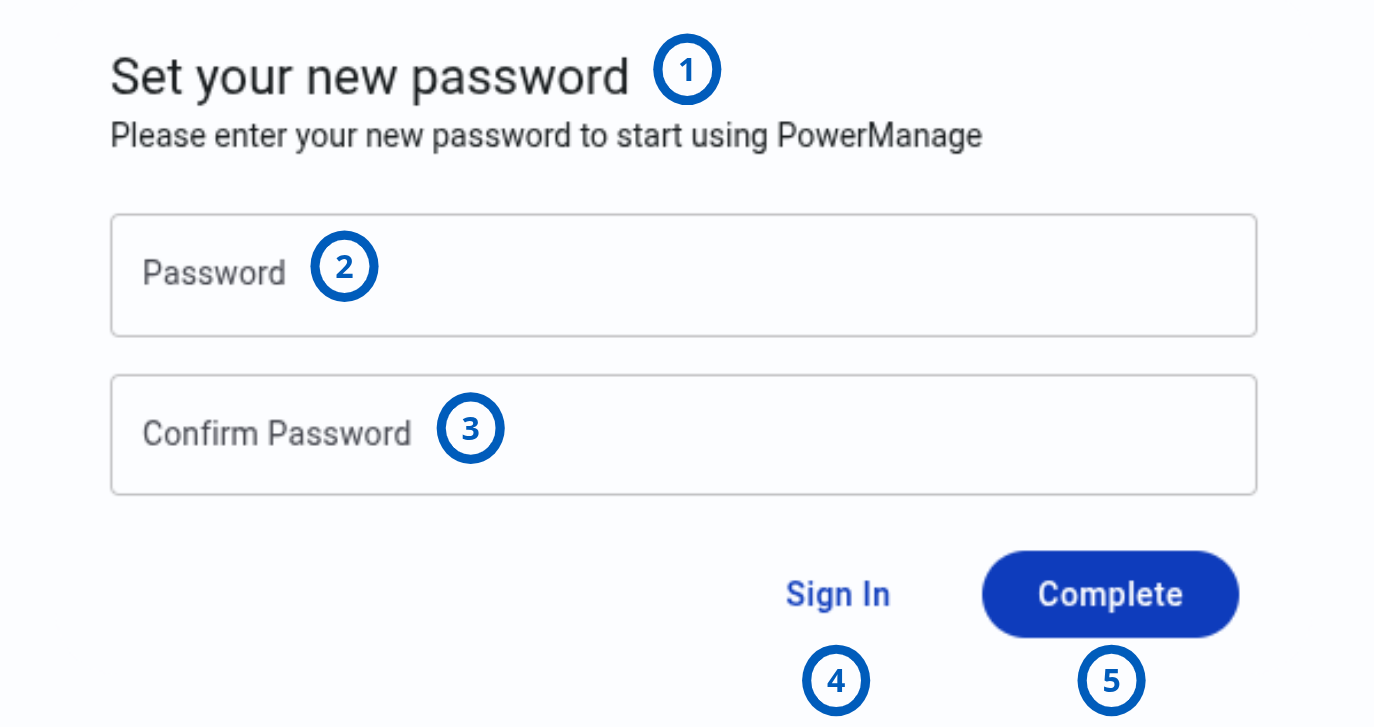
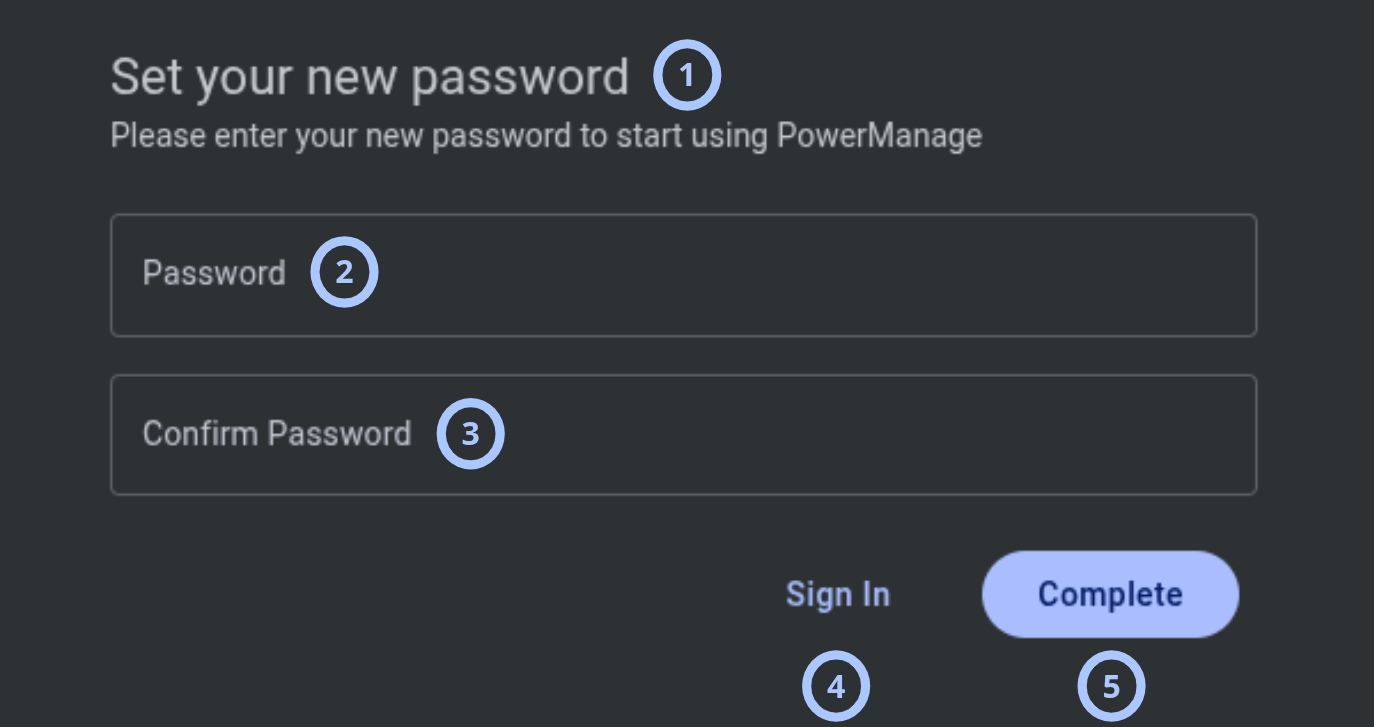
The Set your new password form opens after you enter an OTP code during password reset or after registration by an administrator. Use this form to create the password for the account.
- Password fieldLets you enter the new password. Use after password reset or administrator-created registration when PowerManage asks you to set a password.
- Confirm Password fieldLets you enter the new password again. Use to confirm the password before saving it.