Logging on to the PowerManage system
General
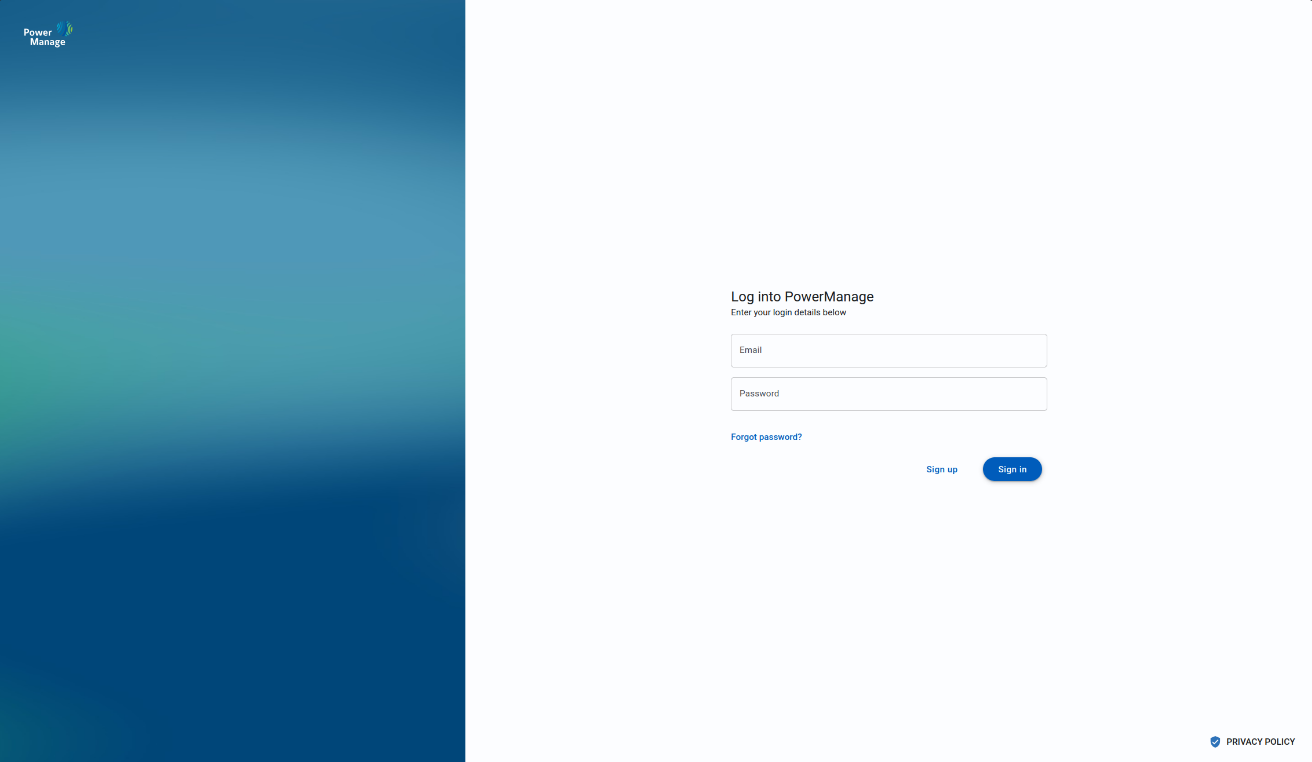
Access the PowerManage system with an email address and password. A user's email address and password identify the user and are set when the user is added to the server. Multi-factor authentication (MFA) option can be added to the PowerManage login to enhance security.
When the MFA option is enabled, login to PowerManage requires two stages:
-
Entry of email and password
-
Entry of one time password (OTP) that you receive on your mobile phone. For more information on MFA operation and setup, see Multi Factor Authentication. For more information on adding a user to the server, see Adding a new user.
For more information on changing a user's email address, see Editing user information.
For more information about logging on as the Default Super Admin, see Default super admin.
Figure. PowerManage login
One time password (OTP)
PowerManage sends an email to new users, with registration information and one time password (OTP) to access PowerManage the first time:
Clicking the Change password link opens the PowerManage login page.
Enter your email and the OTP password and click Sign in:
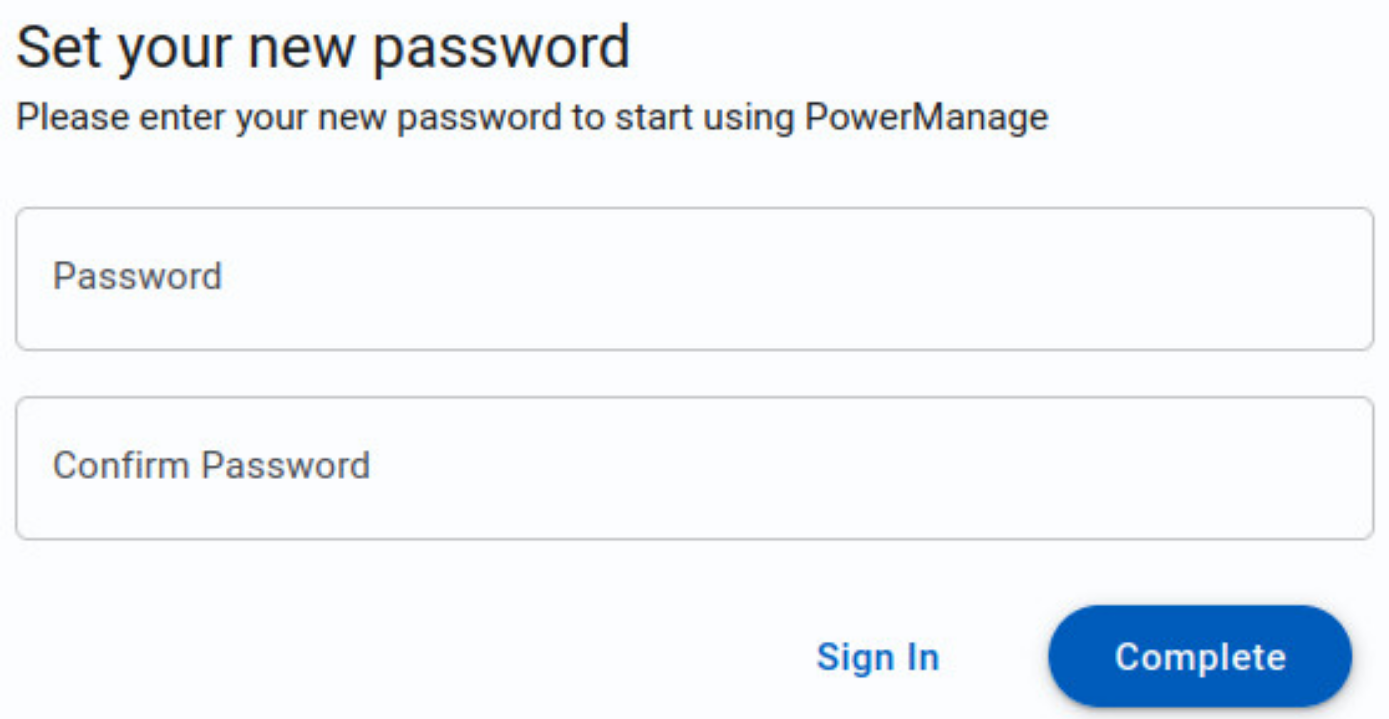
Enter the new password and click Complete.
Self-registration
The Self-Registration feature allows a user to create their own PowerManage account without assistance from a server administrator.
This feature is configured in Settings → RESOLVE → Self-Registration, where you can define the Registration Mode and Default Role.
Registration Mode Options
- Disabled – The self-registration feature is turned off.
- Manual Approval – New user registrations must be approved by an existing dealer before becoming active.
- Automatic Approval – New users are automatically approved and enabled upon registration.
Default Role
In the Default Role field, select one of the existing roles available in PowerManage.
Note: The default role setting is ignored if a Dealer ID is provided during the self-registration process.
Self-registration procedure
To sign up on PowerManage, complete the following steps.
-
On the PowerManage login page, click Sign up.
-
Set up the registration details:
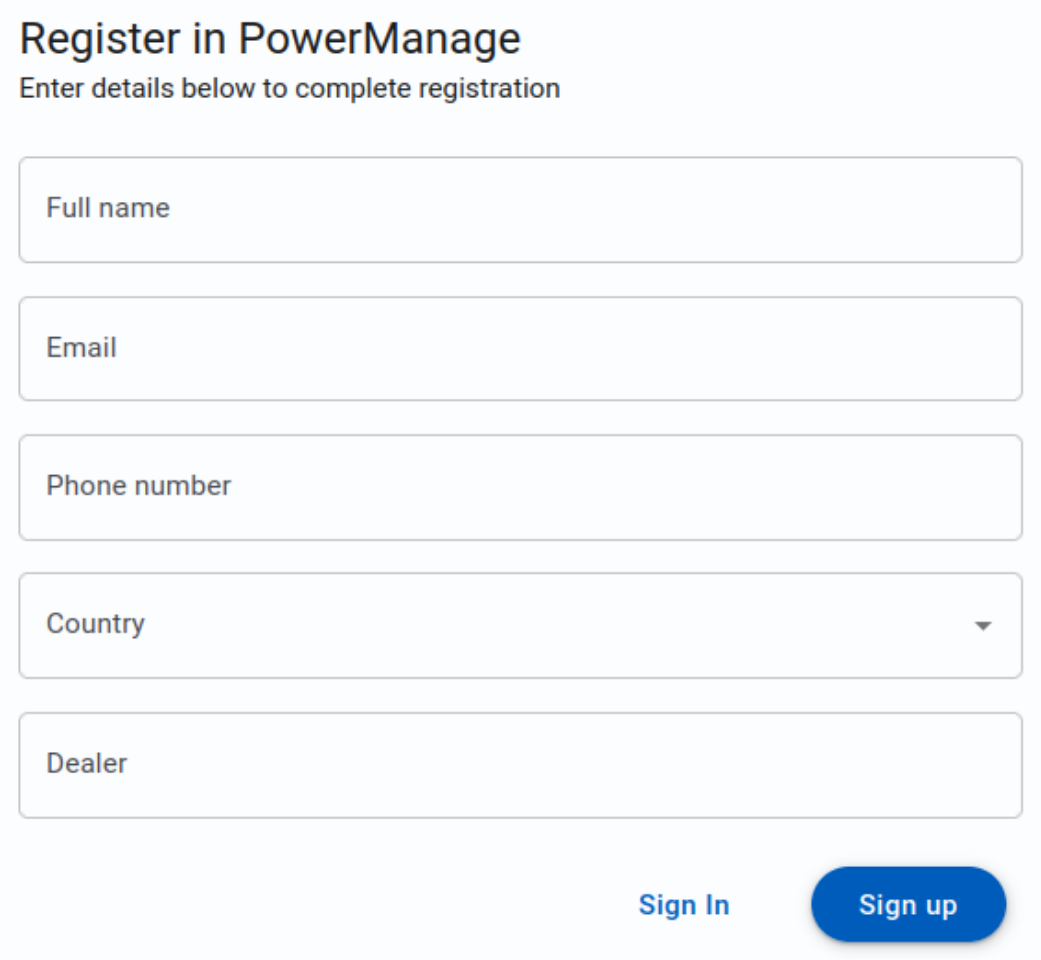
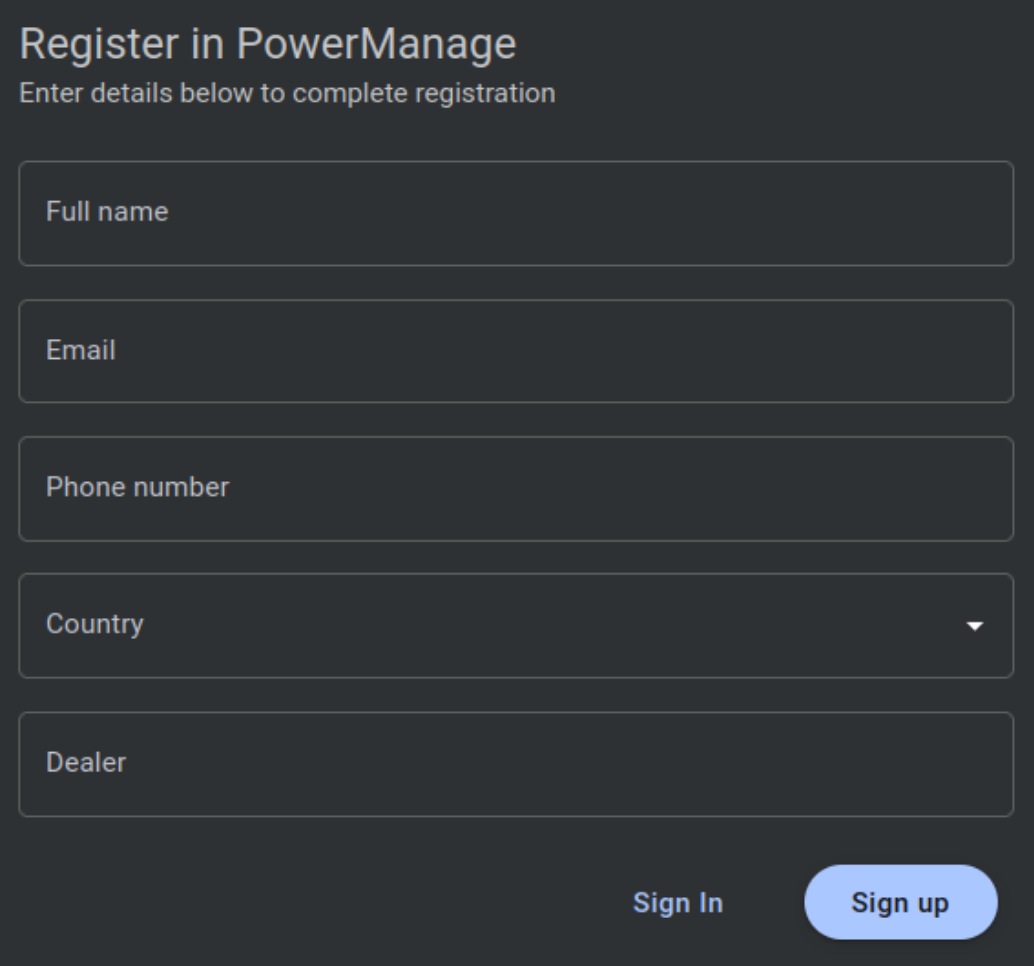
| Name | Description |
|---|---|
| Dealer | If you enter a dealer ID that exists on the PowerManage, the new user becomes an installer of that dealer. |
- Click Sign Up:
- If you set Automatic Approval for the Registration Mode option, the new user is immediately approved and active
- If you set Manual Approval for the Registration Mode option, you need to review the new user on the Users page
User approval
If you set Manual Approval for the Registration Mode option, you need to approve the new user on the Users page.
- On the navigation pane, click Users:


| Callout | Name | Description |
|---|---|---|
| 1 | More options icon | Click to review and approve the user. |
- Click the more options icon of the user to approve, and then click Review:
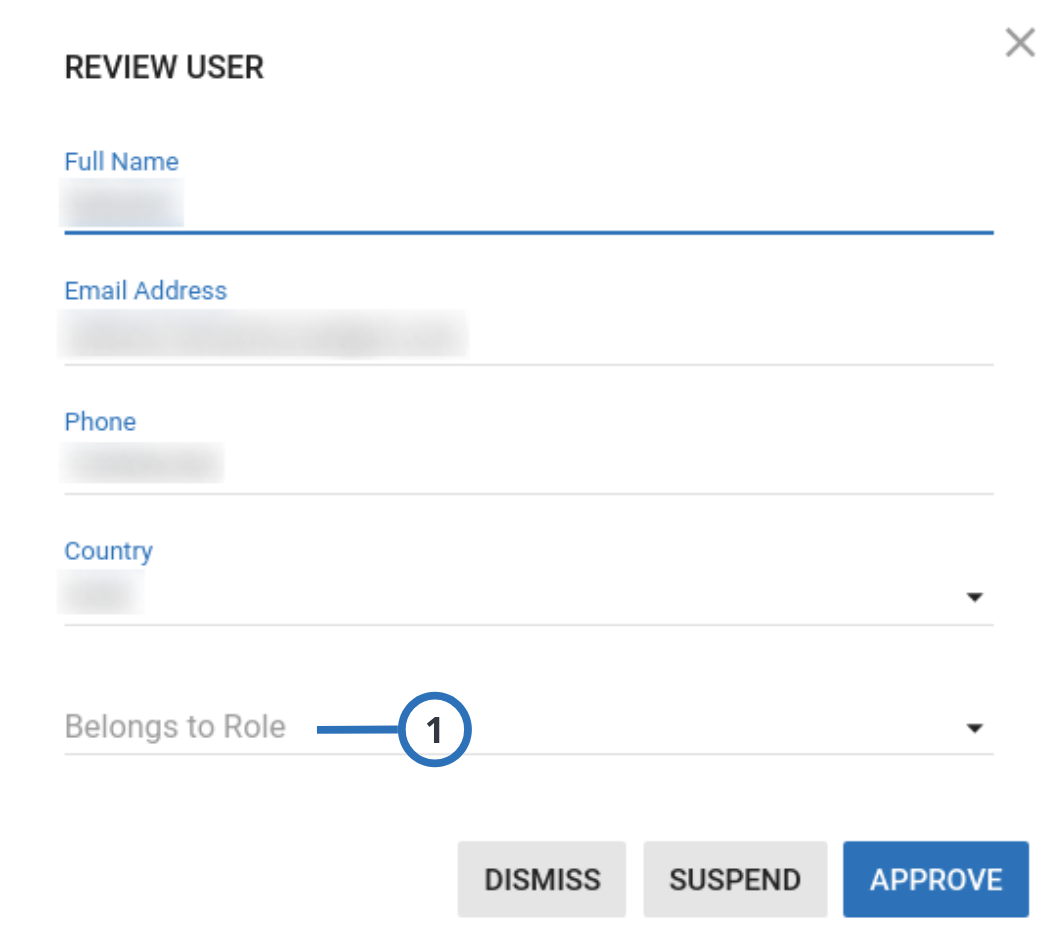
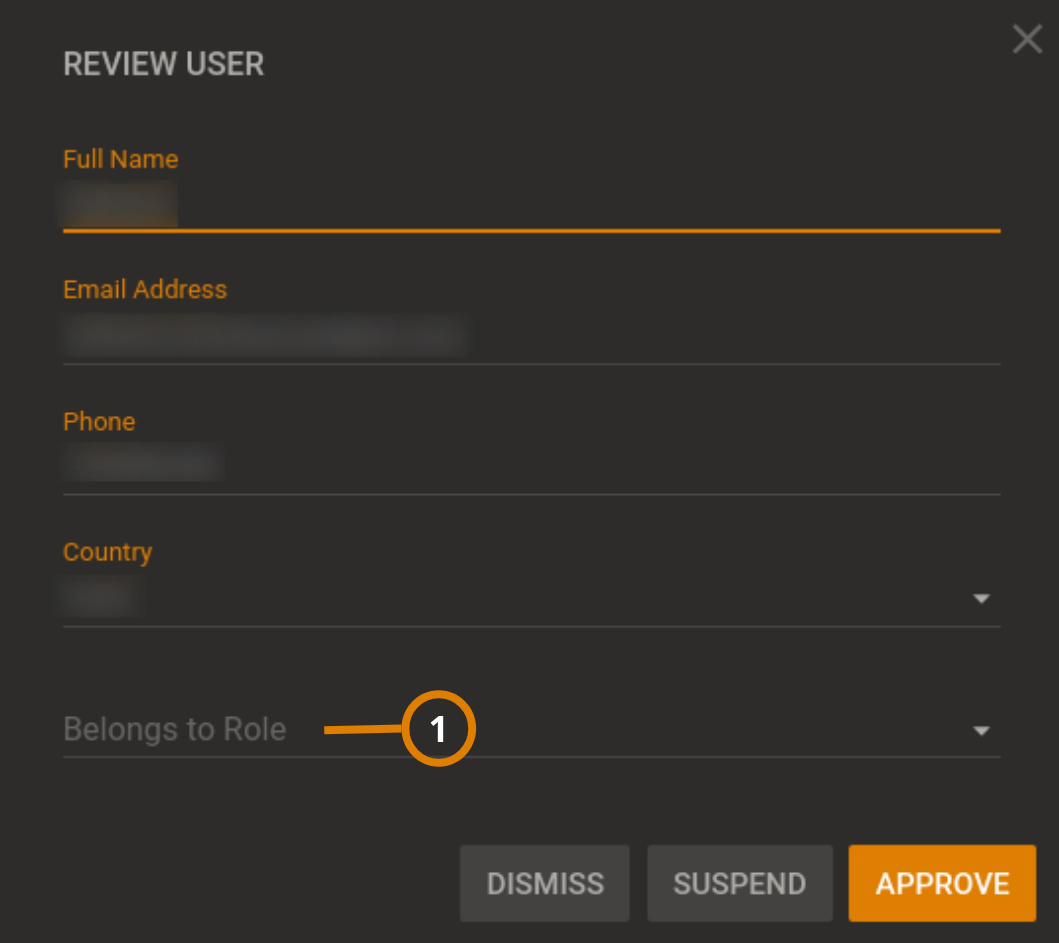
| Callout | Name | Description |
|---|---|---|
| 1 | Belongs to Role | Displays the following items:
|
- Set the Belongs to Role option and click APPROVE: PowerManage sends an email to the new user, with the registration information and the one-time password (OTP) to access PowerManage the first time.