Register on the Distribution Portal
Overview
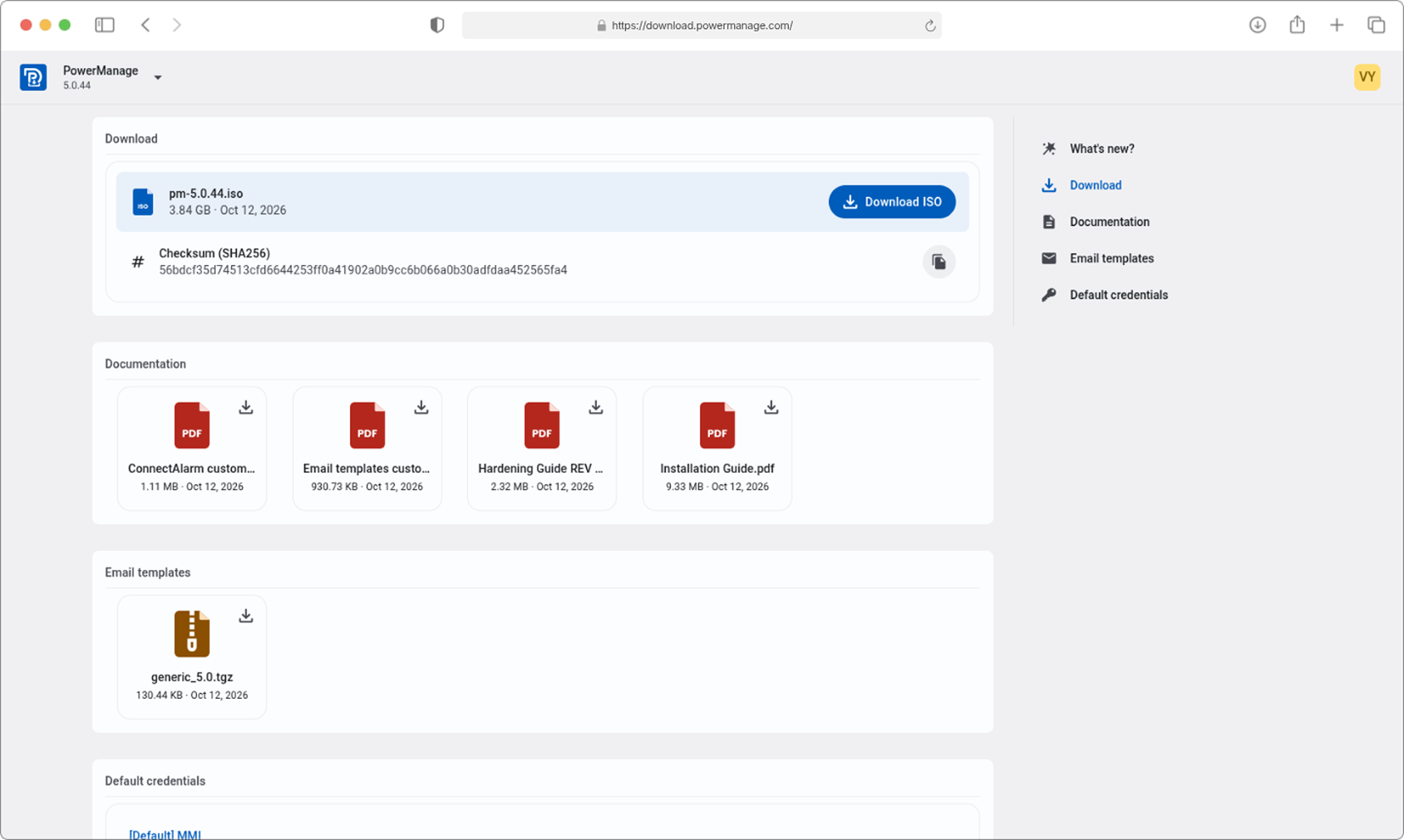
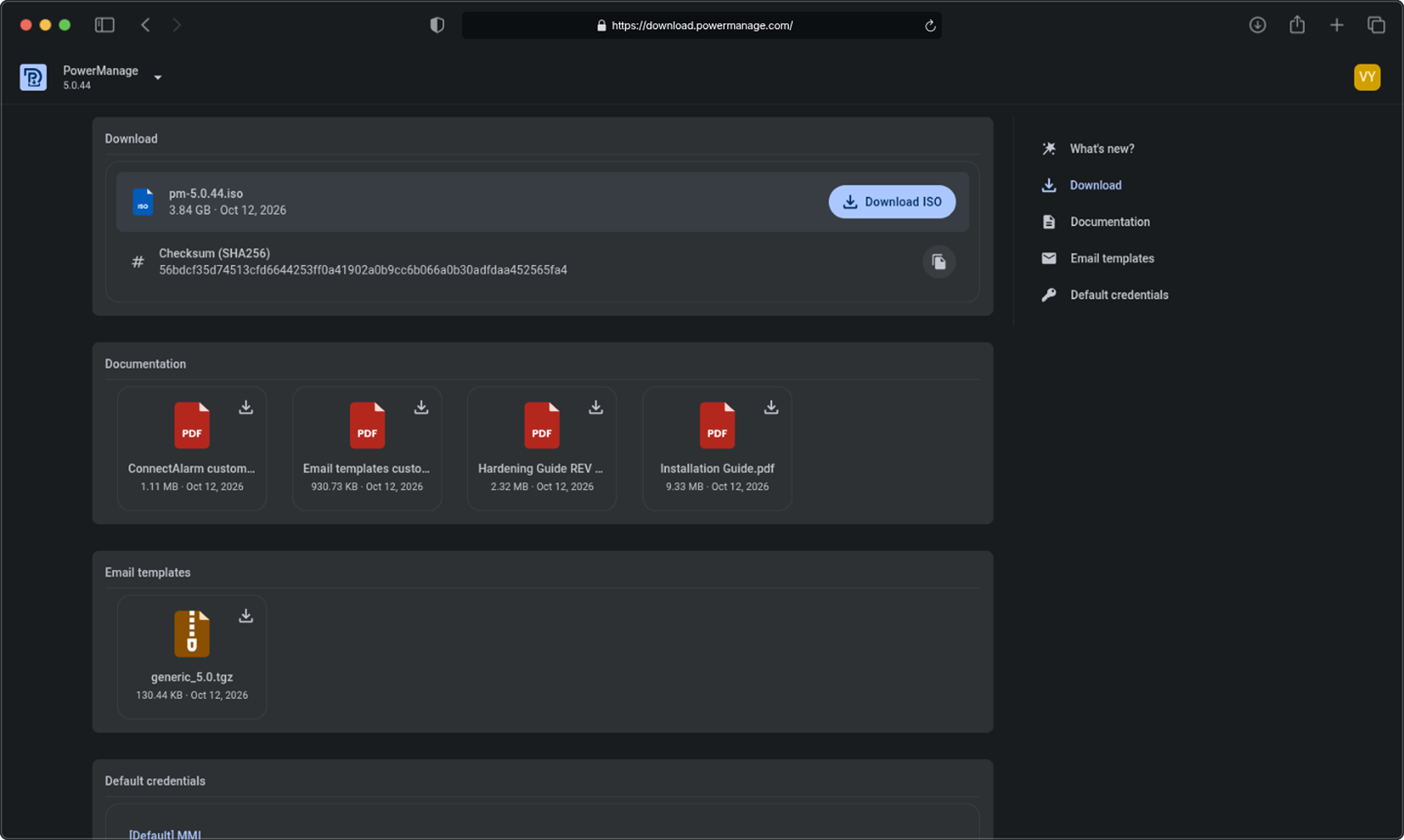
The Distribution Portal provides access to PowerManage documentation, ISO images, and other software distribution resources. It replaces FTP for sharing these materials.
Create your JCI Okta identifier in the Dealer Portal before you register for or sign in to the Distribution Portal. You cannot create this identifier in the Distribution Portal.
You do not need an approved dealer assigned to your Okta account to register for the Distribution Portal.
Why use the Distribution Portal?
Use the Distribution Portal when you need PowerManage documentation, ISO images, and other software distribution resources from one central location.
You can find:
- Product documentation and user guides.
- ISO images and installation resources.
- Other software distribution resources.
Create a JCI Okta identifier
If you do not yet have a JCI Okta identifier:
- Follow the Registration Okta instructions.
- Complete registration in the Dealer Portal.
- Confirm that you can use your JCI Okta identifier.
You cannot create a JCI Okta identifier from the Distribution Portal yet.
How to register via self-registration flow
Use this flow when an administrator has not invited you yet.
Step 1: Open the Distribution Portal
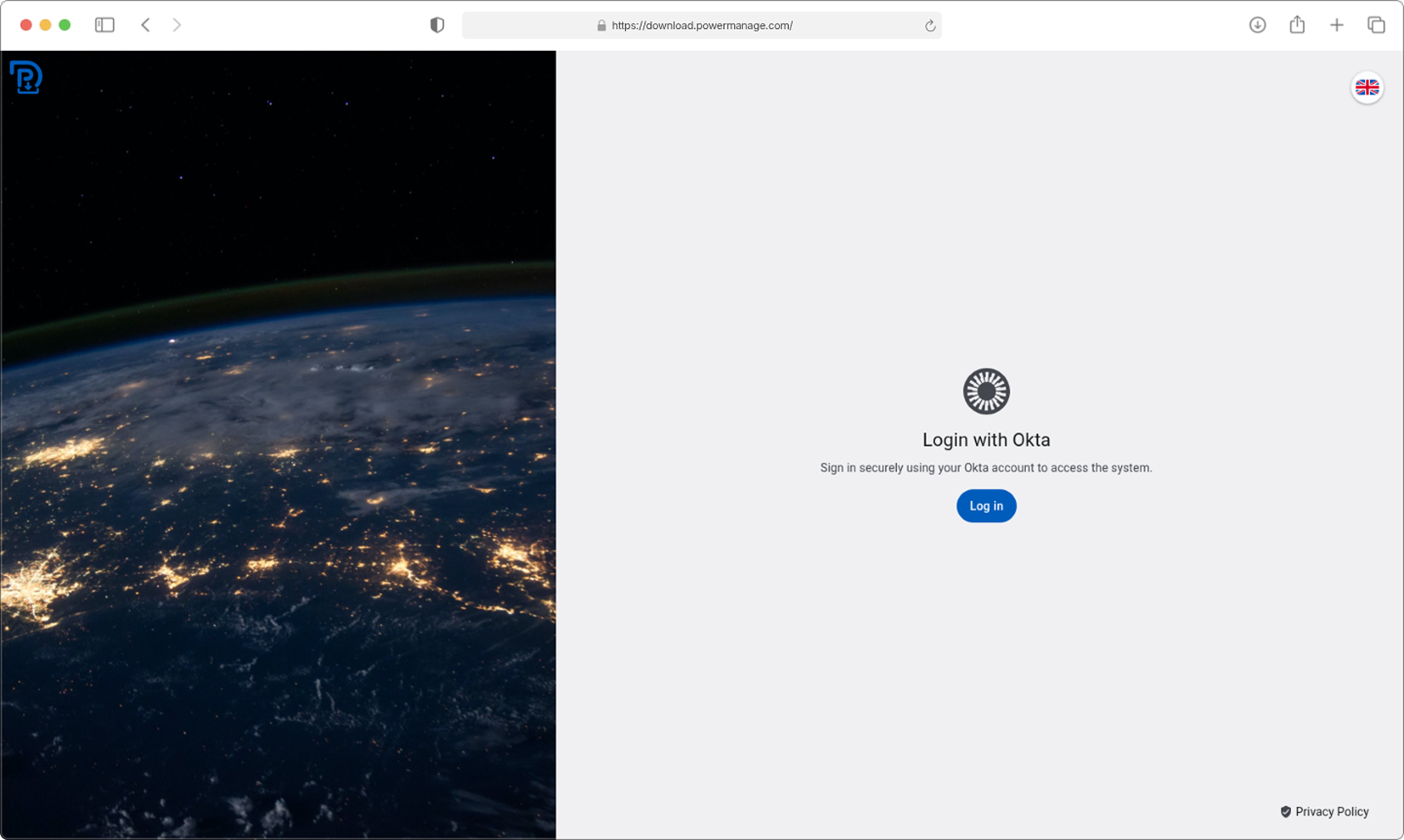
- Go to the Distribution Portal.
- Select Log in.
- Continue with your existing JCI Okta identifier.
Step 2: Complete self-registration
- Complete registration with your JCI Okta identifier.
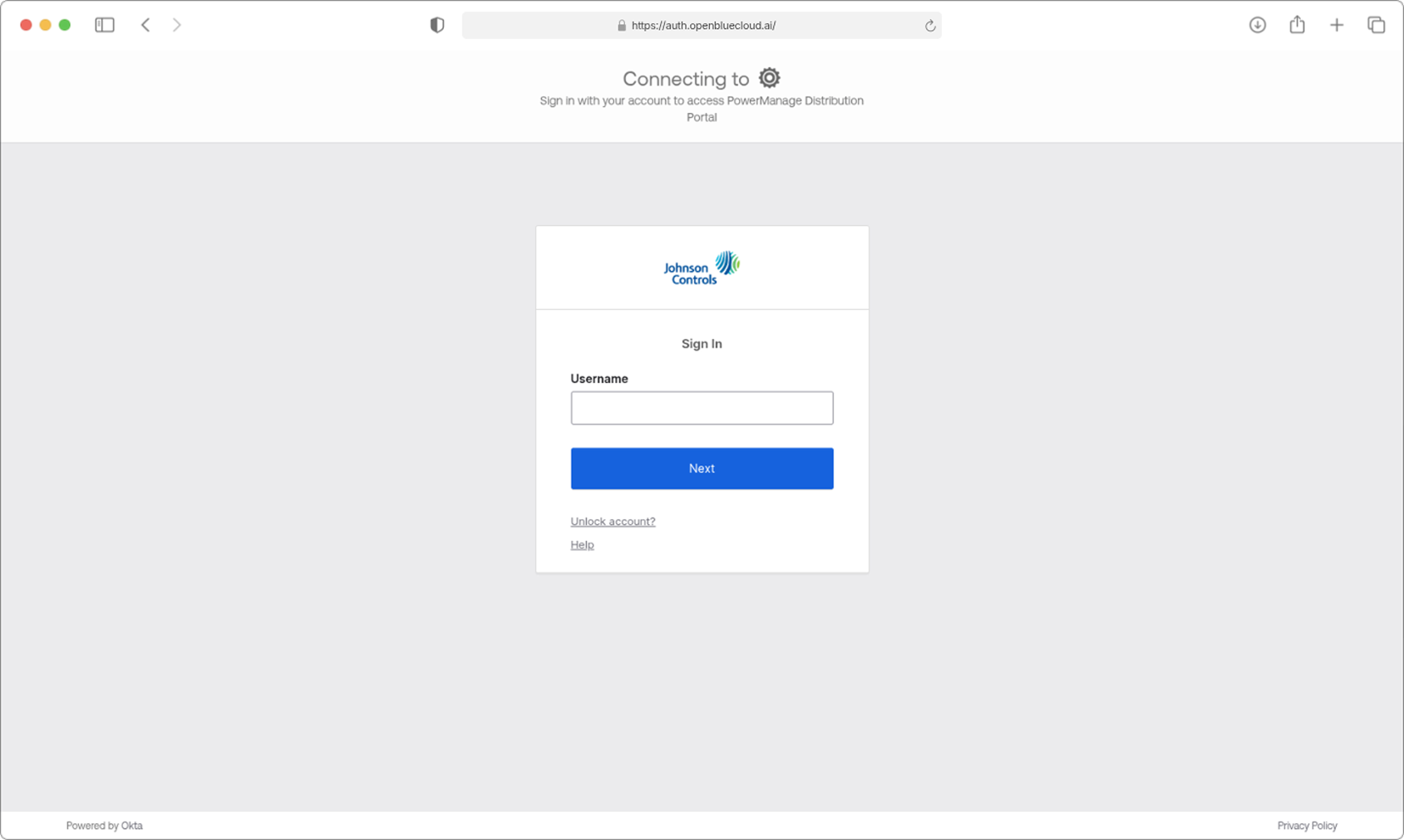
Step 3: Wait for approval
- Wait for an administrator to review and approve your account.
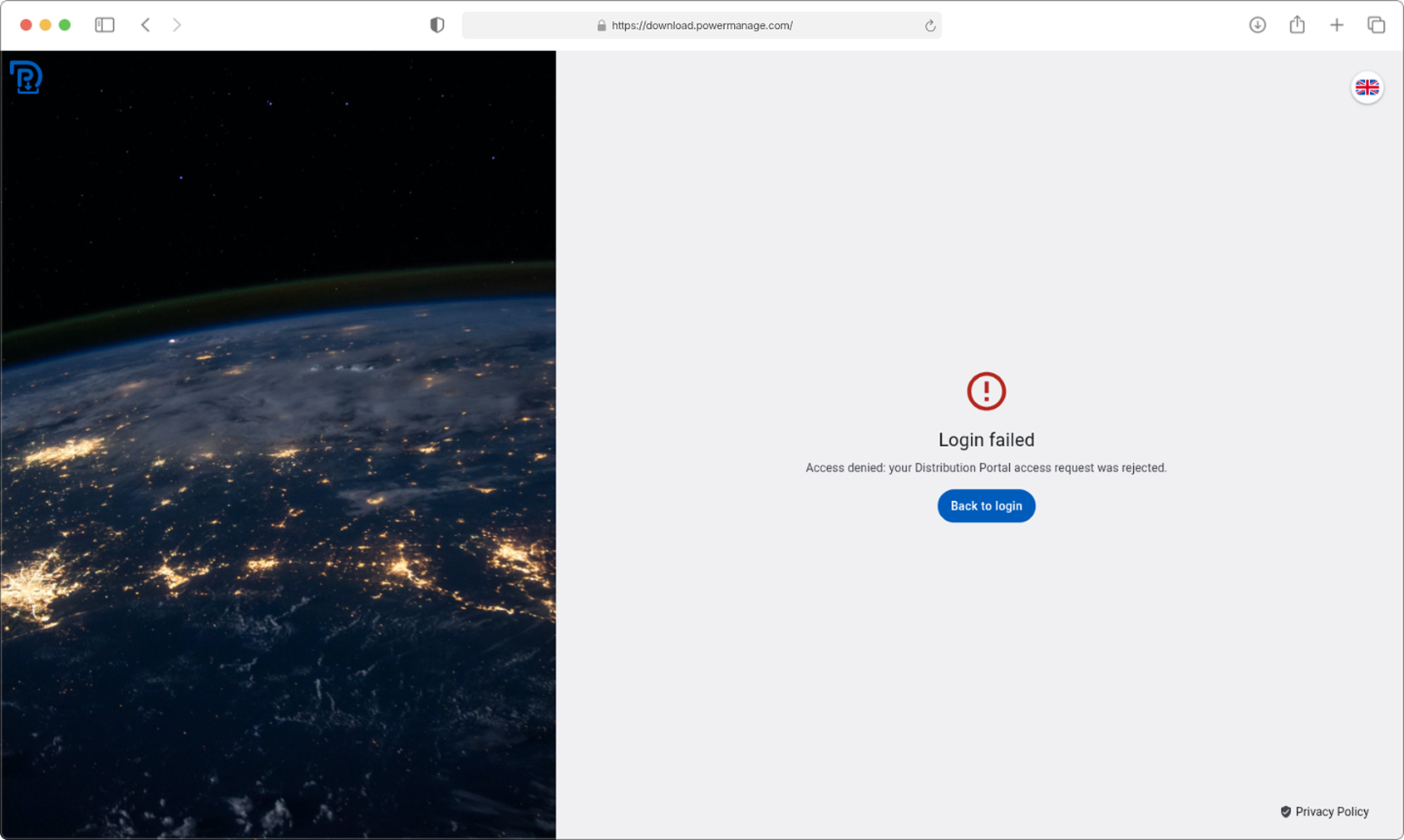
Step 4: Sign in after approval
- Open the Distribution Portal.
- Select Log in.
- Sign in with your existing JCI Okta identifier.
- Confirm that you can access the files and resources.
Step 5: If your account remains in Pending status
- Wait for administrator review.
- Contact your local technical account manager or technical support.
If self-registration leaves your account in Pending status, do not create another account.
How to register via invite flow
Use this flow if an administrator has already added your email address to the Distribution Portal.
Step 1: Ask an administrator to add your email address
- Ask an administrator to add your email address to the Distribution Portal.
Step 2: Open the Distribution Portal
- Open the Distribution Portal.
- Select Log in.
- Continue with your existing JCI Okta identifier.
Step 3: Complete registration and sign in
- Complete registration with your JCI Okta identifier.
- Confirm that you can access the files and resources available to your account.
If you use the invite flow, your invited email address must match the email address on your existing JCI Okta identifier.