Application Settings
Overview
The Application Settings page in ConnectAlarm lets users configure app-level preferences.
Use this page when users need to:
- Change the application language.
- Select the application theme.
- Enable or disable Face ID login.
- Enable or disable fast login.
- Open geofence settings.
- Configure panic mode behavior.
- Select the temperature scale.
- Review the application version and build number.
This page helps users personalize ConnectAlarm behavior on the mobile device and confirm app version information for support or troubleshooting.
Before you begin
Preconditions
- The user is signed in to the ConnectAlarm app.
Dependencies
- Language availability depends on the app localization package.
- Theme options depend on the app version and supported design themes that can be configured on PowerManage server.
- Face ID/Touch ID depends on mobile operating system biometric settings and device support.
- Geofences depend on location services, map services, and app location permissions.
- Temperature scale affects temperature values shown in parts of the app that display temperature.
- Version and build values depend on the installed app package.
Limitations
- Face ID cannot work if biometric authentication is disabled or unavailable on the mobile device.
- Geofence behavior may be limited by location permissions, background activity settings, or battery optimization.
- Panic mode settings may affect emergency-related app behavior. Change these settings only when authorized.
- Most settings apply automatically when changed.
Page layout
The Application Settings screen contains language, theme, login, behavior, and about sections.
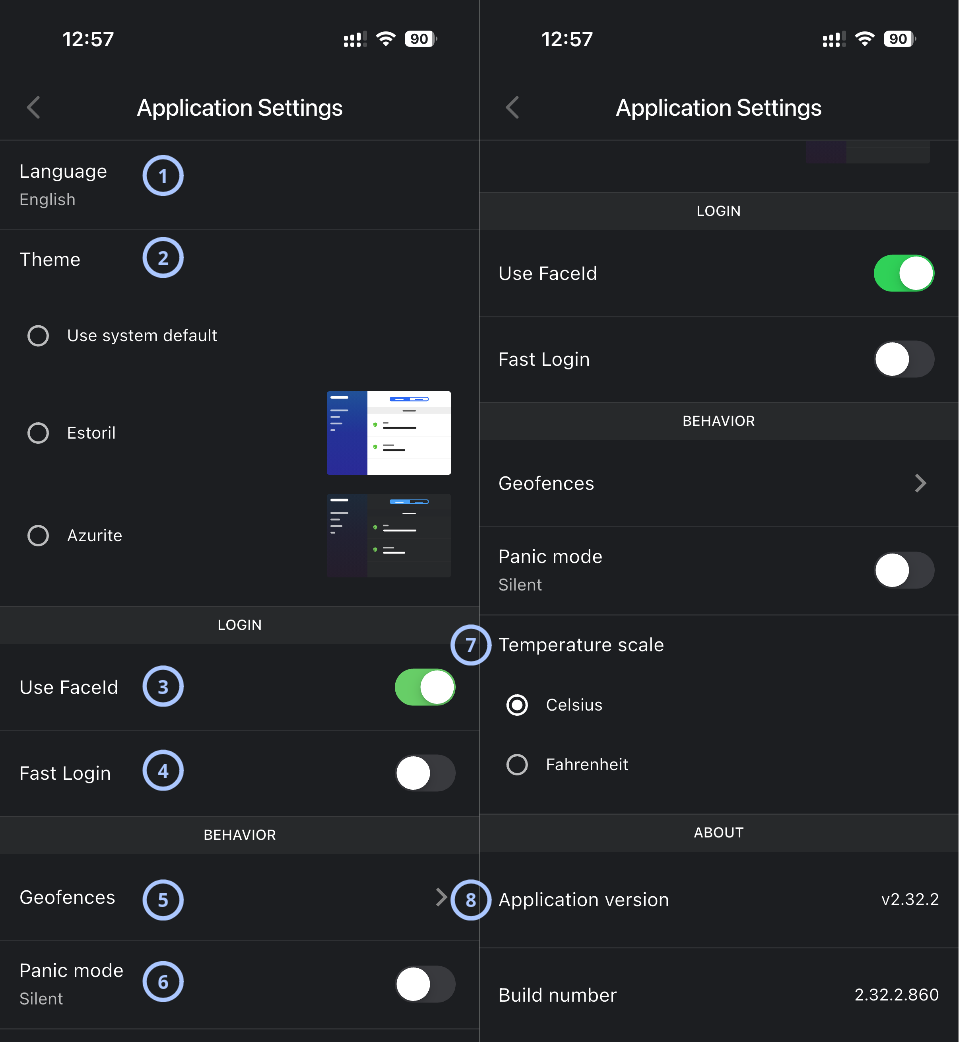
| Callout | UI element | Description | When to use |
|---|---|---|---|
| 1 | Language | Shows the selected app language. | Use to review or change the language used in the app. |
| 2 | Theme | Lets the user select the visual theme. The default available options for Use system default, Estoril, and Azurite. | Use to change the app appearance or follow the device theme. |
| 3 | Use FaceId/TouchId | Enables or disables Face ID/Touch ID login for the app. | Use to allow biometric login when supported by the device. |
| 4 | Fast Login | Enables or disables fast login. | Use to control whether the app uses a faster login flow to the specific panel. |
| 5 | Geofences | Opens available geofences list. | Use to configure location-based geofence behavior. |
| 6 | Panic mode | Enables or disables panic mode. | Use to configure panic-related behavior. |
| 7 | Temperature scale | Lets the user choose between Celsius and Fahrenheit. | Use to control how temperature values appear in the app. |
| 8 | Application version | Shows the installed application version. | Use when checking app version information for support or troubleshooting. |
Language section
The Language row shows the current app language.
Select this row to change the app language.
Available languages may vary by app version.
Theme section
The Theme section lets users choose the app appearance.
Each option uses a radio button. Theme preview images appear next to the theme options.
Use this section to select a specific app theme or follow the mobile device system theme.
The available themes depend on the PowerManage group configuration.
LOGIN section
The LOGIN section controls sign-in behavior.
Use FaceId/TouchId
The Use FaceId/TouchId toggle enables or disables Face ID/Touch ID login.
- On: The app can use Face ID/Touch ID for login when the device supports it.
- Off: Face ID/Touch ID login is not used.
Fast Login
The Fast Login toggle enables or disables a faster login flow.
If enabled, the application prompts you to enter the user code for the panel you last logged into after opening it.
BEHAVIOR section
The BEHAVIOR section contains app behavior preferences.
Geofences
The Geofences row opens available geofences list.
Use this row to review and configure location-based behavior for security panels.
Panic mode
The Panic mode setting controls panic-related app behavior.
Can be configured as Silent (no audible siren or visual confirmation on screen) or Noisy (triggers a mobile siren on the device).
Temperature scale
The Temperature scale setting controls how temperature values are displayed.
Available options include:
- Celsius
- Fahrenheit
Use this setting when temperature widgets, sensors, or automation devices display temperature values.
ABOUT section
The ABOUT section shows app version information.
Application version
The Application version row shows the installed app version.
Use this value when reporting an issue or checking whether the app is up to date.
Build number
The Build number row shows the installed build.
Use this value when support needs exact build information.
How to use this page
Open Application Settings
- Open the ConnectAlarm app.
- Sign in to your account.
- Open the
 menu.
menu. - Select Application Settings.
Change the application language
- Open Application Settings.
- Select Language.
- Choose the required language from the available list.
Change the app theme
- Open Application Settings.
- Go to the Theme section.
- Select one of the available options.
Enable Face ID/Touch ID login
- Confirm that Face ID/Touch ID is configured on the mobile device.
- Open Application Settings.
- Go to the LOGIN section.
- Turn on Use FaceId/Use TouchId.
- Approve any operating system permission prompt, if shown.
If biometric authentication is not configured on the device, the setting may not work until biometric authentication is set up in the operating system.
Enable or disable Fast Login
- Open Application Settings.
- Go to the LOGIN section.
- Turn Fast Login on or off.
Open geofences list
- Open Application Settings.
- Go to the BEHAVIOR section.
- Select Geofences.
Configure panic mode
- Open Application Settings.
- Go to the BEHAVIOR section.
- Review the current panic mode value.
- Turn Panic mode on or off.
Confirm site procedures before changing panic mode. Panic-related behavior can affect emergency response workflows.
Change the temperature scale
- Open Application Settings.
- Go to Temperature scale.
- Select Celsius or Fahrenheit.
Check app version and build number
- Open Application Settings.
- Scroll to the ABOUT section.
- Review Application version.
- Review Build number.
Tips
- Check Application version and Build number before contacting support. These values help identify the installed app package.
- Use Use system default if users want ConnectAlarm to follow the mobile device appearance setting.
- Enable Use FaceId only on a personal trusted device.
- Review location permissions before using Geofences.
- Select the temperature scale that matches the user's region or site standard.
Troubleshooting
| Problem | Possible cause | What to try |
|---|---|---|
| The app language does not change |
|
|
| Theme does not change |
|
|
| Version information is needed for support |
|
|