Adding your panel
Overview
The Add panel functionality allows users to connect a compatible alarm panel to their ConnectAlarm account. After a panel is added successfully, the user can remotely monitor system status, arm or disarm partitions, receive notifications, and manage supported devices through the application.
Users typically access this page:
- during first-time system setup
- after creating a new ConnectAlarm account
- when connecting an additional alarm system
This page also supports:
- panel identification and registration
- user authorization
- assigning a display name to the alarm system
After successfully adding a panel, the system becomes available in the ConnectAlarm dashboard.
Before you begin
Preconditions
Before adding a panel, ensure you have:
- A registered ConnectAlarm account
- A compatible alarm system installed and online
- The following information provided by the installer or monitoring provider:
- Panel ID or Serial Number
- Master User Code or authorized User Code
Dependencies
Panel registration requires:
- A supported alarm control panel
- Successful user authentication within the application
Limitations
warning
- Some systems may limit the number of linked users or devices
- User permissions may restrict panel access
- Incorrect panel credentials prevent adding
- Certain advanced features depend on installer configuration, panel family and version
Page layout
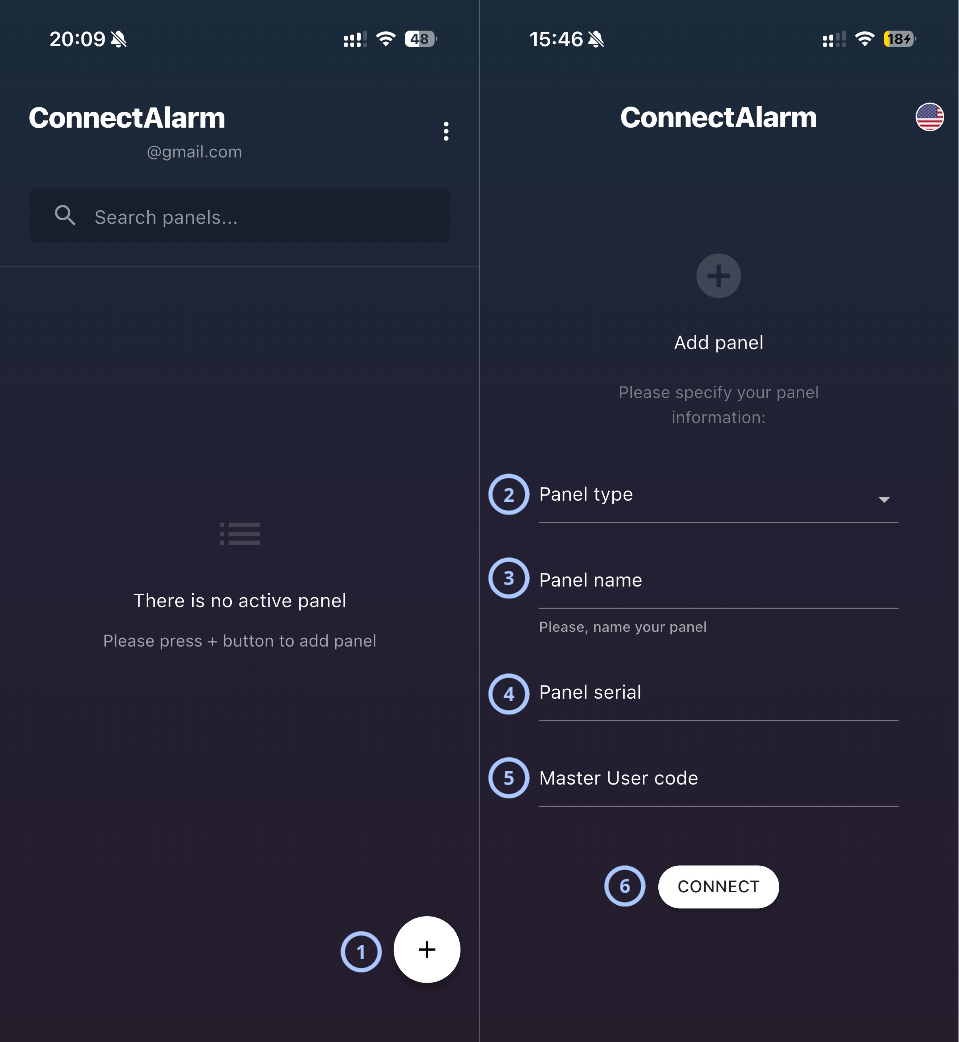
| Callout | Name | Behavior | Restrictions |
|---|---|---|---|
| 1 | Add panel |
| Not relevant |
| 2 | Panel type |
| Not relevant |
| 3 | Panel name |
|
|
| 4 | Panel serial |
|
|
| 5 | Master User code |
|
|
| 6 | Connect |
| Not relevant |
How to use this page
Add a new panel
- Open the ConnectAlarm application.
- Sign in to your account.
- Tap Add panel.
- Enter a Panel name.
- Enter the Panel serial provided by the installer.
- Enter the Master User code.
- Tap Connect.
Tips
tip
- Use clear panel names when managing multiple locations.
- Store the Panel serial and Master User code securely.
- Verify all installer-provided information before submission.
- Ensure the panel is powered on and connected to the PowerManage.
- Test remote arming/disarming after panel adding completes.
Troubleshooting
| Problem | Possible cause | What to try |
|---|---|---|
| Wrong infromation | Incorrect Panel serial or Master User code | Double check serial, master user code. Contact your dealer to ensure panel was not added by another master user and that panel is connected to the PowerManage |
| You are locked out | You are blocked due to multiple unsuccessful attempts | Wait, review the information, and try again |
Related pages
Was this page helpful?