Authentication and account access
Overview
The Login screen allows users to securely access the ConnectAlarm application and connect to their configured alarm system. From this screen, users can authenticate using their registered account credentials, access account recovery options, or create a new account.
Users typically access this screen:
- when opening the application for the first time
- after logging out
- after session expiration
- when using a new mobile device
The Login screen also serves as the entry point to related authentication workflows, including:
- account registration
- password recovery
- server address configuration
After successful authentication, the user is redirected to the main dashboard where they can monitor and control their alarm system.
Page layout
The login process has two stages on different screens.
First screen - Welcome: specify the PowerManage Server address.
Second screen - Log in: enter your credentials to access the panel list interface.
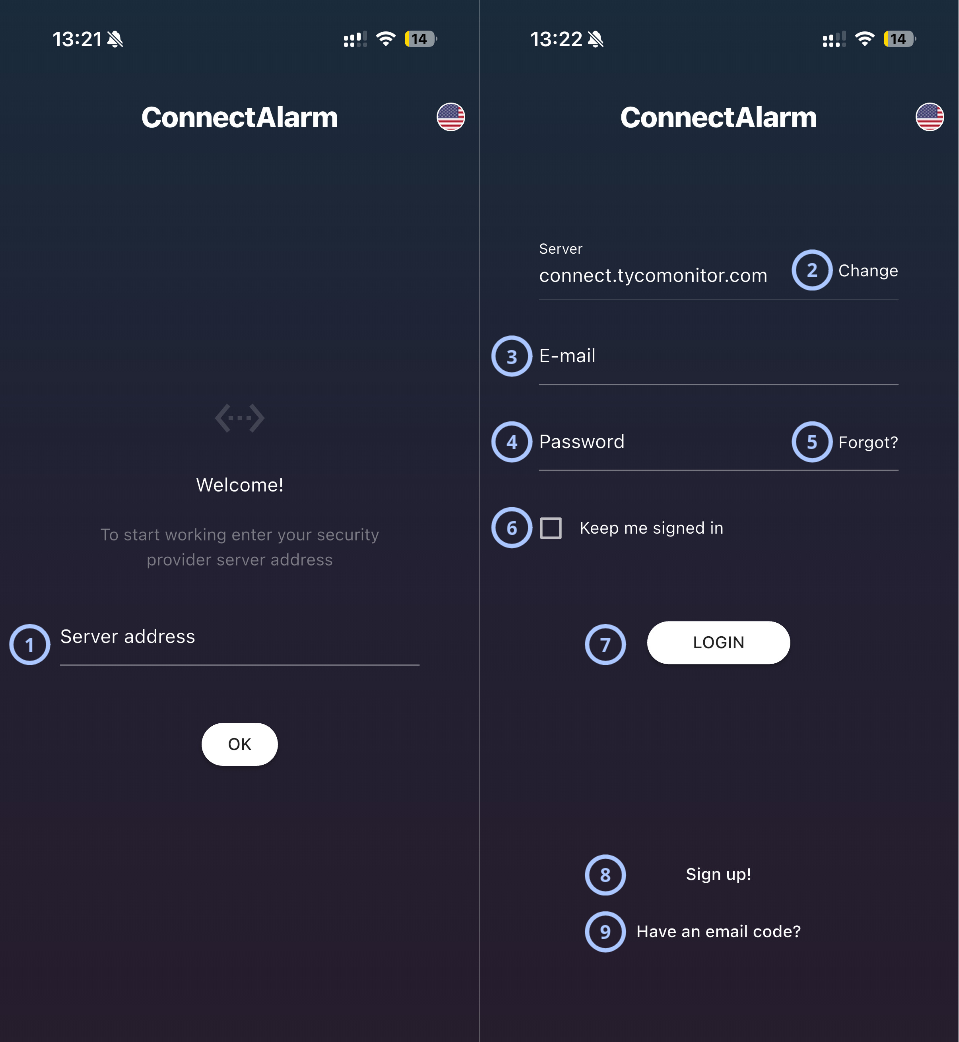
| Callout | Name | Behavior | Restrictions |
|---|---|---|---|
| 1 | Server address |
|
|
| 2 | Change |
| Not relevant |
| 3 |
|
| |
| 4 | Password |
|
|
| 5 | Forgot? |
| Not relevant |
| 6 | Keep me signed in |
|
|
| 7 | Login |
| Not relevant |
| 8 | Sign up! |
|
|
| 9 | Have an email code? |
|
|
Related pages
Was this page helpful?