Creating an account
Overview
The Sign up! page allows new users to register a ConnectAlarm account and associate it with a compatible alarm system. This process enables secure remote access to system monitoring, notifications, and control features through the ConnectAlarm.
Users typically access this page:
- during initial application setup
- after receiving installation details from a provider or installer
- when registering a new mobile device
- when creating a personal account for remote access
This page also serves as the entry point for:
- email verification
- password creation
- alarm panel linking
After successful account creation, the user can log in and access the ConnectAlarm dashboard.
Before you begin
Preconditions
Before creating an account, ensure you have:
- The ConnectAlarm application installed
- A valid email address
- Alarm system details provided by the installer or monitoring provider
Limitations
- Verification codes may expire after a limited time
- Password policy requirements must be met before account creation succeeds
Page layout
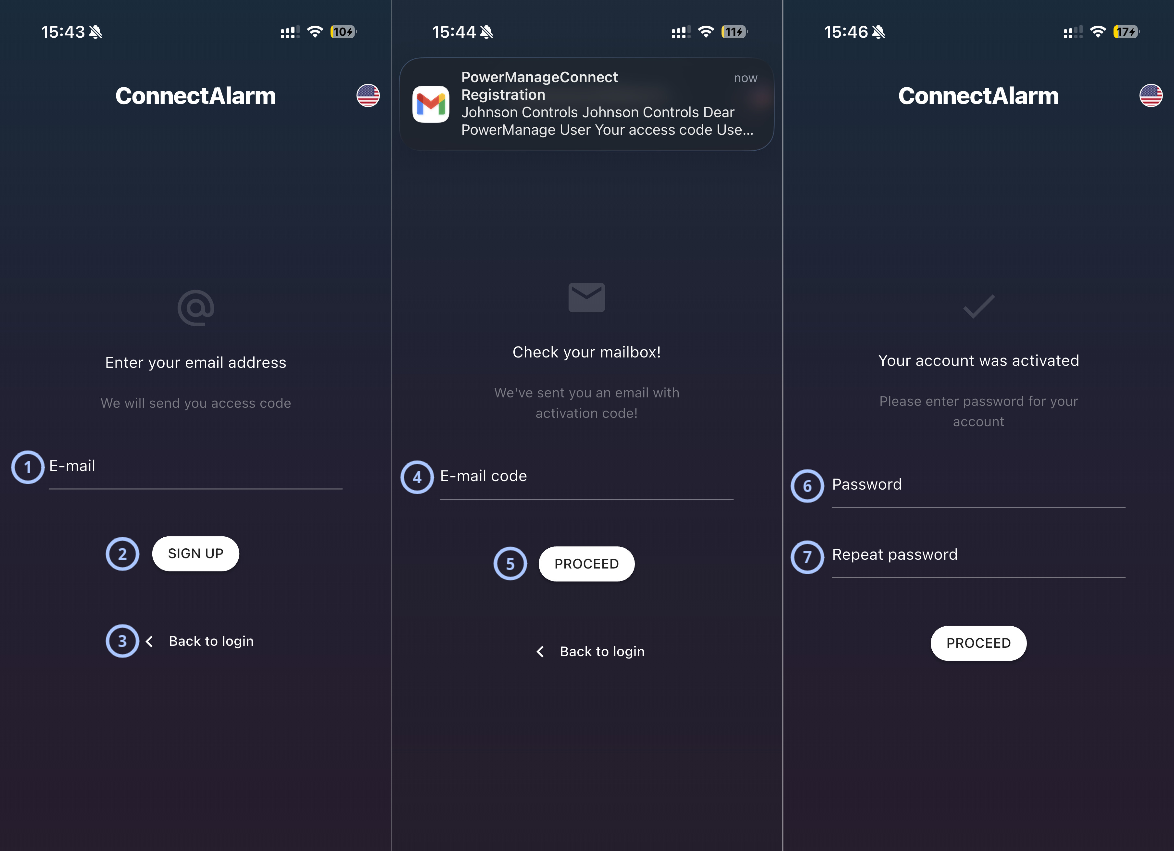
The following section applies if you have already opened Sign up!
It is better to read Authentication and account access before proceeding.
| Callout | Name | Behavior | Restrictions |
|---|---|---|---|
| 1 |
|
| |
| 2 | Sign up |
| Not relevant |
| 3 | Back to login |
| Not relevant |
| 4 | E-mail code |
|
|
| 5 | Proceed |
| Not relevant |
| 6 | Password |
|
|
| 7 | Repeat password |
|
|
How to use this page
Create a new ConnectAlarm account
- Open the ConnectAlarm application.
- Enter the Server Address provided by the installer or provider.
- Tap Sign up!.
- Enter a valid email address.
- Tap Sign up.
- Open the verification email.
- Enter the verification code into the application.
- Tap Proceed.
- Create a password.
- Confirm the password.
- Tap Proceed.
If a dealer has assigned your panel to the account, you will see the panel list interface.
Otherwise, you will be prompted to add your panel manually. Please refer to Adding your panel for a detailed guide.
Tips
- If you requested the verification code but want to enter it later (before end of time-to-live period), you can do so from the Login screen by clicking Have an email code?.
- Use a personal email address that you can access easily.
- Use a strong password that is unique to ConnectAlarm.
- Check spam or junk folders if the verification email is delayed.
- Complete verification promptly to avoid code expiration.
- Ensure the mobile device has internet connectivity throughout registration.
Troubleshooting
| Problem | Possible cause | What to try |
|---|---|---|
| Wrong code | Timeout exceeded or entered code is incorrect | Request a new code |
| Verification email not received | Email delay or spam filtering | Check spam/junk folder and resend code. Contact you dealer, installer to check the issue from the PowerManage side |
| Password should contain at least... | Password does not meet policy | Add required characters or increase length |
| Value must match with password | Typing mismatch | Re-enter both password fields |