Resetting a password
Overview
The Forgot password option allows users to recover access to their ConnectAlarm account by creating a new password. This workflow is used when a user forgets their password, cannot sign in, or needs to replace an expired or compromised password.
Users typically access this page:
- after forgetting their password
- after repeated failed login attempts
- when instructed to update account credentials
- after account recovery verification
This page also supports:
- email identity verification
- verification code validation
- secure password replacement
After successfully resetting the password, the user can log in using the newly created credentials.
Before you begin
Preconditions
Before resetting a password, ensure you have:
- The ConnectAlarm application installed
- Access to the registered email address
- Correct Server address configuration
Dependencies
Password reset requires:
- An existing ConnectAlarm account
- Email delivery functionality
- Access to the correct authentication server
Limitations
warning
- Verification codes may expire after a limited time
- Multiple failed verification attempts may temporarily block the reset process
- Password policy requirements must be satisfied before saving the new password
Page layout
info
It is better to read Authentication and account access before proceeding.
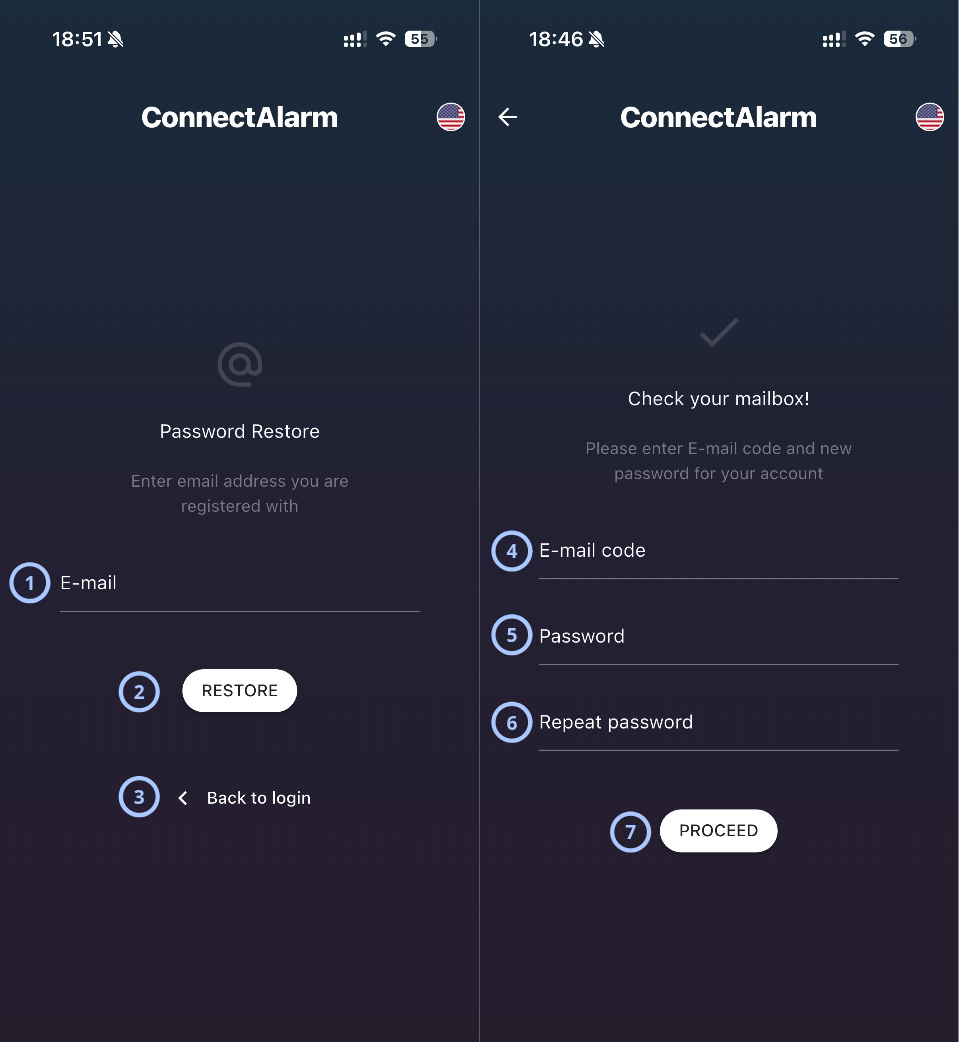
| Callout | Name | Behavior | Restrictions |
|---|---|---|---|
| 1 |
|
| |
| 2 | Restore |
| Not relevant |
| 3 | Back to login |
| Not relevant |
| 4 | E-mail code |
|
|
| 5 | Password |
|
|
| 6 | Repeat password |
|
|
| 7 | Proceed |
| Not relevant |
How to use this page
Reset a forgotten password
- Open the ConnectAlarm application.
- Tap Forgot? on the Login screen.
- Enter the registered email address.
- Tap Restore.
- Open the verification email.
- Enter the received verification code.
- Enter a new password.
- Confirm the new password.
- Tap Proceed.
Tips
tip
- If you requested the verification code but want to enter it later (before end of time-to-live period), you can do so from the Login screen by clicking Have an email code?.
- Use a strong password that is unique to ConnectAlarm.
- Avoid reusing passwords from other services.
- Complete the reset process promptly to avoid code expiration.
- Check spam or junk folders if reset emails are delayed.
- Store updated credentials securely.
- Ensure internet connectivity throughout the recovery process.
Troubleshooting
| Problem | Possible cause | What to try |
|---|---|---|
| Wrong code | Timeout exceeded or entered code is incorrect | Request a new code |
| Restore email not received | Email delay or spam filtering | Check spam/junk folder and resend code. Contact you dealer, installer to check the issue from the PowerManage side |
| Password should contain at least... | Password does not meet policy | Add required characters or increase length |
| Value must match with password | Typing mismatch | Re-enter both password fields |
Related pages
Was this page helpful?