Controlling automation devices
Overview
The Auto page in ConnectAlarm lets users view and control connected automation devices.
Use this page when users need to:
- View automation devices by category.
- Check the current state of a device, such as locked, unlocked, on, off, open, or closed.
- Control supported devices from the app.
- Filter the device list by automation technology, such as Z-Wave, PowerG or Zigbee.
- Review device values, such as temperature, when supported.
- Change device mods, such as cool and heat, when supported.
This page helps users manage common automation devices, such as doorlocks, switches, lights, thermostats, and sensors, from one mobile screen.
Before you begin
Preconditions
- The user is signed in to the ConnectAlarm app.
- The selected security system is available.
- The app shows CONNECTED when the user wants to send device commands.
- At least one automation device is configured.
Dependencies
- Device availability depends on the connected security panel and system configuration.
- Device actions depend on the device type, technology, and current state.
- Device status updates require communication between the app, PowerManage server, the panel, and the automation device.
Limitations
- Commands may fail if the panel is disconnected, or the device is offline.
- Use lock, switch, and automation controls only when the action is safe and authorized.
Page layout
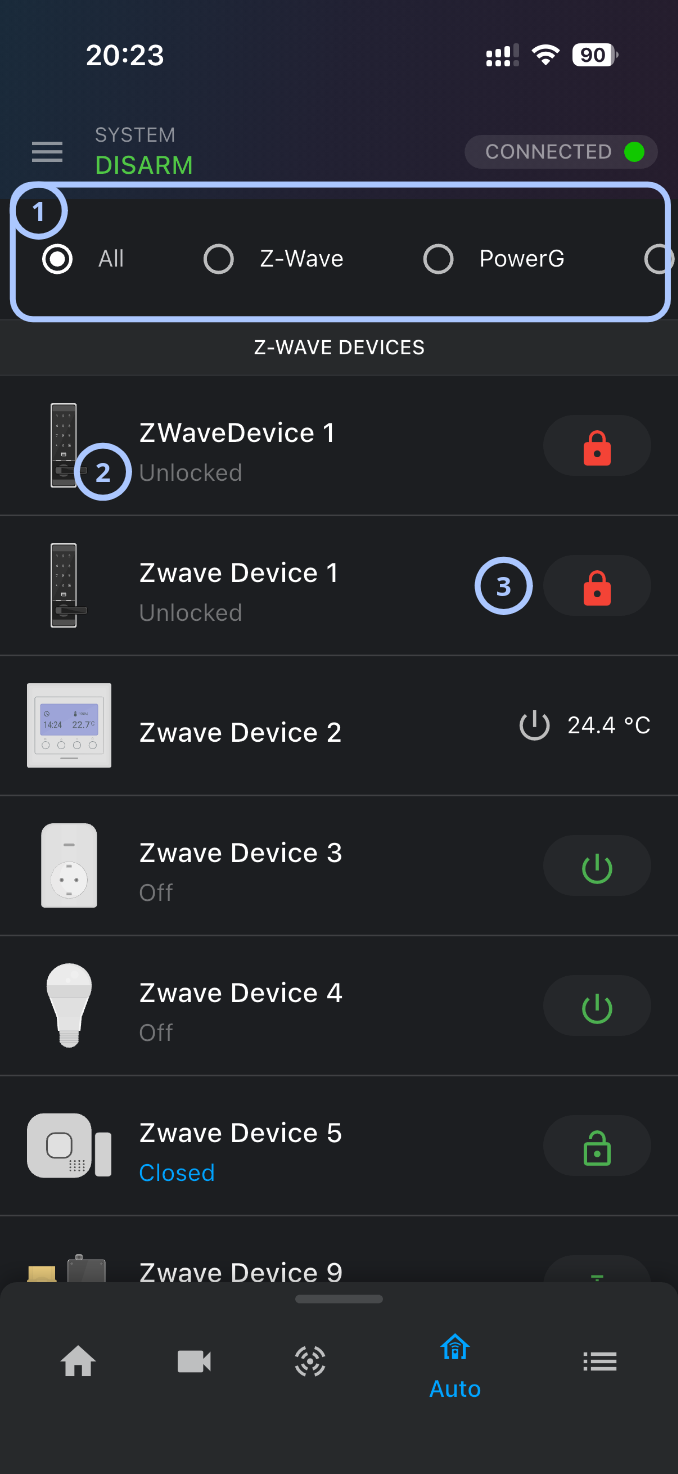
| Callout | UI element | Description | When to use |
|---|---|---|---|
| 1 | Device filters | Filters the automation device list. | Use to show all automation devices or narrow the list to a specific device technology. |
| 2 | Device row | Shows an automation device with an icon, device name, and current state or value. | Use to review device identity and current status before sending a command. |
| 3 | Device control | Controls the selected device when control is supported. The control icon changes by device type, such as lock, unlock, or power. | Use to lock or unlock, turn on or off, or control another supported automation state. |
Device filters
The filter bar appears below the header. It uses radio-style options.
Visible options include:
- All: Shows all automation devices available to the user.
- Z-Wave: Shows Z-Wave automation devices.
- PowerG: Shows PowerG automation devices.
- Zigbee: Shows Zigbee automation devices.
The selected filter is marked with a filled radio indicator.
The full list of filters may vary by system configuration and supported device technologies.
Device group heading
The page shows a group heading named Z-WAVE DEVICES.
Use this heading to identify the technology group for the devices listed below it.
Other groups may appear when other automation technologies are configured.
Device state text
Device state text appears below or beside the device name.
Examples shown in the screenshot include:
- Unlocked
- Off
- Closed
A value can also appear on the right side of the row. The screenshot shows:
- 24.4 °C
Use the state or value to understand the current device condition before sending a command.
How to use this page
Open automation devices
- Open the ConnectAlarm app.
- Sign in to your account.
- Sign in to your panel.
- Select the Auto tab from the bottom navigation bar.
View all automation devices
- Open the Auto tab.
- Select the All filter.
- Review the device list.
Filter Z-Wave devices
- Open the Auto tab.
- Select the Z-Wave filter.
Review a device state
- Open the Auto tab.
- Find the required device in the list.
- Review the device name and state text.
- Review any displayed value, such as temperature.
Control a lock device
- Open the Auto tab.
- Find the lock device to control.
- Confirm the device name and current state.
- Select the lock control on the right side of the row.
- Wait for the device state to update.
Before selecting a lock control, confirm that the selected device is the intended device. Lock actions may affect access to a room, door, or area.
Check temperature from a device
- Open the Auto tab.
- Find the temperature device.
- Read the value shown on the right side of the row.
Tips
- Check the CONNECTED status before sending a command. Commands are more likely to complete when the security panel has an active connection.
- Use filters to reduce the device list when many automation devices are configured.
- Confirm the device name and state before selecting a control. Some device names may be similar.
- Wait for the device state to update after selecting a control. Status updates may take a few seconds.
- Use the displayed temperature value as status information only unless temperature adjustment controls are visible.
Troubleshooting
| Problem | Possible cause | What to try |
|---|---|---|
| Automation devices do not appear |
|
|
| A device command does not work |
|
|
| Device status does not update |
|
|