Geofence
Overview
The Geofence function in ConnectAlarm lets users define and manage a location-based area on a map.
Use this page when users need to:
- Enable or disable geofence functionality.
- Search for an address and place the geofence on the map.
- Use the mobile device location to center the map.
- Review or adjust the geofence area.
- Confirm the geofence radius shown on the map.
- Receive reminder notifications when leaving or entering the geofence area to arm or disarm the panel.
This page helps users configure the location area that ConnectAlarm uses for geofence-based behavior.
Before you begin
Preconditions
- The user is signed in to the ConnectAlarm app.
- The selected security panel is available.
- Location services are enabled on the mobile device.
- ConnectAlarm has the required location permission.
- The mobile device has network connectivity.
- The map service is available.
Dependencies
- Address search depends on network connectivity and address lookup services.
- Current location detection depends on the mobile device location provider, GPS, Wi-Fi, or cellular location services.
- Geofence accuracy depends on device location accuracy and operating system background location behavior.
- Geofence behavior may depend on notification settings, app background activity settings, and battery optimization settings.
Limitations
- Geofence behavior will be unavailable if location permission is denied.
- Geofence behavior will not work correctly if background location access is disabled.
- Battery optimization, low power mode, or operating system restrictions can affect geofence updates.
- The available minimum radius is 3m.
- The map can show approximate location. Always confirm the address and geofence area before relying on the setting.
Page layout
The Geofence screen displays a full-screen map with controls for enabling or disabling geofence behavior, searching for an address, locating the mobile device, and adjusting the geofence area.
Geofence page
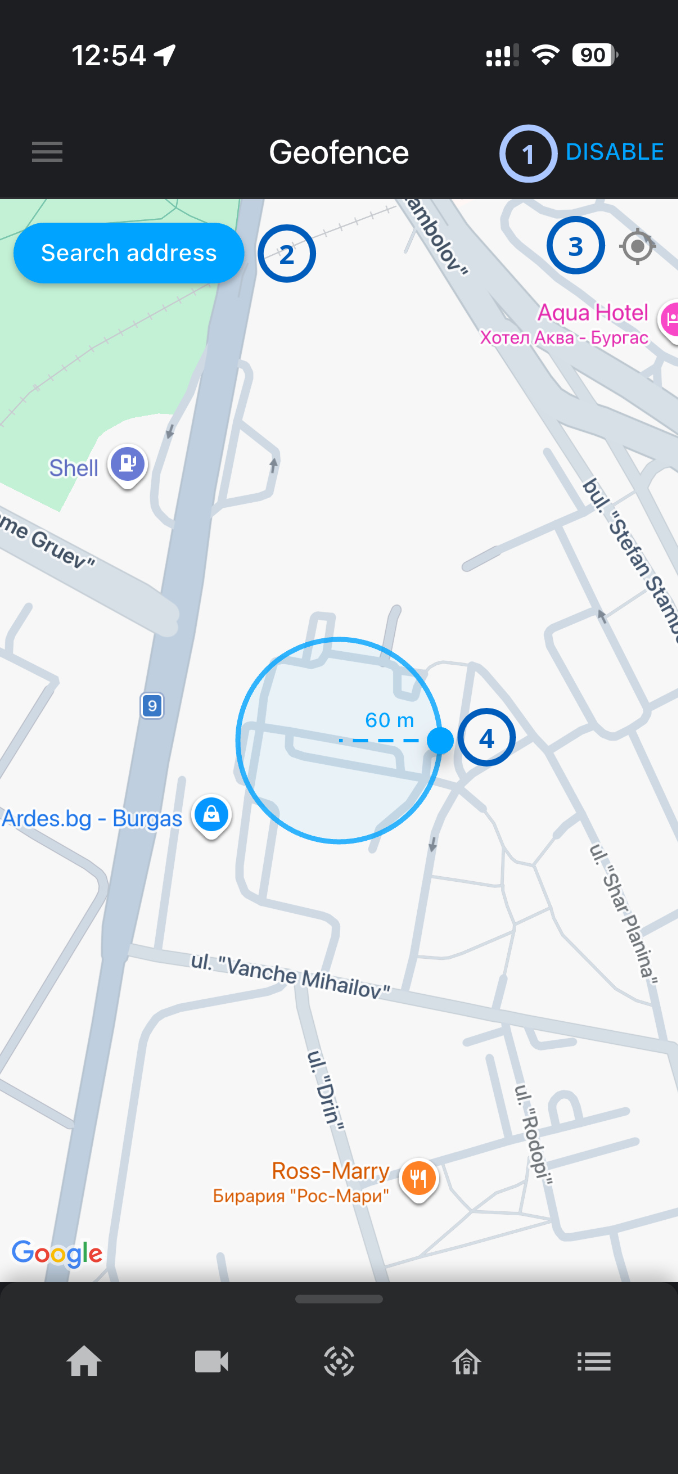
| Callout | UI element | Description | When to use |
|---|---|---|---|
| 1 | DISABLE action | Disables the geofence feature when it is currently enabled. | Use when geofence-based behavior should no longer run for the selected security panel. warning Disabling geofence can stop location-based behavior that depends on this setting. Confirm that disabling geofence is allowed by site procedures. |
| 2 | Search address button | Opens address search so the user can place the geofence around a selected address. | Use when the geofence center must be set to a specific address or location. |
| 3 |  | Centers the map on the mobile device location when location permission is available. | Use to quickly move the map to the user's current location. |
| 4 | Geofence boundary and radius handle | Shows the configured geofence area. The circle displays the radius, and the handle indicates the adjustable boundary. | Use to review or adjust the geofence area on the map. |
Map area
The map fills most of the page.
The map shows:
- Streets and road labels.
- Nearby places.
- The geofence circle.
- The geofence radius label.
- Map provider branding.
Use the map to place, review, and adjust the geofence area.
How to use this page
Enable geofence
- Open the ConnectAlarm app.
- Sign in to your account.
- Sign in to your security panel.
- Open the
 menu.
menu. - Select Geofence.
- Enable geofence.
Search for an address
- Open the Geofence screen.
- Select Search address.
- Enter the address or location name.
- Select the correct result from the search results, if results are shown.
- Review the geofence position on the map.
Use the current device location
- Open the Geofence screen.
- Select the current location button.
- Allow location access if the mobile operating system asks for permission.
- Wait for the map to move to the detected location.
Review the geofence radius
- Open the Geofence page.
- Locate the blue geofence circle on the map and hold it.
- Read the radius label.
Adjust the geofence radius
- Open the Geofence page.
- Locate the blue handle on the edge of the geofence circle.
- Drag the handle inward to reduce the radius.
- Drag the handle outward to increase the radius.
- Review the updated radius label.
Disable geofence
- Open the Geofence page.
- Select DISABLE.
Disable geofence only when location-based behavior is no longer required.
Tips
- Use Search address when the geofence must be placed around a specific site or property.
- Use the current location button when configuring geofence while physically located at the site.
- Check the radius label after changing the geofence area. A small radius may be sensitive to location accuracy, and a large radius may include nearby streets or buildings.
- Keep location permissions enabled for ConnectAlarm if geofence behavior must work in the background.
- Review mobile device battery and background activity settings if geofence behavior is inconsistent.
Troubleshooting
| Problem | Possible cause | What to try |
|---|---|---|
| The map does not load |
|
|
| Current location does not work |
|
|
| Geofence does not trigger expected arm/disarm reminders |
|
|
| The geofence radius cannot be changed |
|
|