Granting installer access
Overview
The Installer access screen in ConnectAlarm lets users approve a remote installer access request.
Use this page when users need to:
- Review a remote installer access approval request.
- Grant temporary remote access to an installer, if authorized.
This page helps prevent unintended installer access by requiring a deliberate approval action from the user.
Before you begin
Preconditions
- The user is signed in to the ConnectAlarm app.
- The selected security panel is available.
- A remote installer access request is active.
- The user understands why installer access is being requested.
Dependencies
- Remote installer access depends on the security panel, PowerManage server, and installer configuration.
- The approval request require network connectivity.
- The installer must have a valid remote access request.
Limitations
warning
- Approving installer access allow a remote installer to view or change security system settings.
- Approve access only when the request is expected and authorized.
- Access expires automatically. Confirm access duration with the PowerManage administrator or installer.
Page layout
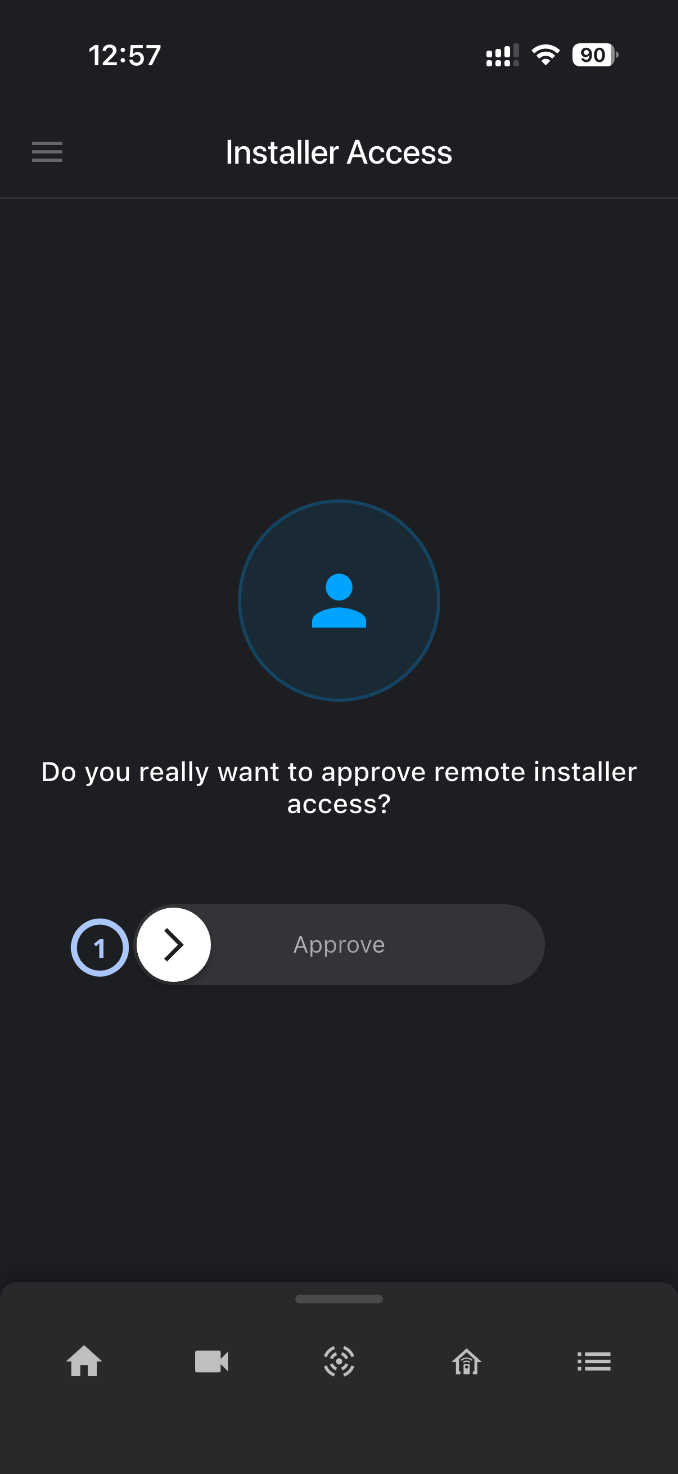
The Installer access screen displays a confirmation prompt and a slide-to-approve control.
Installer access page
| Callout | UI element | Description | When to use |
|---|---|---|---|
| 1 | Slide-to-approve control | Approves remote installer access when the user slides the arrow control across the approval track. | Use only when the remote installer access request is expected and authorized. |
How to use this page
Open the Installer access page
- Open the ConnectAlarm app.
- Sign in to your account.
- Sign in to your security panel.
- Open the
 menu.
menu. - Select Installer access, if available.
Approve remote installer access
- Open the Installer access page.
- Confirm that the request is expected and authorized.
- Place a finger on the arrow handle in the slide-to-approve control.
- Slide the handle across the approval track.
- Wait for the app to process the approval.
danger
Approve access only for a trusted and expected installer session. Remote access may allow system configuration changes.
Tips
tip
- Approve installer access only during a scheduled support or service session.
- Confirm the request with the installer or administrator before using the approval slider.
- Use the slide control carefully. It is designed to reduce accidental approvals.
- If the request is unexpected, leave the page without approving and contact the administrator or service provider.
- After approval, review related system events or activity records if your organization requires an audit trail.
Troubleshooting
| Problem | Possible cause | What to try |
|---|---|---|
| The slide-to-approve control does not work |
|
|
| The user cannot find the Installer access page |
|
|
| The approval was granted by mistake |
|
|
| The installer says access was not received |
|
|
Related pages
Was this page helpful?