Managing panel users
Overview
The Users page in ConnectAlarm lets users manage panel users for the selected security panel.
Use this page when users need to:
- View configured panel users.
- Add a new panel user.
- Set or update a user PIN.
- Edit user details, such as name, expiration date, and email.
- Review assigned doorlocks and proximity tags.
- Remove a panel user when removal is allowed.
Before you begin
Preconditions
- The user is signed in to the ConnectAlarm app.
- The selected security panel is available and connected to PowerManage server.
- The app is connected to PowerManage server when saving user changes.
- At least one panel user exists if the user wants to edit or remove users.
Dependencies
- User data depends on the selected security panel configuration.
- PIN changes depend on panel rules and supported PIN formats.
- Doorlock assignments depend on configured doorlock devices.
- Proximity tag assignments depend on configured proximity tags.
- Changes require communication between the app, PowerManage server, and security panel.
Limitations
warning
- Removing a user can affect access to the security panel.
- Changing a PIN can affect the user's ability to arm, disarm, or perform panel actions.
- Some users may not be removable, depending on panel configuration or permissions.
- Do not remove or change special-purpose users unless this is allowed by site procedures.
Page layout
The user management workflow includes these screens:
- Users list.
- Add user blind.
- Edit user blind.
Users list
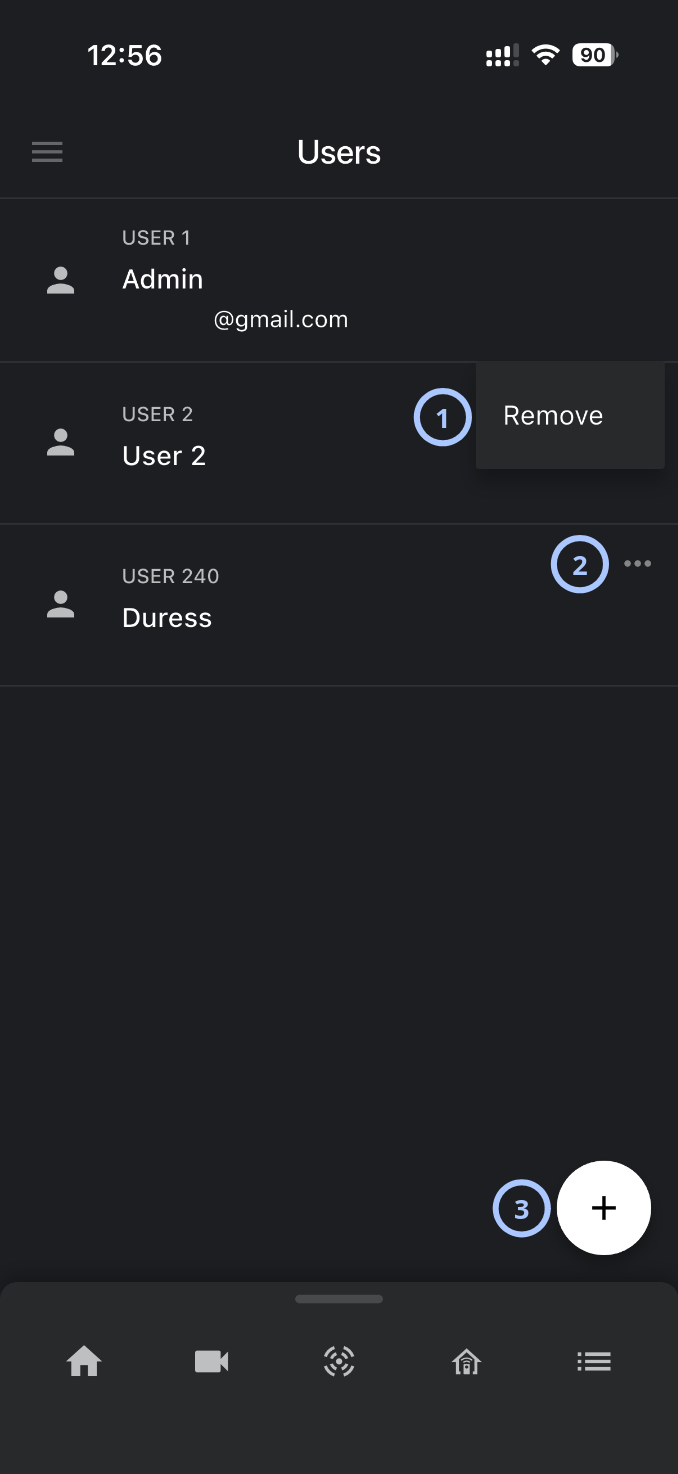
| Callout | UI element | Description | When to use |
|---|---|---|---|
| 1 | Remove action | Removes the selected panel user. The action appears when you click the  on the user row. on the user row. | Use when a user should no longer have panel access. |
| 2 | | Shows additional actions for the selected user when available. | Use to open user-specific actions, if supported. |
| 3 | Add button | Opens the Add user blind. | Use to create a new panel user. |
User rows
Each row represents one panel user.
A user row can include:
- User icon.
- User number, such as USER X.
- User name, such as Admin or User 2.
- Email address, when interactive user is configured.
- More options , when available.
Add user blind
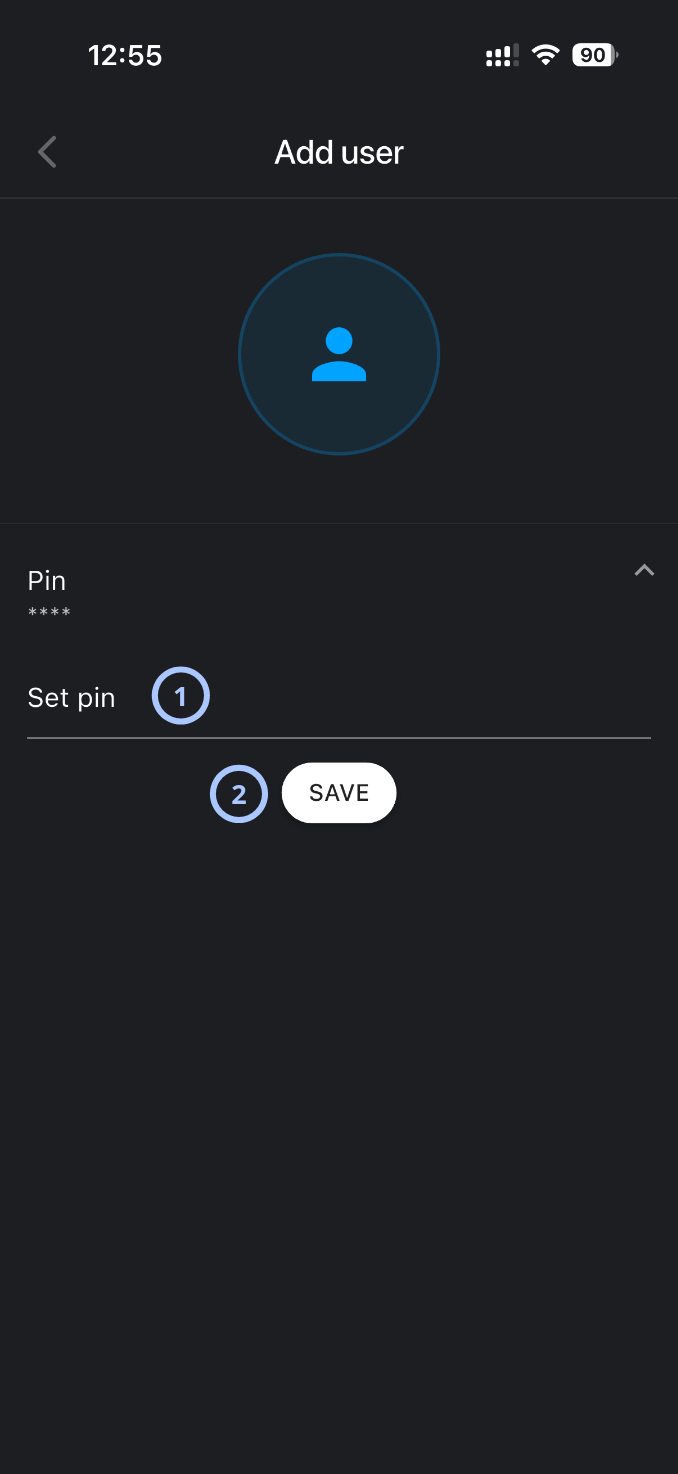
| Callout | UI element | Description | When to use |
|---|---|---|---|
| 1 | Set pin field | Lets the user enter the PIN for the new panel user. | Use to define the PIN the new user will use with the panel. |
| 2 | SAVE button | Saves the new panel user. | Use after entering the required PIN and any other required details. |
Edit user blind
info
This section opens when you click a user row.
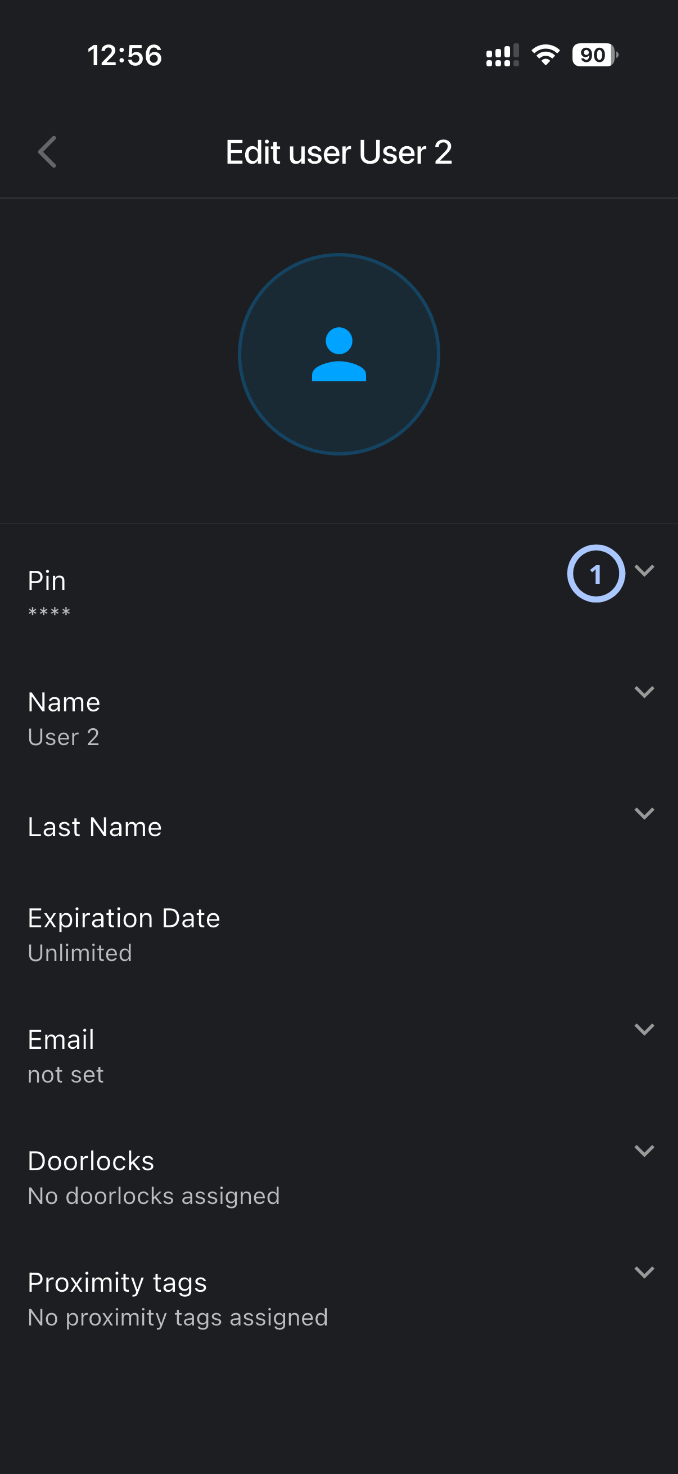
| Callout | UI element | Description | When to use |
|---|---|---|---|
| 1 | Expandable user sections | Expands or collapses editable user details, such as PIN, name, last name, expiration date, email, doorlocks, and proximity tags. | Use to review or update specific user settings. |
How to use this page
Open the Users page
- Open the ConnectAlarm app.
- Sign in to your account.
- Sign in to your security panel.
- Open the
 menu.
menu. - Select Users.
Add a panel user
- Open the Users page.
- Select the Add button.
- On the Add user blind, enter the PIN in the Set pin field.
- Select SAVE.
Edit a panel user
- Open the Users page.
- Select the user row to edit.
- On the Edit user blind, select the section to update.
- Enter or choose the new value.
Change a user PIN
- Open the Users page.
- Select the user to edit.
- Select the Pin section.
- Enter the new PIN.
- Confirm or save the change if prompted.
warning
Share PINs only according to site policy. Do not store PINs in unsecured notes or messages.
Add or update an interactive user email address
- Open the Users page.
- Select the user to edit.
- Select Email.
- Enter the email address.
- Confirm or save the change if prompted.
Remove a panel user
- Open the Users page.
- Find the user to remove.
- Swipe the user row to show row actions.
- Select Remove.
- Confirm the removal if the app shows a confirmation prompt.
warning
Confirm the user before selecting Remove. Removing the wrong user can interrupt authorized access.
Tips
tip
- Use clear user names so you can identify who owns each panel user record.
- Review the user number before making changes. Some panel user numbers may have special purposes.
- Set expiration dates for temporary users when the panel supports expiration.
- Review doorlock and proximity tag assignments after editing a user to confirm access is correct.
- Remove users who no longer need access, but confirm the user identity before removal.
Troubleshooting
| Problem | Possible cause | What to try |
|---|---|---|
| Saving a new user fails |
|
|
| Remove action does not appear |
|
|
| A user was removed by mistake |
|
|
Related pages
Was this page helpful?