Panel control interface layout
Overview
The Panel control interface is the main ConnectAlarm screen for a selected alarm panel. Use this page to review panel status, select a partition, arm or disarm the system, check alarms and troubles, review recent activity, and open related panel functions. There are six active areas: Menu, Dashboard, Cameras, Devices, Auto, and Events.
Use this page when you need to:
- Check whether the selected panel or partition is armed or disarmed.
- Arm the full system or a selected partition.
- View customized Dashboard.
- Review active alarms and troubles.
- Check recent activity, such as who disarmed the system and when.
- Trigger an alarm, such as panic, fire or emergency.
Before you begin
Required permissions
You need a valid ConnectAlarm account and a valid panel user code. ConnectAlarm is password-protected and permissions-based, so available actions depend on your user permissions and panel configuration.
Preconditions
Before you use the Panel control interface, confirm that:
- The panel is already added to the ConnectAlarm app.
- You are signed in to the correct ConnectAlarm account.
- You selected the correct panel from the Panel list.
- Your user code is valid for the selected panel.
- The panel is connected to the PowerManage server.
- The mobile device has an active internet connection.
- The panel supports the feature you want to use, such as partitions, device bypass, output control, or video verification.
Limitations
warning
- Available controls depend on the panel model, panel programming, user permissions, and app version.
- Partition controls appear only if the panel supports partitions and the user has access to them.
- Night mode appear or work only if they are configured on the panel.
- Output control is available only for configured outputs.
- Alarm images or video verification appear only when supported by the system and event type.
- If the panel or communicator is offline, the app may not show current status or complete control actions.
- If a wrong user code is entered three times during connection, the app may lock access for 5 minutes.
Page layout
The Panel control interface is divided into key areas. The exact layout may vary by platform, app version, and panel type.
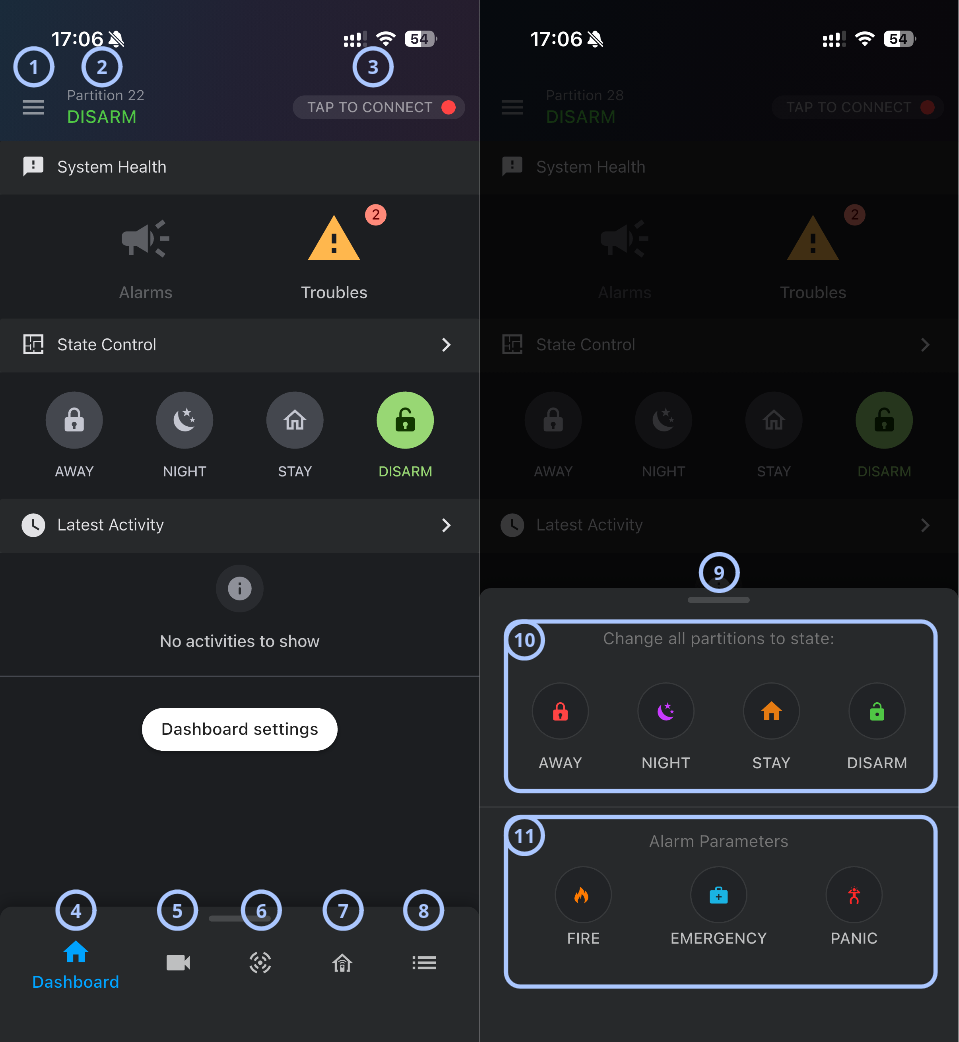
| Callout | Name | Behavior | Restrictions | |
|---|---|---|---|---|
| 1 |  |
| Not relevant | |
| 2 | Status bar |
| Partition status is available only when partitions are configured for the panel | |
| 3 | Connection status |
| WakeUp SMS is available only when supported by the panel, communicator, and service configuration | |
| 4 | Dashboard |
| Available widgets depend on panel configuration and user permissions | |
| 5 | Cameras |
| Video features are available only when cameras are configured and the user has permission to access them | |
| 6 | Devices |
| You can add only devices supported by your panel | |
| 7 | Auto |
| Automation and output controls are available only when configured | |
| 8 | Events |
|
| |
| 9 | Quick action menu |
| Use emergency alarm actions only during an actual emergency | |
| 10 | Change all partitions state |  | Arms all available partitions in Away mode |
|
 | Arms all available partitions in Stay mode | |||
 | Arms all available partitions in Night mode | |||
 | Disarms all available partitions | |||
| 11 | Alarm actions |  | Triggers a fire alarm | Use these actions only during an actual emergency |
 | Triggers an emergency alarm | |||
 | Triggers a panic alarm | |||
Related pages
Was this page helpful?