Push and email notifications
Overview
The Notifications page in ConnectAlarm lets users choose which event categories send notifications.
Use this page when users need to:
- Turn push notifications on or off for event categories.
- Turn email notifications on or off for event categories.
- Review notification categories, such as alarms, restore events, arm/disarm events, camera events, home device events, notice events, and duress events.
- Configure push notification behavior, such as sound, vibration, duration time.
This page helps users control which system events generate alerts and how push notifications behave on the mobile device.
Before you begin
Preconditions
- The user is signed in to the ConnectAlarm app.
- The selected security panel is available.
- The mobile device has network connectivity.
- Push notifications are allowed for ConnectAlarm in the mobile operating system settings.
- Notification categories are available for the selected security panel.
Dependencies
- Push notifications depend on the mobile operating system notification service.
- Email notifications depend on the configured user email address and backend email delivery.
- Available notification categories depend on security panel family, PowerManage group settings, and app version.
- Push notification sound, vibration, pop-up, badge, lock screen, and Do Not Disturb behavior can depend on the mobile operating system.
- Some settings may be managed outside ConnectAlarm in the device notification settings (mostly valid for Android).
Limitations
- Turning off a notification category may prevent the user from receiving alerts for that event type.
- Push notification delivery can fail if operating system notifications are disabled for ConnectAlarm.
- Email notifications can fail if the user's email address is incorrect, blocked, or filtered as spam.
- Some notification options are controlled by the mobile operating system and may look different on Android and iOS.
Page layout
The notification workflow includes two screens:
- PUSH tab.
- EMAIL tab.
Notification settings screen
- Notification settings on iPhone or iPad
- Notification settings on Android devices
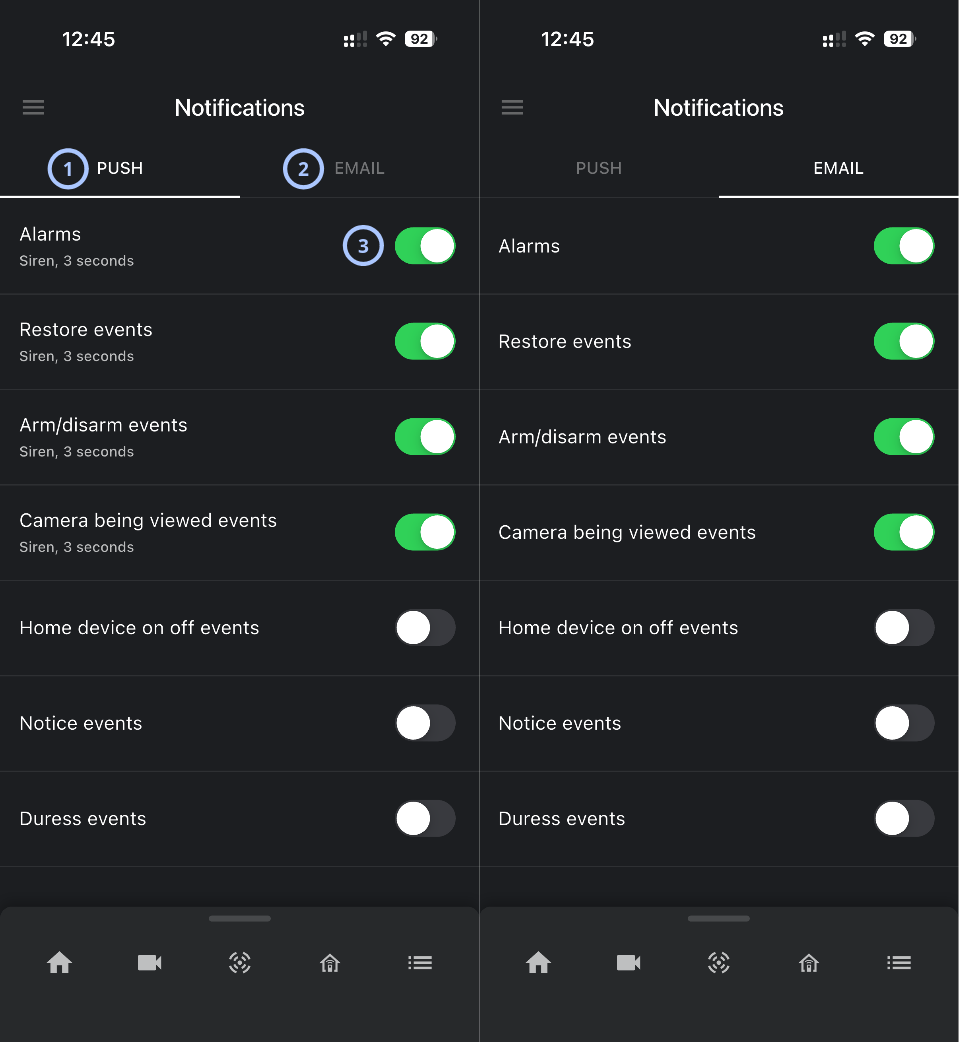
| Callout | UI element | Description | When to use |
|---|---|---|---|
| 1 | PUSH tab | Shows push notification categories and their current enabled or disabled state. | Use to control which event categories send push notifications to the mobile device. |
| 2 | EMAIL tab | Shows email notification categories and their current enabled or disabled state. | Use to control which event categories send email notifications. |
| 3 | Notification toggle | Turns a notification category on or off. Enabled toggles are colored. Disabled toggles are gray. | Use to enable or disable notifications for a specific event category. |
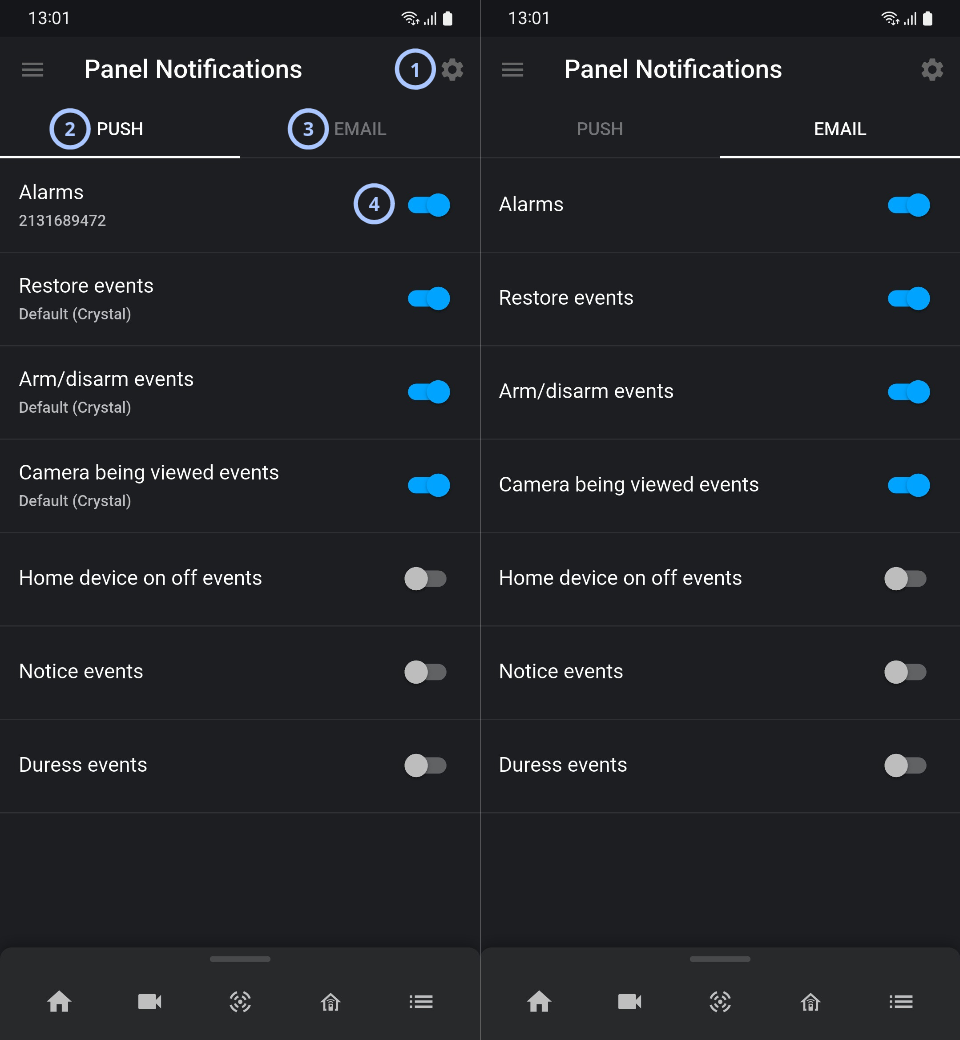
| Callout | UI element | Description | When to use |
|---|---|---|---|
| 1 |  | Opens push notification options on supported devices. | Use to configure detailed push notification behavior, such as sound and vibration. |
| 2 | PUSH tab | Shows push notification categories and their current enabled or disabled state. | Use to control which event categories send push notifications to the mobile device. |
| 3 | EMAIL tab | Shows email notification categories and their current enabled or disabled state. | Use to control which event categories send email notifications. |
| 4 | Notification toggle | Turns a notification category on or off. Enabled toggles are colored. Disabled toggles are gray. | Use to enable or disable notifications for a specific event category. |
Push notification options
- Push notification options on iPhone or iPad
- Push notification options on Android devices
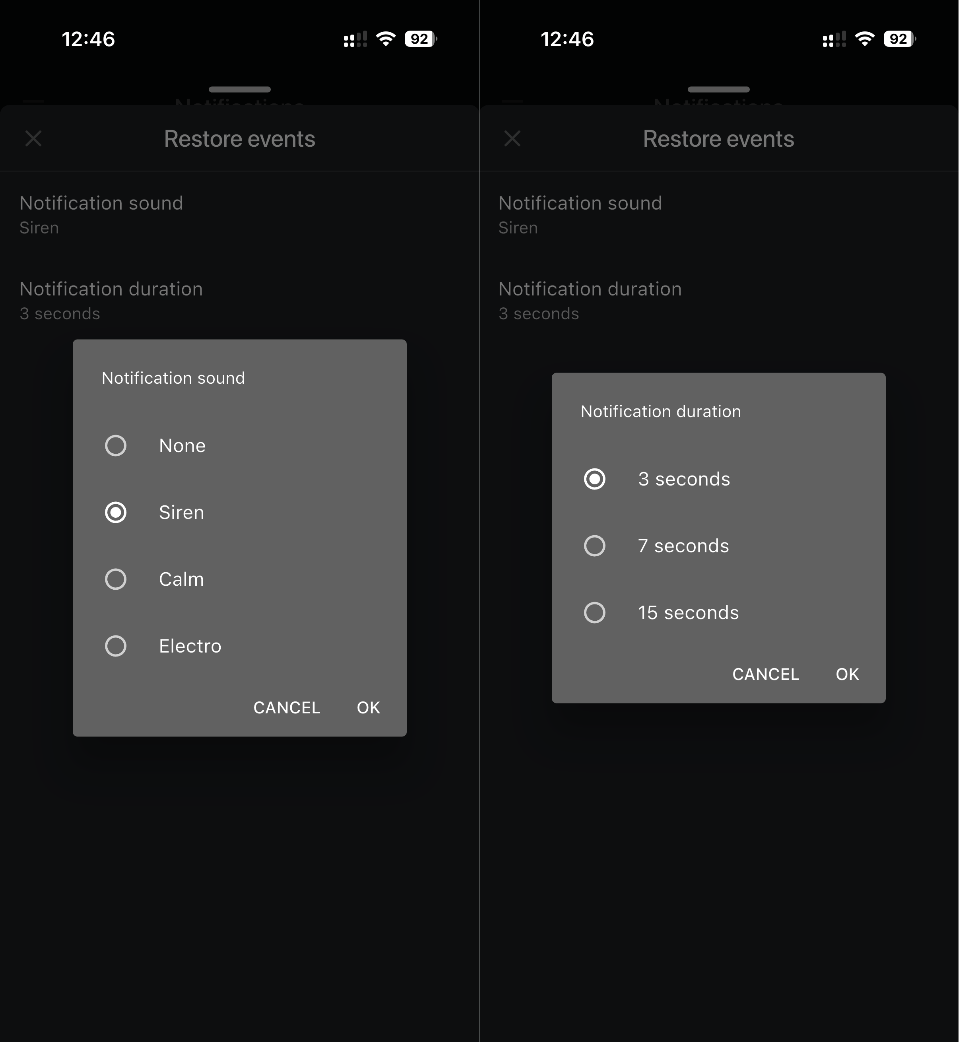
Tap the push notification profile to display notification sound and duration settings. The notification settings dialog lets users configure the sound and duration for a specific push notification category.
Use these settings when users want to change how long a notification sound plays or which sound is used for a specific event category.
These settings apply to the selected notification category only. Other categories can use different sound and duration settings.
| UI element | Description | When to use |
|---|---|---|
| Notification sound | Shows the sound currently assigned to the notification category. | Use to review or change the sound used for this event category. |
| None | Disables the notification sound for the selected category. | Use when the notification should appear without sound. |
| Siren | Uses a siren-style sound for the selected category. In the screenshot, this option is selected. | Use for categories that need a more noticeable sound. |
| Calm | Uses a calmer notification sound. | Use for lower-priority categories where a less intrusive sound is preferred. |
| Electro | Uses an electronic-style notification sound. | Use when users prefer a distinct notification tone for this category. |
| 3 seconds | Plays the notification sound for 3 seconds. In the screenshot, this option is selected. | Use for shorter alerts. |
| 7 seconds | Plays the notification sound for 7 seconds. | Use when the notification should be more noticeable than a short alert. |
| 15 seconds | Plays the notification sound for 15 seconds. | Use for categories that require a longer audible alert. |
| CANCEL | Closes the dialog without applying a new sound selection. | Use to leave the current sound unchanged. |
| OK | Applies the selected sound and closes the dialog. | Use after selecting the required notification sound. |
The screenshots and options are based on Android 12 and One UI 4.1.
They may vary across Android versions and UIs.
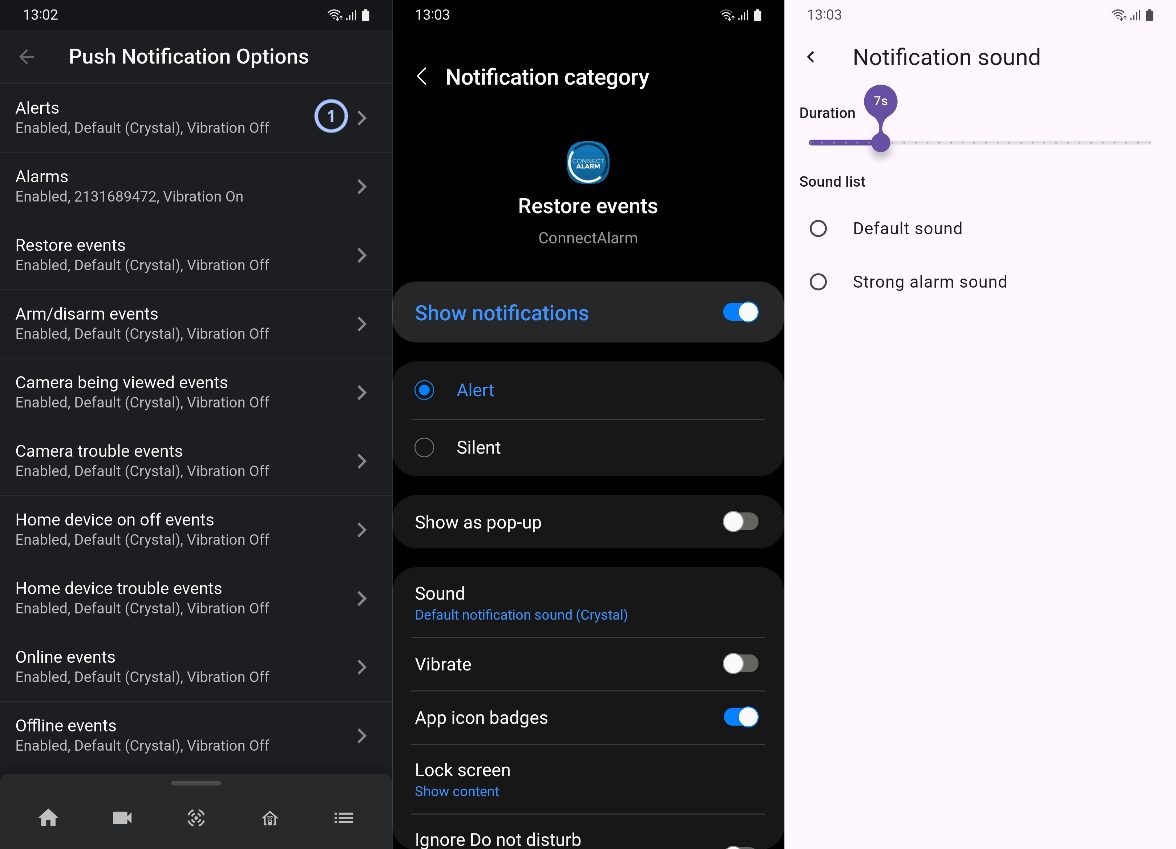
| Callout | UI element | Description | When to use |
|---|---|---|---|
| 1 | Notification option row | Opens the operating system notification category settings for the selected event category. | Use to change detailed push behavior for a category, such as alert style, sound, vibration, badges, and lock screen behavior. |
Show Notifications Toggle
The Show notifications toggle activates or deactivates notifications for the specified category at the operating system level.
Utilise this setting when notifications are enabled within ConnectAlarm but fail to appear on the device.
If the Show notifications toggle is disabled, push notifications for the selected category may not be displayed even if enabled in ConnectAlarm.
Alert and Silent options
| Option | Description |
|---|---|
| Alert | Permits the category to utilise alert behaviours, such as sound or visual interruption, subject to other settings. |
| Silent | Allows notifications to be displayed without alert behaviours. |
Employ these options to regulate the prominence of a notification category.
Show as Pop-up
The Show as pop-up toggle determines whether notifications are presented as pop-up alerts.
This setting is applicable when users require important notifications to be more prominently visible on the device.
Sound settings
The Sound setting displays the selected notification sound.
Select this setting to choose or configure the notification sound where supported by the operating system.
Vibrate
The Vibrate toggle controls vibration for the selected notification category.
Use this setting to enable or disable vibration alerts.
App icon badges
The App icon badges toggle controls whether the app icon can show a badge when notifications exist.
Use this setting when users want a visual indicator on the app icon.
Lock screen
The Lock screen setting controls whether notification content appears on the device lock screen.
Use this setting to control privacy for lock screen notifications.
Showing notification content on the lock screen may expose security event information to people who can see the device.
Ignore Do not disturb
The Ignore Do not disturb setting controls whether the notification category can alert while the device is in Do Not Disturb mode, if the operating system allows it.
Use this setting only for categories that require urgent attention and when allowed by device policy.
Duration slider
The Duration slider changes the sound duration when the selected sound supports duration control.
Use this setting to shorten or lengthen the notification sound.
Sound list
The Sound list contains available notification sounds.
Select a sound to apply it to the notification category.
How to use this page
Open notification settings
- Open the ConnectAlarm app.
- Sign in to your account.
- Sign in to your security panel.
- Open the main menu.
- Select the Notifications option.
Enable push notifications for a category
- Open Notifications.
- Select the PUSH tab.
- Find the required category.
- Turn on the toggle for the category.
Disable push notifications for a category
- Open Notifications.
- Select the PUSH tab.
- Find the required category.
- Turn off the toggle for the category.
Disabling push notifications for alarms, duress events, or similar categories may prevent users from receiving time-sensitive alerts.
Enable email notifications for a category
- Open Notifications.
- Select the EMAIL tab.
- Find the required category.
- Turn on the toggle for the category.
Open push notification options
- iPhone or iPad
- Android
- Open Notifications.
- Select the PUSH tab.
- Select the category to configure.
- Open Notifications.
- Select the .
- Review the Push Notification Options list.
- Select the category to configure.
Change the notification duration for a category
- iPhone or iPad
- Android
- Open Notifications.
- Select the PUSH tab.
- Select the notification category to configure, such as Restore events.
- Select Notification duration.
- In the Notification duration dialog, select one of the available options:
- 3 seconds
- 7 seconds
- 15 seconds
- Select OK.
- Open Notifications.
- Select the .
- Review the Push Notification Options list.
- Select the category to configure.
- If your UI allows customizing sound duration, use that option. Otherwise, replace the sound with a custom one of the desired duration.
Longer notification sounds may be more noticeable in shared or quiet environments. Choose a duration that matches the event priority and site procedures.
Tips
- Keep Alarms enabled for push notifications unless site procedures require a different configuration.
- Use the EMAIL tab for notifications that should be delivered even when the mobile device is unavailable.
- If push notifications are enabled in ConnectAlarm but are not received, check the device operating system notification settings for ConnectAlarm.
- Use different sounds for important categories when the operating system supports category-specific sounds.
- Check both the ConnectAlarm category toggle and the operating system Show notifications setting. Both may need to be enabled for push notifications to appear.
Troubleshooting
| Problem | Possible cause | What to try |
|---|---|---|
| Push notifications are not received |
|
|
| Email notifications are not received |
|
|
| Notification sound does not play |
|
|